https://github.com/david0z/wayback-machine-downloader
Terminal UI tool for collective download of resources from Archive.org Wayback Machine
https://github.com/david0z/wayback-machine-downloader
archive-org console-app console-application internet-archive internet-wayback-machine wayback-machine wayback-machine-downloader website-scraper
Last synced: about 1 month ago
JSON representation
Terminal UI tool for collective download of resources from Archive.org Wayback Machine
- Host: GitHub
- URL: https://github.com/david0z/wayback-machine-downloader
- Owner: David0z
- Created: 2025-01-16T23:13:20.000Z (over 1 year ago)
- Default Branch: main
- Last Pushed: 2025-08-22T19:35:32.000Z (12 months ago)
- Last Synced: 2025-10-29T18:42:08.479Z (9 months ago)
- Topics: archive-org, console-app, console-application, internet-archive, internet-wayback-machine, wayback-machine, wayback-machine-downloader, website-scraper
- Language: Go
- Homepage:
- Size: 60.5 MB
- Stars: 2
- Watchers: 1
- Forks: 0
- Open Issues: 0
-
Metadata Files:
- Readme: README.md
Awesome Lists containing this project
README
# Wayback Machine Downloader
A simple tool allowing for collective download of files from [Archive.org Wayback Machine](https://web.archive.org/)
## Installation
Just go to latest release (on the right panel click **Releases**) and download the **cmd.exe** and run it.
**!!You might get a notification about untrusted software, but you can allow it to run, it does not contain any viruses, the codebase is freely available and public!!**
## Usage
### Step 1: Download website URLS
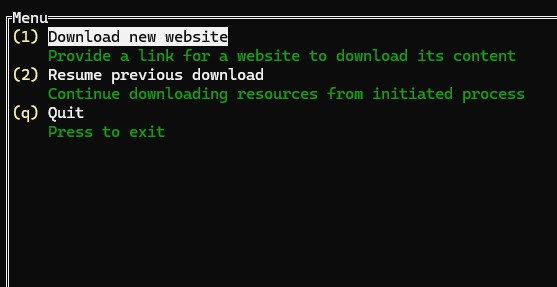
##### a) Choose first option to download new website URLs
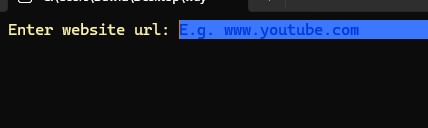
##### b) paste your website URL (it will be matched by prefix)
### Step 2: Choose desired media types
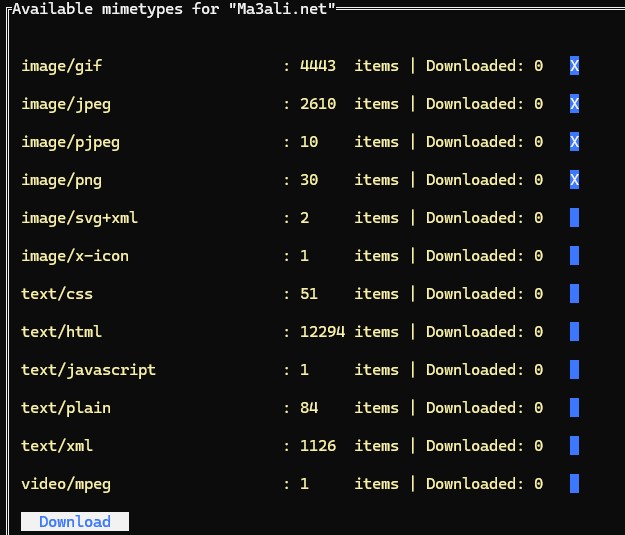
##### Once downloading of URLs is finished, you can choose any mediatypes that you want to download.
##### a) Press TAB to move down, SHIFT + TAB to move up
##### b) Press ENTER to confirm media type of choice for download. Media types with "X" will be downloaded, while other will not.
##### c) Go down to DOWNLOAD button to initiate downloading
### Step 3: Wait until downloading is complete
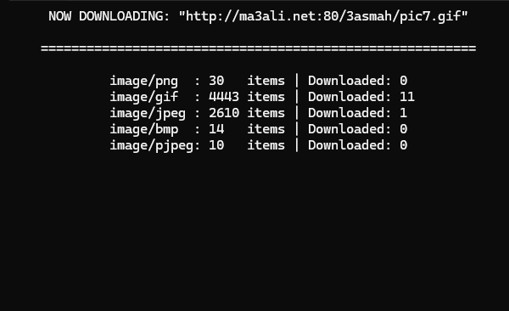
##### Downloaded files will be stored in the same location where your .exe file is located, in "wayback_download" folder.
##### Thanks to persistent storage system all you downloaded filenames will be saved. If you happen to interrupt the program, just run it again, pick the media types and continiue on.
Happy downloading