https://github.com/davidenke/scriptable-workhours-weekly
Weekly Workhours Widget for Scriptable
https://github.com/davidenke/scriptable-workhours-weekly
mite scriptable typescript workhours
Last synced: 7 days ago
JSON representation
Weekly Workhours Widget for Scriptable
- Host: GitHub
- URL: https://github.com/davidenke/scriptable-workhours-weekly
- Owner: davidenke
- Created: 2022-11-28T06:02:10.000Z (over 3 years ago)
- Default Branch: main
- Last Pushed: 2023-01-02T10:33:15.000Z (over 3 years ago)
- Last Synced: 2025-10-11T12:14:01.588Z (10 months ago)
- Topics: mite, scriptable, typescript, workhours
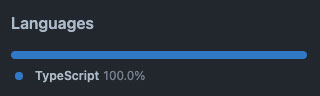
- Language: TypeScript
- Homepage:
- Size: 527 KB
- Stars: 2
- Watchers: 1
- Forks: 0
- Open Issues: 0
-
Metadata Files:
- Readme: readme.md
Awesome Lists containing this project
README
# Scriptable Workhours Weekly
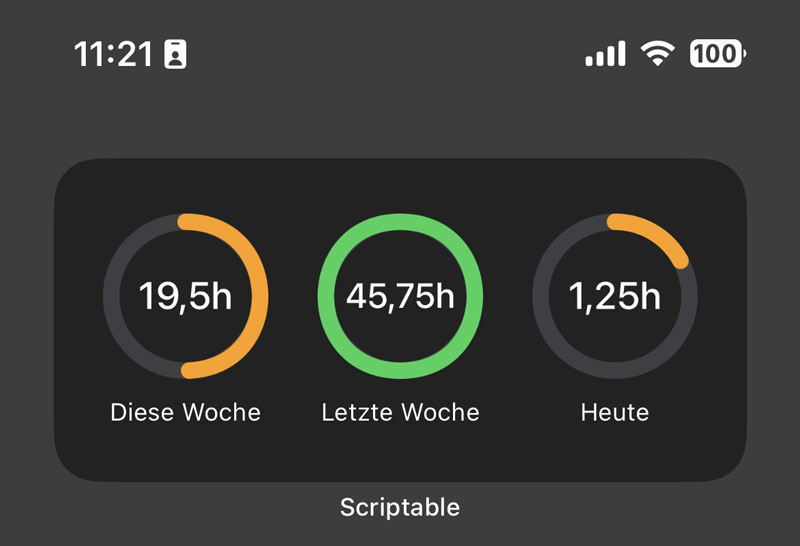
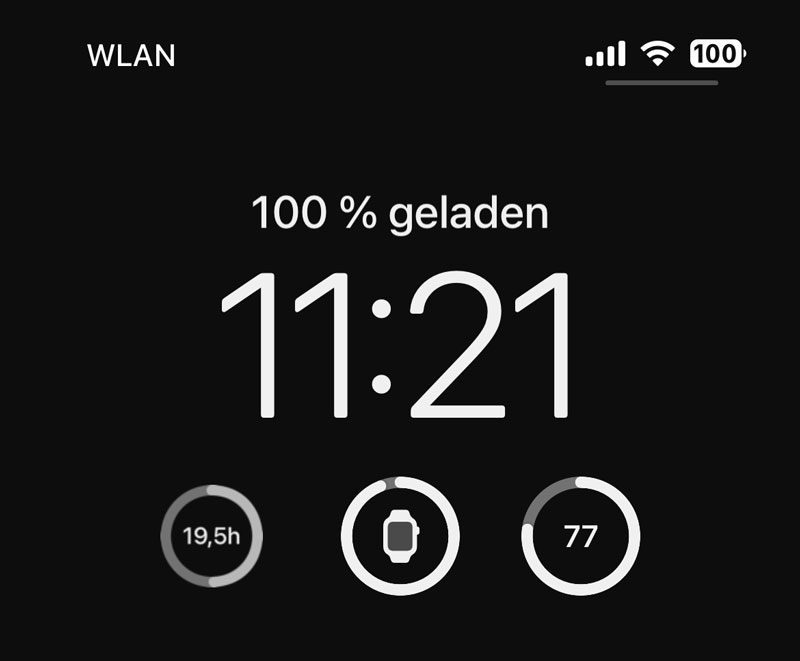
This package contains some Widgets to be used in the georgeous [Scriptable](https://scriptable.app) app for iOS.
It is a simple UI to show **your workhours from [Mite](https://mite.yo.lk)** using [its API](https://mite.yo.lk/en/api/).
To give the 🦄 some 🍫 this is based on [Typescript](https://www.typescriptlang.org/), is build using [esbuild](https://esbuild.github.io/) and is tested (at least partially) using [jest](https://jestjs.io/).
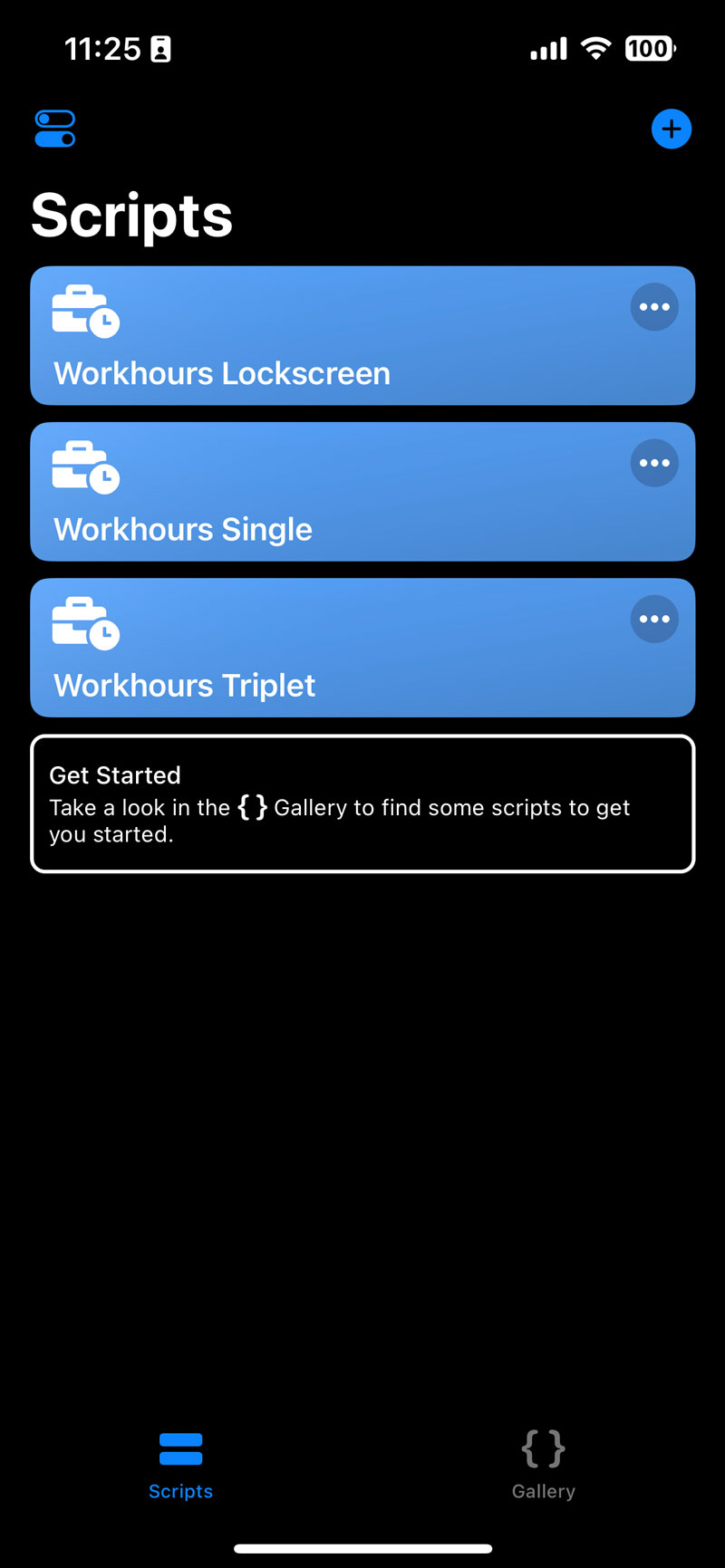
For now this package contains these Widgets:
- **Workhours Lockscreen** - Shows the workhours of the current week in a small Widget with the circle as big as possible on the Lockscreen
- **Workhours Single** - A single Widget to show workhours of the current week with a label on the Homescreen
- **Workhours Triple** - Shows three stats as medium Widget on the Homescreen, current week, last week and today
## Installation
### Prerequisites
Use the correct Node version, as defined in [.nvmrc](.nvmrc). I highly recommend to use Node Version Manager (for Unix it's [nvm](https://github.com/nvm-sh/nvm), on Windows it's [nvm-windows](https://github.com/coreybutler/nvm-windows)).
On macOS / Linux simply run `nvm use` in the root of this project.
Unfortunatly on Windows reading the `.nvmrc` is [not supported](https://github.com/coreybutler/nvm-windows/wiki/Common-Issues#why-isnt-nvmrc-supported-why-arent-some-nvm-for-macoslinux-features-supported), so you either have to manually type the correct [Node version](.nvmrc) or use the PowerShell with something like `iex "nvm use $(cat .nvmrc)"`.
### Install dependencies
Just run `npm install` in the root of this project.
## Build
To build the Widgets run `npm run build` in the root of this project and have a look at the [dist](dist) folder.
The [output](dist) then contains the Widgets as `*.scriptable` files, which can be simply opened and used in Scriptable. Additionally the scripts themselves are also available as `*.js` files.
## Configuration
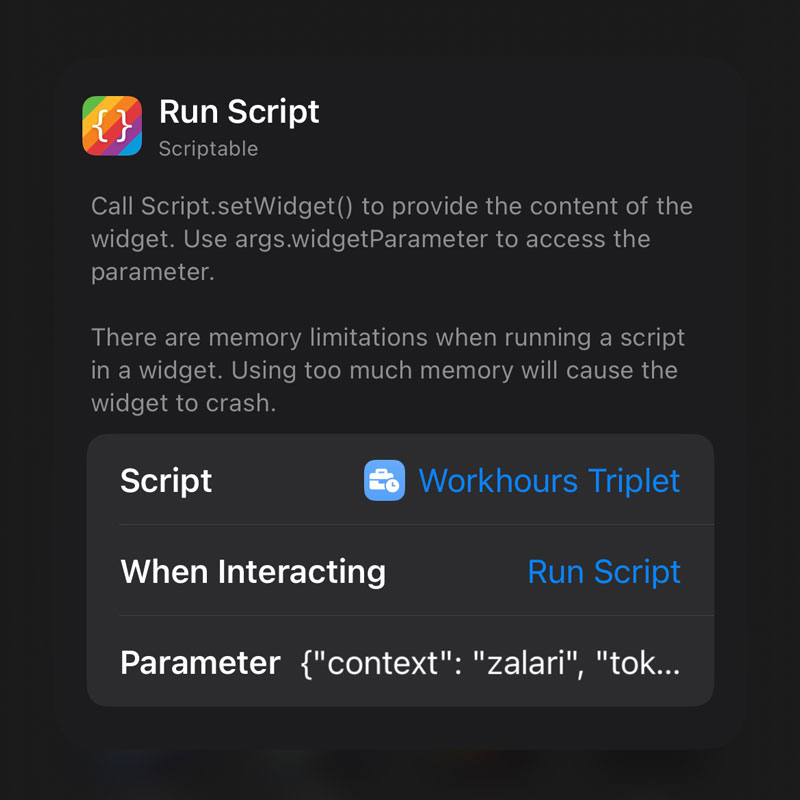
Once installed and configured as Widget, you have to provide two essential properties, using the "Parameter" field in the Widget configuration. The configuration must be provided as **valid JSON** for the time being (until I come up with a better solution).
> All currently available properties can be found as `WidgetParameters` type in the [src/utils/auxiliary.utils.ts](src/utils/auxiliary.utils.ts).
| Property | Description | | Default |
| :----------- | :--------------------------------------------------------------------------------------------------------------------------------------------------------- | :------: | :-----: |
| `context` | The Mite context (or subdomain if you will) to be used | required | |
| `token` | The Mite API token which can be generated in your Mite account | required | |
| `hours` | The number of hours you work per week | optional | `40` |
| `collapse` | Tries to narrow down spacing and remove backgrounds to make the content appear as big as possible within the Widget. Meant to be used for Lockscreen usage | optional | `false` |
| `hideLabels` | Hides the labels below the stats (not the labels inside the cirlces) | optional | `false` |
So a sample configuration could look like this:
```json
{ "context": "mycompany", "token": "somegeneratedtoken", "hours": 35, "hideLabels": true }
```
---
## Some notes about the stack
> First of all a big shoutout to [Simon Støvring](https://github.com/simonbs) for the fantastic (and free!) [Scriptable App](https://scriptable.app).
### Global types for Scriptable
To gain the benefits of typed JS I needed to provide typings for the [Scriptable API](https://docs.scriptable.app).
After manully declaring some of the types, I decided to generate them from this API in some way, and found out that one of the example Widgets already uses the documentation in a JSON form, which is [provided seprately](https://docs.scriptable.app/scriptable.json).
So I came up with a simple parser for the (I guess) MkDocs format, which I tracked in a [separate repository](https://github.com/davidenke/mkdocs-ts). This CLI tool is run after postinstall and generates the typings in [src/scriptable.d.ts](src/scriptable.d.ts), but could also be run directly with
```bash
npx mkdocs-ts https://docs.scriptable.app/scriptable.json src/scriptable.d.ts
```
or in this package with `npm run generate:types`.
### Colors
For convenience I derived the official colors available from the [Apple UI guidelines](https://developer.apple.com/design/human-interface-guidelines/foundations/color/#specifications) and added them along with some utility functions to [src/utils/colors.utils.ts](src/utils/colors.utils.ts).
So dependend of the device theme and platform, the correct color can be used with e.g. `getSystemColor('red')`. The available colors are typed, of cause.
### I18n
A simple translation mechanism is available using a [JSON translations file](src/translations.json) and some tooling in [src/utils/i18n.utils.ts](src/utils/i18n.utils.ts).
Dependend on the device language, the correct translation can be used with e.g. `i18n('LABEL.TODAY')`. The available translations keys are typed as well, as they're derived from the JSON.
### Bundling `*.scriptable` package files
For convenience, the Widgets are additionally packaged into `*.scriptable` files, which can be directly opened in Scriptable.
This is done with a custom [esbuild plugin](tools/esbuild-plugin-scriptable.ts). This plugin is consumed in the [esbuild.config.ts](esbuild.config.ts) and can be configured with a `scriptfile` path (relative to the root of the project) and a `package` property which can either be a path to a JSON file, or an inline object providing the package meta data.
As this is typed, the plugin options can be found as `ScriptablePluginOptions` and the package meta data format as `ScriptableMetadata` types in [tools/esbuild-plugin-scriptable.ts](tools/esbuild-plugin-scriptable.ts).
> This plugin may be split out in a separate package in the future. If you're interested in this, please let me know.
### Runtime configuration
See. [Configuration](#configuration) or [src/utils/auxiliary.utils.ts](src/utils/auxiliary.utils.ts).
### Stats as circles
For KPIs, as the fancy project owner would call them.
As the Scriptable API exposes the posibility to paint in a draw context, one has nearly everything we need to draw stuff like in Canvas or SVG.
Have a look on the `createProgressCircle` function at [src/views/progress-circle.view.ts](src/views/progress-circle.view.ts) to see how this is done.
---
© 2022 - _Created at 🌙 with ❤️ and 🍺 by [David Enke](https://github.com/davidenke)._