https://github.com/davidyslu/golang-practice
This repository is going to learn Golang.
https://github.com/davidyslu/golang-practice
Last synced: about 1 year ago
JSON representation
This repository is going to learn Golang.
- Host: GitHub
- URL: https://github.com/davidyslu/golang-practice
- Owner: davidyslu
- Created: 2018-08-09T07:19:18.000Z (almost 8 years ago)
- Default Branch: master
- Last Pushed: 2018-08-29T06:09:21.000Z (almost 8 years ago)
- Last Synced: 2025-05-14T10:33:30.266Z (about 1 year ago)
- Language: Go
- Size: 3.91 KB
- Stars: 0
- Watchers: 0
- Forks: 0
- Open Issues: 0
-
Metadata Files:
- Readme: README.md
Awesome Lists containing this project
README
# Golang Practice
This repository is going to learning *Go*.
---
## Prerequisite
### Getting Started
> Official binary distributions are available for the FreeBSD (release 10-STABLE and above), Linux, Mac OS X (10.8 and above), and Windows operating systems and the 32-bit (386) and 64-bit (amd64) x86 processor architectures.
1. Download the *Go* distribution: [downloads page](https://golang.org/dl/)
* [Download for Windows](https://dl.google.com/go/go1.10.3.windows-amd64.msi)
* [Download for Mac OS](https://dl.google.com/go/go1.10.3.darwin-amd64.pkg)
* [Download for Linux](https://dl.google.com/go/go1.10.3.linux-amd64.tar.gz)
* [Source](https://dl.google.com/go/go1.10.3.src.tar.gz)
2. System requirements
*Go* binary distributions are available for these supported operating systems and architectures. Please ensure your system meets these requirements before proceeding. If your OS or architecture is not on the list, you may be able to [install from source](https://golang.org/doc/install/source) or [use gccgo instead](https://golang.org/doc/install/gccgo).
| Operating Systems | Architectures | Notes |
|---|---|---|
| FreeBSD 10.3 or later | amd64, 386| Debian GNU/kFreeBSD not supported |
| Linux 2.6.23 or later with glibc | amd64, 386, arm, arm64, s390x, ppc64le | * CentOS/RHEL 5.x not supported. * Install from source for other libc. |
| macOS 10.8 or later | amd64 | Use the clang or `gcc` that comes with *Xcode* for `cgo` support
| Windows XP SP2 or later | amd64, 386 | Use *MinGW* `gcc`. No need for **cygwin** or **msys**. |
### Installation
* Instalation for Linux
1. Change directory to *Go* package you downloaded
2. Extract *Go* package
```bash
# Command: tar -C /usr/local -xzf go$VERSION.$OS-$ARCH.tar.gz
$ tar -C /usr/local -xzf go1.2.1.linux-amd64.tar.gz
```
3. Add `/usr/local/go/bin` to the `PATH` environment variable
```bash
$ export PATH=$PATH:/usr/local/go/bin
```
* Installing to a custom location
* The *Go* binary distributions assume they will be installed in `/usr/local/go` (or `c:\Go` under Windows), but it is possible to install the *Go* tools to a different location. In this case you must set the `GOROOT` environment variable to point to the directory in which it was installed.
* Example: if you installed *Go* to your home directory you should add commands like the following to `$HOME/.profile`:
```bash
$ export GOROOT=$HOME/go1.X
$ export PATH=$PATH:$GOROOT/bin
```
* Note: `GOROOT` must be set only when installing to a custom location.
4. Check the version you installed
```bash
$ go version
go version go1.x.x linux/amd64
```
* Installation for Mac OS
There are two way to install *Go* in Mac OS. The first way is downloading the package file from the official website and install it. The second way is using *Homebrew* to install *Go*.
* Download the [package file](https://golang.org/dl/)
1. After you download the package file, open it and follow the prompts to install the Go tools.
2. The package installs the *Go* distribution to `/usr/local/go`.
3. The package should put the `/usr/local/go/bin` directory in your `PATH` environment variable.
4. You may need to restart any open terminal sessions for the change to take effect.
5. Open the terminal and check the version you installed
```bash
$ go version
go version go1.x.x darwin/amd64
```
* Using *Homebrew* for installation
1. Open your terminal and update your *Homebrew* to the latest version
```bash
$ brew update && brew upgrade
```
2. Install *Go*
```bash
$ brew install go
```
* After installation, you can run the command `go run filename` and it will return `path error` in that we haven't set `$GPPATH`.
3. Open `~/.bashrc` to set the `$GOPATH`
```bash
$ vim ~/.bash_profile
# Add the following two line in it
export GOPATH="${HOME}/go"
export PATH="${GOPATH}/bin:${PATH}"
```
4. Reload the config file
```bash
$ source ~/.bashrc
```
5. Check the version you installed
```bash
$ go version
go version go1.x.x darwin/amd64
```
* Installation for Windows
1. Open the installer you downloaded and click `Next` to the next step

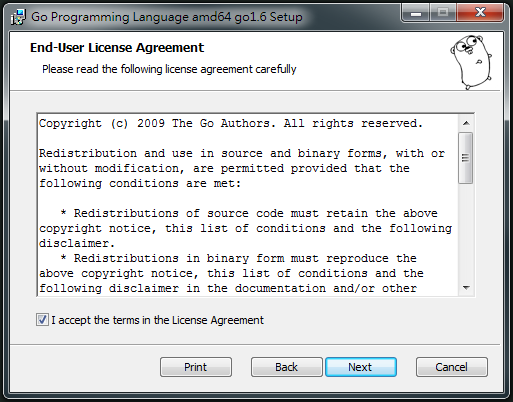
2. Click `I accept the terms in the License Aggreement` and click `Next`
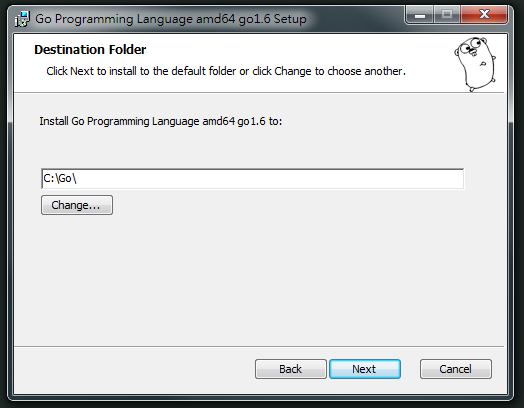
3. Use default setting for destination folder
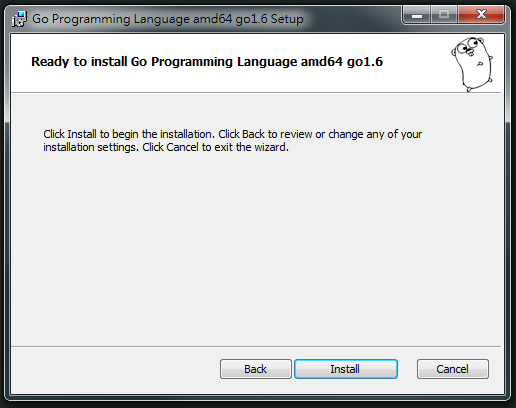
4. Click `Install` for installation
5. Set the `PATH` environment variable
1. Go to your computer’s *Control Panel*, then to *System and Security* > *System* > *Advanced system settings*, and on the left-hand pane click the Advanced tab
2. Click on *Environmental Variables* on the bottom-right-hand side
3. Ensure *Path* under *System Variables* has the `C:\Go\bin` variable in it
4. Under *System Variables* click on *New* and enter the following
* Variable name: GOPATH
* Variable value: C:\Projects\Go
5. Open the terminal and check your path has been set correctly
```bash
$ echo %GOPATH%
C:\Projects\Go
```
6. Open the terminal and check the version you installed
```bash
$ go version
go version go1.x.x windows/amd64
```
---
## Framework
(Update soon.)
---
## References
(Update soon.)
---
## Author
* [David Lu](https://github.com/yungshenglu)