https://github.com/dense-analysis/vim-speech
Vim Speech Recognition Experiments
https://github.com/dense-analysis/vim-speech
ai neovim neovim-plugin speech-recognition speech-to-text vim vim-plugin whisper
Last synced: 6 months ago
JSON representation
Vim Speech Recognition Experiments
- Host: GitHub
- URL: https://github.com/dense-analysis/vim-speech
- Owner: dense-analysis
- License: mit
- Created: 2018-06-02T15:39:06.000Z (about 8 years ago)
- Default Branch: main
- Last Pushed: 2025-05-30T08:27:34.000Z (about 1 year ago)
- Last Synced: 2025-06-27T03:18:23.452Z (about 1 year ago)
- Topics: ai, neovim, neovim-plugin, speech-recognition, speech-to-text, vim, vim-plugin, whisper
- Language: Vim script
- Homepage:
- Size: 15.6 KB
- Stars: 20
- Watchers: 2
- Forks: 1
- Open Issues: 1
-
Metadata Files:
- Readme: README.md
- License: LICENSE
Awesome Lists containing this project
README
# vim-speech
This project is an attempt at getting some basic speech to text processing
working in Vim using Google's cloud services.
**NOTE:** This project is a proof of concept.
**NOTE:** To use this plugin, you will probably need to pay Google money, at
least eventually.
This project uses an MIT licence to allow you to basically do what you want.
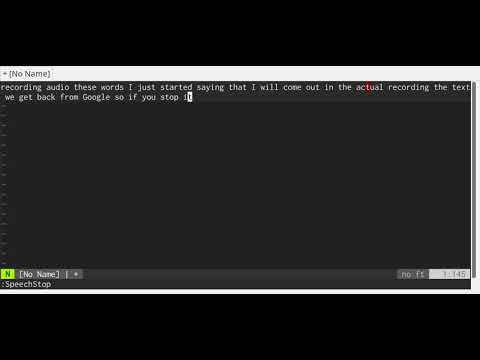
Click the image below to watch a video demonstration.
[](http://www.youtube.com/watch?v=UtInOI7LluA "vim-speech video demo")
## Installation
Add the directory for this git project to `runtimepath` for Vim somehow.
You can load the plugin in Vim 8 easily with the built-in plugin mechanism by
storing in in a path like the following:
```
~/.vim/pack/git-plugins/start/vim-speech
```
You will also need to install [ALE](https://github.com/w0rp/ale), as this plugin
currently uses functions from ALE, purely so the plugin could be written more
quickly. Follow the [instructions for installing ALE](https://github.com/w0rp/ale#installation).
After the plugin has been installed, you'll need to install all of the
requirements for your system and build the virtualenv that the project uses
for the Python text to speech client. You will need...
1. Python 2.7 with `virtualenv` installed.
2. Google's `google-cloud-sdk` tools.
3. `libportaudio2` and `portaudio19-dev` for audio recording.
You can run the following to set up everything, including installing packages
on Ubuntu:
```
cd ~/.vim/pack/git-plugins/start/vim-speech
./install.sh
```
If you don't like running scripts from the Internet, _as you shouldn't_, go read
`install.sh`, look at what it does, and figure it out.
After the Python script has been set up, you will need to tell Vim and the
script where your Google application credentials are by setting an environment
variable. The easiest way to do this is to add a line to your `vimrc` file.
```
" This is how I specify the path to the JSON credentials file.
let $GOOGLE_APPLICATION_CREDENTIALS = $HOME
\ . '/content/application/speech-to-text-key.json'
```
You have to register a Google cloud service at https://cloud.google.com/ for any
of this to work. You will be given such a JSON credentials file after you
register a project with access to the "Cloud Speech API." See Google's
speech-to-text demo site for more information:
https://cloud.google.com/speech-to-text/
## Usage
Once you have figured out how to get everything installed, you can use the
following commands in Vim for recording speech.
| Command | Description |
| --------------- | --------------------------------------------------------- |
| `:SpeechRecord` | Start recording, and start the job if needed. |
| `:SpeechStop` | Stop recording, and print the output to your buffer. |
| `:SpeechQuit` | Stop the background job and free some memory. |
If you don't see any text being outputted into your buffer, you're probably just
recording from the wrong device on your machine. Mess around in `pavucontrol` or
whatever device selection application you have until it works.
## Running the speech to text client outside of Vim
Run the script from a terminal where your `GOOGLE_APPLICATION_CREDENTIALS`
environment variable is set. For example:
```bash
# ~/whatever.json won't work, so use $HOME/whatever.json.
export GOOGLE_APPLICATION_CREDENTIALS="$HOME/whatever.json"
```
Run `plugin/speech_to_text_client.py` To start the speech-to-text client
recording audio. It uses a simple text protocol which accepts the following
commands as lines of input, in a case-insensitive manner.
| Command | Description |
| -------------- | ---------------------------------------------------------- |
| `record` | Start recording audio. |
| `stop` | Stop recording audio, and get the text from Google. |
The protocol will respond with the following lines.
| Response | Description |
| -------------- | ---------------------------------------------------------- |
| `record start` | Signals when recording stops. |
| `record stop` | Signals when recording ends. |
| `speech ...` | Text data returned from Google. |
The client will catch SIGINT and stop the client as soon as possible, in a safe
manner. Debug information may be written to stderr. The client won't work at all
on operating systems that aren't Unix-like.
Nothing might be coming out from the voice samples when you try to record
speech. If this happens, mess around with `pavucontrol` and select different
audio devices while recording is live. You're probably using the wrong audio
device.