https://github.com/dimpu/express-typescript-starter
express-typescript-starter
https://github.com/dimpu/express-typescript-starter
Last synced: 10 months ago
JSON representation
express-typescript-starter
- Host: GitHub
- URL: https://github.com/dimpu/express-typescript-starter
- Owner: dimpu
- License: mit
- Created: 2018-10-26T23:57:32.000Z (over 7 years ago)
- Default Branch: master
- Last Pushed: 2018-10-27T01:45:29.000Z (over 7 years ago)
- Last Synced: 2025-02-15T23:42:20.962Z (over 1 year ago)
- Language: TypeScript
- Size: 24.4 KB
- Stars: 0
- Watchers: 1
- Forks: 0
- Open Issues: 0
-
Metadata Files:
- Readme: README.md
- License: LICENSE
Awesome Lists containing this project
README
# TypeScript Node Starter
[](https://david-dm.org/dimpu/express-typescript-starter) [](https://travis-ci.org/dimpu/express-typescript-starter)
The main purpose of this repository is to show a good end-to-end project setup and workflow for writing Node code in TypeScript.
I will try to keep this as up-to-date as possible, but community contributions and recommendations for improvements are encouraged and will be most welcome.
# Pre-reqs
To build and run this app locally you will need a few things:
- Install [Node.js](https://nodejs.org/en/)
- Install [VS Code](https://code.visualstudio.com/)
# Getting started
- Clone the repository
```
git clone --depth=1 https://github.com/dimpu/express-typescript-starter.git
```
- Install dependencies
```
cd
npm install
```
- Run the project
```
npm start
```
Or, if you're using VS Code, you can use `cmd + shift + b` to run the default build task (which is mapped to `npm run build`), and then you can use the command palette (`cmd + shift + p`) and select `Tasks: Run Task` > `npm: start` to run `npm start` for you.
> **Note on editors!** - TypeScript has great support in [every editor](http://www.typescriptlang.org/index.html#download-links), but this project has been pre-configured for use with [VS Code](https://code.visualstudio.com/).
Throughout the README I'll try to call out specific places where VS Code really shines or where this project has been setup to take advantage of specific features.
Finally, navigate to `http://localhost:3000` and you should see the template being served and rendered locally!
### Build the app
Building the app locally is required for before a zip deploy because the App Service won't execute build tasks.
Build the app however you normally would:
- `ctrl + shift + b` - kicks off default build in VS Code
- execute `npm run build` from a terminal window
# TypeScript + Node
In the next few sections I will call out everything that changes when adding TypeScript to an Express project.
Note that all of this has already been setup for this project, but feel free to use this as a reference for converting other Node.js project to TypeScript.
## Getting TypeScript
TypeScript itself is simple to add to any project with `npm`.
```
npm install -D typescript
```
If you're using VS Code then you're good to go!
VS Code will detect and use the TypeScript version you have installed in your `node_modules` folder.
For other editors, make sure you have the corresponding [TypeScript plugin](http://www.typescriptlang.org/index.html#download-links).
## Project Structure
The most obvious difference in a TypeScript + Node project is the folder structure.
In a TypeScript project, it's best to have separate _source_ and _distributable_ files.
TypeScript (`.ts`) files live in your `src` folder and after compilation are output as JavaScript (`.js`) in the `dist` folder.
The `test` and `views` folders remain top level as expected.
The full folder structure of this app is explained below:
> **Note!** Make sure you have already built the app using `npm run build`
| Name | Description |
| ------------------------ | --------------------------------------------------------------------------------------------- |
| **.vscode** | Contains VS Code specific settings |
| **dist** | Contains the distributable (or output) from your TypeScript build. This is the code you ship |
| **node_modules** | Contains all your npm dependencies |
| **src** | Contains your source code that will be compiled to the dist dir |
| **src/config** | Passport authentication strategies and login middleware. Add other complex config code here |
| **src/controllers** | Controllers define functions that respond to various http requests |
| **src/public** | Static assets that will be used client side |
| **src/types** | Holds .d.ts files not found on DefinitelyTyped. Covered more in this [section](#type-definition-dts-files) |
| **src**/server.ts | Entry point to your express app |
| **test** | Contains your tests. Seperate from source because there is a different build process. |
| **views** | Views define how your app renders on the client. In this case we're using pug |
| .env.example | API keys, tokens, passwords, database URI. Clone this, but don't check it in to public repos. |
| .travis.yml | Used to configure Travis CI build |
| jest.config.js | Used to configure Jest |
| package.json | File that contains npm dependencies as well as [build scripts](#what-if-a-library-isnt-on-definitelytyped) |
| tsconfig.json | Config settings for compiling server code written in TypeScript |
| tsconfig.tests.json | Config settings for compiling tests written in TypeScript |
| tslint.json | Config settings for TSLint code style checking |
## Building the project
It is rare for JavaScript projects not to have some kind of build pipeline these days, however Node projects typically have the least amount build configuration.
Because of this I've tried to keep the build as simple as possible.
If you're concerned about compile time, the main watch task takes ~2s to refresh.
### Configuring TypeScript compilation
TypeScript uses the file `tsconfig.json` to adjust project compile options.
Let's dissect this project's `tsconfig.json`, starting with the `compilerOptions` which details how your project is compiled.
```json
"compilerOptions": {
"module": "commonjs",
"esModuleInterop": true,
"target": "es6",
"noImplicitAny": true,
"moduleResolution": "node",
"sourceMap": true,
"outDir": "dist",
"baseUrl": ".",
"paths": {
"*": [
"node_modules/*",
"src/types/*"
]
}
},
```
| `compilerOptions` | Description |
| ---------------------------------- | ------------------------------------------------------------------------------------------------------ |
| `"module": "commonjs"` | The **output** module type (in your `.js` files). Node uses commonjs, so that is what we use |
| `"esModuleInterop": true,` | Allows usage of an alternate module import syntax: `import foo from 'foo';` |
| `"target": "es6"` | The output language level. Node supports ES6, so we can target that here |
| `"noImplicitAny": true` | Enables a stricter setting which throws errors when something has a default `any` value |
| `"moduleResolution": "node"` | TypeScript attempts to mimic Node's module resolution strategy. Read more [here](https://www.typescriptlang.org/docs/handbook/module-resolution.html#node) |
| `"sourceMap": true` | We want source maps to be output along side our JavaScript. See the [debugging](#debugging) section |
| `"outDir": "dist"` | Location to output `.js` files after compilation |
| `"baseUrl": "."` | Part of configuring module resolution. See [path mapping section](#installing-dts-files-from-definitelytyped) |
| `paths: {...}` | Part of configuring module resolution. See [path mapping section](#installing-dts-files-from-definitelytyped) |
The rest of the file define the TypeScript project context.
The project context is basically a set of options that determine which files are compiled when the compiler is invoked with a specific `tsconfig.json`.
In this case, we use the following to define our project context:
```json
"include": [
"src/**/*"
]
```
`include` takes an array of glob patterns of files to include in the compilation.
This project is fairly simple and all of our .ts files are under the `src` folder.
For more complex setups, you can include an `exclude` array of glob patterns that removes specific files from the set defined with `include`.
There is also a `files` option which takes an array of individual file names which overrides both `include` and `exclude`.
### Running the build
All the different build steps are orchestrated via [npm scripts](https://docs.npmjs.com/misc/scripts).
Npm scripts basically allow us to call (and chain) terminal commands via npm.
This is nice because most JavaScript tools have easy to use command line utilities allowing us to not need grunt or gulp to manage our builds.
If you open `package.json`, you will see a `scripts` section with all the different scripts you can call.
To call a script, simply run `npm run ` from the command line.
You'll notice that npm scripts can call each other which makes it easy to compose complex builds out of simple individual build scripts.
Below is a list of all the scripts this template has available:
| Npm Script | Description |
| ------------------------- | ------------------------------------------------------------------------------------------------- |
| `start` | Does the same as 'npm run watch'. Can be invoked with `npm start`
| `watch` | Runs nodemon with ts-node |
| `test` | Runs tests using Jest test runner |
| `copy.public` | Calls script that copies JS libs, fonts, and images to dist directory |
## Type Definition (`.d.ts`) Files
TypeScript uses `.d.ts` files to provide types for JavaScript libraries that were not written in TypeScript.
This is great because once you have a `.d.ts` file, TypeScript can type check that library and provide you better help in your editor.
The TypeScript community actively shares all of the most up-to-date `.d.ts` files for popular libraries on a GitHub repository called [DefinitelyTyped](https://github.com/DefinitelyTyped/DefinitelyTyped/tree/master/types).
Making sure that your `.d.ts` files are setup correctly is super important because once they're in place, you get an incredible amount of high quality type checking (and thus bug catching, IntelliSense, and other editor tools) for free.
> **Note!** Because we're using `"noImplicitAny": true`, we are required to have a `.d.ts` file for **every** library we use. While you could set `noImplicitAny` to `false` to silence errors about missing `.d.ts` files, it is a best practice to have a `.d.ts` file for every library. (Even if the `.d.ts` file is [basically empty!](#writing-a-dts-file))
### Installing `.d.ts` files from DefinitelyTyped
For the most part, you'll find `.d.ts` files for the libraries you are using on DefinitelyTyped.
These `.d.ts` files can be easily installed into your project by using the npm scope `@types`.
For example, if we want the `.d.ts` file for jQuery, we can do so with `npm install --save-dev @types/jquery`.
> **Note!** Be sure to add `--save-dev` (or `-D`) to your `npm install`. `.d.ts` files are project dependencies, but only used at compile time and thus should be dev dependencies.
In this template, all the `.d.ts` files have already been added to `devDependencies` in `package.json`, so you will get everything you need after running your first `npm install`.
Once `.d.ts` files have been installed using npm, you should see them in your `node_modules/@types` folder.
The compiler will always look in this folder for `.d.ts` files when resolving JavaScript libraries.
### What if a library isn't on DefinitelyTyped?
If you try to install a `.d.ts` file from `@types` and it isn't found, or you check DefinitelyTyped and cannot find a specific library, you will want to create your own `.d.ts file`.
In the `src` folder of this project, you'll find the `types` folder which holds the `.d.ts` files that aren't on DefinitelyTyped (or weren't as of the time of this writing).
#### Setting up TypeScript to look for `.d.ts` files in another folder
The compiler knows to look in `node_modules/@types` by default, but to help the compiler find our own `.d.ts` files we have to configure path mapping in our `tsconfig.json`.
Path mapping can get pretty confusing, but the basic idea is that the TypeScript compiler will look in specific places, in a specific order when resolving modules, and we have the ability to tell the compiler exactly how to do it.
In the `tsconfig.json` for this project you'll see the following:
```json
"baseUrl": ".",
"paths": {
"*": [
"node_modules/*",
"src/types/*"
]
}
```
#### Using `dts-gen`
Unless you are familiar with `.d.ts` files, I strongly recommend trying to use the tool [dts-gen](https://github.com/dimpu/dts-gen) first.
The [README](https://github.com/dimpu/dts-gen#dts-gen-a-typescript-definition-file-generator) does a great job explaining how to use the tool, and for most cases, you'll get an excellent scaffold of a `.d.ts` file to start with.
In this project, `bcrypt-nodejs.d.ts`, `fbgraph.d.ts`, and `lusca.d.ts` were all generated using `dts-gen`.
#### Writing a `.d.ts` file
If generating a `.d.ts` using `dts-gen` isn't working, [you should tell me about it first](https://www.surveymonkey.com/r/LN2CV82), but then you can create your own `.d.ts` file.
If you just want to silence the compiler for the time being, create a file called `.d.ts` in your `types` folder and then add this line of code:
```ts
declare module "";
```
If you want to invest some time into making a great `.d.ts` file that will give you great type checking and IntelliSense, the TypeScript website has great [docs on authoring `.d.ts` files](http://www.typescriptlang.org/docs/handbook/declaration-files/introduction.html).
#### Contributing to DefinitelyTyped
The reason it's so easy to get great `.d.ts` files for most libraries is that developers like you contribute their work back to DefinitelyTyped.
Contributing `.d.ts` files is a great way to get into the open source community if it's something you've never tried before, and as soon as your changes are accepted, every other developer in the world has access to your work.
If you're interested in giving it a shot, check out the [guidance on DefinitelyTyped](https://github.com/definitelyTyped/DefinitelyTyped/#how-can-i-contribute).
If you're not interested, [you should tell me why](https://www.surveymonkey.com/r/LN2CV82) so we can help make it easier in the future!
### Summary of `.d.ts` management
In general if you stick to the following steps you should have minimal `.d.ts` issues;
1. After installing any npm package as a dependency or dev dependency, immediately try to install the `.d.ts` file via `@types`.
2. If the library has a `.d.ts` file on DefinitelyTyped, the install will succeed and you are done.
If the install fails because the package doesn't exist, continue to step 3.
3. Make sure you project is [configured for supplying your own `d.ts` files](#setting-up-typescript-to-look-for-dts-files-in-another-folder)
4. Try to [generate a `.d.ts` file with dts-gen](#using-dts-gen).
If it succeeds, you are done.
If not, continue to step 5.
5. Create a file called `.d.ts` in your `types` folder.
6. Add the following code:
```ts
declare module "";
```
7. At this point everything should compile with no errors and you can either improve the types in the `.d.ts` file by following this [guide on authoring `.d.ts` files](http://www.typescriptlang.org/docs/handbook/declaration-files/introduction.html) or continue with no types.
8. If you are still having issues, let me know by sending me an email or pinging me on twitter, I will help you.
#### Configuring source maps
First you need to make sure your `tsconfig.json` has source map generation enabled:
```json
"compilerOptions" {
"sourceMap": true
}
```
With this option enabled, next to every `.js` file that the TypeScript compiler outputs there will be a `.map.js` file as well.
This `.map.js` file provides the information necessary to map back to the source `.ts` file while debugging.
### Using the debugger in VS Code
Debugging is one of the places where VS Code really shines over other editors.
Node.js debugging in VS Code is easy to setup and even easier to use.
This project comes pre-configured with everything you need to get started.
When you hit `F5` in VS Code, it looks for a top level `.vscode` folder with a `launch.json` file.
In this file, you can tell VS Code exactly what you want to do:
```json
{
"type": "node",
"request": "attach",
"name": "Attach by Process ID",
"processId": "${command:PickProcess}",
"protocol": "inspector"
}
```
This is mostly identical to the "Node.js: Attach by Process ID" template with one minor change.
We added `"protocol": "inspector"` which tells VS Code that we're using the latest version of Node which uses a new debug protocol.
With this file in place, you can hit `F5` to attach a debugger.
You will probably have multiple node processes running, so you need to find the one that shows `node dist/server.js`.
Now just set your breakpoints and go!
## Testing
For this project, I chose [Jest](https://facebook.github.io/jest/) as our test framework.
While Mocha is probably more common, Mocha seems to be looking for a new maintainer and setting up TypeScript testing in Jest is wicked simple.
### Install the components
To add TypeScript + Jest support, first install a few npm packages:
```
npm install -D jest ts-jest
```
`jest` is the testing framework itself, and `ts-jest` is just a simple function to make running TypeScript tests a little easier.
### Configure Jest
Jest's configuration lives in `jest.config.js`, so let's open it up and add the following code:
```js
module.exports = {
globals: {
'ts-jest': {
tsConfigFile: 'tsconfig.json'
}
},
moduleFileExtensions: [
'ts',
'js'
],
transform: {
'^.+\\.(ts|tsx)$': './node_modules/ts-jest/preprocessor.js'
},
testMatch: [
'**/test/**/*.test.(ts|js)'
],
testEnvironment: 'node'
};
```
Basically we are telling Jest that we want it to consume all files that match the pattern `"**/test/**/*.test.(ts|js)"` (all `.test.ts`/`.test.js` files in the `test` folder), but we want to preprocess the `.ts` files first.
This preprocess step is very flexible, but in our case, we just want to compile our TypeScript to JavaScript using our `tsconfig.json`.
This all happens in memory when you run the tests, so there are no output `.js` test files for you to manage.
### Running tests
Simply run `npm run test`.
Note this will also generate a coverage report.
### Writing tests
Writing tests for web apps has entire books dedicated to it and best practices are strongly influenced by personal style, so I'm deliberately avoiding discussing how or when to write tests in this guide.
However, if prescriptive guidance on testing is something that you're interested in, [let me know](https://www.surveymonkey.com/r/LN2CV82), I'll do some homework and get back to you.
## TSLint
TSLint is a code linter which mainly helps catch minor code quality and style issues.
TSLint is very similar to ESLint or JSLint but is built with TypeScript in mind.
### TSLint rules
Like most linters, TSLint has a wide set of configurable rules as well as support for custom rule sets.
All rules are configured through `tslint.json`.
In this project, we are using a fairly basic set of rules with no additional custom rules.
The settings are largely based off the TSLint settings that we use to develop TypeScript itself.
### Running TSLint
Like the rest of our build steps, we use npm scripts to invoke TSLint.
To run TSLint you can call the main build script or just the TSLint task.
```
npm run build // runs full build including TSLint
npm run tslint // runs only TSLint
```
Notice that TSLint is not a part of the main watch task.
It can be annoying for TSLint to clutter the output window while in the middle of writing a function, so I elected to only run it only during the full build.
If you are interesting in seeing TSLint feedback as soon as possible, I strongly recommend the [TSLint extension in VS Code]().
### VSCode Extensions
To enhance your development experience while working in VSCode we also provide you a list of the suggested extensions for working with this project:
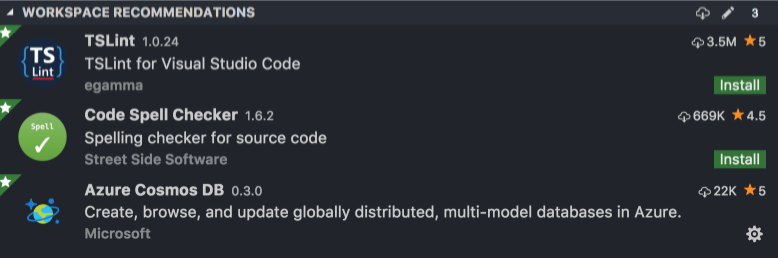
- [TSLint](https://marketplace.visualstudio.com/items?itemName=eg2.tslint)
- [Code Spell Checker](https://marketplace.visualstudio.com/items?itemName=streetsidesoftware.code-spell-checker)
- [Azure Cosmos DB](https://marketplace.visualstudio.com/items?itemName=ms-azuretools.vscode-cosmosdb)
- [Azure App Service](https://marketplace.visualstudio.com/items?itemName=ms-azuretools.vscode-azureappservice)
# Microsoft Starter Project
A majority of this quick start's content was inspired or adapted from Microsofts's excellent [Hackathon Starter project](https://github.com/Microsoft/TypeScript-Node-Starter).