https://github.com/dmuth/twitter-sentiment-analysis
Perform sentiment analysis for Twitter keywords with AWS Comphrehend and Splunk
https://github.com/dmuth/twitter-sentiment-analysis
Last synced: 10 months ago
JSON representation
Perform sentiment analysis for Twitter keywords with AWS Comphrehend and Splunk
- Host: GitHub
- URL: https://github.com/dmuth/twitter-sentiment-analysis
- Owner: dmuth
- License: apache-2.0
- Created: 2018-07-17T00:35:52.000Z (almost 8 years ago)
- Default Branch: main
- Last Pushed: 2022-12-08T01:01:04.000Z (over 3 years ago)
- Last Synced: 2025-04-12T14:51:24.730Z (about 1 year ago)
- Language: Python
- Size: 1.48 MB
- Stars: 4
- Watchers: 2
- Forks: 1
- Open Issues: 2
-
Metadata Files:
- Readme: README.md
- License: LICENSE
- Code of conduct: CODE_OF_CONDUCT.md
Awesome Lists containing this project
README
# Twitter Sentiment Analysis
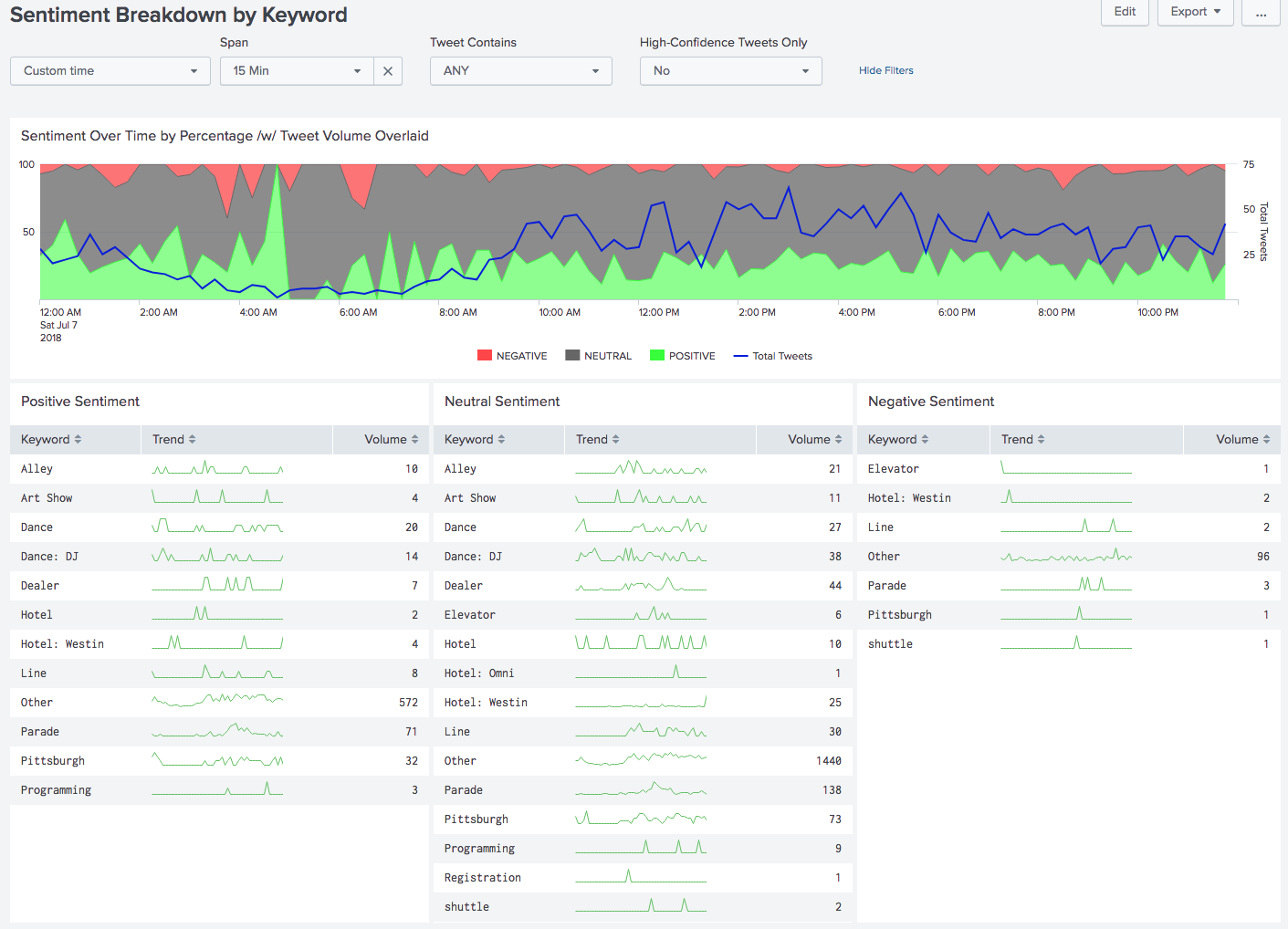
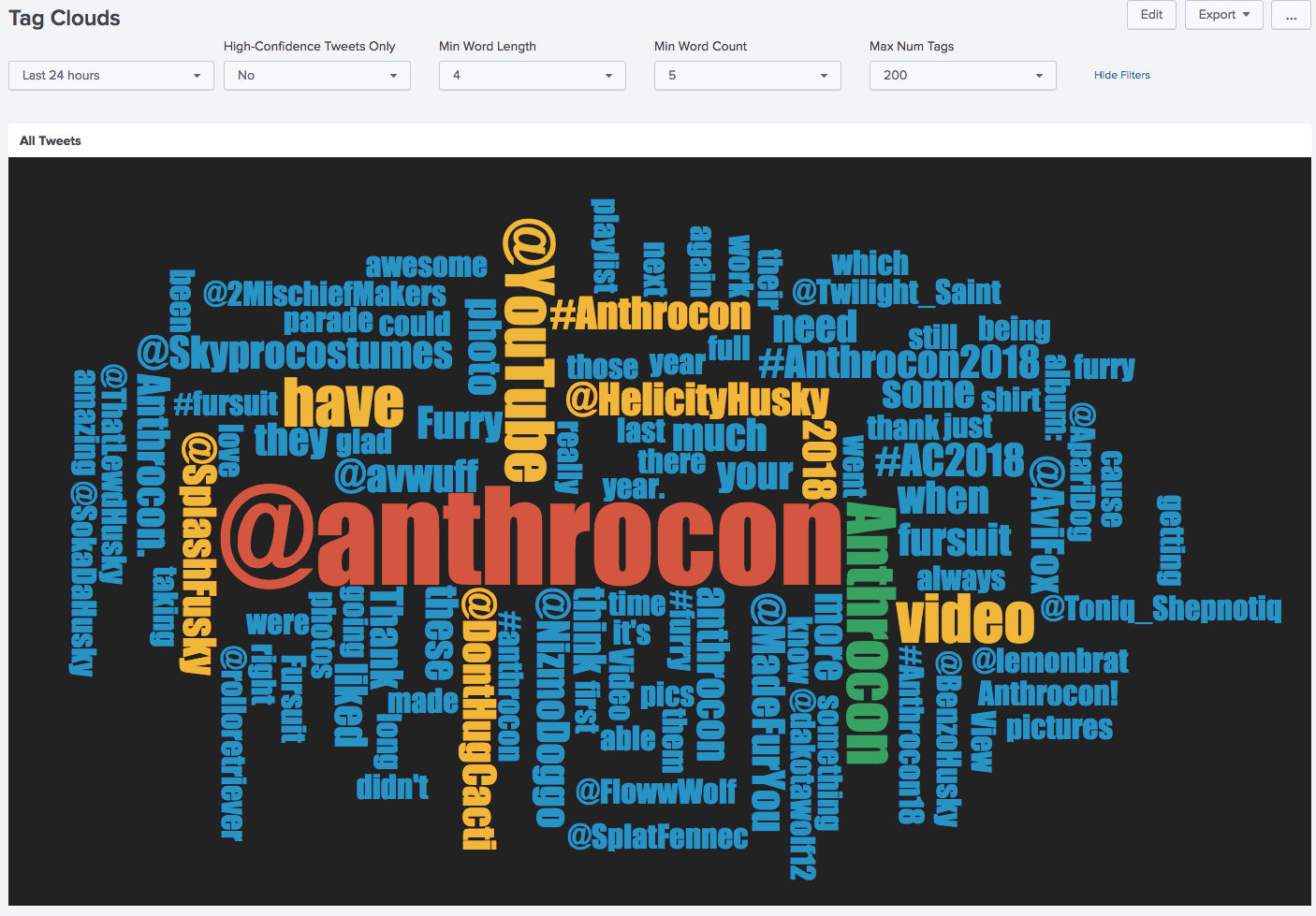
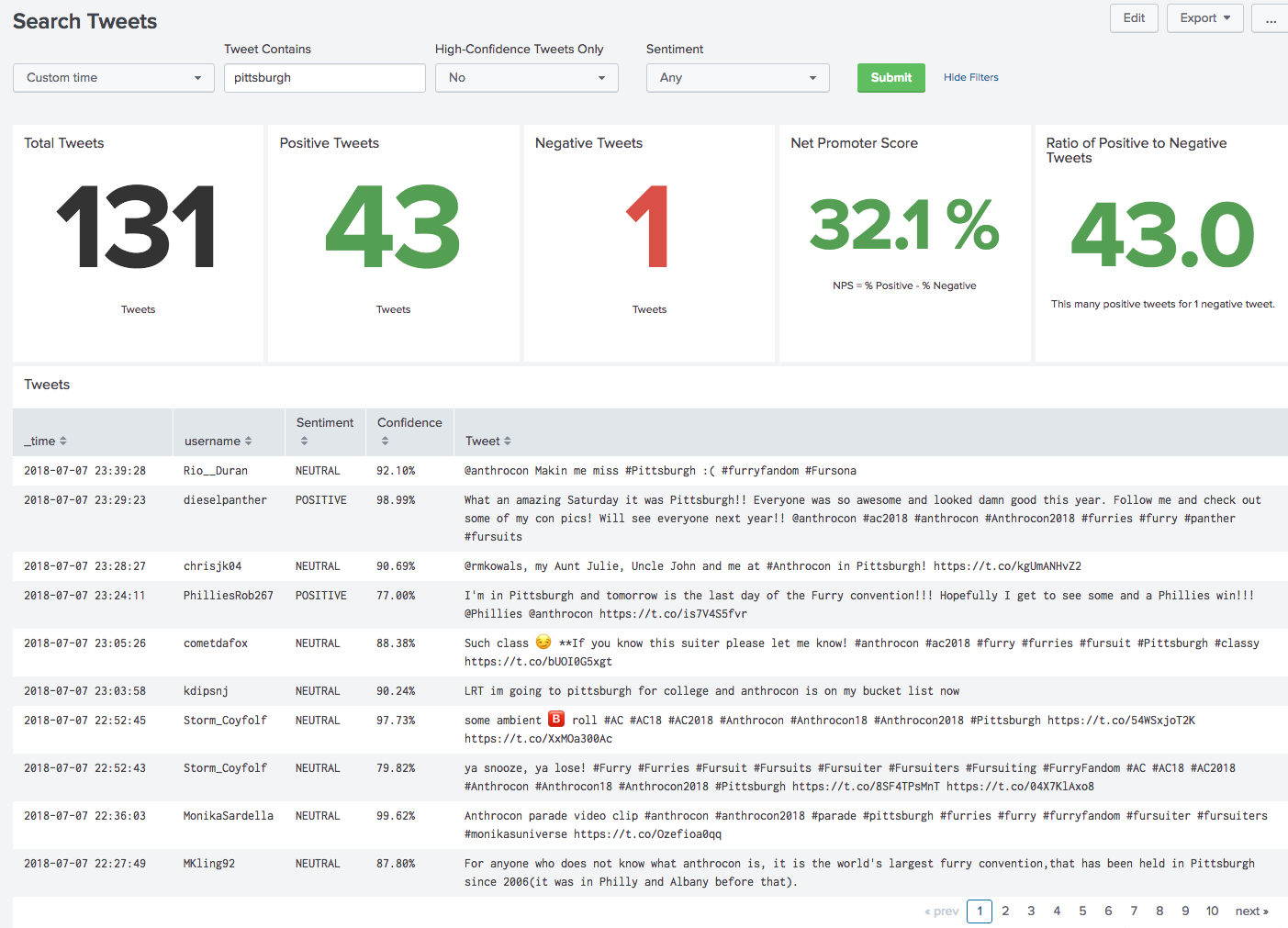
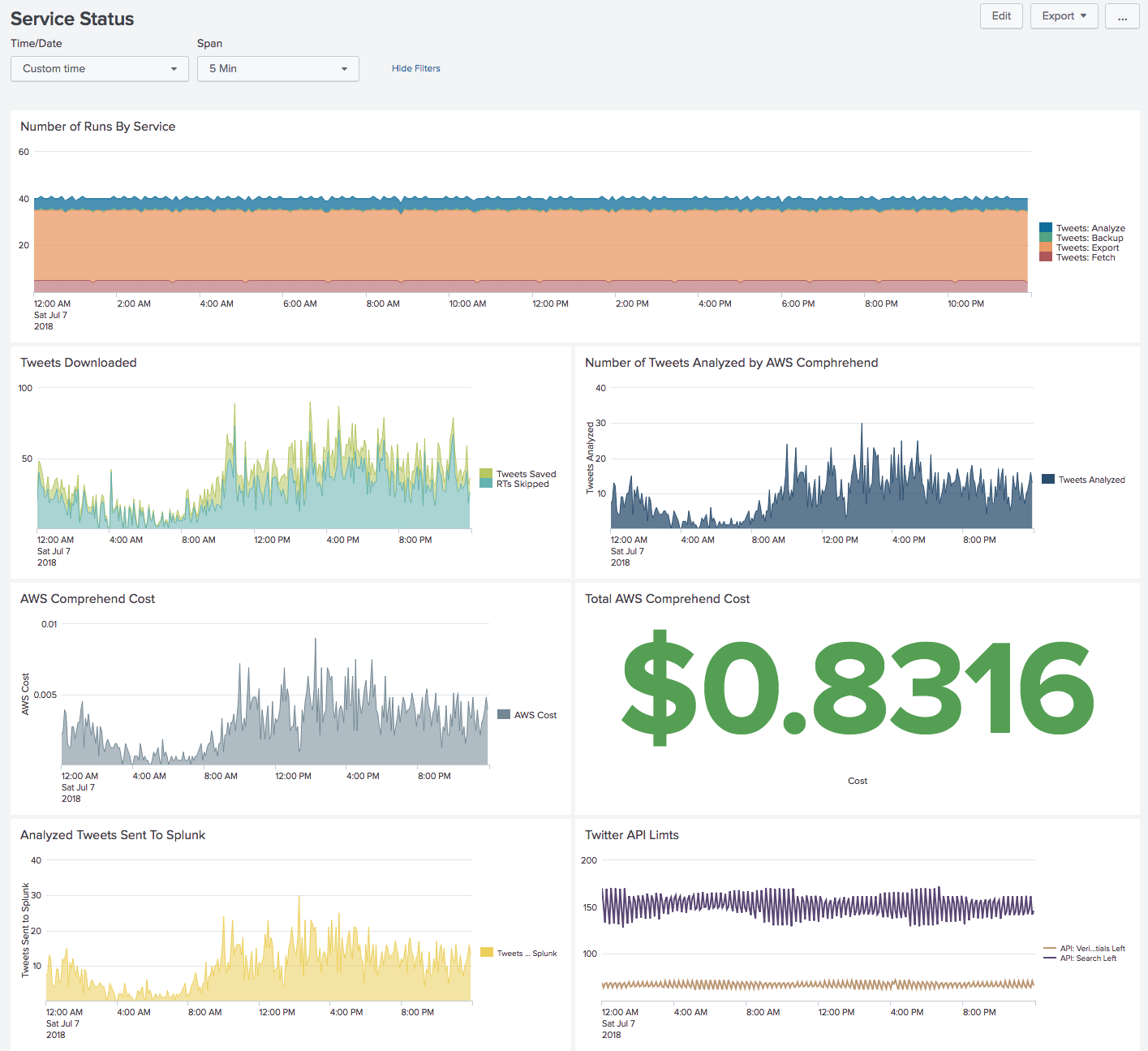
This app makes use of Twitter's API and AWS Comprehend to get insights about your company,
city, event, or convention by way of analyzing tweet sentiment. It further
allows drilldown by user, topic, and search string.
NOTE: I am sorry at this app is as complex as it's gotten. I have a refactoring effort all planned out, I just need some 36-hour days in which to pull it off. :-)
## Requirements
- A Twitter app (created at https://developer.twitter.com/en/apps)
- Twitter credentials (these can be created on the fly when running the first script)
- AWS Credentials
- Working knowledge of Splunk. There is some documentation here, but existing dashboards should be enough to get you started.
- Docker
## Screenshots


## Installation
### Setting up an Agent
Because I've had a need to pull in different search queries and keep them separate, tweets
are pulled by one or more Agents. Agents are created with the `create-agent.sh` script
as follows:
`./create-agent.sh linux linux,#linux s3://YOUR_S3_BACKUP/tweets/linux/`
The first argument is the name of the agent, which will then be created in `agents/linux`,
the second argument is the search string (multiple things to search for can be separated
by commas), and the third argument is the S3 location to backup to. Backups are optional,
so if there are no plans to back up, just use the default above and you'll be fine.
Now, cd into your Agent directory (`agents/linux` in the previous example) and proceed as follows:
- Get your Twitter credentials:
- `docker build -f ./Dockerfile-0-get-twitter-credentials -t 0-get-twitter-credentials . && docker run -v $(pwd):/mnt -it 0-get-twitter-credentials`
- Running this script will walk your through the steps, so it should be straightforward.
- Make sure you have AWS CLI installed and ran `aws configure` to enter your AWS credentials.
- Access to a single S3 bucket and AWS Comprehend will be required
- Note that if you create a policy for your IAM credentials (as you should!), the ARN in the Resource array must end in `/*`. Exammple: `arn:aws:s3:::tweets/*`. There is a byg in the policy generator where this won't happen and your backups will fail. Be careful
- You can now copy your AWS credentials to the agent directory with `cp ~/.aws/credentials aws-credentials.txt`
Running `docker-compose up -d` should start all your containers. Look in `logs/` to see what's happening.
### Deleting an Agent
Simply run the script `delete-agent.sh` and the Agent you specify will be deleted. This
includes its configuration, SQLite database, and logfiles.
Note that when deleting an Agent (as well as creating one), `splunk-app/default/inputs.conf`
is rewritten the the locations of logs from all agents.
### Setting up Splunk
- Return to the root directory of this repo.
- Copy `docker-compose.yml.example` to `docker-compose.yml` and set the port as you see fit.
- `docker-compose up -d`
Splunk should now be running on https://localhost:8000/ and ingesting logs written by
agents.
### Running the app
Now you can run the app via Docker:
- `cp ~/.aws/credentials aws-credentials.txt`
- Copy `docker-compose.yml.example` to `docker-compose.yml` and edit the latter with things like your search string and other values
- `docker-compose up -d`
This will start up several Docker containers in the background running various Python
scripts and a copy of Splunk. To access Splunk, go to http://localhost:8000/ and
log in with default credentials of `admin/password` and *immediately* change your password. **Do not expose this port to the Internet. Use nginx with HTTPS as a proxy if you do!**
### Exporting the Password file
If you create users and want them to persist between runs, you can export the passwd file with this script:
`./bin/export-password-file-from-splunk`
Running that will export the passwd file from Splunk and sstore it in `splunk-config/passwd`. If the container
is deleted at any point and then re-run, the passwd file will be copied into Splunk so the users will be able
to log back in.
### Restoring From Backups
Let's say you were running this app on your desktop/laptop (as one does in Docker...) and you're ready
to move the app to a server, how do you take all of your data with you?
From an Agent, run `./bin/aws-download-latest-backup`.
That will connect to AWS and download the latest backup!
Then simply rename the file to `tweets.db`, start up the containers, and you'll be up and running!
## Architecture Overview
The following docker containers are used:
- `1-fetch-tweets`
- Downloads tweets from Twitter with a search string in them.
- `2-analyze-tweets`
- Sends tweets off to AWS to be analyzed
- `3-export-tweets`
- Exports analyzed Tweets from the SQLite database to disk, where they can be analyzed
- `4-backup`
- Does regular backups ofthe SQLIte database to AWS S3.
- `4-splunk`
- Runs Splunk.
## Adding reports to Splunk
Feel free to edit/save new reports in Splunk, they will all show up in the `splunk-app/` directory.
## Data persistence
Splunk will save its index to `splunk-data/` between runs.
## Development
To do developmenton a container, first go into `docker-compose.yml` and uncomment the `DEBUG` line in
`environment:`. Then run one of these commands:
- `export C="1-fetch-tweets"; docker-compose kill $C && docker-compose rm -f $C && docker-compose build $C && docker-compose up $C`
- `export C="2-analyze-tweets"; docker-compose kill $C && docker-compose rm -f $C && docker-compose build $C && docker-compose up $C`
- `export C="3-export-tweets"; docker-compose kill $C && docker-compose rm -f $C && docker-compose build $C && docker-compose up $C`
- `export C="4-splunk"; docker-compose kill $C && docker-compose rm -f $C && docker-compose build $C && docker-compose up $C`
- `export C="4-backup"; docker-compose kill $C && docker-compose rm -f $C && docker-compose build $C && docker-compose up $C`
With `DEBUG` enabled in `docker-compose.yml`, standard output and standard error will be written to the screen instead of
to `logs/`. Note that for `3-export-tweets` specifically, this means that tweets will not be written
to logfiles and therefore not make it into Splunk.
To attach to the running Splunk instance for troubleshooting:
- `docker-compose exec 4-splunk bash`
### Interactive Bash Shells
Do you want an interactive `bash` shell so that you can instead stay in the container and run the script repeatedly?
Here, try these commands:
- `export C="1-fetch-tweets"; docker-compose kill $C && docker-compose rm -f $C && docker-compose build $C && docker-compose run $C bash`
- `export C="2-analyze-tweets"; docker-compose kill $C && docker-compose rm -f $C && docker-compose build $C && docker-compose run $C bash`
- `export C="3-export-tweets"; docker-compose kill $C && docker-compose rm -f $C && docker-compose build $C && docker-compose run $C bash`
- `export C="4-backup"; docker-compose kill $C && docker-compose rm -f $C && docker-compose build $C && docker-compose run $C bash`
- `export C="4-splunk"; docker-compose kill $C && docker-compose rm -f $C && docker-compose build $C && docker-compose run $C bash`
### Resetting The App
Run `./bin/stop-and-reset-agent` to kill and remove all services and remove all
logs files in the agent. The data in the database will remain untouched.
Run `./bin/stop-and-reset-splunk` to kill and remove Splunk and its data.
The underlying logfiles will remain untouched.
## Known Issues
Since the SQLite file `tweets.db` is shared between several containers/services, there may occasionally
be some contention, resulting in an error from SQLite that it can't lock `tweets.db`. When this happens,
it triggers an exception in the Python code, causing it to exit, which causes the Docker container to
exit as well. It will be restarted in accordance with Docker's restart policy, and the service will resume
running. This means that all Tweets will eventually make it into Splunk, but there may be a slight delay
if a lot of tweets are being processed.
## Splunk Apps Included
The following Splunk apps are included in this Docker image:
- Wordcloud Custom Visualization
- Slack Notification Alert
All apps are covered under their own license.
Splunk has its own license. Please abide by it.
## TODO
- Write up some "priming instructions" for large tweet volumes
## Contact
If there are any issues, feel
free to file an issue against this project, hit me up on Twitter
or Facebook, or drop me a line: **dmuth AT dmuth DOT org**.