https://github.com/dnouri/gmailctrl
A TUI to manage bulk email in Gmail
https://github.com/dnouri/gmailctrl
Last synced: 10 months ago
JSON representation
A TUI to manage bulk email in Gmail
- Host: GitHub
- URL: https://github.com/dnouri/gmailctrl
- Owner: dnouri
- Created: 2025-06-14T21:52:51.000Z (about 1 year ago)
- Default Branch: main
- Last Pushed: 2025-06-24T22:45:36.000Z (12 months ago)
- Last Synced: 2025-06-24T23:32:45.871Z (12 months ago)
- Language: Python
- Size: 122 KB
- Stars: 2
- Watchers: 0
- Forks: 0
- Open Issues: 0
-
Metadata Files:
- Readme: README.md
Awesome Lists containing this project
README
# gmailctrl
A TUI to manage bulk email in Gmail.
## Motivation
Is your Gmail inbox overflowing? Between newsletters, notifications, and promotional content, it's easy to lose track of what's important. On top of that, finding and downloading attachments scattered across hundreds of emails can be a tedious, manual process.
`gmailctrl` is a fast, keyboard-driven terminal application designed to help you take back control of your Gmail account. It offers two powerful features to tackle digital clutter:
1. **Efficient Graymail Management:** It groups emails by sender, letting you archive or delete large volumes of messages with a few keystrokes, making inbox cleanup fast and efficient.
2. **Bulk Attachment Downloader:** It allows you to easily download all attachments from a specified period (e.g., the last 30 days). Files are automatically organized into folders by sender and named with the email date, creating a clean, local archive of your important documents.
Whether you're clearing out old subscriptions or gathering financial documents for your records, `gmailctrl` streamlines the process, saving you time and frustration.
This project, including its source code and this documentation, was written entirely using AI.
## Key Dependencies
* [Textual](https://github.com/Textualize/textual) for the terminal user interface.
* [Google API Client Library for Python](https://github.com/googleapis/google-api-python-client) for interacting with the Gmail API.
## Installation
To install `gmailctrl`, you will need Python 3.10+ and `uv`.
1. Create and activate a virtual environment:
```sh
uv venv
source .venv/bin/activate
```
2. Install the application directly from GitHub:
```sh
uv pip install git+https://github.com/dnouri/gmailctrl
```
## Setup and First Run
Before you can use `gmailctrl`, you need to provide it with API credentials to access your Gmail account.
### 1. Get `credentials.json`
The application uses OAuth 2.0 to securely access your data. You'll need to get a credentials file from the Google Cloud Console.
1. Go to the [Google Cloud Console](https://console.cloud.google.com/).
2. Create a new project (or select an existing one).
3. Enable the **Gmail API** for your project. You can find it in the "APIs & Services" > "Library" section.
4. Go to "APIs & Services" > "Credentials".
5. Click **Create Credentials** and select **OAuth client ID**.
6. Choose **Desktop app** as the application type.
7. After creation, click the **Download JSON** button for the client ID you just created.
8. Save this file as `credentials.json` in the directory where you will run `gmailctrl`.
### 2. First Launch
When you run `gmailctrl` for the first time, it will automatically open a new tab in your web browser.
1. You will be asked to log in to your Google account.
2. You will then be prompted to grant `gmailctrl` permission to "Read, compose, send, and permanently delete all your email from Gmail". This is required for the application to read, archive, and delete emails on your behalf.
3. After you approve, a `token.json` file will be created in the same directory. This file securely stores your authorization and will be used for future sessions, so you won't have to log in every time.
## Usage
After authenticating, you will be presented with a main menu.
### Email Management
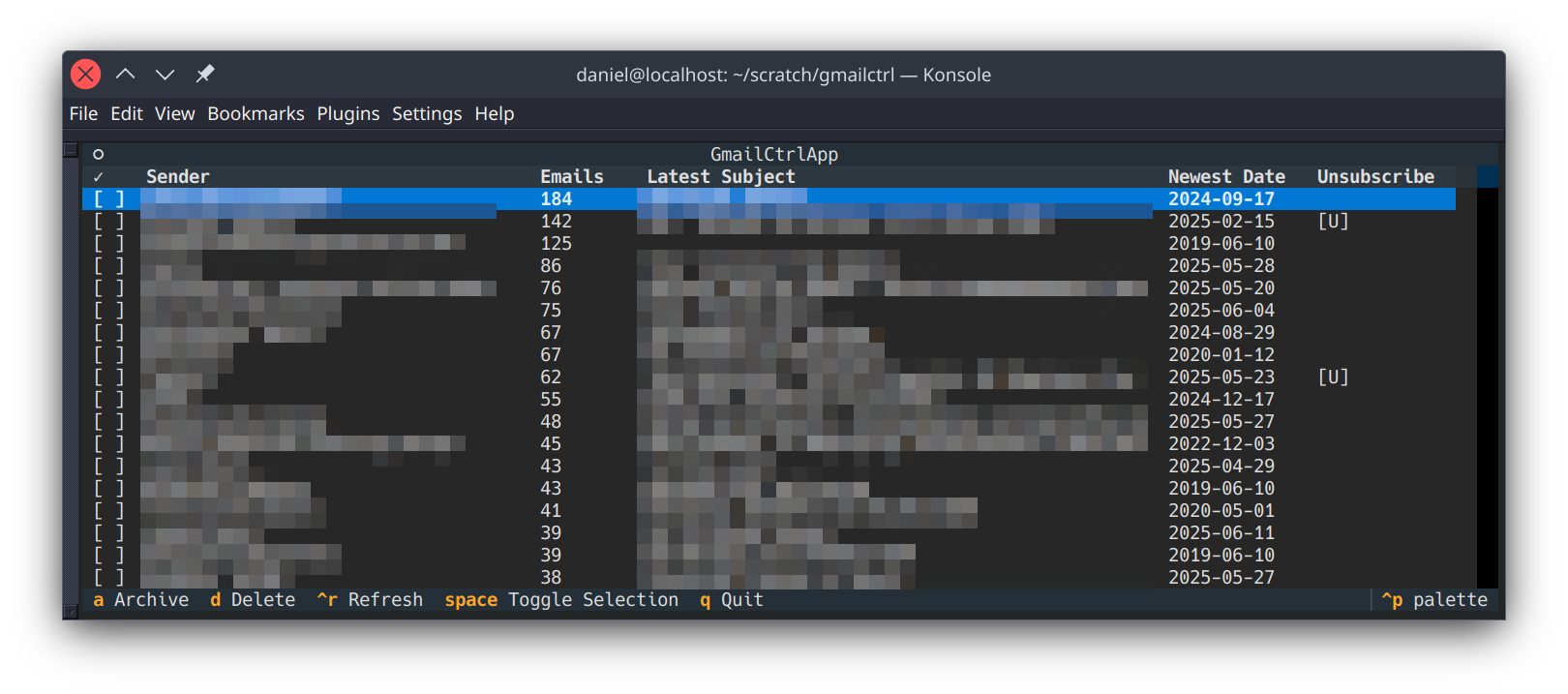
Selecting "Manage Emails" starts the email management workflow. After an initial scan, you will be presented with the main screen, which lists all email groups found in your inbox, sorted by the number of messages from each sender.
#### Main View & Keybindings
| Key | Action |
|-------------|--------------------------------------------------------|
| `Space` | Toggle selection for the highlighted sender group. |
| `a` | Archive all emails from all selected sender groups. |
| `d` | Delete (move to trash) all emails from selected groups.|
| `Enter` | Open the detail view for the highlighted sender group. |
| `Ctrl+R` | Manually refresh the entire email list. |
| `q` | Quit the application. |
Actions like archiving and deleting will always ask for confirmation.
#### Detail View
Pressing `Enter` on a sender group opens the detail view. This screen shows a summary for that specific group and provides `Archive` and `Delete` buttons to act on all emails from only that sender. After the action is complete, you will be returned to the main list, which will be refreshed.
### Attachment Downloader
Selecting "Download Attachments" from the main menu allows you to download all attachments from your inbox over a specified period.
1. You will be prompted to enter the number of days to look back.
2. The application will then find all attachments from that period and download them.
3. Files are saved to a `downloads/` directory in the folder where you run `gmailctrl`.
4. Inside `downloads/`, subdirectories are created for each sender's email address (e.g., `downloads/some.sender@example.com/`).
5. Downloaded files are named using the format `YYYY-MM-DD - originalfilename.pdf` to ensure they are sorted chronologically.
6. If a file with the exact same name and date already exists, a numeric suffix is added to prevent overwrites (e.g., `2025-03-03 - report-1.pdf`).
7. The creation/modification time of each downloaded file is also set to match the date of the email it was attached to.