https://github.com/dnouri/pi-coding-agent
Emacs frontend for the pi coding agent
https://github.com/dnouri/pi-coding-agent
Last synced: 4 months ago
JSON representation
Emacs frontend for the pi coding agent
- Host: GitHub
- URL: https://github.com/dnouri/pi-coding-agent
- Owner: dnouri
- License: gpl-3.0
- Created: 2025-12-30T18:18:03.000Z (6 months ago)
- Default Branch: master
- Last Pushed: 2026-01-10T17:38:55.000Z (5 months ago)
- Last Synced: 2026-01-15T08:07:30.330Z (5 months ago)
- Language: Emacs Lisp
- Size: 455 KB
- Stars: 20
- Watchers: 1
- Forks: 4
- Open Issues: 2
-
Metadata Files:
- Readme: README.org
- License: LICENSE
Awesome Lists containing this project
- awesome-pi-coding-agent - Show HN: Pi-coding-agent: Emacs front end for AI-assisted coding - assisted coding (Claude Code style), with native Emacs buffers instead of a flickering terminal. Built on top of pi, a no-bs open source Claude Code alternative. It supports Cl | 📌4 | 5mo ago | (Articles)
README
#+title: pi-coding-agent
#+author: Daniel Nouri
#+html: 
#+html: 
#+html: 
#+html: 
#+html: 
An Emacs frontend for the [[https://shittycodingagent.ai/][pi coding agent]].
#+html: 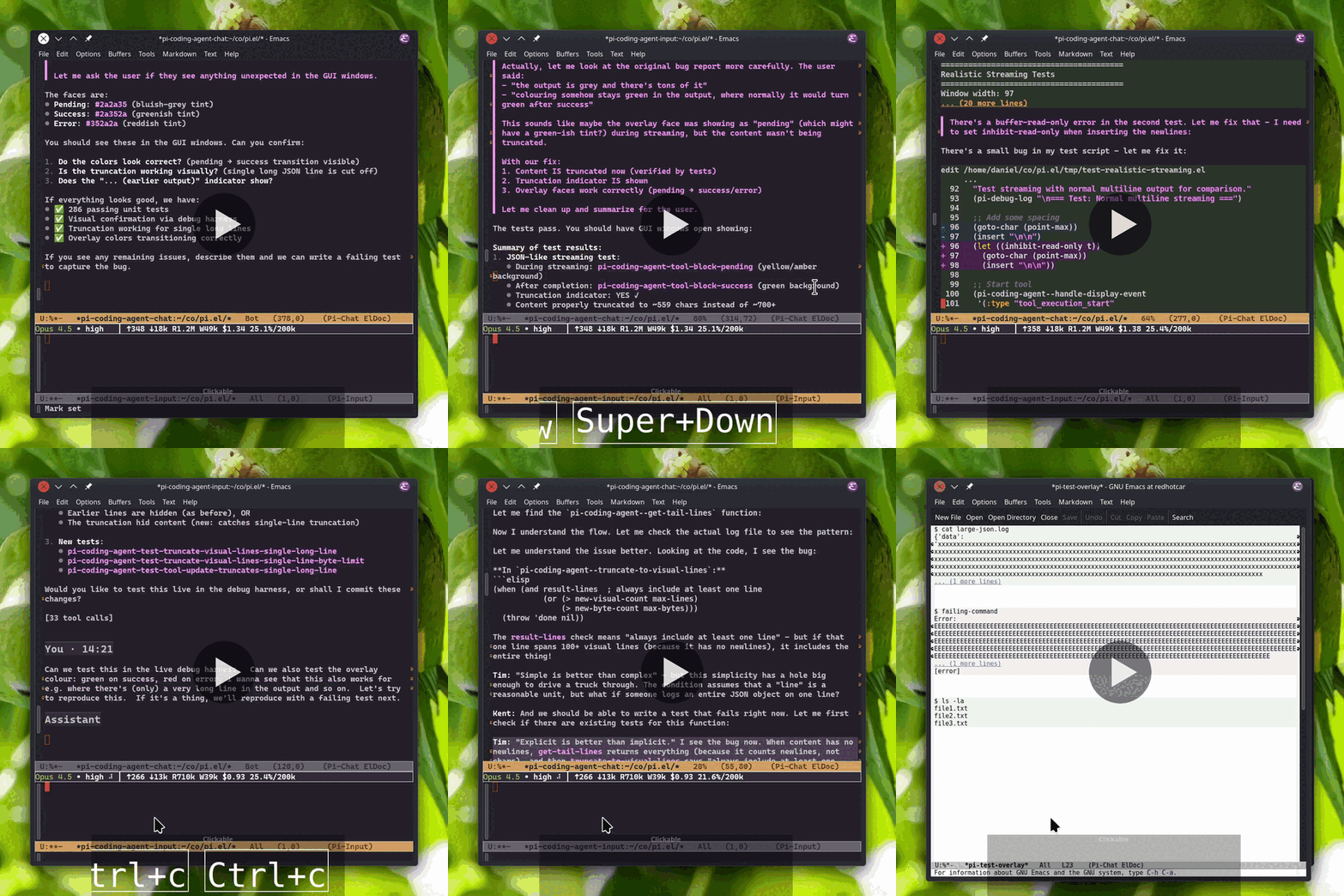
* Features
- Compose prompts in a full Emacs buffer: multi-line, copy/paste, macros, support for Vi bindings
- Chat history as a markdown buffer: copy, save, search, navigate
- Fork the conversation at any point in the chat buffer (f)
- Live streaming output as bash commands and tool operations run
- Syntax-highlighted code blocks and diffs
- Collapsible tool output with smart preview (expand with TAB)
- Click the model name or thinking level to change them
- Rich header line: activity phase, session name, extension status
- Input history with search (M-p/M-n, C-r)
- Magit-style transient menu for all commands
* Requirements
- Emacs 28.1 or later
- [[https://shittycodingagent.ai/][pi coding agent]] 0.51.3 or later, installed and in PATH
** Installing pi coding agent
#+begin_src bash
# Install with npm
npm install -g @mariozechner/pi-coding-agent
# Or with mise
mise use -g npm:@mariozechner/pi-coding-agent
#+end_src
** Optional: phscroll for wide tables
Markdown tables in the chat buffer that exceed the window width normally wrap awkwardly.
[[https://github.com/misohena/phscroll][phscroll]] enables horizontal scrolling so tables stay readable.
#+begin_src
M-x package-vc-install RET https://github.com/misohena/phscroll RET
#+end_src
* Installation
** MELPA
Once available on [[https://melpa.org/#/pi-coding-agent][MELPA]], you can install directly:
#+begin_src
M-x package-install RET pi-coding-agent RET
#+end_src
Or with =use-package=:
#+begin_src emacs-lisp
(use-package pi-coding-agent
:ensure t
:init (defalias 'pi 'pi-coding-agent))
#+end_src
If you don't have MELPA configured, add this to your init file:
#+begin_src emacs-lisp
(require 'package)
(add-to-list 'package-archives '("melpa" . "https://melpa.org/packages/") t)
(package-initialize)
#+end_src
** Manual installation
Clone the repository and add to your load path:
#+begin_src bash
git clone https://github.com/dnouri/pi-coding-agent ~/.emacs.d/site-lisp/pi-coding-agent
#+end_src
#+begin_src emacs-lisp
(add-to-list 'load-path "~/.emacs.d/site-lisp/pi-coding-agent")
(require 'pi-coding-agent)
#+end_src
Or with =use-package=:
#+begin_src emacs-lisp
(use-package pi-coding-agent
:load-path "~/.emacs.d/site-lisp/pi-coding-agent"
:init (defalias 'pi 'pi-coding-agent))
#+end_src
* Usage
Start a session with =M-x pi-coding-agent=. This opens two windows:
- *Chat buffer* (top): Shows conversation history with rendered markdown
- *Input buffer* (bottom): Where you compose prompts
Type your prompt and press =C-c C-c= to send. Press =C-c C-p= for the full command menu.
If you define =(defalias 'pi 'pi-coding-agent)=, then =M-x pi= works as a
shortcut.
Running =M-x pi-coding-agent= again from a pi buffer restores missing panes.
If both chat and input are already visible in the current frame, the layout
stays unchanged and focus moves to the input window.
Use =M-x pi-coding-agent-toggle= to hide/show session windows in the
current frame.
For multiple sessions in the same directory, use
=C-u M-x pi-coding-agent= to create a named session.
* Key Bindings
| Key | Context | Description |
|---------------+---------+-----------------------------------|
| =C-c C-c= | input | Send (queues if busy) |
| =C-c C-s= | input | Queue steering message (busy only)|
| =C-c C-k= | input | Abort streaming |
| =C-c C-p= | both | Open menu |
| =C-c C-r= | input | Resume session |
| =M-p= / =M-n= | input | History navigation |
| =C-r= | input | Incremental history search |
| =TAB= | input | Complete paths, @files, /commands |
| =@= | input | File reference (search) |
| =n= / =p= | chat | Navigate messages |
| =TAB= | chat | Toggle section |
| =S-TAB= | chat | Cycle all folds |
| =RET= | chat | Visit file at point (other window)|
| =f= | chat | Fork from point |
| =q= | chat | Quit session |
Press =C-c C-p= to access the full menu with model selection, thinking level,
session management (new, resume, fork, export), statistics, and custom commands.
* Tips & Tricks
** ✏️ Composing Prompts
The input buffer is a full Emacs buffer, one of the main advantages over
terminal interfaces. Take your time composing, write multi-line prompts,
paste from other buffers, use registers or kill-ring history. Your prompt
stays put while the AI responds above.
Slash commands (=/command=) work with completion: type =/= then =TAB= to
see available commands, including your custom ones from =~/.pi/commands/=.
** 📎 Editor Features
Several features match the TUI experience:
- *File reference (@)*: Type =@= to search project files. Respects =.gitignore=.
Results are cached for 30 seconds to keep completion fast.
- *Path completion (Tab)*: Complete relative paths like =./=, =../=, =~/=.
- *Message queuing*: Submit messages while the agent is working:
- =C-c C-c= queues a /follow-up/ message, delivered after the agent finishes
- =C-c C-s= queues a /steering/ message, delivered after current tool
(interrupts remaining tools; only works when agent is busy)
** 🔧 Tool Output
Tool output is collapsed by default to keep the chat readable, with a
preview of the first few lines visible. Press =TAB= on a tool block to
expand and see everything. File operations (read, write, edit) show full
syntax highlighting, and edit diffs highlight what changed. Long-running
commands stream output live so you can watch progress.
Press =RET= on a file-content line in a tool block to open the backing file
at the matching line number. This works for file tools (=read=, =write=,
=edit=) and custom tools that include =:path=. By default, the file opens in
the other window so you can keep the chat visible. Use =C-u RET= to open in
the same window instead.
** 📁 Folding Turns
Press =TAB= on a turn header (You/Assistant) to fold it, =TAB= again to
unfold. Use =S-TAB= to cycle visibility of all turns at once.
** 💾 Sessions
Each project directory gets its own session automatically. To run multiple
sessions in the same directory, use =C-u M-x pi-coding-agent= to create a
named session.
Resume (=C-c C-r=) and fork (=C-c C-p f=) present a selection menu:
pick from previous sessions or conversation messages to start from.
** 🌿 Forking and Context Management
When a conversation gets long, the AI's context window fills up. The menu
(=C-c C-p=) offers tools to manage this:
- *Compact* (=c=): Summarizes earlier conversation to free up context while
preserving key information. Use when context is filling up. If you don't
compact manually, pi does it automatically when needed.
- *Fork* (=f=): Branches the conversation from any earlier turn.
Press =f= on any turn in the chat buffer, or use the menu to pick
from a list.
- *Export* (=e=): Saves the conversation as an HTML file for sharing or
archiving.
The context indicator in the status area shows current usage, warning
when getting full.
* Configuration
Example configuration with =use-package=:
#+begin_src emacs-lisp
(use-package pi-coding-agent
:ensure t
:init (defalias 'pi 'pi-coding-agent)
:custom
(pi-coding-agent-input-window-height 10) ; Height of input window
(pi-coding-agent-tool-preview-lines 10) ; Lines shown before collapsing tool output
(pi-coding-agent-bash-preview-lines 5) ; Lines shown for bash output
(pi-coding-agent-context-warning-threshold 70) ; Warn when context exceeds this %
(pi-coding-agent-context-error-threshold 90) ; Critical when context exceeds this %
(pi-coding-agent-visit-file-other-window t) ; RET opens file in other window (nil for same)
;; (pi-coding-agent-copy-raw-markdown t) ; Keep raw markdown on copy (default: strip hidden markup)
;; (pi-coding-agent-input-markdown-highlighting t) ; GFM syntax highlighting in input buffer
)
#+end_src
Copying from the chat buffer strips hidden markdown markup by default —
=M-w= and =C-w= produce the visible text you see on screen. Set
=pi-coding-agent-copy-raw-markdown= to =t= for raw markdown, useful
when pasting into docs, Slack, or other markdown-aware contexts.
The input buffer uses plain =text-mode= by default. Set
=pi-coding-agent-input-markdown-highlighting= to =t= for GFM syntax
highlighting (bold, code spans, fenced blocks) in new sessions.
* Testing
** Running tests locally
Requires Docker for integration and GUI tests (Ollama runs in a container).
#+begin_src bash
# Unit tests only (fast, no Docker)
make check
# Integration tests (requires Docker)
make test-integration
# GUI tests (requires Docker)
make test-gui
# All tests
make test-all
#+end_src
** GUI tests with visible window
By default, GUI tests auto-detect whether to show a window or run headless.
#+begin_src bash
# With a display available, runs with visible window
./test/run-gui-tests.sh
# Force headless even with display available
./test/run-gui-tests.sh --headless
#+end_src
** CI setup
GitHub Actions runs on every push:
- =test-unit.yml= - Unit tests across Emacs 28.2 and 29.4
- =test-integration.yml= - Integration tests with Docker Ollama
- =test-gui.yml= - GUI tests with xvfb virtual framebuffer
Nightly builds test against the pinned pi version (from Makefile) and latest.
* Links
- [[https://danielnouri.org/notes/2025/12/30/an-emacs-mode-for-a-shitty-coding-agent/][Blog post]]: Background and motivation
- [[https://shittycodingagent.ai/][shittycodingagent.ai]]: pi coding agent home page
* License
GPL-3.0-or-later. See [[file:LICENSE][LICENSE]].