https://github.com/docfork/docfork-mcp
Up-to-date Documentation for AI Agents.
https://github.com/docfork/docfork-mcp
documentation mcp mcp-server modelcontextprotocol vibe-coding
Last synced: 7 months ago
JSON representation
Up-to-date Documentation for AI Agents.
- Host: GitHub
- URL: https://github.com/docfork/docfork-mcp
- Owner: docfork
- License: mit
- Created: 2025-06-05T12:44:12.000Z (about 1 year ago)
- Default Branch: main
- Last Pushed: 2025-12-23T15:05:19.000Z (7 months ago)
- Last Synced: 2025-12-25T03:01:31.880Z (7 months ago)
- Topics: documentation, mcp, mcp-server, modelcontextprotocol, vibe-coding
- Language: TypeScript
- Homepage: https://docfork.com
- Size: 4.79 MB
- Stars: 348
- Watchers: 2
- Forks: 22
- Open Issues: 1
-
Metadata Files:
- Readme: README.md
- License: LICENSE
Awesome Lists containing this project
- awesome - docfork/docfork-mcp - Up-to-date Documentation for AI Agents. (TypeScript)
- toolsdk-mcp-registry - ✅ docfork - to-date documentation and code examples for any software library through the Docfork API, automatically selecting relevant libraries and providing topic-focused documentation with configurable response size limits. (1 tools) (node) (Search & Data Extraction / How to Submit)
- awesome-mcp - docfork/docfork-mcp - Docfork MCP provides up-to-date documentation for over 9000 libraries directly within AI code editors using the Model Context Protocol, ensuring accurate and current code examples for developers and AI agents. (MCP Clients / IDE Extensions & Code Assistants)
README

# Docfork MCP - Up-to-date Documentation for AI Agents.
[](https://smithery.ai/server/@docfork/mcp) [](https://docfork.com) [](https://www.npmjs.com/package/docfork) [](./LICENSE)
[](https://cursor.com/en/install-mcp?name=docfork&config=eyJ1cmwiOiJodHRwczovL21jcC5kb2Nmb3JrLmNvbS9tY3AifQ%3D%3D) [ ](https://insiders.vscode.dev/redirect?url=vscode%3Amcp%2Finstall%3F%7B%22name%22%3A%22docfork%22%2C%22type%22%3A%22http%22%2C%22url%22%3A%22http%3A%2F%2Fmcp.docfork.com%2Fmcp%22%7D)
## ❌ The Problem: Expired Knowledge
- Out of date code examples & stale data from year-old model training
- Hallucinated syntax & APIs
- Old or mismatched versions
## ✅ The Solution: Up-to-date docs at warp speed
- Always in sync with the latest version of docs
- Accurate descriptions and code examples
- Sub-second retrieval results (500ms @ p95) in your AI code editor
Docfork MCP pulls @latest documentation and code examples straight from the source - and adds them right into your context.
Just tell Cursor to **`use docfork`**:
```txt
Create a basic Next.js app with the App Router. use docfork
```
## 🛠️ Installation
### 📋 Requirements
- Node.js ≥ v18
- Cursor/Windsurf/Claude Desktop (any MCP client)
Installing via Smithery
### Installing via Smithery
To install Docfork MCP Server for any client automatically via [Smithery](https://smithery.ai/server/@docfork/mcp):
```bash
npx -y @smithery/cli@latest install @docfork/mcp --client --key
```
You can find your Smithery key in the [Smithery.ai webpage](https://smithery.ai/server/@docfork/mcp).
Install in Cursor
Go to: `Settings` -> `Cursor Settings` -> `Tools & Integrations` -> `Add a custom MCP server`
Pasting the following config into your Cursor `~/.cursor/mcp.json` file is the recommended approach. You can also install in a specific project by creating `.cursor/mcp.json` in your project folder. See [Cursor MCP docs](https://docs.cursor.com/context/model-context-protocol) for more info.
#### Cursor Remote Server Connection
[](https://cursor.com/en/install-mcp?name=docfork&config=eyJ1cmwiOiJodHRwczovL21jcC5kb2Nmb3JrLmNvbS9tY3AifQ%3D%3D)
```json
{
"mcpServers": {
"docfork": {
"url": "https://mcp.docfork.com/mcp"
}
}
}
```
#### Cursor Local Server Connection
[](https://cursor.com/en/install-mcp?name=docfork&config=eyJjb21tYW5kIjoibnB4IC15IGRvY2ZvcmsiLCJhcmdzIjpbIi15IiwiZG9jZm9yayJdfQ%3D%3D)
```json
{
"mcpServers": {
"docfork": {
"command": "npx",
"args": ["-y", "docfork"]
}
}
}
```
Alternative: Use Bun
```json
{
"mcpServers": {
"docfork": {
"command": "bunx",
"args": ["-y", "docfork"]
}
}
}
```
Alternative: Use Deno
```json
{
"mcpServers": {
"docfork": {
"command": "deno",
"args": ["run", "--allow-env", "--allow-net", "npm:docfork"]
}
}
}
```
Install in Claude Code
### Install in Claude Code
Run this command. See [Claude Code MCP docs](https://docs.anthropic.com/en/docs/agents-and-tools/claude-code/tutorials#set-up-model-context-protocol-mcp) for more info.
#### Claude Code Remote Server Connection
```sh
claude mcp add --transport sse docfork https://mcp.docfork.com/sse
```
#### Claude Code Local Server Connection
```sh
claude mcp add docfork -- npx -y docfork
```
Install in Claude Desktop
### Install in Claude Desktop
Add this to your Claude Desktop `claude_desktop_config.json` file. See [Claude Desktop MCP docs](https://modelcontextprotocol.io/quickstart/user) for more info.
```json
{
"mcpServers": {
"docfork": {
"command": "npx",
"args": ["-y", "docfork"]
}
}
}
```
Install in Windsurf
### Install in Windsurf
Add this to your Windsurf MCP config. See [Windsurf MCP docs](https://docs.windsurf.com/windsurf/mcp) for more info.
#### Windsurf Remote Server Connection
```json
{
"mcpServers": {
"docfork": {
"serverUrl": "https://mcp.docfork.com/sse"
}
}
}
```
#### Windsurf Local Server Connection
```json
{
"mcpServers": {
"docfork": {
"command": "npx",
"args": ["-y", "docfork"]
}
}
}
```
Install in VS Code
### Install in VS Code
Add this to your VS Code MCP config. See [VS Code MCP docs](https://code.visualstudio.com/docs/copilot/chat/mcp-servers) for more info.
#### VS Code Remote Server Connection
```json
{
"mcpServers": {
"docfork": {
"type": "http",
"url": "https://mcp.docfork.com/mcp"
}
}
}
```
#### VS Code Local Server Connection
```json
{
"servers": {
"docfork": {
"type": "stdio",
"command": "npx",
"args": ["-y", "docfork"]
}
}
}
```
Install in Zed
### Install in Zed
One-click install:
→ Get the [Docfork Extension](https://zed.dev/extensions?query=Docfork&filter=context-servers)
Or Manual config (for power users):
```json
{
"context_servers": {
"docfork": {
"command": {
"path": "npx",
"args": ["-y", "docfork"]
},
"settings": {}
}
}
}
```
Install in BoltAI
### Install in BoltAI
Open the "Settings" page of the app, navigate to "Plugins," and enter the following JSON:
```json
{
"mcpServers": {
"docfork": {
"command": "npx",
"args": ["-y", "docfork"]
}
}
}
```
More info is available on [BoltAI's Documentation site](https://docs.boltai.com/docs/plugins/mcp-servers). For BoltAI on iOS, [see this guide](https://docs.boltai.com/docs/boltai-mobile/mcp-servers).
Using Docker
### Using Docker
If you prefer to run the MCP server in a Docker container:
1. **Build the Docker Image:**
First, create a `Dockerfile` in the project root (or anywhere you prefer):
Click to see Dockerfile content
```Dockerfile
FROM node:18-alpine
WORKDIR /app
# Install the latest version globally
RUN npm install -g docfork
# Expose default port if needed (optional, depends on MCP client interaction)
# EXPOSE 3000
# Default command to run the server
CMD ["docfork"]
```
Then, build the image using a tag (e.g., `docfork-mcp`). **Make sure Docker Desktop (or the Docker daemon) is running.** Run the following command in the same directory where you saved the `Dockerfile`:
```bash
docker build -t docfork .
```
2. **Configure Your MCP Client:**
Update your MCP client's configuration to use the Docker command.
_Example for a cline_mcp_settings.json:_
```json
{
"mcpServers": {
"docfork": {
"autoApprove": [],
"disabled": false,
"timeout": 60,
"command": "docker",
"args": ["run", "-i", "--rm", "docfork-mcp"],
"transportType": "stdio"
}
}
}
```
_Note: This is an example configuration. Please refer to the specific examples for your MCP client (like Cursor, VS Code, etc.) earlier in this README to adapt the structure (e.g., `mcpServers` vs `servers`). Also, ensure the image name in `args` matches the tag used during the `docker build` command._
Install in Windows
### Install in Windows
The configuration on Windows is slightly different compared to Linux or macOS (_`Cline` is used in the example_). The same principle applies to other editors; refer to the configuration of `command` and `args`.
```json
{
"mcpServers": {
"github.com/docfork/mcp": {
"command": "cmd",
"args": ["/c", "npx", "-y", "docfork@latest"],
"disabled": false,
"autoApprove": []
}
}
}
```
Install in Augment Code
### Install in Augment Code
To configure Docfork MCP in Augment Code, follow these steps:
1. Press Cmd/Ctrl Shift P or go to the hamburger menu in the Augment panel
2. Select Edit Settings
3. Under Advanced, click Edit in settings.json
4. Add the server configuration to the `mcpServers` array in the `augment.advanced` object
```json
"augment.advanced": {
"mcpServers": [
{
"name": "docfork",
"command": "npx",
"args": ["-y", "docfork"]
}
]
}
```
Once the MCP server is added, restart your editor. If you receive any errors, check the syntax to make sure closing brackets or commas are not missing.
Install in Roo Code
### Install in Roo Code
Add this to your Roo Code MCP configuration file. See [Roo Code MCP docs](https://docs.roocode.com/features/mcp/using-mcp-in-roo) for more info.
#### Roo Code Remote Server Connection
```json
{
"mcpServers": {
"docfork": {
"type": "streamable-http",
"url": "https://mcp.docfork.com/mcp"
}
}
}
```
#### Roo Code Local Server Connection
```json
{
"mcpServers": {
"docfork": {
"command": "npx",
"args": ["-y", "docfork"]
}
}
}
```
Install in Trae
Use the Add manually feature and fill in the JSON configuration information for that MCP server.
For more details, visit the [Trae documentation](https://docs.trae.ai/ide/model-context-protocol?_lang=en).
#### Trae Remote Server Connection
```json
{
"mcpServers": {
"docfork": {
"url": "https://mcp.docfork.com/mcp"
}
}
}
```
#### Trae Local Server Connection
```json
{
"mcpServers": {
"docfork": {
"command": "npx",
"args": ["-y", "docfork"]
}
}
}
```
Install in Visual Studio 2022
You can configure Docfork MCP in Visual Studio 2022 by following the [Visual Studio MCP Servers documentation](https://learn.microsoft.com/visualstudio/ide/mcp-servers?view=vs-2022).
Add this to your Visual Studio MCP config file (see the [Visual Studio docs](https://learn.microsoft.com/visualstudio/ide/mcp-servers?view=vs-2022) for details):
```json
{
"mcp": {
"servers": {
"docfork": {
"type": "http",
"url": "https://mcp.docfork.com/mcp"
}
}
}
}
```
Or, for a local server:
```json
{
"mcp": {
"servers": {
"docfork": {
"type": "stdio",
"command": "npx",
"args": ["-y", "docfork"]
}
}
}
}
```
For more information and troubleshooting, refer to the [Visual Studio MCP Servers documentation](https://learn.microsoft.com/visualstudio/ide/mcp-servers?view=vs-2022).
Install in Gemini CLI
See [Gemini CLI Configuration](https://github.com/google-gemini/gemini-cli/blob/main/docs/cli/configuration.md) for details.
1. Open the Gemini CLI settings file. The location is `~/.gemini/settings.json` (where `~` is your home directory).
2. Add the following to the `mcpServers` object in your `settings.json` file:
```json
{
"mcpServers": {
"docfork": {
"httpUrl": "https://mcp.docfork.com/mcp"
}
}
}
```
Or, for a local server:
```json
{
"mcpServers": {
"docfork": {
"command": "npx",
"args": ["-y", "docfork"]
}
}
}
```
If the `mcpServers` object does not exist, create it.
Install in Crush
Add this to your Crush configuration file. See [Crush MCP docs](https://github.com/charmbracelet/crush#mcps) for more info.
#### Crush Remote Server Connection (HTTP)
```json
{
"$schema": "https://charm.land/crush.json",
"mcp": {
"docfork": {
"type": "http",
"url": "https://mcp.docfork.com/mcp"
}
}
}
```
#### Crush Remote Server Connection (SSE)
```json
{
"$schema": "https://charm.land/crush.json",
"mcp": {
"docfork": {
"type": "sse",
"url": "https://mcp.docfork.com/sse"
}
}
}
```
#### Crush Local Server Connection
```json
{
"$schema": "https://charm.land/crush.json",
"mcp": {
"docfork": {
"type": "stdio",
"command": "npx",
"args": ["-y", "docfork"]
}
}
}
```
Install in Cline
You can easily install Docfork through the [Cline MCP Server Marketplace](https://cline.bot/mcp-marketplace) by following these instructions:
1. Open **Cline**.
2. Click the hamburger menu icon (☰) to enter the **MCP Servers** section.
3. Use the search bar within the **Marketplace** tab to find _Docfork_.
4. Click the **Install** button.
Install in Zencoder
To configure Docfork MCP in Zencoder, follow these steps:
1. Go to the Zencoder menu (...)
2. From the dropdown menu, select Agent tools
3. Click on the Add custom MCP
4. Add the name and server configuration from below, and make sure to hit the Install button
```json
{
"command": "npx",
"args": ["-y", "docfork@latest"]
}
```
Once the MCP server is added, you can easily continue using it.
Install in Amazon Q Developer CLI
Add this to your Amazon Q Developer CLI configuration file. See [Amazon Q Developer CLI docs](https://docs.aws.amazon.com/amazonq/latest/qdeveloper-ug/command-line-mcp-configuration.html) for more details.
```json
{
"mcpServers": {
"docfork": {
"command": "npx",
"args": ["-y", "docfork@latest"]
}
}
}
```
Install in Qodo Gen
See [Qodo Gen docs](https://docs.qodo.ai/qodo-documentation/qodo-gen/qodo-gen-chat/agentic-mode/agentic-tools-mcps) for more details.
1. Open Qodo Gen chat panel in VSCode or IntelliJ.
2. Click Connect more tools.
3. Click + Add new MCP.
4. Add the following configuration:
```json
{
"mcpServers": {
"docfork": {
"url": "https://mcp.docfork.com/mcp"
}
}
}
```
Install in JetBrains AI Assistant
See [JetBrains AI Assistant Documentation](https://www.jetbrains.com/help/ai-assistant/configure-an-mcp-server.html) for more details.
1. In JetBrains IDEs go to `Settings` -> `Tools` -> `AI Assistant` -> `Model Context Protocol (MCP)`
2. Click `+ Add`.
3. Click on `Command` in the top-left corner of the dialog and select the As JSON option from the list
4. Add this configuration and click `OK`
```json
{
"mcpServers": {
"docfork": {
"command": "npx",
"args": ["-y", "docfork"]
}
}
}
```
5. Click `Apply` to save changes.
6. The same way docfork could be added for JetBrains Junie in `Settings` -> `Tools` -> `Junie` -> `MCP Settings`
Install in Warp
See [Warp Model Context Protocol Documentation](https://docs.warp.dev/knowledge-and-collaboration/mcp#adding-an-mcp-server) for details.
1. Navigate `Settings` > `AI` > `Manage MCP servers`.
2. Add a new MCP server by clicking the `+ Add` button.
3. Paste the configuration given below:
```json
{
"Docfork": {
"command": "npx",
"args": ["-y", "docfork"],
"env": {},
"working_directory": null,
"start_on_launch": true
}
}
```
4. Click `Save` to apply the changes.
Install in Opencode
Add this to your Opencode configuration file. See [Opencode MCP docs](https://opencode.ai/docs/mcp-servers) docs for more info.
#### Opencode Remote Server Connection
```json
"mcp": {
"docfork": {
"type": "remote",
"url": "https://mcp.docfork.com/mcp",
"enabled": true
}
}
```
#### Opencode Local Server Connection
```json
{
"mcp": {
"docfork": {
"type": "local",
"command": ["npx", "-y", "docfork"],
"enabled": true
}
}
}
```
Install in Copilot Coding Agent
## Using Docfork with Copilot Coding Agent
Add the following configuration to the `mcp` section of your Copilot Coding Agent configuration file Repository->Settings->Copilot->Coding agent->MCP configuration:
```json
{
"mcpServers": {
"docfork": {
"type": "http",
"url": "https://mcp.docfork.com/mcp",
"tools": ["get-library-docs"]
}
}
}
```
For more information, see the [official GitHub documentation](https://docs.github.com/en/enterprise-cloud@latest/copilot/how-tos/agents/copilot-coding-agent/extending-copilot-coding-agent-with-mcp).
Install in Kiro
See [Kiro Model Context Protocol Documentation](https://kiro.dev/docs/mcp/configuration/) for details.
1. Navigate `Kiro` > `MCP Servers`
2. Add a new MCP server by clicking the `+ Add` button.
3. Paste the configuration given below:
```json
{
"mcpServers": {
"Docfork": {
"command": "npx",
"args": ["-y", "docfork"],
"env": {},
"disabled": false,
"autoApprove": []
}
}
}
```
4. Click `Save` to apply the changes.
Install in OpenAI Codex
See [OpenAI Codex](https://github.com/openai/codex) for more information.
Add the following configuration to your OpenAI Codex MCP server settings:
```toml
[mcp_servers.docfork]
args = ["-y", "docfork"]
command = "npx"
```
Install in LM Studio
See [LM Studio MCP Support](https://lmstudio.ai/blog/lmstudio-v0.3.17) for more information.
#### One-click install:
[](https://lmstudio.ai/install-mcp?name=docfork&config=eyJjb21tYW5kIjoibnB4IiwiYXJncyI6WyIteSIsImRvY2ZvcmsiXX0%3D)
#### Manual set-up:
1. Navigate to `Program` (right side) > `Install` > `Edit mcp.json`.
2. Paste the configuration given below:
```json
{
"mcpServers": {
"Docfork": {
"command": "npx",
"args": ["-y", "docfork"]
}
}
}
```
3. Click `Save` to apply the changes.
4. Toggle the MCP server on/off from the right hand side, under `Program`, or by clicking the plug icon at the bottom of the chat box.
Install in Perplexity Desktop
See [Local and Remote MCPs for Perplexity](https://www.perplexity.ai/help-center/en/articles/11502712-local-and-remote-mcps-for-perplexity) for more information.
1. Navigate `Perplexity` > `Settings`
2. Select `Connectors`.
3. Click `Add Connector`.
4. Select `Advanced`.
5. Enter Server Name: `Docfork`
6. Paste the following JSON in the text area:
```json
{
"args": ["-y", "docfork"],
"command": "npx",
"env": {}
}
```
7. Click `Save`.
## 🔨 Available Tools
Docfork MCP provides different tools depending on the client type:
### MCP Clients (Cursor, Claude Code, Claude Desktop, VS Code, etc.)
- `docfork_search_docs`: Search for documentation across the web, GitHub, and other sources.
- `query` (required): Query for documentation. Include language/framework/library names.
- `docforkIdentifier` (optional): Library identifier in author/repo format (e.g., 'facebook/react', 'vercel/next.js'). Use this to search INSIDE a specific library's documentation for focused, accurate results. Extract from URLs in search results and include in subsequent searches about that library.
- `tokens` (optional): Token budget control: 'dynamic' or number (100-10000).
- `docfork_read_url`: Read the content of a documentation URL as markdown/text.
- `url` (required): The URL of the webpage to read (typically from `docfork_search_docs` results).
### OpenAI ChatGPT Connectors
For OpenAI ChatGPT integration, Docfork provides OpenAI MCP specification-compliant tools:
- `search`: Search for documents using semantic search. Returns a list of relevant search results.
- `query` (required): Search query string. Natural language queries work best for semantic search.
- `fetch`: Retrieve complete document content by ID for detailed analysis and citation.
- `id` (required): URL or unique identifier for the document to fetch.
> **Note:**
> The OpenAI tools (`search` and `fetch`) automatically format their responses for ChatGPT connectors and are compatible with deep research workflows.
## 💡 Tips
### Add a Rule
If you don't want to add `use docfork` to every prompt, you can define a simple rule from your `Cursor Settings > Rules` section in Cursor (or the equivalent in your MCP client) to auto-invoke Docfork on any code question:
```markdown
---
alwaysApply: true
---
when the user requests code examples, setup or configuration steps, or library/API documentation
use docfork.
```
From then on you'll get Docfork's docs in any related conversation without typing anything extra. You can add your use cases to the match part.
### Use Specific Library Names
When you know exactly which library you want to use, be specific in your prompts. This helps Docfork find the right documentation faster and more accurately:
```txt
implement basic authentication with supabase. use docfork
```
```txt
create a Next.js middleware for rate limiting. use docfork
```
```txt
configure Tailwind CSS with custom typography. use docfork
```
The more specific you are about the library and what you want to accomplish, the better documentation you'll receive.
## Development
Clone the project and install dependencies:
```bash
npm i
```
Build:
```bash
npm run build
```
Environment Variables
The Docfork MCP server supports the following environment variables:
- `DEFAULT_MINIMUM_TOKENS`: Set the minimum token count for documentation retrieval (default: 10000)
### Transport Configuration
- `MCP_TRANSPORT`: Set the transport type for MCP communication (default: `stdio`)
- `stdio` (default): Standard input/output transport for local subprocess communication—simple and reliable with no port management
- `streamable-http`: HTTP-based transport with SSE support for multiple client connections, server-initiated messages, and session management
- `PORT`: Set the base port number for HTTP transport (default: `3000`)
- Only used when `MCP_TRANSPORT` is `streamable-http`
- If the specified port is unavailable, the server automatically finds the next available port (tries up to 10 consecutive ports)
#### When to Use Streamable HTTP
Use `MCP_TRANSPORT=streamable-http` for remote/hosted servers or when you need multiple client connections, server-initiated messages, or session management. For more details, see the [modelcontextprotocol.io transport documentation](https://modelcontextprotocol.io/specification/latest/basic/transports).
Example Configurations
**Standard configuration with default transport (stdio):**
```json
{
"mcpServers": {
"docfork": {
"command": "npx",
"args": ["-y", "docfork@latest"],
"env": {
"DEFAULT_MINIMUM_TOKENS": "10000"
}
}
}
}
```
**Using streamable-http transport (for advanced features):**
For remote servers or when you need multiple connections and server-initiated messages:
```json
{
"mcpServers": {
"docfork": {
"command": "npx",
"args": ["-y", "docfork@latest"],
"env": {
"MCP_TRANSPORT": "streamable-http"
}
}
}
}
```
**Custom port configuration (for streamable-http):**
```json
{
"mcpServers": {
"docfork": {
"command": "npx",
"args": ["-y", "docfork@latest"],
"env": {
"MCP_TRANSPORT": "streamable-http",
"PORT": "3000"
}
}
}
}
```
Note: If the specified port is already in use, the server automatically finds the next available port.
**Self-hosted HTTP server:**
These environment variables are used when you're running your own instance of the Docfork server, not when connecting to remote servers. For remote server connections, use the URL-based configurations shown earlier in this README (e.g., `"url": "https://mcp.docfork.com/mcp"`).
```bash
# run with streamable-http transport (opt-in)
MCP_TRANSPORT=streamable-http PORT=3000 npx -y docfork@latest
# run with stdio (default)
npx -y docfork@latest
```
Local Configuration Example
```json
{
"mcpServers": {
"docfork": {
"command": "node",
"args": ["/path/to/folder/docfork/dist/index.js"]
}
}
}
```
Testing with MCP Inspector
```bash
npm run inspect
```
## 🚨 Troubleshooting
Module Not Found Errors
If you encounter `ERR_MODULE_NOT_FOUND`, try using `bunx` instead of `npx`:
```json
{
"mcpServers": {
"docfork": {
"command": "bunx",
"args": ["-y", "docfork"]
}
}
}
```
This often resolves module resolution issues in environments where `npx` doesn't properly install or resolve packages.
ESM Resolution Issues
For errors like `Error: Cannot find module 'uriTemplate.js'`, try the `--experimental-vm-modules` flag:
```json
{
"mcpServers": {
"docfork": {
"command": "npx",
"args": ["-y", "--node-options=--experimental-vm-modules", "docfork"]
}
}
}
```
TLS/Certificate Issues
Use the `--experimental-fetch` flag to bypass TLS-related problems:
```json
{
"mcpServers": {
"docfork": {
"command": "npx",
"args": ["-y", "--node-options=--experimental-fetch", "docfork"]
}
}
}
```
Port Already In Use (EADDRINUSE)
If you see an error like `Error: listen EADDRINUSE: address already in use :::3000`, this means you have `MCP_TRANSPORT=streamable-http` configured:
**Option 1: Use default stdio transport (recommended)**
Remove the `MCP_TRANSPORT` environment variable to use the default stdio transport, which avoids port conflicts:
```json
{
"mcpServers": {
"docfork": {
"command": "npx",
"args": ["-y", "docfork"]
}
}
}
```
**Option 2: Automatic port allocation**
The server automatically finds an available port if the default port is in use. You'll see a message like:
```
Port 3000 is already in use, using port 3001 instead
```
**Option 3: Configure a custom port**
```json
{
"mcpServers": {
"docfork": {
"command": "npx",
"args": ["-y", "docfork"],
"env": {
"MCP_TRANSPORT": "streamable-http",
"PORT": "3500"
}
}
}
}
```
General MCP Client Errors
1. Try adding `@latest` to the package name
2. Use `bunx` as an alternative to `npx`
3. Consider using `deno` as another alternative
4. Ensure you're using Node.js v18 or higher for native fetch support
## ⚠️ Disclaimer
Docfork is an open, community-driven catalogue. Although we review submissions, we make no warranties—express or implied—about the accuracy, completeness, or security of any linked documentation or code. Projects listed here are created and maintained by their respective authors, not by Docfork.
If you spot content that is suspicious, inappropriate, or potentially harmful, please contact us.
By using Docfork, you agree to do so at your own discretion and risk.
## 🌟 Let's Connect!
Stay in the loop and meet the community:
- 🐦 Follow us on [X](https://x.com/docfork_ai) for product news and updates
- 🌐 Visit our [Website](https://docfork.com)
## Star History
[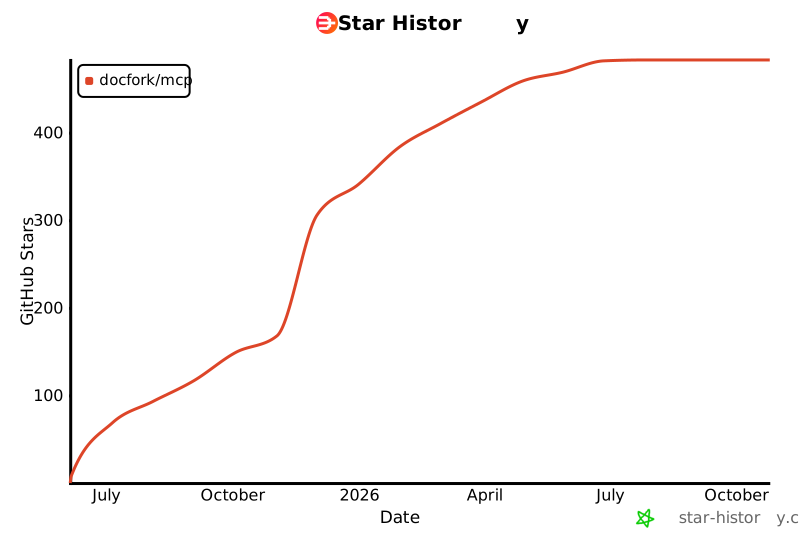](https://www.star-history.com/#docfork/mcp&Date)
## License
MIT