https://github.com/doctor-blue/moony_nav_bar_flutter
Flutter navigation bar lib. Simple and easy to use
https://github.com/doctor-blue/moony_nav_bar_flutter
flutter flutter-bottom-navigation-bar flutter-library flutter-navigation
Last synced: 4 months ago
JSON representation
Flutter navigation bar lib. Simple and easy to use
- Host: GitHub
- URL: https://github.com/doctor-blue/moony_nav_bar_flutter
- Owner: doctor-blue
- License: mit
- Created: 2021-06-09T15:32:05.000Z (about 5 years ago)
- Default Branch: master
- Last Pushed: 2022-07-02T08:04:16.000Z (almost 4 years ago)
- Last Synced: 2025-10-23T04:43:01.105Z (8 months ago)
- Topics: flutter, flutter-bottom-navigation-bar, flutter-library, flutter-navigation
- Language: Dart
- Homepage: https://dev-comentry.gitbook.io/docs/flutter/moony-navigation-bar
- Size: 1.46 MB
- Stars: 4
- Watchers: 1
- Forks: 1
- Open Issues: 1
-
Metadata Files:
- Readme: README.md
- Changelog: CHANGELOG.md
- License: LICENSE
Awesome Lists containing this project
README
# Moony Navigation Bar
```
Make sure the library version in your app is the latest
as I will update and fix some bugs as soon as it is detected.
You can create issues and notify me of errors you see or when you have any questions.
```
## Donate

[](https://www.paypal.me/doctorblue00)
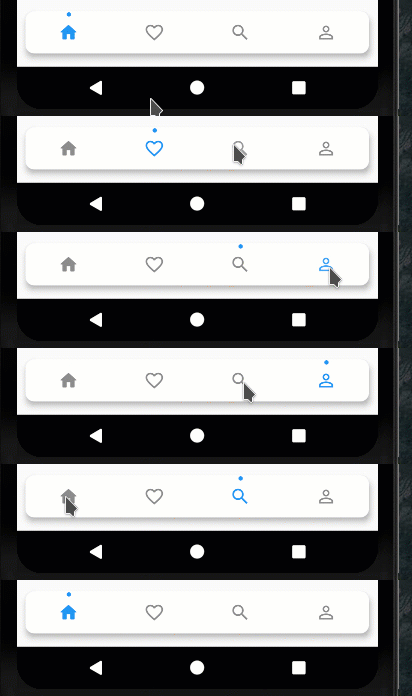
## GIF
- #1
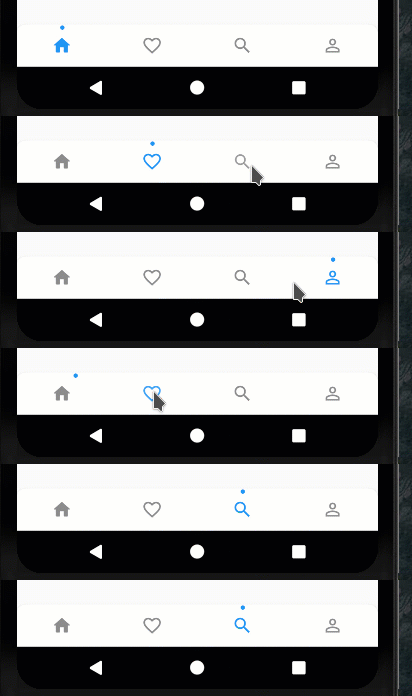
- #2
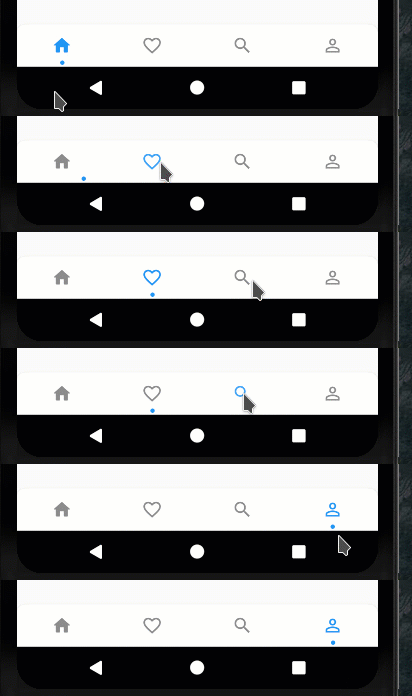
- #3
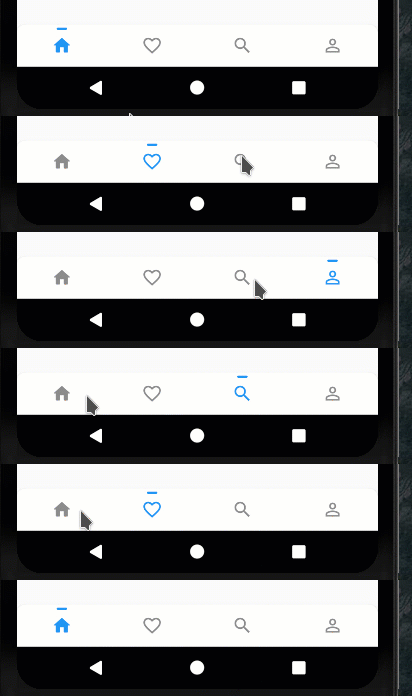
- #4 Custom NavigationBarItem
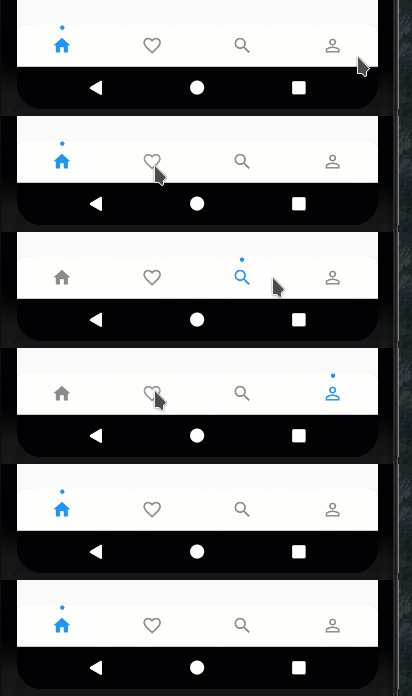
- #5 with margin and border radius
## Setup
### With flutter
Run this command:
```bash
flutter pub add moony_nav_bar
```
This will add a line like this to your package's pubspec.yaml (and run an implicit dart pub get):
```yaml
dependencies:
moony_nav_bar: ^1.3.0
```
### Import it
Now at your code, you can use:
```dart
import 'package:moony_nav_bar/moony_nav_bar.dart';
```
### Style
All navigation bar style contained inside the MoonyNavStyle class
| Attributes | Type | Default | Description |
|----------- | ---------- |-----------| ----------- |
| activeColor | Color | Color.black | Active Color|
| color | Color | Color.black45 | Inactive navigation item color |
| indicatorColor | Color | activeColor | Indicator color |
| backgroundColor | Color | Colors.white | Background color |
| indicatorPosition | IndicatorPosition | IndicatorPosition.TOP | Indicator position |
| indicatorType | IndicatorType | IndicatorType.POINT | Indicator type |
| marginLeft | double | 0 | Margin left |
| marginRight | double | 0 | Margin right |
| marginBottom | double | 0 | Margin bottom |
| elevation | double | 5 | Navigation elevation |
| borderRadius | BorderRadius? | null | Navigation border radius. example : `BorderRadius.circular(10)` |
### NavigationBarItem attributes
| Attributes | Type | Default | Description |
|----------- | ---------- |-----------| ----------- |
| icon | IconData | | Default Icon `required`|
| onTap | NavigationButtonTapCallback | | Tap listener `required` |
| activeIcon | IconData | null | Active icon `optional`|
| indicatorColor | Color | style.indicatorColor | Indicator color `optional`|
| color | Color | style.activeColor | Active icon color `optional` |
## Example
### Note:
- _screen1, _screen2, _screen3, _screen4 is my example, you can replace them with your screen
```dart
import 'package:flutter/material.dart';
import 'package:moony_nav_bar/moony_nav_bar.dart';
import 'package:moony_nav_bar_example/screen.dart';
void main() {
runApp(MyApp());
}
class MyApp extends StatefulWidget {
@override
_MyAppState createState() => _MyAppState();
}
class _MyAppState extends State {
Widget _screen1 = Screen1();
Widget _screen2 = Screen2();
Widget _screen3 = Screen3();
Widget _screen4 = Screen4();
int selectedIndex = 0;
@override
void initState() {
super.initState();
}
@override
Widget build(BuildContext context) {
return MaterialApp(
home: Scaffold(
appBar: AppBar(
title: const Text('Moony navigation bar'),
),
body: getBody(),
bottomNavigationBar: MoonyNavigationBar(
items: [
NavigationBarItem(
icon: Icons.home_rounded,
onTap: () {
onTapHandler(0);
}),
NavigationBarItem(
icon: Icons.favorite_border_outlined,
activeIcon: Icons.favorite,
color: Colors.pink,
indicatorColor: Colors.pink,
onTap: () {
onTapHandler(1);
}),
NavigationBarItem(
icon: Icons.search,
onTap: () {
onTapHandler(2);
}),
NavigationBarItem(
icon: Icons.person_outline,
onTap: () {
onTapHandler(3);
})
],
style: MoonyNavStyle(
activeColor: Theme.of(context).primaryColor,
indicatorPosition: IndicatorPosition.TOP,
indicatorType: IndicatorType.POINT,
borderRadius: BorderRadius.only(
topLeft: Radius.circular(10),
topRight: Radius.circular(10),
),
),
),
),
);
}
Widget getBody() {
if (this.selectedIndex == 0) {
return this._screen1;
} else if (this.selectedIndex == 1) {
return this._screen2;
} else if (this.selectedIndex == 2) {
return this._screen3;
}
return this._screen4;
}
void onTapHandler(int index) {
this.setState(() {
this.selectedIndex = index;
});
}
}
```