https://github.com/doonfrs/vscode-wsl-reveal-explorer
WSL Reveal in File Explorer vscode extension
https://github.com/doonfrs/vscode-wsl-reveal-explorer
Last synced: 5 months ago
JSON representation
WSL Reveal in File Explorer vscode extension
- Host: GitHub
- URL: https://github.com/doonfrs/vscode-wsl-reveal-explorer
- Owner: doonfrs
- License: mit
- Created: 2025-07-26T11:32:58.000Z (12 months ago)
- Default Branch: main
- Last Pushed: 2025-09-08T00:43:41.000Z (10 months ago)
- Last Synced: 2026-02-09T07:55:06.942Z (5 months ago)
- Language: JavaScript
- Size: 650 KB
- Stars: 8
- Watchers: 0
- Forks: 3
- Open Issues: 2
-
Metadata Files:
- Readme: README.md
- License: LICENSE
Awesome Lists containing this project
- awesome - doonfrs/vscode-wsl-reveal-explorer - WSL Reveal in File Explorer vscode extension (JavaScript)
README
# WSL Reveal in File Explorer
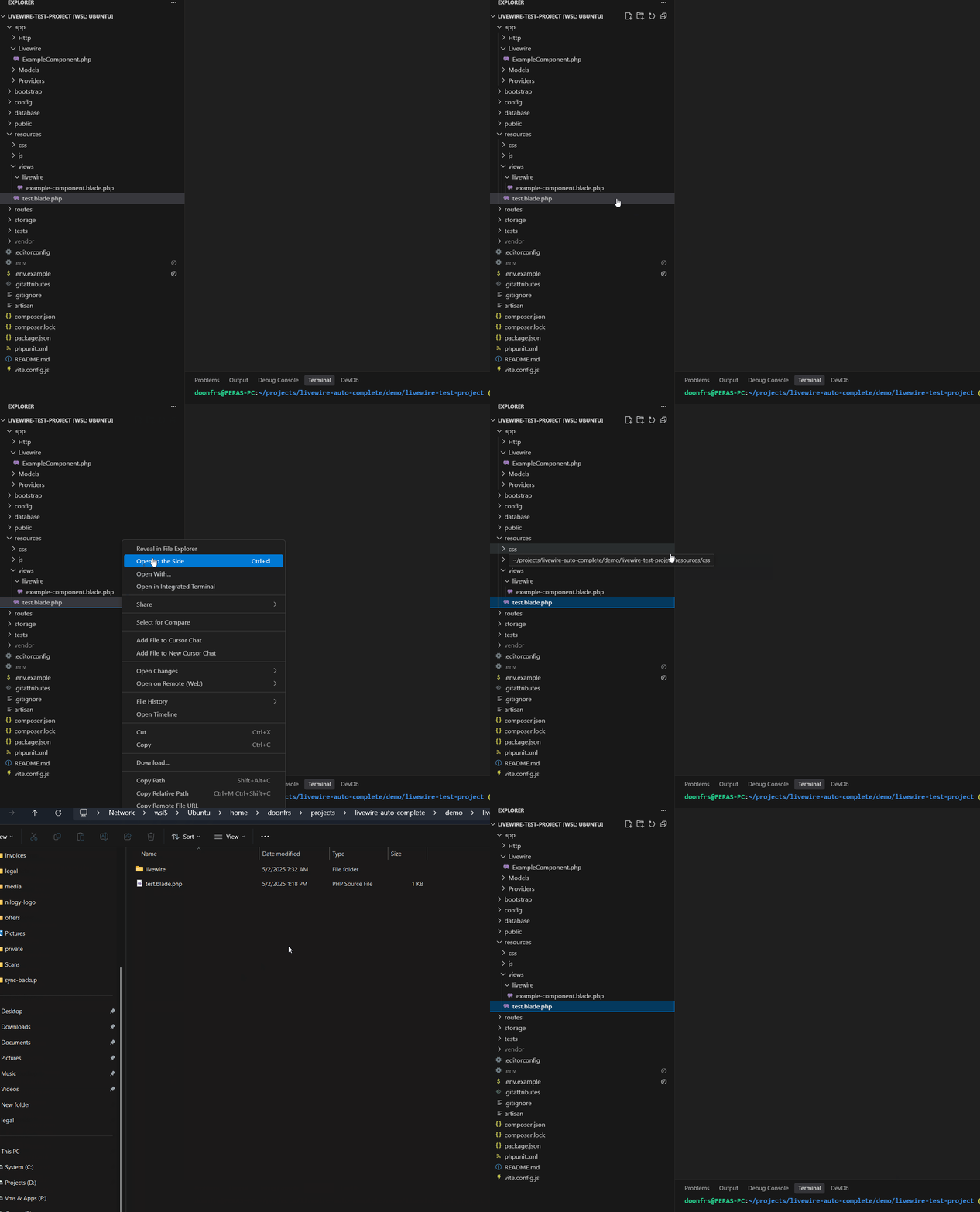
A VS Code extension that seamlessly opens Windows File Explorer from WSL and Remote SSH connections, allowing you to reveal files and folders in the native Windows file manager with a simple right-click.
## ☕ Support
If this extension helps you, consider supporting the development:
[](https://buymeacoffee.com/doonfrs)
**Your support helps maintain and improve this extension!**
## 🚀 Features
- **Zero Configuration Required** - Works out of the box with any WSL distribution
- **Remote SSH Support** - Also works with Remote SSH connections and mounted drives
- **Custom File Explorer Support** - Use your preferred file manager or stick with default Windows Explorer
- **Context Menu Integration** - Right-click any file or folder to reveal it in Windows Explorer or your custom choice
- **Automatic WSL Detection** - Dynamically detects your WSL distribution name
- **Custom Distribution Support** - Override auto-detection with your own distribution name
- **Configurable Path Prefix** - Customize network path prefix for different connection types
- **Reliable Path Translation** - Converts remote paths to Windows-compatible UNC paths
- **Cross-Distribution Support** - Works with Ubuntu, Debian, Alpine, and other WSL distributions
## 📋 Prerequisites
- Windows Subsystem for Linux (WSL) or WSL2, or Remote SSH connection
- Visual Studio Code running in WSL mode or connected to Remote SSH
- PowerShell available on Windows (included by default)
- For Remote SSH: Network drives or shares accessible from Windows
## 🌟 Show Your Support
If you find this extension useful:
- ⭐ **Star this repository** on GitHub
- 📝 **Leave a review** on the [VS Code Marketplace](https://marketplace.visualstudio.com/items?itemName=doonfrs.wsl-reveal-explorer)
- ☕ **Buy me a coffee** to support development: [buymeacoffee.com/doonfrs](https://buymeacoffee.com/doonfrs)
Every star, review, and coffee means a lot and helps keep this project alive! 🚀
## 🎯 Usage
1. **Open VS Code in WSL** - Make sure you're running VS Code in WSL mode
2. **Right-click any file or folder** in the VS Code explorer panel
3. **Select "Reveal in File Explorer"** from the context menu
4. **Windows File Explorer opens** showing the selected file/folder location
That's it! No configuration needed by default.
## 🔧 How It Works
The extension automatically:
- Detects your WSL distribution name (or uses your custom configuration)
- Converts Linux paths to Windows UNC format (`\\wsl$\Distribution\path`)
- Uses PowerShell to reliably open Windows File Explorer
- Handles path escaping and special characters
## ⚙️ Configuration
### Custom WSL Distribution Name
If automatic detection fails or you have a custom WSL distribution name, you can override it:
1. **Via Settings UI**:
- Open VS Code Settings (`Ctrl+,`)
- Search for "WSL Reveal Explorer"
- Set "Default Distribution Name" to your distribution name
2. **Via settings.json**:
```json
{
"wsl-reveal-explorer.defaultDistributionName": "Ubuntu2"
}
```
**Common examples**:
- `Ubuntu2` - for secondary Ubuntu installations
- `Ubuntu-22.04` - for version-specific Ubuntu distributions
- `Debian` - for Debian distributions
- `kali-linux` - for Kali Linux distributions
**Note**: Leave this setting empty (default) to use automatic detection.
### Custom Path Prefix for Remote SSH
For Remote SSH connections or custom network drives, you can configure a custom path prefix:
1. **Via Settings UI**:
- Open VS Code Settings (`Ctrl+,`)
- Search for "WSL Reveal Explorer"
- Set "Path Prefix" to your network path
2. **Via settings.json**:
```json
{
"wsl-reveal-explorer.pathPrefix": "\\\\server\\share",
"wsl-reveal-explorer.defaultDistributionName": ""
}
```
**Examples**:
- **WSL (default)**: `"\\\\wsl$"` - Standard WSL access
- **Network Share**: `"\\\\server\\share"` - Direct network share access
- **Mapped Drive**: `"\\\\192.168.1.100\\projects"` - IP-based network path
- **SSHFS Mount**: `"\\\\sshfs\\hostname"` - SSHFS mounted drives
**Note**: When using custom path prefixes, the distribution name is optional and can be left empty.
### Custom File Explorer
Use your preferred file manager instead of the default Windows Explorer:
1. **Via Settings UI**:
- Open VS Code Settings (`Ctrl+,`)
- Search for "WSL Reveal Explorer"
- Set "Custom Command" to your preferred command
2. **Via settings.json**:
```json
{
"wsl-reveal-explorer.customCommand": "explorer.exe {path}"
}
```
**Available placeholders**:
- `{path}` - The folder path to open
**Examples**:
- **Total Commander**: `"C:\\totalcmd\\TOTALCMD64.EXE /O /T {path}"`
- **FreeCommander**: `"C:\\FreeCommander XE\\FreeCommander.exe /C /T {path}"`
- **Directory Opus**: `"C:\\Program Files\\GPSoftware\\Directory Opus\\dopus.exe {path}"`
- **Q-Dir**: `"C:\\Q-Dir\\Q-Dir.exe {path}"`
**Note**: Leave this setting empty (default) to use Windows Explorer.
## 🛠️ Development
To contribute or modify this extension:
```bash
# Clone the repository
git clone
cd vscode-wsl-reveal-explorer
# Open in VS Code
code .
# Press F5 to run in Extension Development Host
# Test the functionality by right-clicking files in the explorer
```
## 🐛 Troubleshooting
If the extension doesn't work:
1. **Ensure you're running VS Code in WSL mode or Remote SSH** (not Windows locally)
2. **Verify that PowerShell is available** on your Windows system
3. **Check that Windows File Explorer can access your configured paths manually**
- For WSL: `\\wsl$\`
- For Remote SSH: Your custom network path
### Distribution Detection Issues
If the extension opens the wrong folder or fails to work:
1. **Check your actual WSL distribution name**:
```bash
# In WSL terminal, run:
wsl.exe -l -v
```
2. **Set the correct distribution name manually**:
- Use the exact name from the command above
- Go to VS Code Settings and search for "WSL Reveal Explorer"
- Set "Default Distribution Name" to the correct name (e.g., `Ubuntu-22.04`, `Ubuntu2`)
3. **Common distribution name issues**:
- Auto-detection might return `Ubuntu` but your distribution is `Ubuntu2`
- Version-specific names like `Ubuntu-20.04` vs `Ubuntu-22.04`
- Custom installation names
### Remote SSH Issues
For Remote SSH connections:
1. **Verify your network path configuration**:
- Set the correct `pathPrefix` in settings
- Test the path manually in Windows File Explorer
2. **Common Remote SSH scenarios**:
- **SSHFS mounts**: Configure path like `\\\\sshfs\\hostname`
- **Network shares**: Use `\\\\server\\share` format
- **Direct IP access**: Use `\\\\192.168.1.100\\path` format
3. **Path mapping examples**:
```text
Remote path: /home/user/project
Windows path: \\server\share\home\user\project
Configuration: "pathPrefix": "\\\\server\\share"
```
### File Explorer Issues
If your custom file explorer doesn't open:
1. **Verify the file explorer is installed** and accessible from the configured path
2. **Check the custom command syntax** - ensure it's a valid PowerShell command
3. **Test manually**: Try running the command directly in PowerShell to debug issues
4. **Use default**: Set the custom command to empty to fall back to Windows Explorer
## 📄 License
This project is licensed under the MIT License - see the [LICENSE](LICENSE) file for details.
## 👨💻 Author
**Feras Abdalrahman**
- GitHub: [@doonfrs](https://github.com/doonfrs)
- VS Code Marketplace: [doonfrs](https://marketplace.visualstudio.com/publishers/doonfrs)