https://github.com/doraemonkeys/windsend
Quickly and securely sync clipboard, transfer files and directories between devices. 快速安全的同步剪切板,传输文件或文件夹
https://github.com/doraemonkeys/windsend
clipboard dart file-transfer peer-to-peer rust tls
Last synced: 4 months ago
JSON representation
Quickly and securely sync clipboard, transfer files and directories between devices. 快速安全的同步剪切板,传输文件或文件夹
- Host: GitHub
- URL: https://github.com/doraemonkeys/windsend
- Owner: doraemonkeys
- License: mit
- Created: 2023-06-21T10:32:32.000Z (about 3 years ago)
- Default Branch: main
- Last Pushed: 2026-03-05T04:26:30.000Z (4 months ago)
- Last Synced: 2026-03-05T09:47:23.950Z (4 months ago)
- Topics: clipboard, dart, file-transfer, peer-to-peer, rust, tls
- Language: Dart
- Homepage:
- Size: 3.86 MB
- Stars: 578
- Watchers: 3
- Forks: 27
- Open Issues: 22
-
Metadata Files:
- Readme: README-EN.md
- Funding: .github/FUNDING.yml
- License: LICENSE
Awesome Lists containing this project
README
English | 简体中文
# WindSend
## What is WindSend
A set of applications for quickly and securely transferring clipboards, transferring files or directories between different devices (supports image and file clipboards).
## Why choose WindSend
- **Security** - All data is transmitted encrypted (TLS), even if it is a LAN, some people want to be more secure, such as me
- **Simple** - The interface is simple and easy to use, open source, free of advertising, and focuses on information transmission
- **Comprehensive** - Automatically match the computer with the same key in the LAN, and don't worry about switching wifi
- **Worry-free** - Don't worry about the connection status with the computer anymore, as long as the computer is online, the mobile phone can send
- **Fast** - Use multi-threaded asynchronous transmission of files to make full use of bandwidth.
- **Lightweight** - Does not depend on additional runtime environment, memory usage is less than 10M when idle, and basically no CPU consumption

## How to use
> **Note**: During the configuration phase, make sure that the computer and mobile phone are on the same network. You can also use the relay server to configure.
### Download
github:[Releases · WindSend](https://github.com/doraemonkeys/WindSend/releases)
> PC: Generally, you can choose to download the **x64 Rust** version (⚠️ Do not download the Flutter version!!!)
>
> Mobile: Generally, you can choose to download WindSend-flutter-arm64-v8a-release.apk
### PC
#### Linux
1. Unzip **WindSend-linux-x64-S-Rust-v\*.zip** to any directory.
```shell
sudo apt install libxdo3
```
```shell
nohup ./WindSend-S-Rust &
```
> If GLIBC version does not match, you can download compatible version or compile it yourself
#### Windows
1. Unzip **WindSend-windows-x64-S-Rust-v\*.zip** to any directory (Take Windows).
2. Double-click the exe file to run:
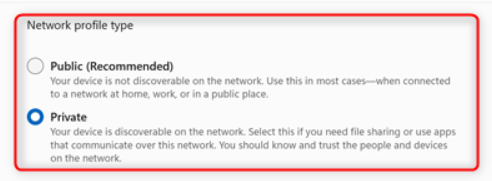
Please click to allow windows firewall, **Note** check the public network.

You can see the app icon in the taskbar system tray, and the default configuration file is generated in the current directory.

If you forget to check the public network, please manually set it in Windows Firewall, or **make sure you are using a dedicated network**.
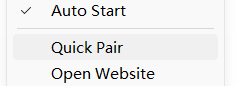
3. Turn on fast pairing so that the phone can search (fast pairing will automatically turn off after the first successful pairing).
### Mobile
1. Install the APP.
2. Open the app and click the Add button to add a device.
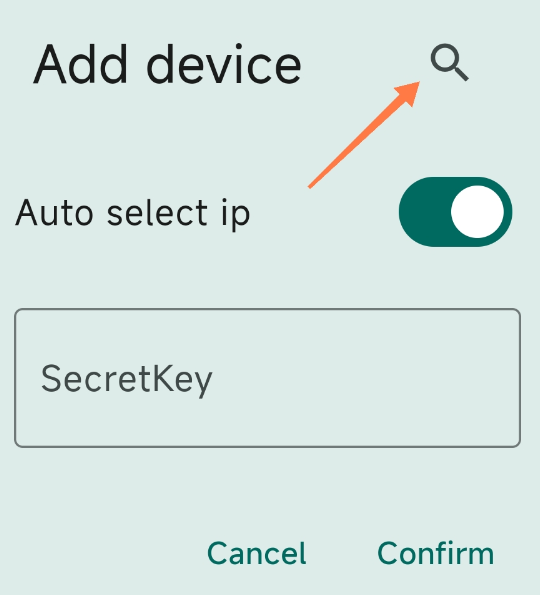
3. After the computer turns on the quick pair,tap the phone a few times to search, and if you're lucky, you'll see the Secretkey filled in automatically.
4. Finally, the exciting moment has arrived. Copy a piece of text on your phone, open the app and click paste, and the computer will pop up a notification instantly. Congratulations, you have successfully completed the configuration and can use it happily.
### Failed pairing? Manually add the device key
Open the default configuration file `config.yaml`, copy secretKeyHex, copy the entire content of `tls/ca_cert.pem`, and fill in the app configuration manually.
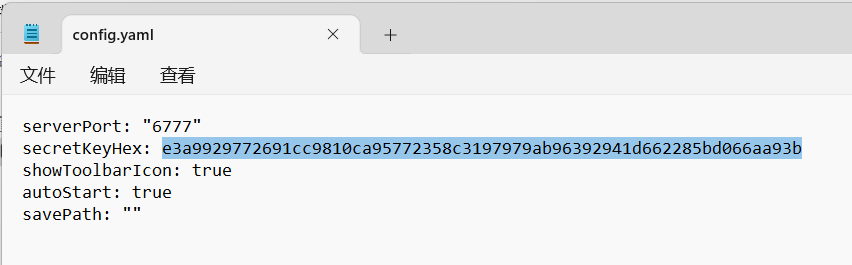
> In most cases, failure to pair quickly means that the network between your devices is not connected. Please use your phone's hotspot and try again.
### Note
- Notification delivery on Windows relies on PowerShell, if you don't see notifications, check that PowerShell is in the environment variable.
- APP's location permission is used to obtain WIFI information. It is strongly recommended to grant precise location permission.
## Tips
- **Long press to upload mobile phone folder**

- **Quickly copy folders**
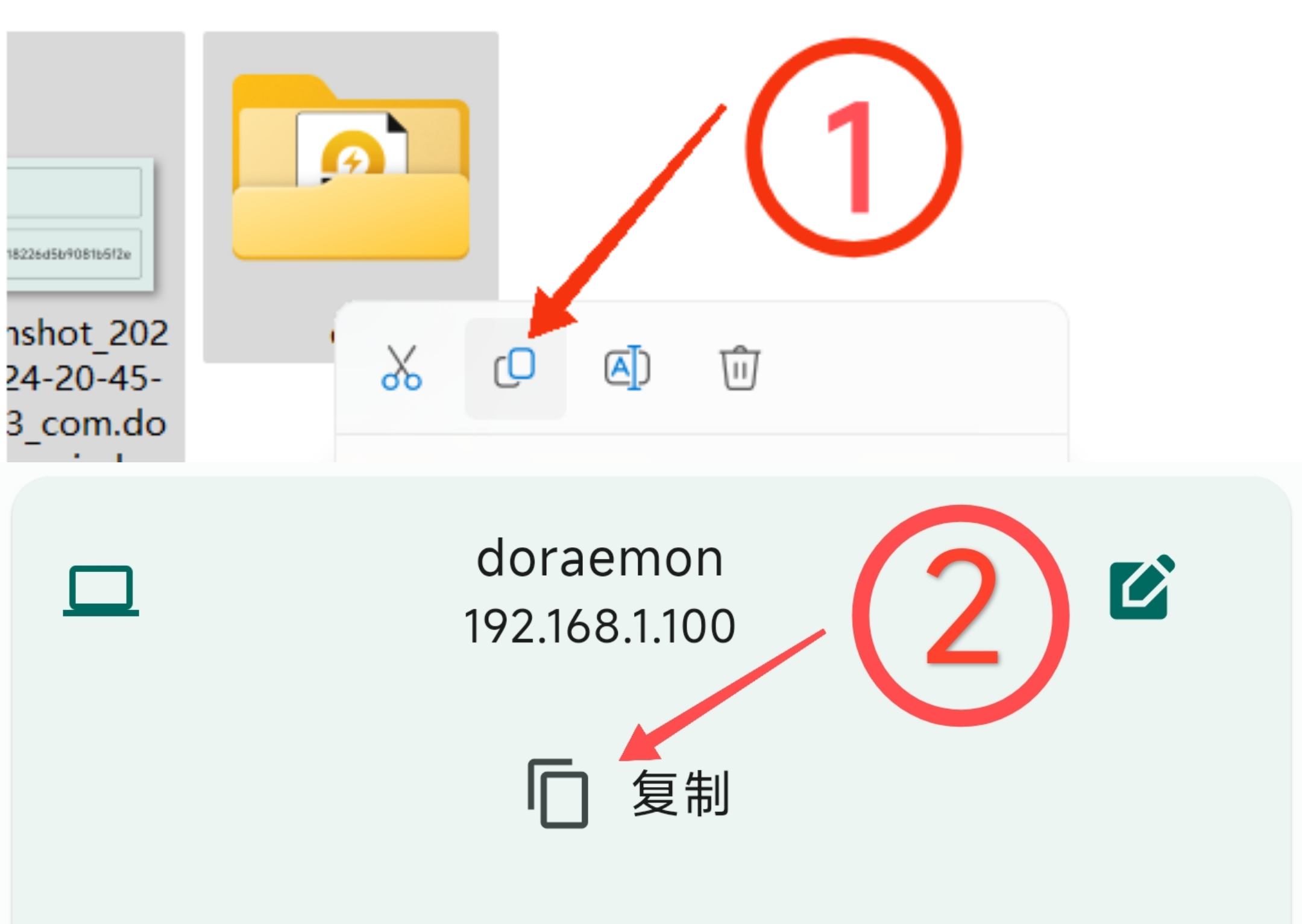
## Solution when Devices Are Not on the Same Network
### 1. Use Intranet Tunneling Software
For example, with Tailscale, you just need to replace the computer's IP with the IP assigned by Tailscale. Please test other tools on your own.
### 2. Use a Relay Server
WindSend supports setting up your own relay server to handle different network environments. For the setup guide, please refer to [WindSend-Relay](https://github.com/doraemonkeys/WindSend-Relay).
- **Usage:**
1. Run the relay service and set a connection secret key (optional).
2. Enter the relay server address in the device settings.
3. Push the relay server configuration to the target device (or modify the configuration file manually).
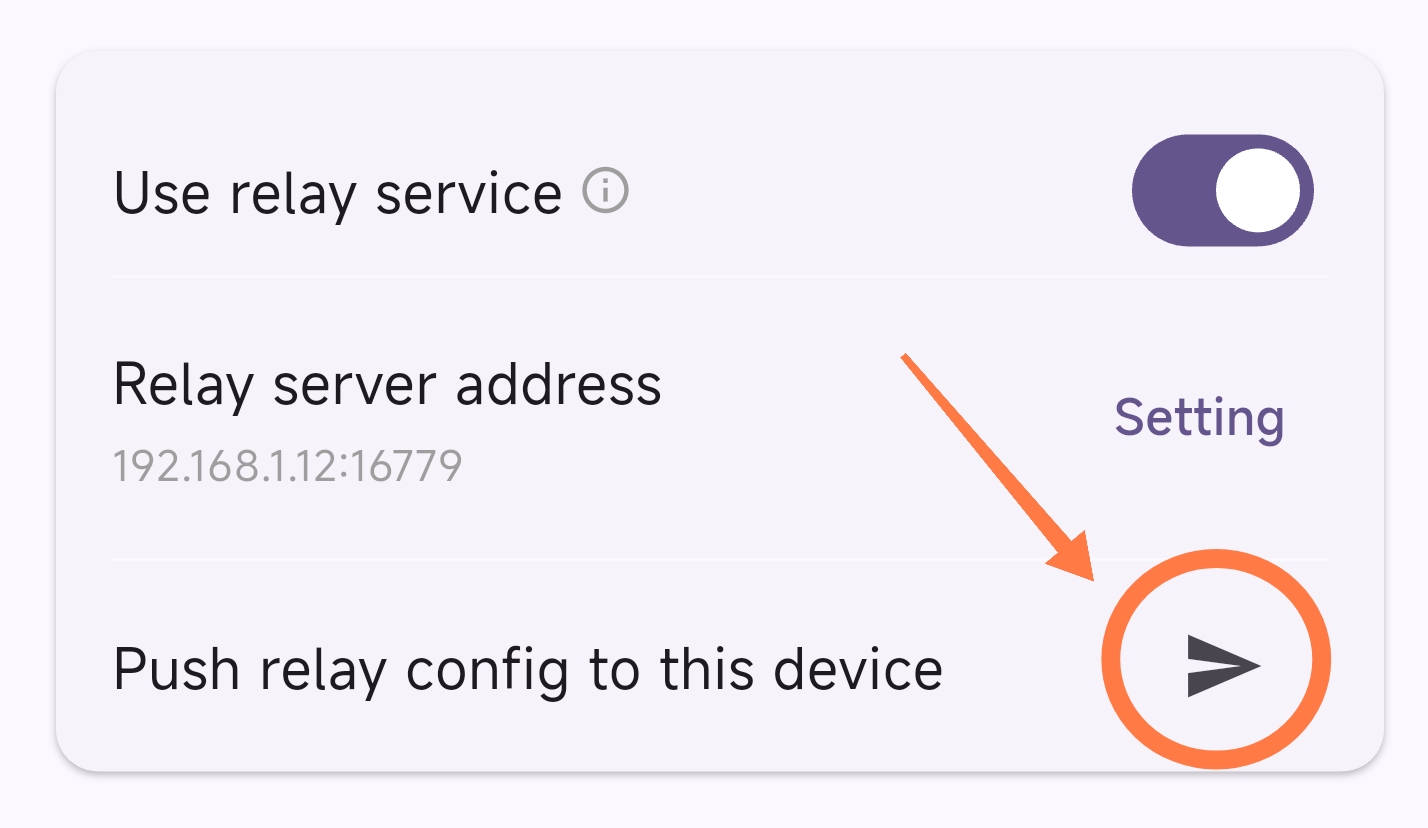
- **If you need to modify the configuration file manually:**
Open the default configuration file `config.yaml`, add the following configuration, and then restart the application.
```yaml
# Relay server address
relayServerAddress: your_relay_server_address:16779
# Connection secret key
# if there is one, change null to the key string
relaySecretKey: null
# Enable relay
enableRelay: true
```
## Cross-platform situation
Since the author only has Android and Windows devices, it is not guaranteed that the software will function normally on other platforms. Welcome to submit PR or Issue.
### Flutter
| | Windows | macOS | Linux | Android | iOS |
| ------- | ------- | ----- | ----- | ------- | ---- |
| Compile | ✅ | ✅ | ✅ | ✅ | ✅ |
| Run | ✅ | ❔ | ✅ | ✅ | ❔ |
### Rust
| | Windows | macOS | Linux | Android | iOS |
| ------- | ------- | ----- | ----- | ------- | ---- |
| Compile | ✅ | ✅ | ✅ | ❕ | ❕ |
| Run | ✅ | ❔ | ✅ | ❕ | ❕ |
### Go (End of life)
| | Windows | macOS | Linux | Android | iOS |
| ------- | ------- | ----- | ----- | ------- | ---- |
| Compile | ✅ | ❌ | ❌ | ❕ | ❕ |
| Run | ✅ | | | ❕ | ❕ |
## Build
The [Release.yml](https://github.com/doraemonkeys/WindSend/blob/main/.github/workflows/Release.yml) file contains the detailed process of automatic build, which can be referred to.
You can also download the original file of the workflow from [Actions](https://github.com/doraemonkeys/WindSend/actions).
### Flutter
[Flutter](https://flutter-ko.dev/get-started/install)
version: channel stable
#### Requirements
[Install Rust](https://www.rust-lang.org/tools/install)
#### Build
```shell
cd flutter/wind_send
flutter build windows --release
flutter build linux --release
flutter build macos --release
```
Create a key.properties file in the flutter/wind_send/android/app directory, add app signing information and store.jks file path.
```shell
flutter build apk --split-per-abi --release
```
### Rust
#### toolchain
- **windows x86_64**
stable-x86_64-pc-windows-msvc
- **windows aarch64**
aarch64-pc-windows-msvc
- **Linux x86_64**
x86_64-unknown-linux-gnu
- **MacOS x86_64**
x86_64-apple-darwin
- **MacOS aarch64**
aarch64-apple-darwin
#### Requirements
[AWS Libcrypto for Rust User Guide](https://aws.github.io/aws-lc-rs/requirements/index.html)
**Linux**
```shell
sudo apt install -y libgtk-3-dev libxdo-dev libappindicator3-dev
sudo apt install -y pkg-config libssl-dev build-essential linux-libc-dev
sudo apt install -y musl-dev musl-tools
```
#### Build
```shell
cd windSend-rs
cargo build --release
```
## Contributing
Contributions are welcome! Please feel free to submit pull requests or open issues on the [GitHub repository](https://github.com/doraemonkeys/WindSend).