https://github.com/dotmake-build/command-line
Declarative syntax for System.CommandLine via attributes for easy, fast, strongly-typed (no reflection) usage. Includes a source generator which automagically converts your classes to CLI commands and properties to CLI options or CLI arguments.
https://github.com/dotmake-build/command-line
cli command-line commandlineparser console csharp dotmake dotnet source-generator system-commandline
Last synced: 7 months ago
JSON representation
Declarative syntax for System.CommandLine via attributes for easy, fast, strongly-typed (no reflection) usage. Includes a source generator which automagically converts your classes to CLI commands and properties to CLI options or CLI arguments.
- Host: GitHub
- URL: https://github.com/dotmake-build/command-line
- Owner: dotmake-build
- License: mit
- Created: 2023-12-12T14:47:52.000Z (over 2 years ago)
- Default Branch: main
- Last Pushed: 2025-04-10T15:11:44.000Z (over 1 year ago)
- Last Synced: 2025-04-10T16:44:10.842Z (over 1 year ago)
- Topics: cli, command-line, commandlineparser, console, csharp, dotmake, dotnet, source-generator, system-commandline
- Language: C#
- Homepage: https://dotmake.build
- Size: 3.22 MB
- Stars: 99
- Watchers: 1
- Forks: 9
- Open Issues: 2
-
Metadata Files:
- Readme: docs/README.md
- License: LICENSE
Awesome Lists containing this project
- RSCG_Examples - https://github.com/dotmake-build/command-line
README

# DotMake Command-Line
System.CommandLine is a very good parser but you need a lot of boilerplate code to get going and the API is hard to discover.
This becomes complicated to newcomers and also you would have a lot of ugly code in your `Program.cs` to maintain.
What if you had an easy class-based layer combined with a good parser?
DotMake.CommandLine is a library which provides declarative syntax for
[System.CommandLine](https://github.com/dotnet/command-line-api)
via attributes for easy, fast, strongly-typed (no reflection) usage. The library includes a source generator
which automagically converts your classes to CLI commands and properties to CLI options or CLI arguments.
Supports
[trimming](https://learn.microsoft.com/en-us/dotnet/core/deploying/trimming/trim-self-contained),
[AOT compilation](https://learn.microsoft.com/en-us/dotnet/core/deploying/native-aot) and
[dependency injection](https://learn.microsoft.com/en-us/dotnet/core/extensions/dependency-injection)!
[](https://www.nuget.org/packages/DotMake.CommandLine)
## Getting started
Install the library to your console app project with [NuGet](https://www.nuget.org/).
In your project directory, via dotnet cli:
```console
dotnet add package DotMake.CommandLine
```
or in Visual Studio Package Manager Console:
```console
PM> Install-Package DotMake.CommandLine
```
### Prerequisites
- .NET 8.0 and later project or .NET Standard 2.0 and later project.
Note that .NET Framework 4.7.2+ or .NET Core 2.0 to NET 7.0 projects can reference our netstandard2.0 target (automatic in nuget).
If your target framework is below net5.0, you also need `9.0` tag (minimum) in your .csproj file.
- Visual Studio 2022 v17.3+ or .NET SDK 6.0.407+ (when building via `dotnet` cli).
Our incremental source generator requires performance features added first in these versions.
- Usually a console app project but you can also use a class library project which will be consumed later.
## Usage
DotMake.CommandLine offers 2 models: class-based model and delegate-based model.
Delegate-based model is useful for simple apps, for more complex apps, you should use the class-based model
because you can have sub-commands and command inheritance.
### Class-based model
Create a CLI App with DotMake.Commandline in seconds!
In `Program.cs`, add this simple code:
```c#
using System;
using DotMake.CommandLine;
// Add this single line to run you app!
Cli.Run(args);
// Create a simple class like this to define your root command:
[CliCommand(Description = "A root cli command")]
public class RootCliCommand
{
[CliOption(Description = "Description for Option1")]
public string Option1 { get; set; } = "DefaultForOption1";
[CliArgument(Description = "Description for Argument1")]
public string Argument1 { get; set; }
public void Run()
{
Console.WriteLine($@"Handler for '{GetType().FullName}' is run:");
Console.WriteLine($@"Value for {nameof(Option1)} property is '{Option1}'");
Console.WriteLine($@"Value for {nameof(Argument1)} property is '{Argument1}'");
Console.WriteLine();
}
}
```
And that's it! You now have a fully working command-line app. You just specify the name of your class which represents your root command to `Cli.Run<>` method and everything is wired.
> `args` is the string array typically passed to a program. This is usually
the special variable `args` available in `Program.cs` (new style with top-level statements)
or the string array passed to the program's `Main` method (old style).
We also have method signatures which does not require `args`,
for example you can also call `Cli.Run()` and in that case `args` will be retrieved automatically from the current process via `Cli.GetArgs()`.
If you want to go async, just use this:
```c#
await Cli.RunAsync(args);
```
To handle exceptions, you just use a try-catch block:
```c#
try
{
Cli.Run(args);
}
catch (Exception e)
{
Console.WriteLine(@"Exception in main: {0}", e.Message);
}
```
System.CommandLine, by default overtakes your exceptions that are thrown in command handlers
(even if you don't set an exception handler explicitly) but DotMake.CommandLine, by default allows
the exceptions to pass through. However if you wish, you can easily use the default exception handler
by passing a `CliSettings` instance like below. Default exception handler prints the exception in red color to console:
```c#
Cli.Run(args, new CliSettings { EnableDefaultExceptionHandler = true });
```
If you need to simply parse the command-line arguments without invocation, use this:
```c#
var parseResult = Cli.Parse(args);
var rootCliCommand = parseResult.Bind();
```
If you need to examine the parse result, such as errors:
```c#
var parseResult = Cli.Parse(args);
if (parseResult.Errors.Count > 0)
{
}
```
#### Summary
- Mark the class with `CliCommand` attribute to make it a CLI command (see [CliCommandAttribute](https://dotmake.build/api/html/T_DotMake_CommandLine_CliCommandAttribute.htm) docs for more info).
- Mark a property with `CliOption` attribute to make it a CLI option (see [CliOptionAttribute](https://dotmake.build/api/html/T_DotMake_CommandLine_CliOptionAttribute.htm) docs for more info).
- Mark a property with `CliArgument` attribute to make it a CLI argument (see [CliArgumentAttribute](https://dotmake.build/api/html/T_DotMake_CommandLine_CliArgumentAttribute.htm) docs for more info).
- Add a method with name `Run` or `RunAsync` to make it the handler for the CLI command. The method can have one of the following signatures:
-
```c#
void Run()
```
-
```c#
int Run()
```
-
```c#
async Task RunAsync()
```
-
```c#
async Task RunAsync()
```
Optionally the method signature can have a `CliContext` parameter in case you need to access it:
-
```c#
Run(CliContext context)
```
-
```c#
RunAsync(CliContext context)
```
The signatures which return int value, sets the ExitCode of the app.
If no handler method is provided, then by default it will show help for the command.
This can be also controlled manually by extension method `ShowHelp` in `CliContext`.
Other extension methods `IsEmptyCommand`, `ShowValues` and `ShowHierarchy` are also useful.
- Call `Cli.Run<>` or`Cli.RunAsync<>` method with your class name to run your CLI app (see [Cli](https://dotmake.build/api/html/T_DotMake_CommandLine_Cli.htm) docs for more info).
- For best practice, create a subfolder named `Commands` in your project and put your command classes there
so that they are easy to locate and maintain in the future.
### Delegate-based model
Create a CLI App with DotMake.Commandline in seconds!
In `Program.cs`, add this simple code:
```c#
using System;
using DotMake.CommandLine;
Cli.Run(([CliArgument]string arg1, bool opt1) =>
{
Console.WriteLine($@"Value for {nameof(arg1)} parameter is '{arg1}'");
Console.WriteLine($@"Value for {nameof(opt1)} parameter is '{opt1}'");
});
```
And that's it! You now have a fully working command-line app.
#### Summary
- Pass a delegate (a parenthesized lambda expression or a method reference) which has parameters that represent your options and arguments, to `Cli.Run`.
- A parameter is by default considered as a CLI option but you can;
- Mark a parameter with `CliArgument` attribute to make it a CLI argument and specify settings (see [CliArgumentAttribute](https://dotmake.build/api/html/T_DotMake_CommandLine_CliArgumentAttribute.htm) docs for more info).
- Mark a parameter with `CliOption` attribute to specify CLI option settings (see [CliOptionAttribute](https://dotmake.build/api/html/T_DotMake_CommandLine_CliOptionAttribute.htm) docs for more info).
- Mark the delegate itself with `CliCommand` attribute to specify CLI command settings (see [CliCommandAttribute](https://dotmake.build/api/html/T_DotMake_CommandLine_CliCommandAttribute.htm) docs for more info).
- Note that for being able to mark a parameter with an attribute in an anonymous lambda function,
if your target framework is below net6.0, you also need `10.0` tag (minimum) in your .csproj file.
- Set a default value for a parameter if you want it to be optional (not required to be specified on the command-line).
- Your delegate can be `async`.
- Your delegate can have a return type `void` or `int` and if it's async `Task` or `Task`.
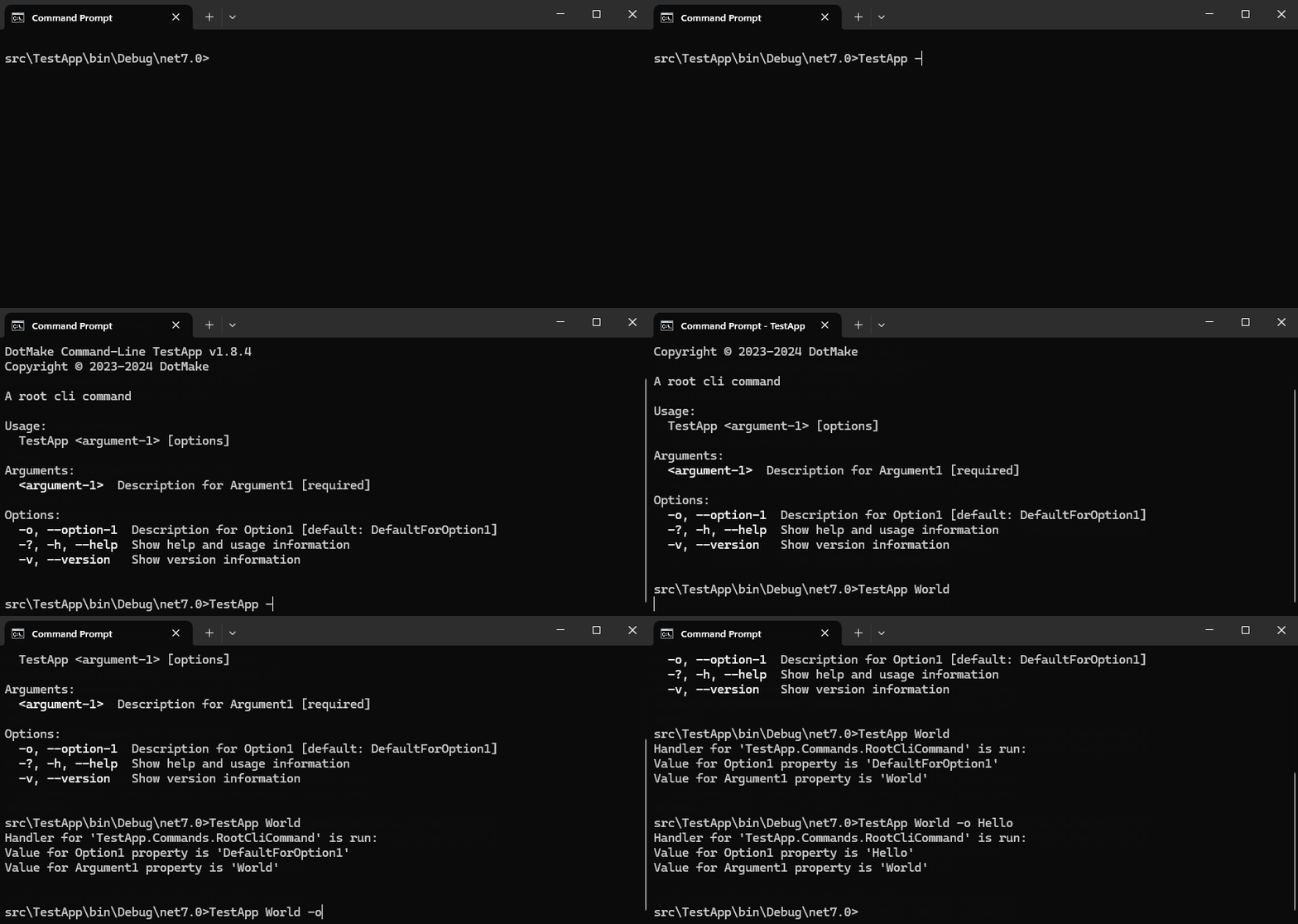
## Help output
When you run the app via
- `TestApp.exe -?` in project output path (e.g. in `TestApp\bin\Debug\net8.0`)
- or `dotnet run -- -?` in project directory (e.g. in `TestApp`) (note the double hyphen/dash which allows `dotnet run` to pass arguments to our actual application)
- You see this usage help:
```console
DotMake Command-Line TestApp v1.6.0
Copyright © 2023-2024 DotMake
A root cli command
Usage:
TestApp [options]
Arguments:
Description for Argument1 [required]
Options:
-o, --option-1 Description for Option1 [default: DefaultForOption1]
-v, --version Show version information
-?, -h, --help Show help and usage information
```
- First line comes from `AssemblyProductAttribute` or `AssemblyName` (`` tag in your .csproj file).
Version comes from `AssemblyInformationalVersionAttribute` or `AssemblyFileVersionAttribute` or `AssemblyVersionAttribute`
(`` or `` or `` tag in your .csproj file).
- Second line comes from `AssemblyCopyrightAttribute` (`` tag in your .csproj file).
- Third line comes from `Description` property of `[CliCommand]` or for root commands, `AssemblyDescriptionAttribute` (`` tag in your .csproj file).
Note, how command/option/argument names, descriptions and default values are automatically populated.
By default, command/option/argument names are generated as follows;
- First the following suffixes are stripped out from class and property names:
- For commands:
"RootCliCommand", "RootCommand", "SubCliCommand", "SubCommand", "CliCommand", "Command", "Cli"
- For options:
"RootCommandOption", "SubCliCommandOption", "SubCommandOption", "CliCommandOption", "CommandOption", "CliOption", "Option"
- For arguments:
"RootCliCommandArgument", "RootCommandArgument", "SubCliCommandArgument", "SubCommandArgument", "CliCommandArgument", "CommandArgument", "CliArgument", "Argument"
- Then the names are converted to **kebab-case**, this can be changed by setting `NameCasingConvention` property of the `CliCommand` attribute to one of the following values:
- `CliNameCasingConvention.None`
- `CliNameCasingConvention.LowerCase`
- `CliNameCasingConvention.UpperCase`
- `CliNameCasingConvention.TitleCase`
- `CliNameCasingConvention.PascalCase`
- `CliNameCasingConvention.CamelCase`
- `CliNameCasingConvention.KebabCase`
- `CliNameCasingConvention.SnakeCase`
- For options, double hyphen/dash prefix is added to the name (e.g. `--option`), this can be changed by setting `NamePrefixConvention` (default: DoubleHyphen) property of the `CliCommand` attribute to one of the following values:
- `CliNamePrefixConvention.SingleHyphen`
- `CliNamePrefixConvention.DoubleHyphen`
- `CliNamePrefixConvention.ForwardSlash`
- For options, short-form alias with first letter (e.g. `-o`) is automatically added. This can be changed by setting `ShortFormAutoGenerate` (default: true) and `ShortFormPrefixConvention` (default: SingleHyphen) properties of the `CliCommand` attribute.
---
For example, change the name casing and prefix convention:
```c#
using System;
using DotMake.CommandLine;
[CliCommand(
Description = "A cli command with snake_case name casing and forward slash prefix conventions",
NameCasingConvention = CliNameCasingConvention.SnakeCase,
NamePrefixConvention = CliNamePrefixConvention.ForwardSlash,
ShortFormPrefixConvention = CliNamePrefixConvention.ForwardSlash
)]
public class RootSnakeSlashCliCommand
{
[CliOption(Description = "Description for Option1")]
public string Option1 { get; set; } = "DefaultForOption1";
[CliArgument(Description = "Description for Argument1")]
public string Argument1 { get; set; }
public void Run()
{
Console.WriteLine($@"Handler for '{GetType().FullName}' is run:");
Console.WriteLine($@"Value for {nameof(Option1)} property is '{Option1}'");
Console.WriteLine($@"Value for {nameof(Argument1)} property is '{Argument1}'");
Console.WriteLine();
}
}
```
When you run the app via `TestApp.exe -?` or `dotnet run -- -?`, you see this usage help:
```console
DotMake Command-Line TestApp v1.6.0
Copyright © 2023-2024 DotMake
A cli command with snake_case name casing and forward slash prefix conventions
Usage:
TestApp [options]
Arguments:
Description for Argument1 [required]
Options:
/o, /option_1 Description for Option1 [default: DefaultForOption1]
/v, /version Show version information
-?, -h, /help Show help and usage information
```
Note how even the default options `version` and `help` use the new prefix convention `ForwardSlash`. By the way, as `help` is a special option, which allows user to discover your app, we still add short-form aliases with other prefix to prevent confusion.
### Themes
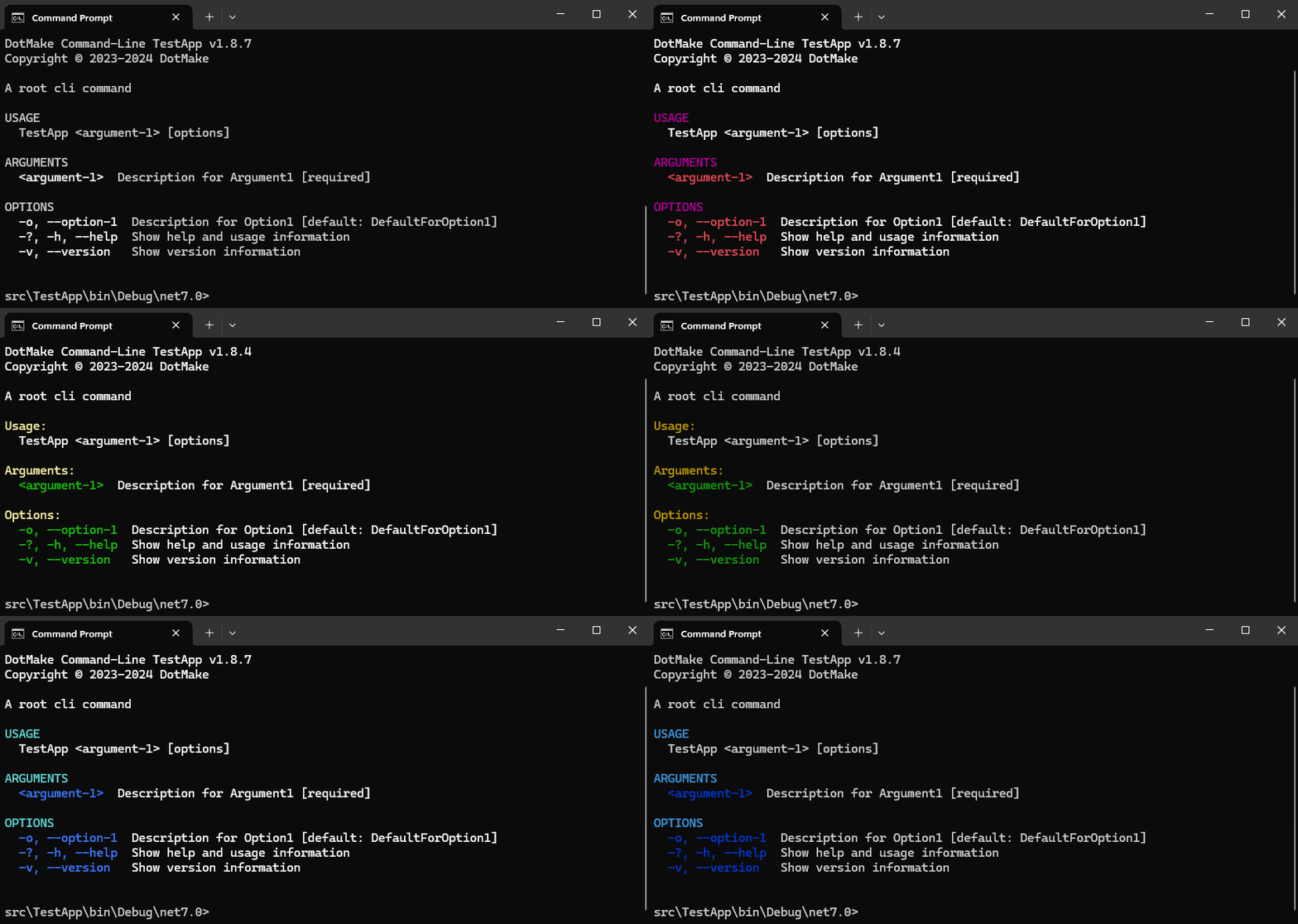
Cli app theme can be changed via setting `CliSettings.Theme` property to predefined themes Red, DarkRed, Green, DarkGreen, Blue, DarkBlue
or a custom `CliTheme`. These color and formatting option are mainly used by the help output.
```c#
Cli.Run(args, new CliSettings { Theme = CliTheme.Red });
Cli.Run(args, new CliSettings { Theme = CliTheme.DarkRed });
Cli.Run(args, new CliSettings { Theme = CliTheme.Green });
Cli.Run(args, new CliSettings { Theme = CliTheme.DarkGreen });
Cli.Run(args, new CliSettings { Theme = CliTheme.Blue });
Cli.Run(args, new CliSettings { Theme = CliTheme.DarkBlue });
Cli.Run(args, new CliSettings
{
Theme = new CliTheme(CliTheme.Default)
{
HeadingCasing = CliNameCasingConvention.UpperCase,
HeadingNoColon = true
}
});
```
Note that [NO_COLOR](https://no-color.org/) is supported, i.e. if `NO_COLOR` environment variable is set, the colors will be disabled.
### Localization
Localizing commands, options and arguments is supported.
You can specify a `nameof` operator expression with a resource property (generated by resx) in the attribute's argument (for `string` types only)
and the source generator will smartly use the resource property accessor as the value of the argument so that it can localize at runtime.
If the property in the `nameof` operator expression does not point to a resource property, then the name of that property will be used as usual.
The reason we use `nameof` operator is that attributes in `.NET` only accept compile-time constants and you get `CS0182` error if not,
so specifying resource property directly is not possible as it's not a compile-time constant but it's a static property access.
```c#
[CliCommand(Description = nameof(TestResources.CommandDescription))]
internal class LocalizedCliCommand
{
[CliOption(Description = nameof(TestResources.OptionDescription))]
public string Option1 { get; set; } = "DefaultForOption1";
[CliArgument(Description = nameof(TestResources.ArgumentDescription))]
public string Argument1 { get; set; }
public void Run()
{
Console.WriteLine($@"Handler for '{GetType().FullName}' is run:");
Console.WriteLine($@"Value for {nameof(Option1)} property is '{Option1}'");
Console.WriteLine($@"Value for {nameof(Argument1)} property is '{Argument1}'");
Console.WriteLine();
}
}
```
### Triggering help
If a command represents a group and not an action, you may want to show help.
If `Run` or `RunAsync` method is missing in a command class, then by default it will show help.
You can also manually trigger help in `Run` or `RunAsync` method of a command class via calling `CliContext.ShowHelp`.
For testing a command, these methods are also useful:
- `CliContext.IsEmptyCommand` gets value indicating whether current command is specified without any arguments or options.
Note that arguments and options should be optional, if they are required (no default values),
then handler will not run and missing error message will be shown.
- `CliContext.ShowValues` shows parsed values for current command and its arguments and options.
- `CliContext.ShowHierarchy` shows hierarchy for all commands, it will start from the root command and show a tree.
See below example; root command does not have a handler method so it will always show help
and sub-command will show help if command is specified without any arguments or option,
and it will show (dump) values if not:
```c#
[CliCommand(Description = "A root cli command")]
public class HelpCliCommand
{
[CliOption(Description = "Description for Option1")]
public string Option1 { get; set; } = "DefaultForOption1";
[CliArgument(Description = "Description for Argument1")]
public string Argument1 { get; set; } = "DefaultForArgument1";
[CliCommand(Description = "A sub cli command")]
public class SubCliCommand
{
[CliArgument(Description = "Description for Argument2")]
public string Argument2 { get; set; } = "DefaultForArgument2";
public void Run(CliContext context)
{
if (context.IsEmptyCommand())
context.ShowHelp();
else
context.ShowValues();
}
}
}
```
## Commands
A *command* in command-line input is a token that specifies an action or defines a group of related actions. For example:
* In `dotnet run`, `run` is a command that specifies an action.
* In `dotnet tool install`, `install` is a command that specifies an action, and `tool` is a command that specifies a group of related commands. There are other tool-related commands, such as `tool uninstall`, `tool list`, and `tool update`.
### Root commands
The *root command* is the one that specifies the name of the app's executable. For example, the `dotnet` command specifies the *dotnet.exe* executable.
### Subcommands
Most command-line apps support *subcommands*, also known as *verbs*. For example, the `dotnet` command has a `run` subcommand that you invoke by entering `dotnet run`.
Subcommands can have their own subcommands. In `dotnet tool install`, `install` is a subcommand of `tool`.
### Command Hierarchy
Defining sub-commands in DotMake.Commandline is very easy. We simply use nested classes to create a hierarchy.
Just make sure you apply `CliCommand` attribute to the nested classes as well:
```c#
/*
Command hierarchy in below example is:
TestApp
└╴level-1
└╴level-2
*/
[CliCommand(Description = "A root cli command with nested children")]
public class RootWithNestedChildrenCliCommand
{
[CliOption(Description = "Description for Option1")]
public string Option1 { get; set; } = "DefaultForOption1";
[CliArgument(Description = "Description for Argument1")]
public string Argument1 { get; set; } = "DefaultForArgument1";
public void Run(CliContext context)
{
if (context.IsEmptyCommand())
context.ShowHierarchy();
else
context.ShowValues();
}
[CliCommand(Description = "A nested level 1 sub-command")]
public class Level1SubCliCommand
{
[CliOption(Description = "Description for Option1")]
public string Option1 { get; set; } = "DefaultForOption1";
[CliArgument(Description = "Description for Argument1")]
public string Argument1 { get; set; }
public void Run(CliContext context)
{
context.ShowValues();
}
[CliCommand(Description = "A nested level 2 sub-command")]
public class Level2SubCliCommand
{
[CliOption(Description = "Description for Option1")]
public string Option1 { get; set; } = "DefaultForOption1";
[CliArgument(Description = "Description for Argument1")]
public string Argument1 { get; set; }
public void Run(CliContext context)
{
context.ShowValues();
}
}
}
}
```
Another way to create hierarchy between commands, especially if you want to use standalone classes,
is to
- Use `Children` property of `CliCommand` attribute to specify array of `typeof` child classes:
```c#
/*
Command hierarchy in below example is:
TestApp
└╴external-level-1
└╴external-level-2
*/
[CliCommand(
Description = "A root cli command with external children",
Children = new []
{
typeof(ExternalLevel1SubCliCommand)
}
)]
public class RootWithExternalChildrenCliCommand
{
[CliOption(Description = "Description for Option1")]
public string Option1 { get; set; } = "DefaultForOption1";
[CliArgument(Description = "Description for Argument1")]
public string Argument1 { get; set; } = "DefaultForArgument1";
public void Run(CliContext context)
{
if (context.IsEmptyCommand())
context.ShowHierarchy();
else
context.ShowValues();
}
}
[CliCommand(
Description = "An external level 1 sub-command",
Children = new[]
{
typeof(ExternalLevel2SubCliCommand)
}
)]
public class ExternalLevel1SubCliCommand
{
[CliOption(Description = "Description for Option1")]
public string Option1 { get; set; } = "DefaultForOption1";
[CliArgument(Description = "Description for Argument1")]
public string Argument1 { get; set; }
public void Run(CliContext context)
{
context.ShowValues();
}
}
[CliCommand(Description = "An external level 2 sub-command")]
public class ExternalLevel2SubCliCommand
{
[CliOption(Description = "Description for Option1")]
public string Option1 { get; set; } = "DefaultForOption1";
[CliArgument(Description = "Description for Argument1")]
public string Argument1 { get; set; }
public void Run(CliContext context)
{
context.ShowValues();
}
}
```
- Use `Parent` property of `CliCommand` attribute to specify `typeof` parent class:
```c#
/*
Command hierarchy in below example is:
TestApp
└╴external-level-1-with-parent
└╴external-level-2-with-parent
*/
[CliCommand(
Description = "A root cli command with external children"
)]
public class RootAsExternalParentCliCommand
{
[CliOption(Description = "Description for Option1")]
public string Option1 { get; set; } = "DefaultForOption1";
[CliArgument(Description = "Description for Argument1")]
public string Argument1 { get; set; } = "DefaultForArgument1";
public void Run(CliContext context)
{
if (context.IsEmptyCommand())
context.ShowHierarchy();
else
context.ShowValues();
}
}
[CliCommand(
Description = "An external level 1 sub-command",
Parent = typeof(RootAsExternalParentCliCommand)
)]
public class ExternalLevel1WithParentSubCliCommand
{
[CliOption(Description = "Description for Option1")]
public string Option1 { get; set; } = "DefaultForOption1";
[CliArgument(Description = "Description for Argument1")]
public string Argument1 { get; set; }
public void Run(CliContext context)
{
context.ShowValues();
}
}
[CliCommand(
Description = "An external level 2 sub-command",
Parent = typeof(ExternalLevel1WithParentSubCliCommand)
)]
public class ExternalLevel2WithParentSubCliCommand
{
[CliOption(Description = "Description for Option1")]
public string Option1 { get; set; } = "DefaultForOption1";
[CliArgument(Description = "Description for Argument1")]
public string Argument1 { get; set; }
public void Run(CliContext context)
{
context.ShowValues();
}
}
```
The class that `CliCommand` attribute is applied to,
- will be a root command if the class is not a nested class and other's `Children` property and self's `Parent` property is not set.
- will be a sub command if the class is a nested class or other's `Children` property or self's `Parent` property is set.
You can create a complex hierarchy like this by mixing nested classes and external classes:
```c#
TestApp
├╴external-level-1-with-nested
│ └╴level-2
└╴level_1
└╴external_level_2_with_nested
└╴level_3
```
`Parent` property can even refer to a nested class in another class, `Children` property can not because having a nested parent
is higher priority. A nested child can use `Children` property to refer non-nested classes though.
#### Accessing parent commands
Sub-commands can get a reference to the parent command by adding a property of the parent command type.
Alternatively `ParseResult.Bind` method can be called to manually get reference to a parent command.
Note that binding will be done only once per definition class, so calling this method consecutively
for the same definition class will return the cached result.
```c#
// Sub-commands can get a reference to the parent command by adding a property of the parent command type.
[CliCommand(Description = "A root cli command with children that can access parent commands")]
public class ParentCommandAccessorCliCommand
{
[CliOption(
Description = "This is a global option (Recursive option on the root command), it can appear anywhere on the command line",
Recursive = true)]
public string GlobalOption1 { get; set; } = "DefaultForGlobalOption1";
[CliArgument(Description = "Description for RootArgument1")]
public string RootArgument1 { get; set; }
public void Run(CliContext context)
{
context.ShowValues();
}
[CliCommand(Description = "A nested level 1 sub-command which accesses the root command")]
public class Level1SubCliCommand
{
[CliOption(
Description = "This is global for all sub commands (it can appear anywhere after the level-1 verb)",
Recursive = true)]
public string Level1RecursiveOption1 { get; set; } = "DefaultForLevel1RecusiveOption1";
[CliArgument(Description = "Description for Argument1")]
public string Argument1 { get; set; }
// The parent command gets automatically injected
public ParentCommandAccessorCliCommand RootCommand { get; set; }
public void Run(CliContext context)
{
context.ShowValues();
}
[CliCommand(Description = "A nested level 2 sub-command which accesses its parent commands")]
public class Level2SubCliCommand
{
[CliOption(Description = "Description for Option1")]
public string Option1 { get; set; } = "DefaultForOption1";
[CliArgument(Description = "Description for Argument1")]
public string Argument1 { get; set; }
// All ancestor commands gets injected
public ParentCommandAccessorCliCommand RootCommand { get; set; }
public Level1SubCliCommand ParentCommand { get; set; }
public void Run(CliContext context)
{
context.ShowValues();
Console.WriteLine();
Console.WriteLine(@$"Level1RecursiveOption1 = {ParentCommand.Level1RecursiveOption1}");
Console.WriteLine(@$"parent Argument1 = {ParentCommand.Argument1}");
Console.WriteLine(@$"GlobalOption1 = {RootCommand.GlobalOption1}");
Console.WriteLine(@$"RootArgument1 = {RootCommand.RootArgument1}");
}
}
}
}
```
### Command Inheritance
When you have repeating/common options and arguments for your commands, you can define them once in a base class and then
share them by inheriting that base class in other command classes. Interfaces are also supported !
```c#
[CliCommand]
public class InheritanceCliCommand : CredentialCommandBase, IDepartmentCommand
{
public string Department { get; set; } = "Accounting";
}
public abstract class CredentialCommandBase
{
[CliOption(Description = "Username of the identity performing the command")]
public string Username { get; set; } = "admin";
[CliOption(Description = "Password of the identity performing the command")]
public string Password { get; set; }
public void Run()
{
Console.WriteLine($@"I am {Username}");
}
}
public interface IDepartmentCommand
{
[CliOption(Description = "Department of the identity performing the command (interface)")]
string Department { get; set; }
}
```
The property attribute and the property initializer from the most derived class in the hierarchy will be used
(they will override the base ones). The command handler (Run or RunAsync) will be also inherited.
So in the above example, `InheritanceCliCommand` inherits options `Username`, `Password` from a base class and
option `Department` from an interface. Note that the property initializer for `Department` is in the derived class,
so that default value will be used.
---
The properties for `CliCommand` attribute (see [CliCommandAttribute](https://dotmake.build/api/html/T_DotMake_CommandLine_CliCommandAttribute.htm) docs for more info):
- Name
- Description
- Aliases
- Hidden
- Parent
- TreatUnmatchedTokensAsErrors
- NameCasingConvention *(inherited by child options, child arguments and subcommands)*
- NamePrefixConvention *(inherited by child options and subcommands)*
- ShortFormPrefixConvention *(inherited by child options and subcommands)*
- ShortFormAutoGenerate *(inherited by child options and subcommands)*
## Options
An option is a named parameter that can be passed to a command. [POSIX](https://en.wikipedia.org/wiki/POSIX) CLIs typically prefix the option name with two hyphens (`--`). The following example shows two options:
```dotnetcli
dotnet tool update dotnet-suggest --verbosity quiet --global
^---------^ ^------^
```
As this example illustrates, the value of the option may be explicit (`quiet` for `--verbosity`) or implicit (nothing follows `--global`). Options that have no value specified are typically Boolean parameters that default to `true` if the option is specified on the command line.
For some Windows command-line apps, you identify an option by using a leading slash (`/`) with the option name. For example:
```console
msbuild /version
^------^
```
Both POSIX and Windows prefix conventions are supported.
When manually setting a name (overriding decorated property's name), you should specify the option name including the prefix (e.g. `--option`, `-o`, `-option` or `/option`).
Bundling of single-character options are supported, also known as stacking.
Bundled options are single-character option aliases specified together after a single hyphen prefix.
For example if you have options "-a", "-b" and "-c", you can bundle them like "-abc".
Only the last option can specify an argument.
Note that if you have an explicit option named "-abc" then it will win over bundled options.
---
The properties for `CliOption` attribute (see [CliOptionAttribute](https://dotmake.build/api/html/T_DotMake_CommandLine_CliOptionAttribute.htm) docs for more info):
- Name
- Description
- Aliases
- HelpName
- Hidden
- Required
- Recursive
- Arity
- AllowedValues
- AllowMultipleArgumentsPerToken
- ValidationRules
- ValidationPattern
- ValidationMessage
## Arguments
An argument is a value passed to an option or a command. The following examples show an argument for the `verbosity` option and an argument for the `build` command.
```console
dotnet tool update dotnet-suggest --verbosity quiet --global
^---^
```
```console
dotnet build myapp.csproj
^----------^
```
Arguments can have default values that apply if no argument is explicitly provided. For example, many options are implicitly Boolean parameters with a default of `true` when the option name is in the command line. The following command-line examples are equivalent:
```dotnetcli
dotnet tool update dotnet-suggest --global
^------^
dotnet tool update dotnet-suggest --global true
^-----------^
```
Some options have required arguments. For example in the .NET CLI, `--output` requires a folder name argument. If the argument is not provided, the command fails.
Arguments can have expected types, and `System.CommandLine` displays an error message if an argument can't be parsed into the expected type. For example, the following command errors because "silent" isn't one of the valid values for `--verbosity`:
```dotnetcli
dotnet build --verbosity silent
```
```output
Cannot parse argument 'silent' for option '-v' as expected type 'Microsoft.DotNet.Cli.VerbosityOptions'. Did you mean one of the following?
Detailed
Diagnostic
Minimal
Normal
Quiet
```
---
The properties for `CliArgument` attribute (see [CliArgumentAttribute](https://dotmake.build/api/html/T_DotMake_CommandLine_CliArgumentAttribute.htm) docs for more info):
- Name
- Description
- HelpName
- Hidden
- Required
- Arity
- AllowedValues
- ValidationRules
- ValidationPattern
- ValidationMessage
## Model binding
When the command handler is run, the properties for CLI options and arguments will be already populated
and bound from values passed in the command-line. If no matching value is passed, the property will have its default value if
it has one or an error will be displayed if it's a required option/argument and it was not specified on the command-line.
An option/argument will be considered required when
- There is no property initializer and the property type is a reference type (e.g. `public string Arg { get; set; }`).
`string` is a reference type which has a null as the default value but `bool` and `enum` are value
types which already have non-null default values. `Nullable` is a reference type, e.g. `bool?`.
- There is a property initializer, but it's initialized with `null` or `null!` (SuppressNullableWarningExpression)
(e.g. `public string Arg { get; set; } = null!;`).
- If it's forced via attribute property `Required` (e.g. `[CliArgument(Required = true)]`).
- If it's forced via `required` modifier (e.g. `public required string Opt { get; set; }`).
Note that for being able to use `required` modifier, if your target framework is below net7.0,
you also need `11.0` tag (minimum) in your .csproj file (our source generator supplies the polyfills
automatically as long as you set C# language version to 11).
An option/argument will be considered optional when
- There is no property initializer (e.g. `public bool Opt { get; set; }`) but the property type is a value type
which already have non-null default value.
- There is a property initializer, and it's not initialized with `null` or `null!` (SuppressNullableWarningExpression)
(e.g. `public string Arg { get; set; } = "Default";`).
- If it's forced via attribute property `Required` (e.g. `[CliArgument(Required = false)]`).
---
When you run,
```console
TestApp.exe NewValueForArgument1
```
or (note the double hyphen/dash which allows `dotnet run` to pass arguments to our actual application):
```console
dotnet run -- NewValueForArgument1
```
You see this result:
```console
Handler for 'TestApp.Commands.RootCliCommand' is run:
Value for Option1 property is 'DefaultForOption1'
Value for Argument1 property is 'NewValueForArgument1'
```
---
### Supported types
Note that you can have a specific type (other than `string`) for a property which a `CliOption` or `CliArgument` attribute is applied to, for example these properties will be parsed and bound/populated automatically:
```c#
[CliCommand]
public class WriteFileCliCommand
{
[CliArgument]
public FileInfo OutputFile { get; set; }
[CliOption]
public List Lines { get; set; }
}
```
The following types for properties are supported:
* Booleans (flags) - If `true` or `false` is passed for an option having a `bool` argument, it is parsed and bound as expected.
But an option whose argument type is `bool` doesn't require an argument to be specified.
The presence of the option token on the command line, with no argument following it, results in a value of `true`.
* Enums - The values are bound by name, and the binding is case insensitive
* Common CLR types:
* `FileSystemInfo`, `FileInfo`, `DirectoryInfo`
* `int`, `long`, `short`, `uint`, `ulong`, `ushort`
* `double`, `float`, `decimal`
* `byte`, `sbyte`
* `DateTime`, `DateTimeOffset`, `TimeSpan`, `DateOnly`, `TimeOnly`
* `Guid`
* `Uri`, `IPAddress`, `IPEndPoint`
* Any type with a public constructor or a static `Parse` method with a string parameter (other parameters, if any, should be optional) - These types can be bound/parsed
automatically even if they are wrapped with `Enumerable` or `Nullable` type.
```c#
[CliCommand]
public class ArgumentConverterCliCommand
{
[CliOption]
public ClassWithConstructor Opt { get; set; }
[CliOption(AllowMultipleArgumentsPerToken = true)]
public ClassWithConstructor[] OptArray { get; set; }
[CliOption]
public CustomStruct? OptNullable { get; set; }
[CliOption]
public IEnumerable OptEnumerable { get; set; }
[CliOption]
public List OptList { get; set; }
[CliOption]
public CustomList OptCustomList { get; set; }
[CliArgument]
public IEnumerable Arg { get; set; }
}
public class ClassWithConstructor
{
private readonly string value;
public ClassWithConstructor(string value)
{
this.value = value;
}
public override string ToString()
{
return value;
}
}
public class ClassWithParser
{
private string value;
public override string ToString()
{
return value;
}
public static ClassWithParser Parse(string value)
{
var instance = new ClassWithParser();
instance.value = value;
return instance;
}
}
public struct CustomStruct
{
private readonly string value;
public CustomStruct(string value)
{
this.value = value;
}
public override string ToString()
{
return value;
}
}
```
* Arrays, lists, collections:
* Any type that implements `IEnumerable` and has a public constructor with a `IEnumerable` or `IList` parameter
(other parameters, if any, should be optional). CLR collection types already satisfy this condition.
* If type is generic `IEnumerable`, `IList`, `ICollection` interfaces itself, array `T[]` will be used to create an instance.
* If type is non-generic `IEnumerable`, `IList`, `ICollection` interfaces itself, array `string[]` will be used to create an instance.
```c#
[CliCommand]
public class EnumerableCliCommand
{
[CliOption]
public IEnumerable OptEnumerable { get; set; }
[CliOption]
public List OptList { get; set; }
[CliOption(AllowMultipleArgumentsPerToken = true)]
public FileAccess[] OptEnumArray { get; set; }
[CliOption]
public Collection OptCollection { get; set; }
[CliOption]
public HashSet OptHashSet { get; set; }
[CliOption]
public Queue OptQueue { get; set; }
[CliOption]
public CustomList OptCustomList { get; set; }
[CliArgument]
public IList ArgIList { get; set; }
}
public class CustomList : List
{
public CustomList(IEnumerable items)
: base(items)
{
}
}
```
### Validation
In `[CliOption]` and `[CliArgument]` attributes;
`ValidationRules` property allows setting predefined validation rules such as
- `CliValidationRules.ExistingFile`
- `CliValidationRules.NonExistingFile`
- `CliValidationRules.ExistingDirectory`
- `CliValidationRules.NonExistingDirectory`
- `CliValidationRules.ExistingFileOrDirectory`
- `CliValidationRules.NonExistingFileOrDirectory`
- `CliValidationRules.LegalPath`
- `CliValidationRules.LegalFileName`
- `CliValidationRules.LegalUri`
- `CliValidationRules.LegalUrl`
Validation rules can be combined via using bitwise 'or' operator(`|` in C#).
`ValidationPattern` property allows setting a regular expression pattern for custom validation,
and `ValidationMessage` property allows setting a custom error message to show when `ValidationPattern` does not match.
```c#
[CliCommand]
public class ValidationCliCommand
{
[CliOption(Required = false, ValidationRules = CliValidationRules.ExistingFile)]
public FileInfo OptFile1 { get; set; }
[CliOption(Required = false, ValidationRules = CliValidationRules.NonExistingFile | CliValidationRules.LegalPath)]
public string OptFile2 { get; set; }
[CliOption(Required = false, ValidationPattern = @"(?i)^[a-z]+$")]
public string OptPattern1 { get; set; }
[CliOption(Required = false, ValidationPattern = @"(?i)^[a-z]+$", ValidationMessage = "Custom error message")]
public string OptPattern2 { get; set; }
[CliOption(Required = false, ValidationRules = CliValidationRules.LegalUrl)]
public string OptUrl { get; set; }
[CliOption(Required = false, ValidationRules = CliValidationRules.LegalUri)]
public string OptUri { get; set; }
[CliArgument(Required = false, ValidationRules = CliValidationRules.LegalFileName)]
public string OptFileName { get; set; }
public void Run(CliContext context)
{
context.ShowValues();
}
}
```
## Dependency Injection
Commands can have injected dependencies, this is supported via `Microsoft.Extensions.DependencyInjection` package (version >= 2.1.1).
In your project directory, via dotnet cli:
```console
dotnet add package Microsoft.Extensions.DependencyInjection
```
or in Visual Studio Package Manager Console:
```console
PM> Install-Package Microsoft.Extensions.DependencyInjection
```
When the source generator detects that your project has reference to `Microsoft.Extensions.DependencyInjection`,
it will generate extension methods for supporting dependency injection.
For example, you can now add your services with the extension method `Cli.Ext.ConfigureServices`:
```c#
using DotMake.CommandLine;
using Microsoft.Extensions.DependencyInjection;
Cli.Ext.ConfigureServices(services =>
{
services.AddTransient();
services.AddScoped();
services.AddSingleton();
});
Cli.Run();
```
Then let them be injected to your command class automatically by providing a constructor with the required services:
```c#
[CliCommand(Description = "A root cli command with dependency injection")]
public class RootCliCommand
{
private readonly TransientClass transientDisposable;
private readonly ScopedClass scopedDisposable;
private readonly SingletonClass singletonDisposable;
public RootCliCommand(
TransientClass transientDisposable,
ScopedClass scopedDisposable,
SingletonClass singletonDisposable
)
{
this.transientDisposable = transientDisposable;
this.scopedDisposable = scopedDisposable;
this.singletonDisposable = singletonDisposable;
}
[CliOption(Description = "Description for Option1")]
public string Option1 { get; set; } = "DefaultForOption1";
[CliArgument(Description = "Description for Argument1")]
public string Argument1 { get; set; }
public void Run()
{
Console.WriteLine($@"Handler for '{GetType().FullName}' is run:");
Console.WriteLine($@"Value for {nameof(Option1)} property is '{Option1}'");
Console.WriteLine($@"Value for {nameof(Argument1)} property is '{Argument1}'");
Console.WriteLine();
Console.WriteLine($"Instance for {transientDisposable.Name} is available");
Console.WriteLine($"Instance for {scopedDisposable.Name} is available");
Console.WriteLine($"Instance for {singletonDisposable.Name} is available");
Console.WriteLine();
}
}
public sealed class TransientClass : IDisposable
{
public string Name => nameof(TransientClass);
public void Dispose() => Console.WriteLine($"{nameof(TransientClass)}.Dispose()");
}
public sealed class ScopedClass : IDisposable
{
public string Name => nameof(ScopedClass);
public void Dispose() => Console.WriteLine($"{nameof(ScopedClass)}.Dispose()");
}
public sealed class SingletonClass : IDisposable
{
public string Name => nameof(SingletonClass);
public void Dispose() => Console.WriteLine($"{nameof(SingletonClass)}.Dispose()");
}
```
Other dependency injection containers (e.g. Autofac) are also supported
via `Microsoft.Extensions.DependencyInjection.Abstractions` package (version >= 2.1.1).
In your project directory, via dotnet cli:
```console
dotnet add package Microsoft.Extensions.DependencyInjection.Abstractions
```
or in Visual Studio Package Manager Console:
```console
PM> Install-Package Microsoft.Extensions.DependencyInjection.Abstractions
```
When the source generator detects that your project has reference to `Microsoft.Extensions.DependencyInjection.Abstractions`,
it will generate extension methods for supporting custom service providers.
For example, you can now set your custom service provider with the extension method `Cli.Ext.SetServiceProvider`:
```c#
using DotMake.CommandLine;
using Autofac.Core;
using Autofac.Core.Registration;
var cb = new ContainerBuilder();
cb.RegisterType();
var container = cb.Build();
Cli.Ext.SetServiceProvider(container);
Cli.Run();
```
## Response files
A *response file* is a file that contains a set of tokens for a command-line app. Response files are a feature of `System.CommandLine` that is useful in two scenarios:
* To invoke a command-line app by specifying input that is longer than the character limit of the terminal.
* To invoke the same command repeatedly without retyping the whole line.
To use a response file, enter the file name prefixed by an `@` sign wherever in the line you want to insert commands, options, and arguments. The *.rsp* file extension is a common convention, but you can use any file extension.
The following lines are equivalent:
```dotnetcli
dotnet build --no-restore --output ./build-output/
dotnet @sample1.rsp
dotnet build @sample2.rsp --output ./build-output/
```
Contents of *sample1.rsp*:
```console
build
--no-restore
--output
./build-output/
```
Contents of *sample2.rsp*:
```console
--no-restore
```
Here are syntax rules that determine how the text in a response file is interpreted:
* Tokens are delimited by spaces. A line that contains *Good morning!* is treated as two tokens, *Good* and *morning!*.
* Multiple tokens enclosed in quotes are interpreted as a single token. A line that contains *"Good morning!"* is treated as one token, *Good morning!*.
* Any text between a `#` symbol and the end of the line is treated as a comment and ignored.
* Tokens prefixed with `@` can reference additional response files.
* The response file can have multiple lines of text. The lines are concatenated and interpreted as a sequence of tokens.
## Directives
`System.CommandLine` introduces a syntactic element called a *directive*. The `[diagram]` directive is an example. When you include `[diagram]` after the app's name, `System.CommandLine` displays a diagram of the parse result instead of invoking the command-line app:
```dotnetcli
dotnet [diagram] build --no-restore --output ./build-output/
^-----^
```
```output
[ dotnet [ build [ --no-restore ] [ --output <./build-output/> ] ] ]
```
The purpose of directives is to provide cross-cutting functionality that can apply across command-line apps. Because directives are syntactically distinct from the app's own syntax, they can provide functionality that applies across apps.
A directive must conform to the following syntax rules:
* It's a token on the command line that comes after the app's name but before any subcommands or options.
* It's enclosed in square brackets.
* It doesn't contain spaces.
An unrecognized directive is ignored without causing a parsing error.
A directive can include an argument, separated from the directive name by a colon.
The following directives are built in:
### The `[diagram]` directive
This directive can be enabled with `CliSettings.EnableDiagramDirective`.
Both users and developers may find it useful to see how an app will interpret a given input. One of the default features of a `System.CommandLine` app is the `[diagram]` directive, which lets you preview the result of parsing command input. For example:
```console
myapp [diagram] --delay not-an-int --interactive --file filename.txt extra
```
```output
![ myapp [ --delay ! ] [ --interactive ] [ --file ] *[ --fgcolor ] ] ???--> extra
```
In the preceding example:
* The command (`myapp`), its child options, and the arguments to those options are grouped using square brackets.
* For the option result `[ --delay ! ]`, the `!` indicates a parsing error. The value `not-an-int` for an `int` option can't be parsed to the expected type. The error is also flagged by `!` in front of the command that contains the errored option: `![ myapp...`.
* For the option result `*[ --fgcolor ]`, the option wasn't specified on the command line, so the configured default was used. `White` is the effective value for this option. The asterisk indicates that the value is the default.
* `???-->` points to input that wasn't matched to any of the app's commands or options.
### The `[suggest]` directive
This directive is enabled by default and can be disabled with `CliSettings.EnableSuggestDirective`.
The `[suggest]` directive lets you search for commands when you don't know the exact command.
```dotnetcli
dotnet [suggest] buil
```
```output
build
build-server
msbuild
```
### The environment variables directive
This directive can be enabled with `CliSettings.EnableEnvironmentVariablesDirective`.
Enables the use of the `[env:key=value]` directive, allowing environment variables to be set from the command line during invocation.
## Additional documentation
- [DotMake Command-Line API docs](https://dotmake.build/api/)
- [Command-line syntax overview for System.CommandLine](https://learn.microsoft.com/en-us/dotnet/standard/commandline/syntax)