https://github.com/doudar/openpelo
A cross-platform tool for installing additional apps on your Peloton.
https://github.com/doudar/openpelo
Last synced: 4 months ago
JSON representation
A cross-platform tool for installing additional apps on your Peloton.
- Host: GitHub
- URL: https://github.com/doudar/openpelo
- Owner: doudar
- Created: 2024-12-24T16:57:58.000Z (over 1 year ago)
- Default Branch: main
- Last Pushed: 2026-02-11T19:16:44.000Z (4 months ago)
- Last Synced: 2026-02-12T03:58:10.516Z (4 months ago)
- Language: Dart
- Size: 36.2 MB
- Stars: 146
- Watchers: 8
- Forks: 10
- Open Issues: 7
-
Metadata Files:
- Readme: README.md
Awesome Lists containing this project
README
# OpenPelo

OpenPelo is a cross-platform tool for installing additional apps on your Peloton device. This installer automatically handles ADB setup and provides an easy-to-use interface for installing apps, combined with a step-by-step guide to enter developer mode. Combine this with [SmartSpin2k](https://Github.com/doudar/SmartSpin2k/) which adds automatic resistance, and virtual shifting for the ultimate Zwift setup.

## Requirements
- Python 3.6 or higher
- USB cable to connect your Peloton (for initial setup), or WiFi network (for wireless connection)
- USB debugging enabled on your Peloton
## Installation
Watch on YouTube:
[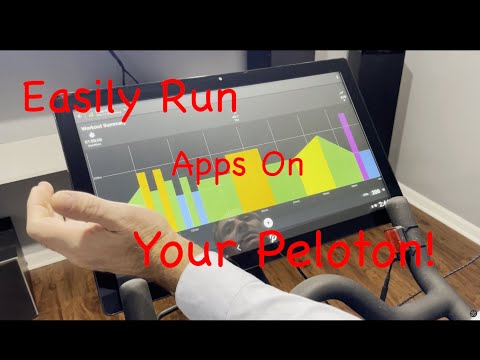](https://www.youtube.com/watch?v=X3oN8JhHe_8)
### Option 1: Pre-built Executables (Recommended)
1. Go to the [Releases](../../releases) page
2. Download the appropriate file for your system:
- Windows: `OpenPelo.exe`
- Mac: `OpenPelo`
3. Run the downloaded file
### Option 2: Run from Source
1. Install Python 3.6 or higher:
- Windows: Download from [python.org](https://www.python.org/downloads/)
- Mac: Use Homebrew: `brew install python3`
2. Download this repository
3. Run `python openpelo.py` (Windows) or `python3 openpelo.py` (Mac). Depending on your python installation, it could also be 'py openpelo.py'.
## Usage
### Option 1: USB Connection (Recommended for First Setup)
1. Connect your Peloton to your computer via USB
2. Enable USB debugging on your Peloton:
- Make sure your bike sensor cable is connected to the Peloton Tablet.
- Go to Settings, system menu and perform a Firmware Reset.
- Finish the initial setup and select "Skip Home Installation"
- Go to Settings
- Tap on Device Preferences
- Tap 7 times on Build Number to enable Developer Options
- Go back to Settings
- Tap on Developer Options
- Enable USB debugging
- Disable Verify apps over USB
- Enable Gabeldorsche
- Go into your system, Apps, select system in the top right corner.
- Force quit the App with the Peloton logo named "Device Management"
- Plug your computer into the Peloton using a micro USB-B cable.
- Select "always allow this computer" and allow USB debugging.
3. Run OpenPelo:
- Double-click the downloaded executable
- The installer will automatically check for your device
- Wait for the "✅ Device connected" status
- Select the apps you want to install by checking the boxes
- Click "Install Selected Apps" and wait for the installation to complete
### Option 2: Wireless ADB Connection
Once you have enabled Developer Options (see Option 1), you can connect wirelessly:
1. **Enable Wireless Debugging on your Peloton:**
- Make sure your Peloton and computer are on the same WiFi network
- Go to Settings → Developer Options
- Enable "Wireless debugging"
- Tap on "Wireless debugging" text to open settings
2. **Connect via OpenPelo:**
- Run OpenPelo
- Click the "📶 Connect via WiFi" button
- Follow the step-by-step guide
- When prompted, tap "Pair device with pairing code" on your Peloton
- Enter the displayed IP address, port, and pairing code into OpenPelo
- Click "Connect"
- Wait for "Successfully connected!" message
3. **Use OpenPelo wirelessly:**
- Once connected, you can use all features wirelessly
- Select apps and install them as you would with USB
- Take screenshots and record screen wirelessly
## Features
- Modern graphical user interface
- USB and Wireless ADB connection support
- Real-time device connection status
- Visual progress indicators
- Easy app selection with checkboxes
- Automatic ADB installation and setup
- Cross-platform compatibility (Windows, Mac, Linux)
- Automatic app downloading and installation
- Configuration-based app management
- Screen recording and screenshot utilities
## For Developers
### Adding New Apps
To add new apps to the installer, simply edit the `apps_config.json` file. The configuration format is:
### Automated Builds
This project uses GitHub Actions with [Nuitka](https://nuitka.net/) to build standalone executables for Windows, macOS (Intel and Apple Silicon), and Linux:
- Builds are triggered on pushes to main, pull requests, and when a release is created
- Nuitka compiles `openpelo.py` to optimized binaries while bundling required assets (ADB tools, configuration files, and certifi certificates)
- Produced artifacts are attached to releases: `OpenPelo.exe`, `OpenPelo-macOS-*.zip`, and `OpenPelo-linux.tar.gz`
The build process:
1. Sets up a Python environment on each runner
2. Installs Nuitka + supporting packages (zstandard, certifi, etc.)
3. Compiles OpenPelo with `--standalone --onefile` and includes runtime data directories
4. Packages platform-specific outputs (zip/tar.gz) and uploads them as release assets
To create a new release:
1. Go to the Releases page
2. Click "Create a new release"
3. Tag the version and publish
4. GitHub Actions will automatically build, package, and attach the Nuitka executables
### Building With Nuitka Locally
If you need to create a build outside of GitHub Actions:
1. Install dependencies:
```bash
python -m pip install --upgrade pip
pip install nuitka zstandard certifi pillow
```
2. Run Nuitka for your platform (examples):
- **Windows PowerShell**
```powershell
python -m nuitka `
--standalone `
--onefile `
--enable-plugin=tk-inter `
--include-package=certifi `
--include-data-file=apps_config.json=apps_config.json `
--include-data-file=usb_debug_steps.json=usb_debug_steps.json `
--include-data-file=wireless_adb_steps.json=wireless_adb_steps.json `
--include-data-dir=ADB=ADB `
--include-data-dir=platform-tools=platform-tools `
--windows-disable-console `
--windows-icon-from-ico=Icon.ico `
--output-filename=OpenPelo.exe `
openpelo.py
```
- **Linux**
```bash
python -m nuitka \
--standalone \
--onefile \
--enable-plugin=tk-inter \
--include-package=certifi \
--include-data-file=apps_config.json=apps_config.json \
--include-data-file=usb_debug_steps.json=usb_debug_steps.json \
--include-data-file=wireless_adb_steps.json=wireless_adb_steps.json \
--include-data-dir=ADB=ADB \
--include-data-dir=platform-tools=platform-tools \
--output-filename=OpenPelo \
openpelo.py
```
- **macOS**
```bash
python -m nuitka \
--standalone \
--onefile \
--enable-plugin=tk-inter \
--include-package=certifi \
--include-data-file=apps_config.json=apps_config.json \
--include-data-file=usb_debug_steps.json=usb_debug_steps.json \
--include-data-file=wireless_adb_steps.json=wireless_adb_steps.json \
--include-data-dir=ADB=ADB \
--include-data-dir=platform-tools=platform-tools \
--macos-disable-console \
--output-filename=OpenPelo \
openpelo.py
```
3. Package the resulting binary if needed (zip/tar.gz) before distribution.
```json
{
"apps": {
"App Name": {
"url": "https://download.url/app.apk",
"package_name": "com.example.app",
"description": "Brief description of the app"
}
}
}
```
### Fields:
- `App Name`: Display name in the installer menu
- `url`: Direct download URL for the APK file
- `package_name`: Android package name (used for installation)
- `description`: Brief description of the app
## Troubleshooting
1. "❌ No device detected"
- Ensure USB cable is properly connected
- Check that USB debugging is enabled
- Try a different USB cable or port
- Click the "🔄 Refresh" button after fixing the connection
2. "Failed to setup ADB"
- Check your internet connection
- Try running the installer with administrator/sudo privileges
- If using antivirus, temporarily disable it during ADB installation
- Restart the installer and try again
3. Installation Errors
- If an app fails to install, check your device's storage space
- Ensure your internet connection is stable
- Try installing apps one at a time
- Check the error message shown in the popup for specific issues
4. Wireless Connection Issues
- "Pairing Failed"
- Verify your Peloton and computer are on the same WiFi network
- Double-check the IP address, port, and pairing code
- Make sure wireless debugging is still enabled on your Peloton
- Try generating a new pairing code on your Peloton
- "Connection Timeout"
- Check your WiFi connection strength
- Ensure no firewall is blocking the connection
- Try moving your computer closer to the WiFi router
- "Connection Failed after pairing"
- The device may have disconnected. Try clicking "🔄 Refresh"
- Try connecting again using the "📶 Connect via WiFi" button
- Restart wireless debugging on your Peloton and try again
## Security Note
This installer only downloads apps from trusted sources specified in the configuration file. However, users should always be cautious when installing third-party applications on their devices.
## Disclaimer
OpenPelo is an independent, open-source project and is not affiliated with, associated with, authorized by, endorsed by, or in any way officially connected with Peloton Interactive, Inc., or any of its subsidiaries or affiliates. The official Peloton website can be found at [https://www.onepeloton.com](https://www.onepeloton.com).
The name "Peloton" as well as related names, marks, emblems, and images are registered trademarks of their respective owners. This tool is provided for educational and experimental purposes only. Use of OpenPelo is at your own risk; the developers assume no liability for any damage to your device, voiding of warranties, or other issues that may result from its use.
## License
This project is licensed under the MIT License - see the LICENSE file for details.