https://github.com/dpbm/raspberry-pi-3-generic-lcd
Adding a TFT lcd to raspberry pi 3b with retropie
https://github.com/dpbm/raspberry-pi-3-generic-lcd
configuration display driver lcd lcd-display raspberry-pi raspberry-pi-3 tft tft-display tips tutorial
Last synced: 4 months ago
JSON representation
Adding a TFT lcd to raspberry pi 3b with retropie
- Host: GitHub
- URL: https://github.com/dpbm/raspberry-pi-3-generic-lcd
- Owner: Dpbm
- Created: 2023-06-07T16:38:53.000Z (about 3 years ago)
- Default Branch: main
- Last Pushed: 2024-07-04T02:13:49.000Z (about 2 years ago)
- Last Synced: 2025-02-21T21:57:56.490Z (over 1 year ago)
- Topics: configuration, display, driver, lcd, lcd-display, raspberry-pi, raspberry-pi-3, tft, tft-display, tips, tutorial
- Homepage: https://dpbm.github.io/raspberry-pi-3-generic-lcd/
- Size: 599 KB
- Stars: 0
- Watchers: 2
- Forks: 0
- Open Issues: 0
-
Metadata Files:
- Readme: readme.md
Awesome Lists containing this project
README
# Raspberry pi 3.2inch TFT display
Many times, I've tried to configure my display on a `Raspberry 3b` with retropie. Fortunatly, I've found the correct answer of how to do that.
In This repo you'll see what I've used to make it works.
The driver for my screen is: `ILI9341`
[](https://www.amazon.com.br/waveshare-Raspberry-Resistive-Raspbian-Provided/dp/B01HPV68UM)
`Note: Mine is not the waveshare version, but the version below.`


## 1. Install driver
First of all you need to install the drivers.
You can use the driver directly, which you can find [here](https://github.com/juj/fbcp-ili9341). But, a simpler way is to use [this script](https://github.com/goodtft/LCD-show/tree/master).
Just choose one, and follow the tutorial.
## 2. Fixing screen fps
After that, I've changed some configs at `/boot/config.txt`, to make smoother experience.
I changed the following lines:
```
dtoverlay=tft9341:rotate=270
and
hdmi_cvt 480 360 60 6 0 0 0
```
to
```
dtoverlay=tft9341:rotate=270,fps=40,speed=42000000
and
hdmi_cvt 480 360 60 1 0 0 0
```
You can see the whole file [here](./config.txt)
## More info
If you want more information, checks these videos:
[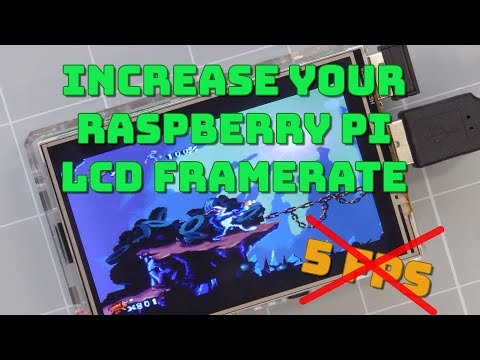](https://youtu.be/cQvC-UI2vQY)
[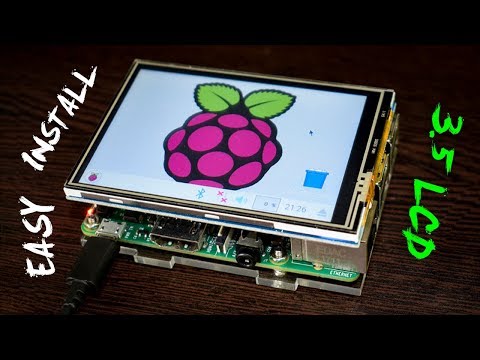](https://youtu.be/Fj3wq98pd20)
[](https://youtu.be/uz4sa24C4gk)
# NOW, JUST ENJOY :)
# Throubleshooting
Newer Raspberry Osses don't work with this script, ensure you're using the Debian Bullseye based version.