https://github.com/dpkay-io/claude-shift
Always have a fresh Claude session when you start working. Stop hitting usage limits mid-flow. claude-shift aligns your Claude Max 5-hour windows with your actual schedule — automatically, in the background.
https://github.com/dpkay-io/claude-shift
claude-code claude-session-management productivity scheduler
Last synced: 12 days ago
JSON representation
Always have a fresh Claude session when you start working. Stop hitting usage limits mid-flow. claude-shift aligns your Claude Max 5-hour windows with your actual schedule — automatically, in the background.
- Host: GitHub
- URL: https://github.com/dpkay-io/claude-shift
- Owner: dpkay-io
- License: mit
- Created: 2026-05-28T05:38:37.000Z (27 days ago)
- Default Branch: main
- Last Pushed: 2026-06-05T17:00:35.000Z (19 days ago)
- Last Synced: 2026-06-05T19:11:12.108Z (19 days ago)
- Topics: claude-code, claude-session-management, productivity, scheduler
- Language: TypeScript
- Homepage: https://www.npmjs.com/package/claude-shift
- Size: 190 KB
- Stars: 0
- Watchers: 0
- Forks: 0
- Open Issues: 0
-
Metadata Files:
- Readme: README.md
- License: LICENSE
Awesome Lists containing this project
README
# claude-shift
**Always have a fresh Claude session when you start working.**
Stop hitting usage limits mid-flow. **claude-shift** aligns your Claude Max 5-hour windows with your actual schedule — automatically, in the background.
## Install
```bash
npm install -g claude-shift
```
Requires Node.js 18+ and [Claude CLI](https://claude.ai/download).
## Quick start
Interactive setup:
```bash
claude-shift init
```
Or configure directly — tell it when you work, and let it do the math:
```bash
# Set your work schedule
claude-shift smart --slots "09:00-14:00,20:00-23:00" --days weekdays
# Register with your OS scheduler
claude-shift install
# See your weekly timeline
claude-shift week
```
Done. Pings fire automatically every day before your work blocks.
## The problem
Claude Max runs on a **5-hour usage window**. The moment you send a message, a 5-hour timer starts. When it expires, you get a fresh window. Simple enough — until you realize **you don't control when the timer starts.**
A casual question at 7am means your window expires at noon. If you're deep in work from 9am to 2pm, your session resets right in the middle of it.
```
Without claude-shift:
7:00 AM Quick Claude question ← 5h timer starts
9:00 AM Deep work begins ← only 3h left
12:00 PM Window expires mid-work ← flow broken ✗
```
This happens every day. Your window boundaries drift based on whenever you last used Claude, and they inevitably land at the worst possible moment.
**You're paying $100-200/month for Claude Max.** Random resets shouldn't dictate when you can use it.
## The solution
**claude-shift** pings Claude automatically during your downtime — while you sleep, commute, or sit in meetings. This burns through a window cycle during hours you don't care about, so a **fresh 5-hour window is ready when you actually sit down to work.**
```
With claude-shift:
4:00 AM Auto-ping fires (you're asleep) ← starts a window cycle
9:00 AM Old window expired, fresh one starts ← full 5h available ✓
2:00 PM Uninterrupted deep work
```
**Tell it your work hours. It calculates the optimal ping times. Your OS runs them automatically.**
## How it works
1. **You define when you work** — provide your work windows (smart mode) or exact ping times (manual mode)
2. **claude-shift calculates** when to fire pings so that fresh 5h windows line up with your work blocks
3. **Your OS scheduler runs the pings** — each one briefly opens Claude CLI, sends a message, and exits
That's it. No daemon, no background process. Just your OS's native scheduler doing its job:
- **Windows** — Task Scheduler (`schtasks`)
- **macOS** — launchd (`~/Library/LaunchAgents`)
- **Linux** — cron (`crontab`)
## Smart mode (recommended)
Tell claude-shift when you work. It figures out the rest:
```bash
claude-shift smart --slots "06:30-08:00,09:00-11:00,20:00-23:00" --days weekdays
```
```
Smart mode calculation:
Slot duration: 5h | Burn rate: 2h
Your work windows:
6:30am – 8am on weekdays
9am – 11am on weekdays
8pm – 11pm on weekdays
Calculated pings:
Ping at 04:00 → slot 04:00–09:00 for your 06:30–11:00 window
Ping at 17:00 → slot 17:00–22:00 for your 20:00–23:00 window
✓ 2 smart trigger(s) configured.
ℹ Run `claude-shift install` to activate with your OS scheduler.
```
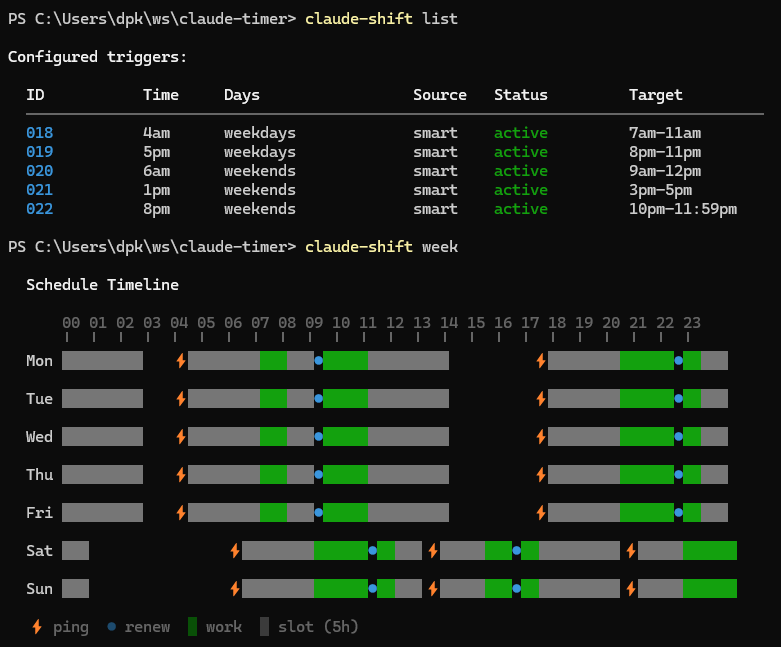
Your two morning blocks (6:30–8am and 9–11am) are close together, so **one ping at 4am covers both**. The slot runs 4–9am, then a fresh one kicks in at 9am for your second block. Your evening window gets a pre-burn ping at 5pm — the slot ticks through your downtime so a fresh window renews at 10pm. This is intentional: you use the tail end of the first slot from 8–10pm (matching your 2-hour burn rate limit), and right as you might hit your usage limit, a fresh window starts at 10pm to carry you through the rest of your session.
Options:
- `-s, --slots` — Work windows (`HH:mm-HH:mm`, comma-separated)
- `-d, --days` — Days to apply (`weekdays`, `weekends`, `daily`, `mon-fri`, `mon,wed,fri`)
- `-b, --burn-rate` — How long a window typically lasts for you, in hours (default: 2)
- `-y, --yes` — Skip confirmation prompt
## Manual mode
Set exact ping times yourself:
```bash
claude-shift add 03:00 --days weekdays
claude-shift add 16:30 --days mon,wed,fri
claude-shift add 06:00 --once # One-time trigger for today
claude-shift add 06:00 --once 2025-01-15 # One-time trigger for a specific date
```
## View your schedule
```bash
claude-shift today # Today's timeline
claude-shift week # Full week view
claude-shift list # All configured triggers
claude-shift status # Scheduler status + ping logs
```
Weekly timeline output:
```
Schedule Timeline
00 01 02 03 04 05 06 07 08 09 10 11 12 13 14 15 16 17 18 19 20 21 22 23
╵ ╵ ╵ ╵ ╵ ╵ ╵ ╵ ╵ ╵ ╵ ╵ ╵ ╵ ╵ ╵ ╵ ╵ ╵ ╵ ╵ ╵ ╵ ╵
Mon █████████ ⚡██████████████●██████████████ ⚡██████████████●█████
Tue █████████ ⚡██████████████●██████████████ ⚡██████████████●█████
⚡ ping ● renew █ work █ slot (5h)
```
Colors in your terminal distinguish work windows (green) from slot coverage (gray).
## Manage triggers
```bash
claude-shift remove 001 # Remove a trigger by ID
claude-shift uninstall # Remove all from OS scheduler
claude-shift ping # Test a ping right now
```
## Configuration
Config is stored at `~/.claude-shift/config.json`. Logs at `~/.claude-shift/ping.log`.
```bash
claude-shift config get # Show all settings
claude-shift config set burnRate 3 # Update a setting
claude-shift config set pingPath /path/to/project # Set ping working directory
claude-shift config set pingPath /path --verify # Set and validate with a test ping
```
| Setting | Default | Description |
|---------|---------|-------------|
| `slotDuration` | `5` | Claude Max window duration in hours |
| `burnRate` | `2` | How long a window typically lasts for you (hours) |
| `claudePath` | `claude` | Path to Claude CLI binary |
| `nodePath` | *(auto-detected)* | Path to Node.js binary |
| `pingPath` | *(empty)* | Working directory for pings (falls back to home dir) |
| `pingMessage` | `ping` | Message sent to start the session |
## Platform notes
**Windows** — Tasks run when you're logged in. For overnight pings (e.g., 4am), your machine must be awake. Consider disabling sleep or using wake timers.
**macOS** — launchd fires missed pings on next wake. Overnight pings work even if your Mac was asleep.
**Linux** — cron uses absolute paths to avoid PATH issues in the cron environment.
## License
MIT