https://github.com/dutchdronesquad/timer-dotfiles
🗃️ Dotfiles to configure RotorHazard timers shell environment for git, zsh, nvm, pyenv
https://github.com/dutchdronesquad/timer-dotfiles
dotfiles git pyenv rotorhazard zsh
Last synced: 2 months ago
JSON representation
🗃️ Dotfiles to configure RotorHazard timers shell environment for git, zsh, nvm, pyenv
- Host: GitHub
- URL: https://github.com/dutchdronesquad/timer-dotfiles
- Owner: dutchdronesquad
- License: mit
- Created: 2023-02-19T00:50:45.000Z (over 3 years ago)
- Default Branch: main
- Last Pushed: 2026-04-14T01:26:22.000Z (3 months ago)
- Last Synced: 2026-04-14T03:15:52.492Z (3 months ago)
- Topics: dotfiles, git, pyenv, rotorhazard, zsh
- Language: Shell
- Homepage:
- Size: 513 KB
- Stars: 0
- Watchers: 1
- Forks: 0
- Open Issues: 0
-
Metadata Files:
- Readme: README.md
- License: LICENSE
Awesome Lists containing this project
README

![Project Stage][project-stage-shield]
![Project Maintenance][maintenance-shield]
[![License][license-shield]](LICENSE)
## What is this?
These are the dotfiles for the RotorHazard timers on a Raspberry Pi. It is recommended
that you install the additional packages only if you are using a Raspberry Pi 4 with
enough RAM, to avoid slowing down your Pi.
## How to install configuration?
### Prerequirements
- Git _(by default this is not installed in Raspberry Pi OS)_
Once you meet the prerequirements, you can clone the project and install the dotfiles:
```bash
git clone https://github.com/dutchdronesquad/timer-dotfiles.git
cd ~/timer-dotfiles && bash install.sh
```
## Installed packages
The following platforms are installed and set up by default with the bash script:
- GitHub CLI
- Oh My Zsh (with powerlevel10k)
- [Pyenv](https://github.com/pyenv/pyenv)
- [Uv](https://github.com/astral-sh/uv)
- [Nvm](https://github.com/nvm-sh/nvm)
### Install a python version
```bash
pyenv install --list | grep -E '^ 3\.(10|11|12)\.[0-9]+$'
pyenv install 3.11.x
pyenv global 3.11.x
```
### Setup Github account
```bash
git config --global user.name "Dutch Drone Squad"
git config --global user.email "hello@example.com"
```
### Setup Node.JS/NPM
Version 20 is currently the LTS version.
```bash
nvm install 20
nvm use 20
nvm alias default 20
```
## Install / Update RotorHazard
_First check your python version and if not install one with pyenv before continuing with the RotorHazard installation._
Use the command below to install RotorHazard, the script is also suitable for use with NuclearHazard PCBs. I would recommend using python version 3.11 or 3.12.
**Development:**
- Uses git clone, so you can easily work with branches and commits
- You have the choice to clone from your own fork
- There is no update script, I assume you know how git works
- Automatically creates a venv for you and installs the necessary packages from PyPi
- Asks if you want to setup raspi-config and RotorHazard service
**Production:**
- Uses wget to retrieve the code
- You have the option to install or update
- You can indicate which version you want to install
- Automatically creates a venv for you and installs the necessary packages from PyPi
- Creates the RotorHazard service and sets the raspi-config correctly
When running the bash script below you have the option to install RotorHazard for development or production purposes.
```bash
cd ~/timer-dotfiles/components && bash rotorhazard.sh
```
During installation it will ask which GPIO pin you want to use, this concerns the shutdown button and differs per type of PCB you use.
RotorHazard = GPIO18
NuclearHazard = GPIO19
### Development
If you opted for development, don't forget to check if an upstream repository is set, as this will make it easier to pull changes from the RotorHazard project.
```bash
git remote -v
git remote add upstream https://github.com/RotorHazard/RotorHazard.git
```
#### Scripts
By default you will be asked if you want to setup **raspi-config** and the **RotorHazard service**, if you want to do this later you can run the following commands.
Set the correct raspi-config and boot file settings:
```bash
cd ~/timer-dotfiles/components/scripts && bash pi-config.sh
```
Install the RotorHazard startup service:
```bash
cd ~/timer-dotfiles/components/scripts && bash rh-service.sh
```
**Note:** _If you use a username other than pi, first edit the service file with your corresponding username._
### Plugins
With the bash script below you can install the [FPVScores](https://github.com/FPVScores/FPVScores) plugin, you can choose between `development` or `non-development` and if the plugin already exists whether you want to overwrite it.
```bash
cd ~/timer-dotfiles/components && bash fpvscores.sh
```
```bash
cd ~/timer-dotfiles/components && bash stream-overlays.sh
```
### Change the hostname
For example DDS uses: `dds-rotorhazard[number]` (by default the hostname is `raspberrypi`).
1. Open the TUI of Network Manager with:
```bash
sudo nmtui
```
2. Go to `Set system hostname`.
3. Change the hostname for something you want and press `OK`.
When you have completed these steps, reboot the Raspberry Pi and you are done.
### Add encryption key to host
1. Create a .ssh folder using `install`.
```bash
install -d -m 700 ~/.ssh
```
2. Create a `authorized_keys` file and paste your public_key into it:
```bash
nano ~/.ssh/authorized_keys
```
### Change the network interface priority
The race timers are wired to our local intranet network by default, however when a
Raspberry Pi is also connected to Wi-Fi it gives priority to the ethernet interface
by default. However, this causes problems in the way we work during the training events.
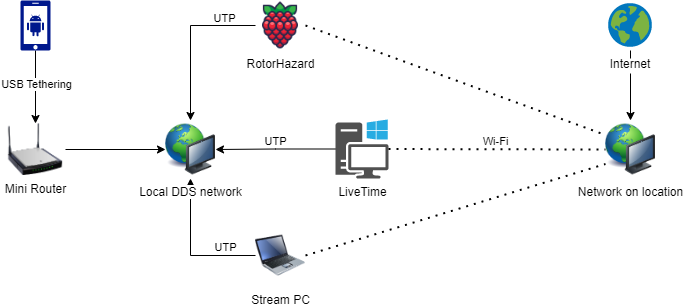
We therefore need to prioritize wireless over wired by adjusting the metric in **Network Manager**:
1. First check your current connections with:
```bash
nmcli connection
```
2. Change the metric with:
__Note:__ The metric is the priority of the interface. The lower the number, the higher the priority.
```bash
sudo nmcli connection modify "Wired connection 1" ipv4.route-metric 1000
```
You can check the current priority of the interfaces with the following command:
```bash
nmcli
```
3. Restart the wired connection:
```bash
nmcli connection down "Wired connection 1" && nmcli connection up "Wired connection 1"
```
### Make new Wi-Fi connection
You can also create new connections via Network Manager, this can be done via the TUI or CLI.
#### Command line interface (CLI)
The device should be in range of the Wi-Fi network you want to connect to.
```bash
sudo nmcli dev wifi connect "wifi name" password "password"
```
or if you want the password to be asked as input
```bash
sudo nmcli --ask dev wifi connect "wifi name"
```
#### Text user interface (TUI)
To open the TUI of Network Manager, run the following command:
```bash
sudo nmtui
```
If you are **in** range of the Wi-Fi network you want to connect to, you do the following:
1. Go to `Activate a connection`.
2. Select the Wi-Fi network you want to connect to and press `Activate`.
3. Enter the password and press `OK`.
If you are **not in** range of the Wi-Fi network you want to connect to, you can create a new connection:
1. Go to `Edit a connection` and press `Enter`.
2. Select `Add` and press `Enter`.
3. Select `Wi-Fi` and press `Enter`.
4. Change the `Profile name` and set the `SSID` to the name of the Wi-Fi network you want to connect to.
5. Under `Security` select the correct security type and enter the password.
6. Go to the bottom and select `OK` and press `Enter`.
7. Go to `Activate a connection` and press `Enter`.
8. Select the connection you just created and press `Enter`.
Read more about this [here](https://www.tecmint.com/nmtui-configure-network-connection/).
## Credits 🌟
Certain parts were inspired by the Aaronsss [RH-Setup repository](https://github.com/Aaronsss/RH-Setup).
## License
Distributed under the **MIT** License. See [`LICENSE`](LICENSE) for more information.
[license-shield]: https://img.shields.io/github/license/dutchdronesquad/timer-dotfiles.svg
[maintenance-shield]: https://img.shields.io/maintenance/yes/2024.svg
[project-stage-shield]: https://img.shields.io/badge/project%20stage-experimental-yellow.svg