https://github.com/dynamods/dynamographmigrationassistant
https://github.com/dynamods/dynamographmigrationassistant
Last synced: 12 months ago
JSON representation
- Host: GitHub
- URL: https://github.com/dynamods/dynamographmigrationassistant
- Owner: DynamoDS
- License: apache-2.0
- Created: 2023-04-05T16:57:14.000Z (over 3 years ago)
- Default Branch: master
- Last Pushed: 2023-09-14T16:56:32.000Z (almost 3 years ago)
- Last Synced: 2025-01-07T05:33:39.384Z (over 1 year ago)
- Language: C#
- Size: 12.9 MB
- Stars: 3
- Watchers: 9
- Forks: 0
- Open Issues: 3
-
Metadata Files:
- Readme: README.md
- License: LICENSE
Awesome Lists containing this project
README
# Dynamo Graph Migration Assistant
DynamoGraphMigrationAssistant (DGMA) is a View Extension for Dynamo that allows you to prepare your previous generation ui graphs for Dynamo versions 2.13.x and higher.
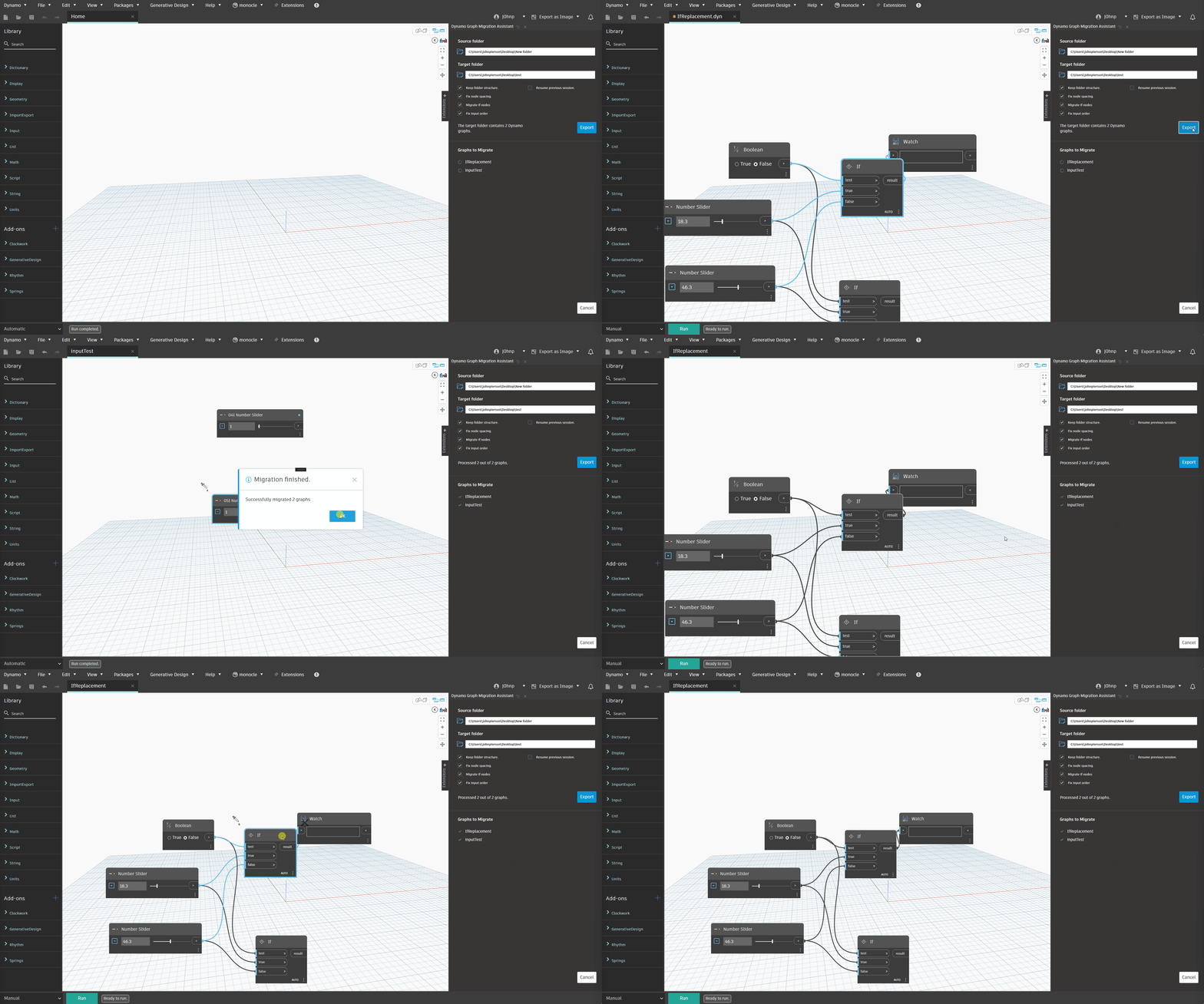
#### Workflow
1. Open Graph Migration Assistant from the extensions menu
2. Pick the source directory of graphs to migrate.
3. Pick a destination directory.
4. Pick the target Dynamo version. This preselects the suggested migration steps.
5. Run the tool.
https://user-images.githubusercontent.com/15744724/242657381-6ac21c72-24d9-4fd2-b72d-5de5f4729853.mp4
## Installation
Installation is a manual process at this time. For an overview, check out this video and download the latest [here](https://github.com/DynamoDS/DynamoGraphMigrationAssistant/releases/latest):
https://youtu.be/LWnrnjOqV7A
## Building
### Recommended Build Environment
- VisualStudio 2022
- .Net Framework 4.8
### Build Process
- Fork or download the repository
- ```Build``` the soluition
- **Manifest File** (tell Dynamo where to find this Extension) - Open the ```DynamoGraphMigrationAssistant_ViewExtensionDefinition.xml``` located in the ```manifest``` folder and change the path to the ```DynamoGraphMigrationAssistantViewExtension.dll``` by providing the correct path inside the `````` tags (the file should be in the ```bin\Debug``` of your solution)
- Copy the ```DynamoGraphMigrationAssistant_ViewExtensionDefinition.xml``` file from the manifest directory to the ```viewExtensions``` folder of Dynamo (this can be under the ```bin\Debug``` folder if you are working in Sandbox environment, or the ```C:\Program Files\Autodesk\Revit 202x\AddIns\DynamoForRevit\viewExtensions``` for Dynamo Revit).
-- Alternatively under the ```Build Events``` section of your solution, remove the **'REM'** in front of the Post-build event command line, and replace the **[YOUR_DYNAMO_SANDOX_LOCATION]** with the location of your Dynamo Sandbox solution (```REM copy /Y $(SolutionDir)DynamoGraphMigrationAssistantViewExtension\manifest\*.xml [YOUR_DYNAMO_SANDBOX_LOCATION]\Dynamo\bin\AnyCPU\Debug\viewExtensions```)
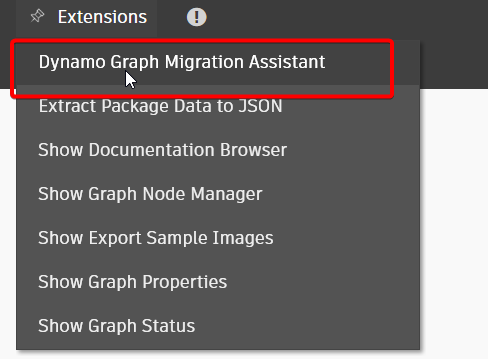
If you have done everything correctly, you should see 'Dynamo Migration Assistant' under the Extensions tab in Dynamo.
## Debugging & Testing
In order to debug or run/create Unit Tests, you will have to take a few additional steps.
## Debugging
- Download DynamoCoreRuntime 2.16.0 (or higher) from https://dynamobuilds.com/. Alternatively, you can build Dynamo from the Dynamo repository and use the bin folder equivalently.
- Copy all contents of the DynamoCoreRuntime to ```DynamoGraphMigrationAssistantViewExtension\DynamoGraphMigrationAssistantTests\bin\Debug\```. If you are building Dynamo locally, copy all contents of Dynamo from Dynamo/bin/AnyCPU/Debug to ```DynamoGraphMigrationAssistantViewExtension\DynamoGraphMigrationAssistantTests\bin\Debug\```
- Copy DynamoGraphMigrationAssistant_ViewExtensionDefinition.xml from ```DynamoGraphMigrationAssistantViewExtension\DynamoGraphMigrationAssistantViewExtension\manifests\``` to ```DynamoGraphMigrationAssistantViewExtension\DynamoGraphMigrationAssistantTests\bin\Debug\viewExtensions\```
- Open the copied ```DynamoGraphMigrationAssistant_ViewExtensionDefinition.xml``` and change the assemply path to ```..\DynamoGraphMigrationAssistantViewExtension.dll```
- Remove Export Sample Images from your Dynamo packages folder if you have it installed from the package manager (otherwise ```DynamoGraphMigrationAssistantViewExtension.dll``` will get loaded twice).
- Launch DynamoSandbox.exe, then click View-> Open Export Sample Images and use start debugging as you normally would.
### Testing
- Install the NUnit 2 Test Adapter from VisualStudio->Extensions->Manage Extensions->Online.
- Open Test Explorer from VisualStudio->Test->Test Explorer. Now you should see a list of TuneUpTests.
- **If you are running Visual Studio 2022 and you are having issues, try using **ReSharper** and the test module it provides instead.*
- Make sure you are using 64bit Testing architecture by going to ```Test->Processor Architecture for AnyCPU Projects->x64```
- Click the target test to run or run them all.

## Known Issues
- At this time (up to Dynamo 2.18.x) the extension overrides the Python notification extension and the workspace references extension until new APIs are added. Related issues are here ([#7](https://github.com/DynamoDS/DynamoGraphMigrationAssistant/issues/7) and here [#11](https://github.com/DynamoDS/DynamoGraphMigrationAssistant/issues/11))
- This tool will not upgrade pre Dynamo 2.0.x graphs (XML based graphs) to modern versions. You need to be (at a minimum) of Dynamo 2.0 for this to work. You can try to utilize [WorkspaceUpgradeExtension](https://github.com/DynamoDS/DynamoWorkspaceUpgradeExtension/tree/master)
- In rare circumstances, graphs could cause a silent crash. In these scenarios, try utilizing the 'log.txt' file saved in the root folder of your Target location. The Extension would allow you to attempt and Resume your run from the last recorded graph