https://github.com/eddiewebb/sense-show
Uses energy data from sense to visualize use on LED matrix
https://github.com/eddiewebb/sense-show
leds python sense-energy
Last synced: 11 months ago
JSON representation
Uses energy data from sense to visualize use on LED matrix
- Host: GitHub
- URL: https://github.com/eddiewebb/sense-show
- Owner: eddiewebb
- Created: 2020-01-21T23:19:25.000Z (over 6 years ago)
- Default Branch: master
- Last Pushed: 2023-07-20T14:59:39.000Z (about 3 years ago)
- Last Synced: 2024-02-13T21:22:12.783Z (over 2 years ago)
- Topics: leds, python, sense-energy
- Language: Python
- Size: 1.72 MB
- Stars: 3
- Watchers: 3
- Forks: 1
- Open Issues: 2
-
Metadata Files:
- Readme: README.md
Awesome Lists containing this project
README
# Sense Show
Simple python script to visual Sense Energy consumption & solar generation on an LED matrix.
Uses a raspberry 3, leds, and python.
[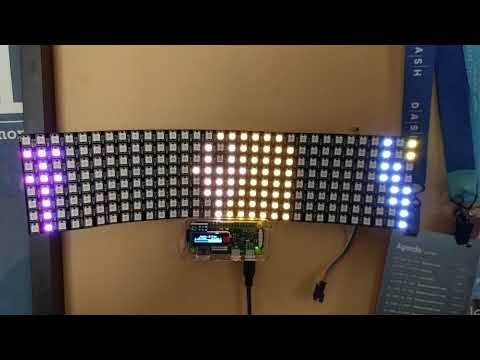](https://www.youtube.com/watch?v=Jnkek4CRb7w)
## Running it locally, without LEDs
`SENSE_TEST=True SENSE_USER="email" SENSE_PASSWD='5ecr!ts' sudo -E python3 src/main.py`
#### Output
stdout will see progess bars showing usage
```
| | | | | | | | | | | | | | | | | | | | | | | | | | | | | |-X-| | |
| | | | | | | | | | | | | | | | | | | | | | | | | | | | | |-X-| | |
| | | | | | | | | | | | | | | | | | | | | | | | | | | | | |-X-| | |
| | | | | | | | | | | | | | | | | | | | | | | | | | | | | |-X-|-X-| |
|-X-|-X-|-X-| | | | | | | | | | | | | | | | | | | | | | | | | | |-X-|-X-| |
| |-X-| | | | | | | | | | | | | |-X-|-X-| | | | | | | | | | | | | |-X-|-X-|
|-X-|-X-|-X-| | | | | | | | | | | |-X-|-X-|-X-|-X-| | | | | | | | | | | | |-X-|-X-|
| |-X-| | | | | | | | | | | | | |-X-|-X-| | | | | | | | | | | | | | |-X-|
| |-X-| | | | | |-X-| | | | | | | |-X-|-X-| | | | |-X-| | | | | | | | | |-X-|
From Solar: -0%| | -7.00/8.00k [00:00<-1:59:59, -7.09kwatts/s]
Consumption: 12%|█▏ | 1.74k/15.0k [00:00<00:00, 1.40Mwatts/s]
From Grid: 12%|█▏ | 1.75k/15.0k [00:00<00:00, 1.67Mwatts/s]
```
## Setup on pi
THis project includes the files needed to register this script as an always running daemon. THis will restart on crash or power loss.
1) git clone this repo to your pi, using `/home/pi/sense-show` as checkout dir will save editing files
2) Create a `.env` file in the checkout dir containing your `SENSE_USER` and `SENSE_PASSWD`.
2) Optionally comment out the `git pull` in `start.sh` if script should not auto update itself.
2) cd into `raspberrypi` directory, and confirm paths in senseshow.service, and run `install.sh` this will install python dependencies and register service with system daemon.
3) To test it run `sudo systemctl start senseshow.service` and then `systemctl status senseshow.service` and or `tail -f /home/pi/sense-show/sense-debug.log` to make sure everything works.
4) Unplug pi and plug it back in, wait ~30 seconds and confirm everythign started, if not, repeat last step.
## Parts

### Raspberry pi (zero is fine)
I assume you have one if you're here, but if you're even a little interested they are a great investment for learning/tinkering, and [you can get a full 3B+ rig for < $50](https://amzn.to/3aJ90TA) or a [zero wireless for $25](https://amzn.to/36FntwW).
### Leds
If wired to an LED strip you'll also visualize it. I bought a cheap serial style one on amazon.
[8x32 LED Panel - Individually Addressable
](https://amzn.to/2RoNRGH)
### Energy Monitoring
I have Sense and love it, Schneider electric seems to be reselling as "Wiser Energy monitor" too
[Sense Energy & Solar monitor](https://amzn.to/38BcGVD)
### Pi OLED Screen
[32x128 pixel monochrome screen](https://amzn.to/2RG1KR1)
## LED Panel
### Objects
- Grid - depicted with tower on left
- Plug - depicted with electrical plug in center
- Panels - depicted by blue stripes on right
- Sun - Small yellow dot abov panels
- Energy Flow Green, Yellow or Red leds flow in the direction of energy, sized base on total watts.
### Overproducing
Orange/Yellow LEDs will flow from panels, through house (reduced by usage) and back to grid. Shown here, these yellow LEDs are moving right (solar) to left (grid)

### Consumption
Red LEDs will flow from grid to house, and feeding panels during shade/night. For instance here my idle house is using minimum electricity and feeding about 8 watts to panels at night. Lights are moving left (grid) to right( house and panels)

## Debugging & Logs
- logging configured in the app writes to `sense-debug.log`
- stdout/stderr when running as a service can be obtained by `journalctl -u senseshow.service --since today` (or remove date filter)
- status, stop, start with `sudo systemctl senseshow.service`
## Printin queue and data stats
If things seem slow, stale you shouldn set `LOGLEVEL=DEBUG` in the `.env` and also send a `SIGUSR1` (i.e. `kill -USR1 `)
## pvoutput.org support.
I also added live updates from a [related project](https://github.com/eddiewebb/sense-to-pvoutput) to **use sense data to send generation and consumption data to pvoutput.org** .
set these values in `.env`
```
PVOUTPUT_KEY="yourkeyfrom pvoutput.org"
PVOUTPUT_ID="siteid"
```
and then set a cron to run the pvoutput.py
```
*/5 * * * * python3 /home/pi/sense-show/src/pvoutput.py
```
