https://github.com/edouardrolland/vscode_ros2_px4_workspace
A template for generating a docker development environment suited for PX4, Gazebo and ROS2.
https://github.com/edouardrolland/vscode_ros2_px4_workspace
docker gazebo px4-autopilot ros2 vscode
Last synced: 10 months ago
JSON representation
A template for generating a docker development environment suited for PX4, Gazebo and ROS2.
- Host: GitHub
- URL: https://github.com/edouardrolland/vscode_ros2_px4_workspace
- Owner: edouardrolland
- License: apache-2.0
- Created: 2023-10-17T11:59:01.000Z (over 2 years ago)
- Default Branch: humble
- Last Pushed: 2025-02-28T10:01:51.000Z (over 1 year ago)
- Last Synced: 2025-04-10T20:21:29.187Z (about 1 year ago)
- Topics: docker, gazebo, px4-autopilot, ros2, vscode
- Language: Dockerfile
- Homepage:
- Size: 2.61 MB
- Stars: 16
- Watchers: 2
- Forks: 2
- Open Issues: 0
-
Metadata Files:
- Readme: README.md
- License: LICENSE
- Code of conduct: CODE_OF_CONDUCT.md
Awesome Lists containing this project
README
# ROS2 & PX4 VSCode Dev Environment
[](https://opensource.org/licenses/Apache-2.0)
[](https://github.com/edouardrolland/vscode_ros2_px4_workspace/actions/workflows/ros.yaml)
[](https://www.python.org/downloads/)
Welcome to our development environment template for ROS2, PX4, and Gazebo. This Docker-based setup enables seamless integration of ROS2, PX4, and Gazebo with VSCode, providing a robust environment for developing drone applications.
# Citation
If you are using this template in your research, feel free to cite the following paper:
```
@INPROCEEDINGS{10556912,
author={Rolland, Edouard G. A. and Grøntved, Kasper A. R. and Christensen, Anders Lyhne and Watson, Matthew and Richardson, Tom},
booktitle={2024 International Conference on Unmanned Aircraft Systems (ICUAS)},
title={Autonomous UAV Volcanic Plume Sampling Based on Machine Vision and Path Planning},
year={2024},
volume={},
number={},
pages={1064-1071},
keywords={Training;Wildfires;Machine vision;Object detection;Manuals;Feature extraction;Visual servoing},
doi={10.1109/ICUAS60882.2024.10556912}}
```
## Table of Contents
- [Introduction](#introduction)
- [Acknowledgment](#acknowledgment)
- [Features](#features)
- [How to Use the Template](#how-to-use-the-template)
- [Prerequisites](#prerequisites)
- [Getting Started](#getting-started)
- [License](#license)
## Acknowledgment
This template extends the [vscode_ros2_workspace](https://github.com/athackst/vscode_ros2_workspace#readme) template by incorporating the PX4-Autopilot library as well as simulations in Gazebo. For more information about the original template, please visit the [author's website](https://www.allisonthackston.com/articles/vscode-docker-ros2.html).
## Features
- ROS2 Integration
- PX4 Integration and Micro XRCE-DDS Agent & Client Setup
- Gazebo Simulation
- VSCode Workflow
## How to Use the Template
### Prerequisites
Before using this template, make sure you have the following prerequisites installed on your system:
- [Docker](https://docs.docker.com/engine/install/)
- [VSCode](https://code.visualstudio.com/)
- [VSCode Remote Containers Plugin](https://marketplace.visualstudio.com/items?itemName=ms-vscode-remote.remote-containers)
### Getting Started
#### Step 1: Get the Template

#### Step 2: Create Your Own Project Repository

#### Step 3: Clone the Project to Your Computer

#### Step 4: Open the Folder in VSCode
To interact with the container, you need to install the Docker extension in VSCode. Follow the steps below:

#### Step 5: Build the Container
You can build the container for the first time by following the steps presented in the following picture.

Please note that if you're on Windows, ensure that Docker Engine is running in the background. The initial build may take some time.
## Test your container
To test your contrainer and also the Gazebo installation you can run the following commands in the terminal.
```
cd
cd PX4-Autopilot/
make px4_sitl gz_x500
```
This set of commands should open a Gazebo Tab display a drone as presented in the following figure. If the command is not displaying a tab, you should refer to the FAQ section of this readme to set up a X server.

## FAQ
### WSL2
#### The gui doesn't show up
This is likely because the DISPLAY environment variable is not getting set properly.
1. Find out what your DISPLAY variable should be
In your WSL2 Ubuntu instance
```
echo $DISPLAY
```
2. Copy that value into the `.devcontainer/devcontainer.json` file
```jsonc
"containerEnv": {
"DISPLAY": ":0",
}
```
#### I want to use vGPU
If you want to access the vGPU through WSL2, you'll need to add additional components to the `.devcontainer/devcontainer.json` file in accordance to [these directions](https://github.com/microsoft/wslg/blob/main/samples/container/Containers.md)
```jsonc
"runArgs": [
"--network=host",
"--cap-add=SYS_PTRACE",
"--security-opt=seccomp:unconfined",
"--security-opt=apparmor:unconfined",
"--volume=/tmp/.X11-unix:/tmp/.X11-unix",
"--volume=/mnt/wslg:/mnt/wslg",
"--volume=/usr/lib/wsl:/usr/lib/wsl",
"--device=/dev/dxg",
"--gpus=all"
],
"containerEnv": {
"DISPLAY": "${localEnv:DISPLAY}", // Needed for GUI try ":0" for windows
"WAYLAND_DISPLAY": "${localEnv:WAYLAND_DISPLAY}",
"XDG_RUNTIME_DIR": "${localEnv:XDG_RUNTIME_DIR}",
"PULSE_SERVER": "${localEnv:PULSE_SERVER}",
"LD_LIBRARY_PATH": "/usr/lib/wsl/lib",
"LIBGL_ALWAYS_SOFTWARE": "1" // Needed for software rendering of opengl
},
```
### Repos are not showing up in VS Code source control
This is likely because vscode doesn't necessarily know about other repositories unless you've added them directly.
```
File->Add Folder To Workspace
```
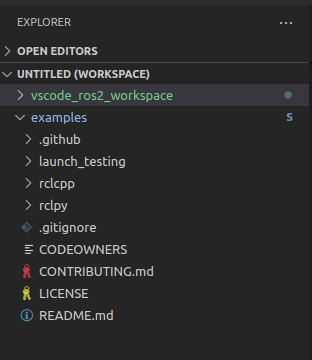
Or you've added them as a git submodule.

To add all of the repos in your *.repos file, run the script
```bash
python3 .devcontainer/repos_to_submodules.py
```
or run the task titled `add submodules from .repos`
### Docker Desktop
If you have installed docker combined with Docker Desktop (This is, to my knowledge, only for unix based systems), you might encounter errors when binding the container.
The error might look like this:
```
docker: Error response from daemon: invalid mount config for type
"bind": bind source path does not exist: /tmp/.X11-unix
```
Fix this by adding the directories in the error message to your **shared files** in your docker desktop settings under **Resources** -> **File sharing** -> **Virtual file shares**.