https://github.com/eliteengineer0/sql-db
https://github.com/eliteengineer0/sql-db
Last synced: about 1 year ago
JSON representation
- Host: GitHub
- URL: https://github.com/eliteengineer0/sql-db
- Owner: EliteEngineer0
- Created: 2025-04-13T15:49:04.000Z (about 1 year ago)
- Default Branch: main
- Last Pushed: 2025-04-13T15:49:06.000Z (about 1 year ago)
- Last Synced: 2025-05-07T19:12:23.232Z (about 1 year ago)
- Size: 75.2 KB
- Stars: 0
- Watchers: 1
- Forks: 0
- Open Issues: 0
-
Metadata Files:
- Readme: README.md
Awesome Lists containing this project
README
# Worker + D1 Database
[](https://deploy.workers.cloudflare.com/?url=https://github.com/cloudflare/templates/tree/main/sql-db)
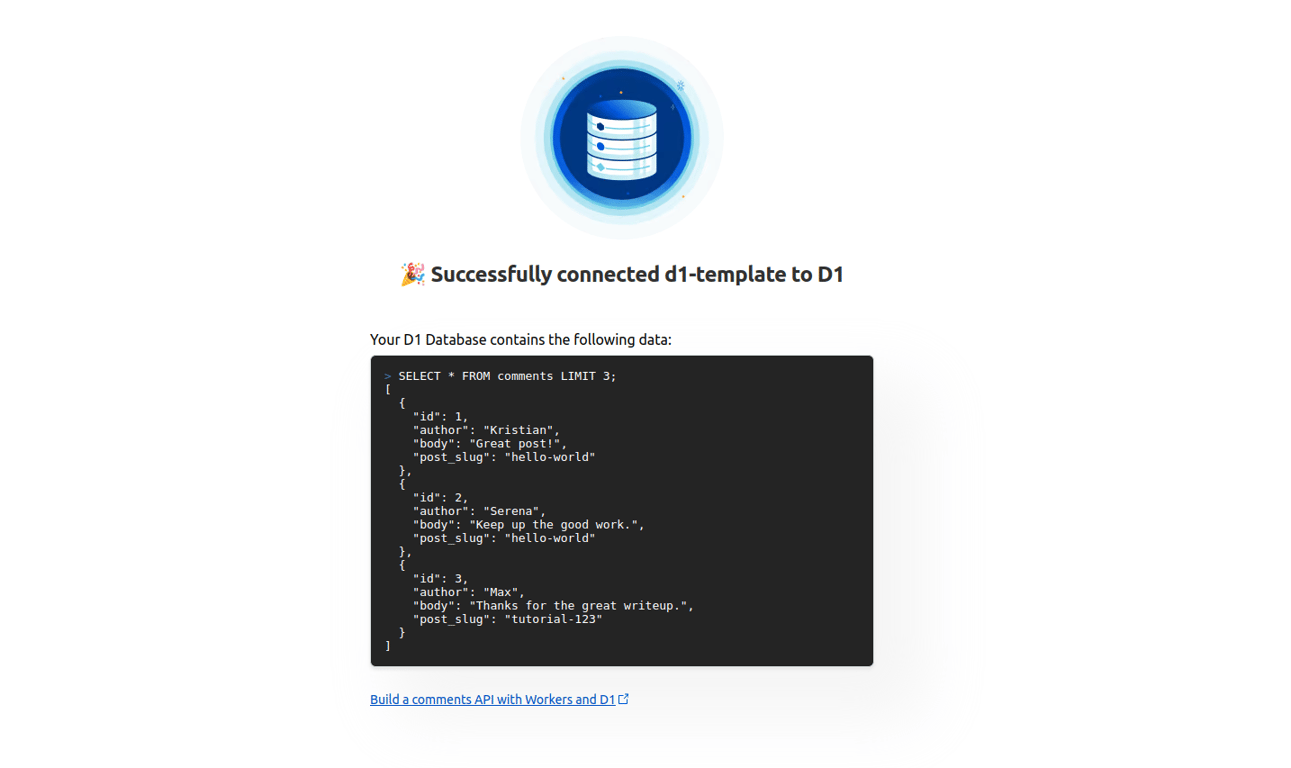
D1 is Cloudflare's native serverless SQL database ([docs](https://developers.cloudflare.com/d1/)). This project demonstrates using a Worker with a D1 binding to execute a SQL statement. A simple frontend displays the result of this query:
```SQL
SELECT * FROM comments LIMIT 3;
```
The D1 database is initialized with a `comments` table and this data:
```SQL
INSERT INTO comments (author, content)
VALUES
('Kristian', 'Congrats!'),
('Serena', 'Great job!'),
('Max', 'Keep up the good work!')
;
```
> [!IMPORTANT]
> When using C3 to create this project, select "no" when it asks if you want to deploy. You need to follow this project's [setup steps](https://github.com/cloudflare/templates/tree/main/sql-db#setup-steps) before deploying.
## Getting Started
Outside of this repo, you can start a new project with this template using [C3](https://developers.cloudflare.com/pages/get-started/c3/) (the `create-cloudflare` CLI):
```
npm create cloudflare@latest -- --template=cloudflare/templates/sql-db
```
A live public deployment of this template is available at [https://sql-db.templates.workers.dev](https://sql-db.templates.workers.dev)
## Setup Steps
1. Install the project dependencies with a package manager of your choice:
```bash
npm install
```
2. Create a [D1 database](https://developers.cloudflare.com/d1/get-started/) with the name "main":
```bash
npx wrangler d1 create main
```
...and update the `database_id` field in `wrangler.json` with the new database ID.
3. Run the following db migration to initialize the database (notice the `migrations` directory in this project):
```bash
npx wrangler d1 migrations apply --remote main
```
4. Deploy the project!
```bash
npx wrangler deploy
```