https://github.com/elixir-circuits/circuits_quickstart
Try out Elixir Circuits on Nerves!
https://github.com/elixir-circuits/circuits_quickstart
Last synced: 3 months ago
JSON representation
Try out Elixir Circuits on Nerves!
- Host: GitHub
- URL: https://github.com/elixir-circuits/circuits_quickstart
- Owner: elixir-circuits
- Created: 2019-04-28T17:44:23.000Z (about 7 years ago)
- Default Branch: main
- Last Pushed: 2026-03-16T23:34:40.000Z (3 months ago)
- Last Synced: 2026-03-17T09:55:37.632Z (3 months ago)
- Language: Elixir
- Homepage:
- Size: 2.47 MB
- Stars: 102
- Watchers: 8
- Forks: 17
- Open Issues: 1
-
Metadata Files:
- Readme: README.md
- Changelog: CHANGELOG.md
- License: LICENSES/CC0-1.0.txt
Awesome Lists containing this project
README
# Elixir Circuits Quickstart Firmware
[](https://dl.circleci.com/status-badge/redirect/gh/elixir-circuits/circuits_quickstart/tree/main)
[](https://api.reuse.software/info/github.com/elixir-circuits/circuits_quickstart)
The Elixir Circuits quickstart firmware lets you try out the Elixir Circuits
projects on real hardware without needing to create a Nerves project, install
Elixir on Raspbian on a Raspberry Pi or compiling any Elixir code at all.
Within minutes, you'll have a device running Nerves. You'll be able to explore
the Nerves environment with [toolshed](https://hexdocs.pm/toolshed/readme.html),
and you'll be able to blink LEDs from the device itself. You'll also be able to
explore the other Elixir Circuits libraries and experiment with
[I2C](https://hex.pm/packages/circuits_i2c),
[SPI](https://hex.pm/packages/circuits_spi),
[GPIOs](https://hex.pm/packages/circuits_gpio), and
[UARTs](https://hex.pm/packages/circuits_uart).
## Prerequisites
To work through this tutorial, you'll need any Raspberry Pi or BeagleBone
device. The Circuits Quickstart firmware configures Raspberry Pi Zero, Zero W, 3
Model A+, and any BeagleBone-compatible device in what's called gadget mode. In
gadget mode, the device uses a USB cable for power, serial console, and
networking. We recommend using these devices if they're available. The other
devices require a HDMI monitor and keyboard or a wired Ethernet connection.
For this tutorial, you'll also need the following:
* 1 MicroSD card
* [fwup](https://github.com/fhunleth/fwup) or [etcher](https://www.balena.io/etcher/) for burning firmware to the MicroSD card
* 1 LED
* 1 100-500 Ohm resistor
* 1 breadboard
* 2 male-to-female jumper cables
## Downloading the Firmware
Find the appropriate firmware or zip file
[here](https://github.com/elixir-circuits/circuits_quickstart/releases). If
you're using `fwup` to write images to MicroSD cards, download the `.fw`
extension and if you're using `etcher`, get the `zip` file. Releases are named
by the boards they support:
* `bbb` - BeagleBone Black, BeagleBone Green, PocketBeagle, etc.
* `grisp2` - [GRiSP2](https://www.grisp.org/) (Experimental)
* `rpi0` - Raspberry Pi Zero or Zero W
* `rpi` - The original Raspberry Pi Model B
* `rpi2` Raspberry Pi 2 Model B
* `rpi3` - Raspberry Pi 3 Model B and Model B+
* `rpi3a` - Raspberry Pi 3 Model A+ and Raspberry Pi Zero 2 W
* `rpi4` - Raspberry Pi 4 Model B
* `rpi5` - Raspberry Pi 5
* `osd32mp1` - Octavo OSD32MP1-BRK
* `npi_imx6ull` - Seeed Studio imx6ull (select the MicroSD boot mode switches)
* `mangopi_mq_pro` - An Allwinner D1 (RISC-V) board
Some of these are easier than others to use. If you have a choice, the Raspberry
Pi Zero, Raspberry Pi 4 and BeagleBones are good ones to try first. These boards
have a lot of functionality and connecting them to a network is a little easier
than the others.
> **Note:** For an easier experience, you can use [Nerves
> Burner](https://github.com/nerves-project/nerves_burner) to download and write
> firmware images directly to your MicroSD card. Nerves Burner provides a
> user-friendly interface that handles the download and burning process for you.
## Burning the Firmware for devices that boot from MicroSD
These instructions will work for the Raspberry Pi, Beaglebones and other devices
that either boot off MicroSD cards or can be configured to do so. If you're
using a GRiSP 2, see the GRiSP 2 installation section.
Navigate to the directory where you downloaded the firmware. Either `fwup` or
`etcher` can be used to burn the firmware.
To be clear, this formats your SD card, and you will *lose all data on the SD
card*. Make sure you're OK with that.
### `fwup`
You'll need to install `fwup` if you don't have it. On Mac, run `brew install
fwup`. For Linux and Windows, see the [fwup installation
instructions](https://github.com/fwup-home/fwup#installing).
```console
$ fwup circuits_quickstart_rpi0.fw
Use 15.84 GB memory card found at /dev/rdisk2? [y/N] y
```
Depending on your OS, you'll be asked to authenticate this action. You can also
use `sudo`. Go ahead and do so.
```console
|====================================| 100% (31.81 / 31.81) MB
Success!
Elapsed time: 3.595 s
```
If you're using a WiFi-enabled device and want the WiFi credentials to be
written to the MicroSD card, initialize the MicroSD card like this instead:
```sh
NERVES_WIFI_SSID='access_point' NERVES_WIFI_PASSPHRASE='passphrase' fwup circuits_quickstart_rpi0.fw
```
You can still change the WiFi credentials at runtime using
`VintageNetWiFi.quick_configure/2`, but this helps you don't have an easy
alternative way of accessing the device to configure WiFi.
It's quite fast. Now you have Nerves ready to run on your device. Skip ahead to
the next section.
### `etcher`
Start [`etcher`](https://www.balena.io/etcher/), point it to the zip file, and
follow the prompts:

IMPORTANT: There's no way to configure the initial WiFi credentials with
`etcher`. If you have a device that you can only access via WiFi (so no way of
setting credentials), then check out the `fwup` instructions above.
## GRiSP 2 installation
Before you start, take a quick skim of the
[instructions](https://github.com/grisp/grisp_demo/tree/sylane/make-image) for
re-installing the GRiSP demo app. If that doesn't look that hard, then let's
continue:
Assuming you don't already have a Nerves firmware on your GRiSP 2, you'll need
to do a first time install. Even if you do have Nerves on your GRiSP 2, you can
still follow these instructions.
First, download `circuits_quickstart_grisp2.img.gz`from the latest
[releases](https://github.com/elixir-circuits/circuits_quickstart/releases).
1. Copy `circuits_quickstart_grisp2.img.gz` to a FAT-formatted MicroSD card:
$ cp circuits_quickstart_grisp2.img.gz /Volumes/...
2. Unmount the MicroSD card and insert it into the GRiSP 2.
3. Connect the GRiSP 2 to your computer via USB via `picocom` or another
serial terminal program. The GRiSP 2 shows up as two serial ports. Connect to
second one. On MacOS, it's `/dev/tty.usbserial-01`.
4. Press the reset button on the GRiSP 2. Press a key on the serial console to
get a Barebox prompt.
5. At the Barebox prompt, run:
:/ uncompress /mnt/mmc/circuits_quickstart_grisp2.img.gz /dev/mmc1
:/ reset
6. The GRiSP 2 will reboot into the Circuits Quickstart firmware. The first boot
takes a little longer due to it initializing the application data partition.
Once it boots, you can use the IEx prompt over the USB cable or connect over
Ethernet. There's a sticker on the back of the GRiSP with the serial number. The
device will be at `nerves-.local` on the network.
To configure WiFi, run:
```elixir
VintageNetWiFi.quick_configure("ssid", "password")
```
`VintageNet.info` will show the current state of the network connections.
The normal Nerves firmware update methods will work. Since the GRiSP 2 port
is so new, it may be required to perform a fresh install using the above
instructions in the future.
To see the current progress of the GRiSP 2 port to Nerves, see
[nerves_system_grisp2](https://github.com/fhunleth/nerves_system_grisp2).
## Testing the Firmware
Eject the SD card and insert it into the device that you're using. Power up and
connect the device with a USB cable. In the case of the `rpi0`, the micro USB
does both.
Once the device boots, you can now connect to it. There are three ways to
connect to the device: `ssh`, `picocom`, and distributed Erlang. We'll take a
look at `ssh`.
### `ssh`
The `circuits_quickstart` project configures the user as `circuits` with the
host `nerves.local` and has the password set as `circuits`. With that in mind,
we can use the `ssh` command to get to the `iex` prompt.
```console
λ ~/ ssh circuits@nerves.local
Warning: Permanently added 'nerves.local,172.31.112.97' (RSA) to the list of known hosts.
Elixir Circuits Quickstart
https://github.com/elixir-circuits/circuits_quickstart
ssh circuits@nerves.local # Use password "circuits"
Password:
Interactive Elixir (1.11.2) - press Ctrl+C to exit (type h() ENTER for help)
Toolshed imported. Run h(Toolshed) for more info.
;kX'
,0XXXl
xNXNNXX.
'KNNXXXXX0.
;XNNNNNNNNN0.
;XNNNNNNNNNNNX:
.XNNNXXXXXXXXXXXO.
kNNNXNNNNXXNXXNNXNo
.NNNXNNNNNXXNNXNNXXXO
cXXXNNNNNNXXNNNNNNNNNd
lNNNNNNNNNXXNXXXNNNNNK
'NNXNXNXXXXXXXXXNNNNNk
oNXNXXXXXNXXXNNNNXXX.
:KXXXXXXNXXXNNNNXk.
;xXNXXXXNXXX0o.
.',::;,.
Elixir Circuits Quickstart
All of the Elixir Circuits projects are available in this firmware
image. See https://github.com/elixir-circuits/circuits_quickstart for
more details.
View log messages with `RingLogger.next` or `RingLogger.attach`. Toolshed
helpers are available. Type `h Toolshed` for details.
If connecting via ssh, type `exit` or `~.` to disconnect.
iex(circuits_quickstart@nerves.local)1>
```
In a matter of minutes, you have Nerves running on a device. As the text
suggests, let's play around with `Toolshed` to see what's going on. Run `h
Toolshed` to see some of the helpers you can use. Let's take a look at a couple.
`top` lists you the top processes in your system which can help in debugging and
general system observability.
```elixir
iex(circuits_quickstart@nerves.local)3> top
Total processes: 165
Application Name or PID Reds/Δ Mbox/Δ Total/Δ Heap/Δ Stack/Δ
undefined erl_prim_loader 175K/175K 0/0 84K/84K 10K/10K 5/5
undefined application_controller 153K/153K 0/0 73K/73K 28K/28K 7/7
undefined <0.1048.0>=Elixir.IEx.Evalua 95K/95K 0/0 25K/25K 6772/6772 383/383
kernel code_server 88K/88K 0/0 220K/220K 28K/28K 3/3
ssh <0.1043.0>=ssh_connection_ha 77K/77K 0/0 13K/13K 2586/2586 12/12
nerves_runti Elixir.Nerves.Runtime.KV 66K/66K 0/0 73K/73K 28K/28K 10/10
nerves_netwo Nerves.Network.Interface.usb 48K/48K 0/0 14K/14K 4185/4185 10/10
mdns Elixir.Mdns.Server 38K/38K 0/0 17K/17K 6772/6772 10/10
system_regis Elixir.SystemRegistry.Proces 27K/27K 0/0 9358/9358 2586/2586 10/10
ssh <0.1044.0>=ssh_client_channe 21K/21K 0/0 13K/13K 6772/6772 10/10
```
There are Linux system commands like `ls` as well.
```elixir
iex(circuits_quickstart@nerves.local)4> ls
lib releases
```
Finally, since this is `iex` you can write Elixir code.
```elixir
iex(circuits_quickstart@nerves.local)5> defmodule A do
...(circuits_quickstart@nerves.local)5> def b, do: :hello
...(circuits_quickstart@nerves.local)5> end
{:module, A,
<<70, 79, 82, 49, 0, 0, 3, 244, 66, 69, 65, 77, 65, 116, 85, 56, 0, 0, 0, 123,
0, 0, 0, 14, 8, 69, 108, 105, 120, 105, 114, 46, 65, 8, 95, 95, 105, 110,
102, 111, 95, 95, 7, 99, 111, 109, 112, ...>>, {:b, 0}}
iex(circuits_quickstart@nerves.local)6> A.b
:hello
```
Now we're going to take a slight detour and introduce the breadboard — first
exit from `iex` with `exit` and return. Then, disconnect the RPI from the power
source.
## Breadboard
At this point, we have Nerves running on a supported device, but there's no way
to manipulate any LEDs because we currently have none connected. To connect an
LED, we'll use a breadboard. If you're not sure or have never used a breadboard,
SparkFun has a detailed
[introduction](https://learn.sparkfun.com/tutorials/how-to-use-a-breadboard/all)
(Sparkfun, by the way, is an excellent resource for electronics basics and
components).
We'll give a high-level overview of what a breadboard is and how to use it here,
too. Breadboards are useful for prototyping or creating temporary circuits; you
can adjust connections and parts as needed without soldering. Soldering isn't
difficult and it's useful when you're ready to make more permanent versions of
your circuits.
The linked SparkFun article explains in detail how breadboards work, so for our
purposes, we'll walk through creating a simple circuit to power an LED.
Insert the LED somewhere on the breadboard. Note that the longer leg of the LED
is the positive side, and the shorter side is the negative side. Then take the
resistor and bend the legs down as shown in the image. Insert one leg of the
resistor in the same row as the positive side of the LED and the other leg in an
unused row.
The resistor impedes the electrical current so that it doesn't overload the LED.
Insert one of the jumper wires in the same row as the resistor and the other in
the row with the negative leg of the LED. The result should look like the
following image.

We're finished with the breadboard. You've almost created your first circuit.
Let's close the circuit by attaching the jumper wires to the GPIO header pins on
the device.
### Pinout.xyz
But which GPIO do you use? [Pinout.xyz](https://pinout.xyz/) holds the answer. Pinout
lays out the GPIO for the Raspberry Pi. We need only two things: Broadcom pin
number (BCM) and ground. The BCM is what controls the LED's status - on or off -
and the ground grounds the circuit. You can see in the following diagram that
the ground pins are colored black and the BCM pins we're interested in are
colored green. There are other pins for power, UART, etc. and even BCM pins that
serve specific functions; for now, know they exist but ignore them.
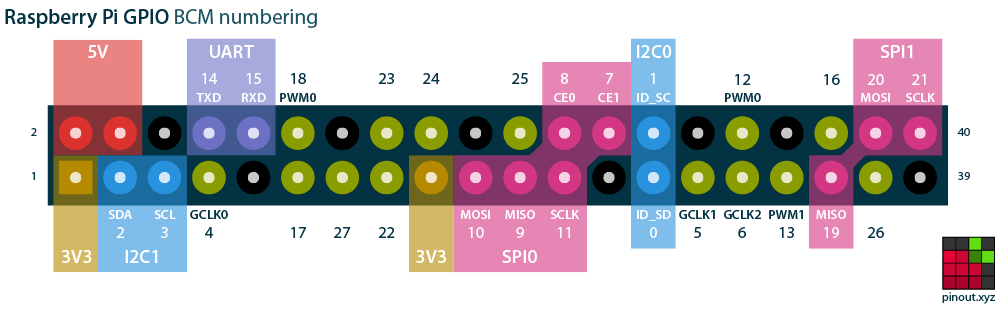
In the image, the last two pins on the bottom row on the right are what we need
(you can choose another combination if you wish). Put the jumper wire that's
attached on the negative end of the LED to the ground pin on the device. Next,
connect the other jumper wire---the one connected to the positive leg of the LED---to BCM 26.
The following image should help orient you.

## Flashing Lights
Now that we have everything wired up, let's try turning the light off and on.
The first thing we'll do is `alias` `Circuits.GPIO` for convenience. If you're
not familiar with `alias`, see the
[guides](https://elixir-lang.org/getting-started/alias-require-and-import.html#alias).
```elixir
iex(circuits_quickstart@nerves.local)8> alias Circuits.GPIO
Circuits.GPIO
```
Next, we'll open `GPIO` `26`. That's the one we put the jumper wire that leads
to the positive leg of the LED.
```elixir
iex(circuits_quickstart@nerves.local)9> GPIO.open(26, :output)
{:ok, #Reference<0.1415452060.268566532.135024>}
```
Since that returned as expected, we can now pattern match to the `ref` and
assign it to `led`. `v()` runs the last command again.
```elixir
iex(circuits_quickstart@nerves.local)10> {:ok, led} = v()
{:ok, #Reference<0.1415452060.268566532.135024>}
```
Now we're ready to blink the light. Using `write/2`, we give the function the
`ref` for the LED and `1` which turns the light on.
```elixir
iex(circuits_quickstart@nerves.local)11> GPIO.write(led, 1)
: OK
```
Now you should see the light illuminated.

To turn it off, use `write/2` again and pass in the same `ref` but this time
with `0` to turn the light off.
```elixir
iex(circuits_quickstart@nerves.local)12> GPIO.write(led, 0)
:ok
```
That's about it. You've accomplished a great deal in not a lot of time.
## Going further
The Quickstart firmware contains all of the Elixir Circuits projects. By
connecting other hardware to your devices, you can explore more hardware
interfaces and how they're supported in Elixir. Click on the following links for
more information:
* [GPIO](https://hex.pm/packages/circuits_gpio)
* [I2C](https://hex.pm/packages/circuits_i2c)
* [SPI](https://hex.pm/packages/circuits_spi)
* [UART](https://hex.pm/packages/circuits_uart)
At some point you may want to create your own firmware. See the [Nerves
Installation](https://hexdocs.pm/nerves/installation.html) and [Getting
Started](https://hexdocs.pm/nerves/getting-started.html) guides for details.
To build the Elixir Circuits Quickstart firmware, make sure that you have run
through the Nerves installation steps. Then open a terminal window and run the
following:
```console
$ git clone https://github.com/elixir-circuits/circuits_quickstart.git
$ cd circuits_quickstart
# Set the MIX_TARGET to the desired platform (rpi0, bbb, rpi3, etc.)
$ export MIX_TARGET=rpi0
$ mix deps.get
$ mix firmware
# Insert a MicroSD card
$ mix burn
```