https://github.com/endocrimes/bluefin-config
https://github.com/endocrimes/bluefin-config
Last synced: 8 months ago
JSON representation
- Host: GitHub
- URL: https://github.com/endocrimes/bluefin-config
- Owner: endocrimes
- License: apache-2.0
- Created: 2024-08-16T18:17:46.000Z (almost 2 years ago)
- Default Branch: main
- Last Pushed: 2025-09-15T03:23:04.000Z (9 months ago)
- Last Synced: 2025-09-17T06:58:08.691Z (9 months ago)
- Language: Shell
- Size: 56.6 KB
- Stars: 0
- Watchers: 1
- Forks: 0
- Open Issues: 2
-
Metadata Files:
- Readme: README.md
- License: LICENSE
Awesome Lists containing this project
README
# bluefin-config
# Purpose
This repo holds my custom image for Bluefin.
# How to Use
## Workflows
### build.yml
This workflow creates your custom OCI image and publishes it to the Github Container Registry (GHCR). By default, the image name will match the Github repository name.
#### Container Signing
Container signing is important for end-user security and is enabled on all Universal Blue images. It is recommended you set this up, and by default the image builds *will fail* if you don't.
This provides users a method of verifying the image.
1. Install the [cosign CLI tool](https://edu.chainguard.dev/open-source/sigstore/cosign/how-to-install-cosign/#installing-cosign-with-the-cosign-binary)
2. Run inside your repo folder:
```bash
cosign generate-key-pair
```
- Do NOT put in a password when it asks you to, just press enter. The signing key will be used in GitHub Actions and will not work if it is encrypted.
> [!WARNING]
> Be careful to *never* accidentally commit `cosign.key` into your git repo.
3. Add the private key to GitHub
- This can also be done manually. Go to your repository settings, under Secrets and Variables -> Actions
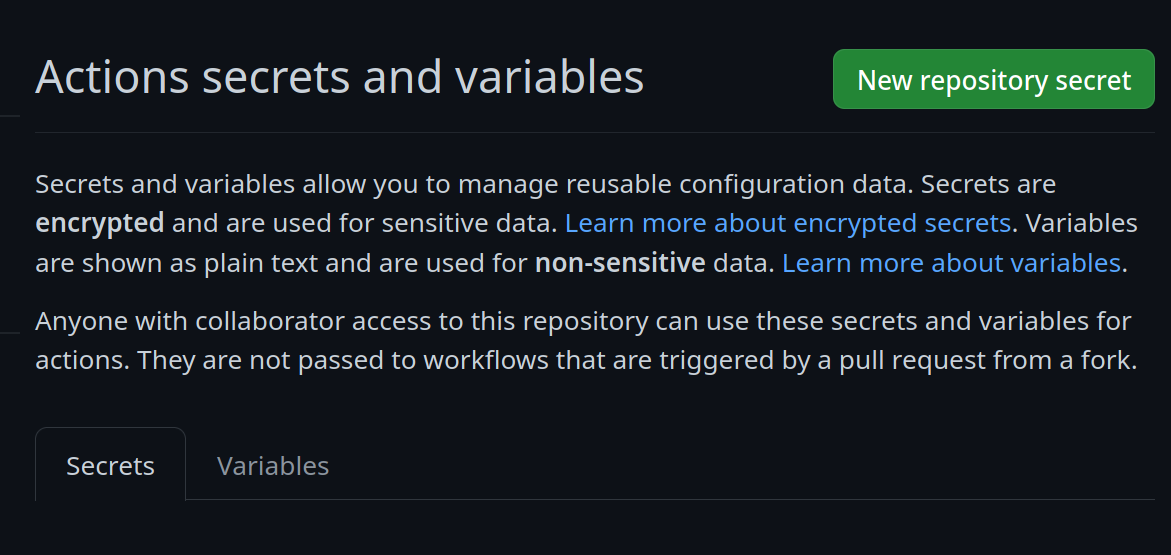
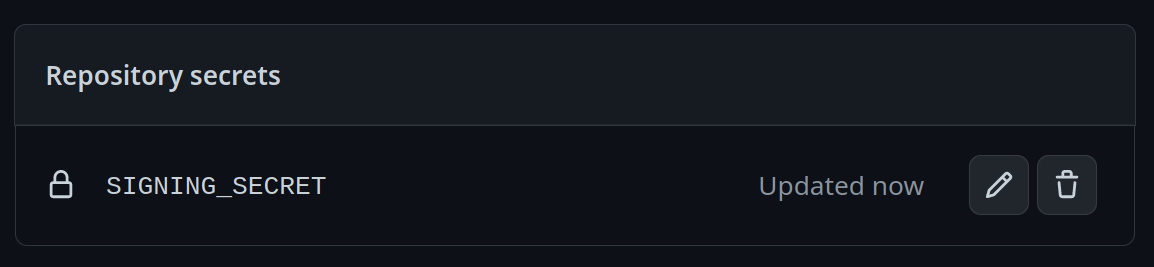
Add a new secret and name it `SIGNING_SECRET`, then paste the contents of `cosign.key` into the secret and save it. Make sure it's the .key file and not the .pub file. Once done, it should look like this:
- (CLI instructions) If you have the `github-cli` installed, run:
```bash
gh secret set SIGNING_SECRET < cosign.key
```
4. Commit the `cosign.pub` file into your git repository