https://github.com/etchteam/storybook-addon-css-variables-theme
Change the CSS variable based design tokens in your storybook on the fly
https://github.com/etchteam/storybook-addon-css-variables-theme
Last synced: about 1 year ago
JSON representation
Change the CSS variable based design tokens in your storybook on the fly
- Host: GitHub
- URL: https://github.com/etchteam/storybook-addon-css-variables-theme
- Owner: etchteam
- License: mit
- Created: 2021-06-16T08:07:36.000Z (about 5 years ago)
- Default Branch: main
- Last Pushed: 2025-03-28T22:45:58.000Z (about 1 year ago)
- Last Synced: 2025-04-03T03:33:28.646Z (about 1 year ago)
- Language: JavaScript
- Homepage:
- Size: 2.45 MB
- Stars: 30
- Watchers: 2
- Forks: 10
- Open Issues: 2
-
Metadata Files:
- Readme: Readme.md
- License: LICENSE
Awesome Lists containing this project
README
# Storybook Addon CSS Variables Theme
Storybook CSS Variables Theme can be used to switch out CSS files in [Storybook](https://storybook.js.org).
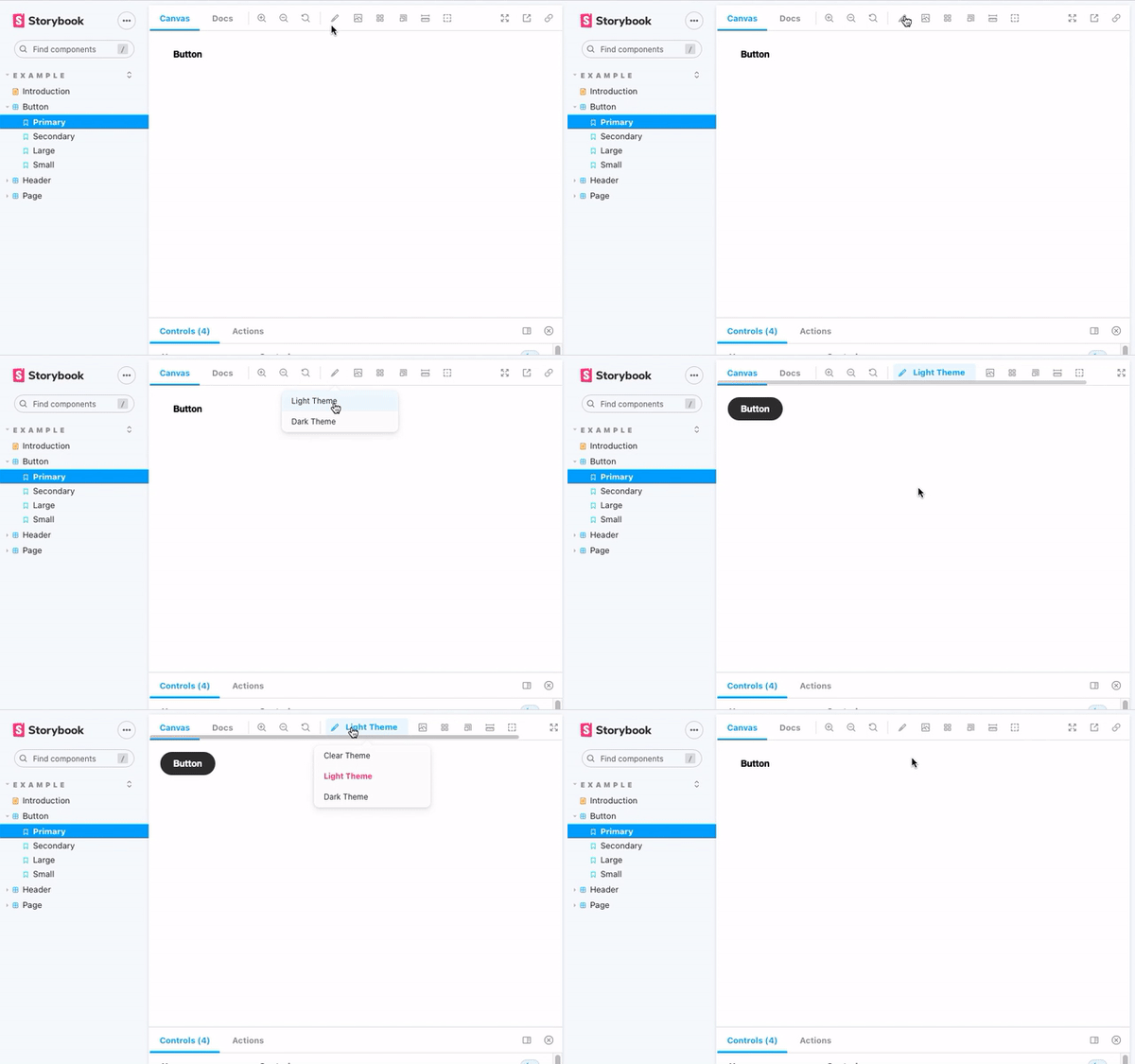
## Installation
```sh
npm install @etchteam/storybook-addon-css-variables-theme --save-dev
```
## Configuration
### Step 1: Add the addon
Create a file called `main.js` in your `.storybook` folder.
Add the following code to it:
```js
module.exports = {
addons: ['@etchteam/storybook-addon-css-variables-theme'],
};
```
### Step 2: Include your CSS files
Create a file called `preview.js` in your `.storybook` folder.
In this file you will need to import your style files using a loader. Here's an example of how to do this:
```js
import light from '!!style-loader?injectType=lazyStyleTag!css-loader!../src/styles/light.css'
import dark from '!!style-loader?injectType=lazyStyleTag!css-loader!../src/styles/dark.css'
```
This code calls `style-loader` with `?injectType=lazyStyleTag` so that it doesn't run the CSS immediately.
You can swap out `css-loader` for your preferred SCSS/Less/etc loaders.
Any loaders used here will need to be installed in your project: `npm i -D style-loader css-loader`
### Step 3: Add the Decorator
In the same `preview.js` file import the decorator from the CSS Variables Theme addon
```js
import cssVariablesTheme from '@etchteam/storybook-addon-css-variables-theme'
export const decorators = [
cssVariablesTheme,
];
```
Then pass the CSS files to the addon via the exported parameters.
```js
export const parameters = {
cssVariables: {
files: {
'Light Theme': light,
'Dark Theme': dark,
}
}
}
```
If a default theme should be selected from first load add 'defaultTheme' to the options.
```js
export const parameters = {
cssVariables: {
files: {
'Light Theme': light,
'Dark Theme': dark,
},
defaultTheme: 'Light Theme'
}
}
```
## How to
### Set a specific theme for a story
Pass the theme key as the `theme` parameter on the story to default to a specific theme:
```js
export default {
title: 'Example/Header',
component: Header,
parameters: {
cssVariables: {
theme: 'dark'
}
}
};
```
### Get the currently enabled theme within stories
You can access the currently set theme from the context object provided by storybook as the second parameter.
```js
const Template: ComponentStory = (args, context) => (
{context.globals.cssVariables ?? 'No theme'}
);
```
Alternatively watch the custom `storybookcssvariables:theme:change` event on the `document`.
```js
document.addEventListener(
'storybookcssvariables:theme:change',
(event: CustomEvent) => {
console.info(`The theme changed to ${event?.detail?.theme}`);
},
);
```
### Set a Theme by Query String
Themes are stored in storybook globals.
Pass the theme to the url as a query by adding `&globals=cssVariables:mytheme` to the url.
If multi word theme query is `&globals=cssVariables:my+theme`
### Use in MDX docs
This addon applies styles through a [decorator](https://storybook.js.org/docs/addons/addons-api#makedecorator).
So, within MDX files, [styles will only apply to a `` or ``](https://github.com/storybookjs/storybook/issues/12290#issuecomment-682404317).
---
Made with ☕ at [Etch](https://etch.co)