https://github.com/eugeniogiusti/network-analyzer
A versatile network troubleshooting script that performs ping, traceroute, DNS lookups, TCP port tests (via Nmap), and captures traffic using tcpdump for advanced analysis.
https://github.com/eugeniogiusti/network-analyzer
bash bash-script layer3 layer4 linux network-analysis networking tcp-ip troubleshooting
Last synced: 3 months ago
JSON representation
A versatile network troubleshooting script that performs ping, traceroute, DNS lookups, TCP port tests (via Nmap), and captures traffic using tcpdump for advanced analysis.
- Host: GitHub
- URL: https://github.com/eugeniogiusti/network-analyzer
- Owner: eugeniogiusti
- License: gpl-3.0
- Created: 2024-11-30T01:06:19.000Z (over 1 year ago)
- Default Branch: main
- Last Pushed: 2025-03-10T09:19:53.000Z (over 1 year ago)
- Last Synced: 2025-03-10T10:27:41.391Z (over 1 year ago)
- Topics: bash, bash-script, layer3, layer4, linux, network-analysis, networking, tcp-ip, troubleshooting
- Language: Shell
- Homepage:
- Size: 64.5 KB
- Stars: 0
- Watchers: 1
- Forks: 0
- Open Issues: 0
-
Metadata Files:
- Readme: README.md
- License: LICENSE
Awesome Lists containing this project
README
# Network analyzer troubleshooting Script
This script is designed to test a network resource and gather information for accurate troubleshooting.
## Features
- Operates at the network and port levels.
- Launches `tcpdump` during all tests to sniff traffic sent to the target machine.
- Provides a comprehensive overview for advanced network analysis.
- Performs the following tests:
- **Ping**
- **Traceroute**
- Option to perform a DNS lookup (`dig`) on an IP or DNS name.
- Option to test if the target's TCP port is open using **Nmap**.
- tcpdump that records all activies.
## Recommended Usage
1. Run the script to perform initial network tests.
2. As a final step, test the target's service:
- Try to login if it's a webpage or try to reach it.
- Logging in via SSH or any other service the target has.
4. The ongoing `tcpdump` collects all traffic, allowing for advanced analysis.
5. When testing is complete, type `ok` and `ENTER` to terminate the script.
## Compatibility
- This script has been tested on **MX Linux** and works perfectly.
- Feel free to test it on other systems.
- If you encounter issues or want to improve the script, contributions are welcome!
## Prerequisites
Ensure the following packages are installed for full functionality:
- `tcpdump`
- `ping`
- `traceroute`
- `dig`
- `nmap`
## How to Use
1. **Make sure that you have the necessary packets**
Commands for debian and redhat distros:
```bash
apt install traceroute nmap bind9utils tcpdump -y
dnf install traceroute nmap bind-utils tcpdump -y
2. **Clone or Download the Repository**
Download the script to your system or clone the repository:
```bash
git clone https://github.com/eugeniogiusti/network_analyzer.git
cd network_analyzer
3. Grant Execution Permissions
Give the script executable permissions:
```bash
chmod +x network_analyzer.sh
4. Run the Script &
Switch to the root user if you don't want to enter the password during the process:
```bash
sudo su
./network_analyzer.sh
5. Step follow the instructions
```bash
Follow the instruction of the script.
You have to put your ip target and its port and that's it!
6. Step read and import
```bash
Read the report .txt and import the .pcap in Wishareshark to analazite it or use tcpdump with this command:
tcpdump -r file.pcap


## Troubleshooting Tips
1. **Check the target's firewall**
Ensure the service ports for incoming connections are open.
2. **Verify services and configurations**
Confirm that the services are running and check for any misconfigurations at the application level.
3. **Inspect Layer 3 and Layer 2 issues**
Look for potential problems, such as:
- Improperly configured routing.
- VLAN ACLs blocking traffic.
4. **Investigate software/firmware bugs**
Check for any known bugs in the software or firmware.
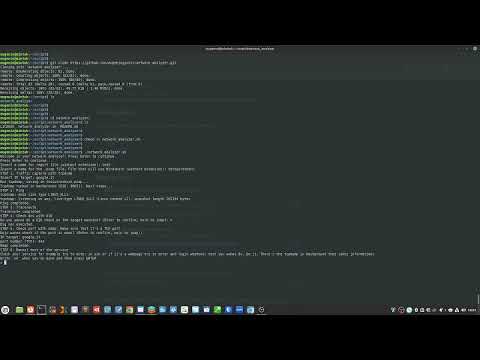
Click the thumbnail above to see the script in action on YouTube!
## Full Article
For an in-depth guide, including usage tips and additional insights, please visit my blog post:
Network Analyzer – Deep Dive
# Network Analyzer




