https://github.com/evgenyneu/scrollable
An iOS control that makes content scroll vertically.
https://github.com/evgenyneu/scrollable
Last synced: 9 months ago
JSON representation
An iOS control that makes content scroll vertically.
- Host: GitHub
- URL: https://github.com/evgenyneu/scrollable
- Owner: evgenyneu
- License: mit
- Created: 2014-11-28T01:58:48.000Z (about 11 years ago)
- Default Branch: master
- Last Pushed: 2017-04-07T23:57:05.000Z (almost 9 years ago)
- Last Synced: 2025-04-26T07:43:20.852Z (9 months ago)
- Language: Swift
- Homepage:
- Size: 589 KB
- Stars: 20
- Watchers: 11
- Forks: 2
- Open Issues: 0
-
Metadata Files:
- Readme: README.md
- License: LICENSE
Awesome Lists containing this project
README
# Scrolling content vertically in iOS with Auto Layout
[](https://github.com/Carthage/Carthage)
[](http://cocoadocs.org/docsets/Scrollable)
[](LICENSE)
[](http://cocoadocs.org/docsets/Scrollable)
This an an iOS library that helps scrolling screen content vertically, similar how the content is scrolled in the web browser. The code is written in Swift 2.0.

## Setup
There are three ways you can add Scrollable to your Xcode project.
**Add source (iOS 7+)**
Simply add [ScrollableDistrib.swift](https://github.com/marketplacer/Scrollable/blob/master/Distrib/ScrollableDistrib.swift) file into your Xcode project.
**Setup with Carthage (iOS 8+)**
Alternatively, add `github "marketplacer/Scrollable" ~> 2.0` to your Cartfile and run `carthage update`.
**Setup with CocoaPods (iOS 8+)**
If you are using CocoaPods add this text to your Podfile and run `pod install`.
use_frameworks!
target 'Your target name'
pod 'Scrollable', '~> 2.0'
## Usage
1. Add `import Scrollable` to your code if you used Carthage or CocoaPods setup methods.
1. Add a scroll view to your storyboard with necessary constraints.
1. In storyboard, drag content views **to the scroll view** (your labels, images etc.).
1. If you already have all your controls in the storyboard but there is no scroll view you can select the controls and click *Editor > Embed In > Scroll View* menu. This will automatically create a scroll view and put all the selected controls in it.
1. Add Auto Layout constraints for all the content views. The trick is to make sure **all four sides of the scroll view** have layout constraints to the bordering content views. This will make the scroll view content size expand to accommodate all the child content views.
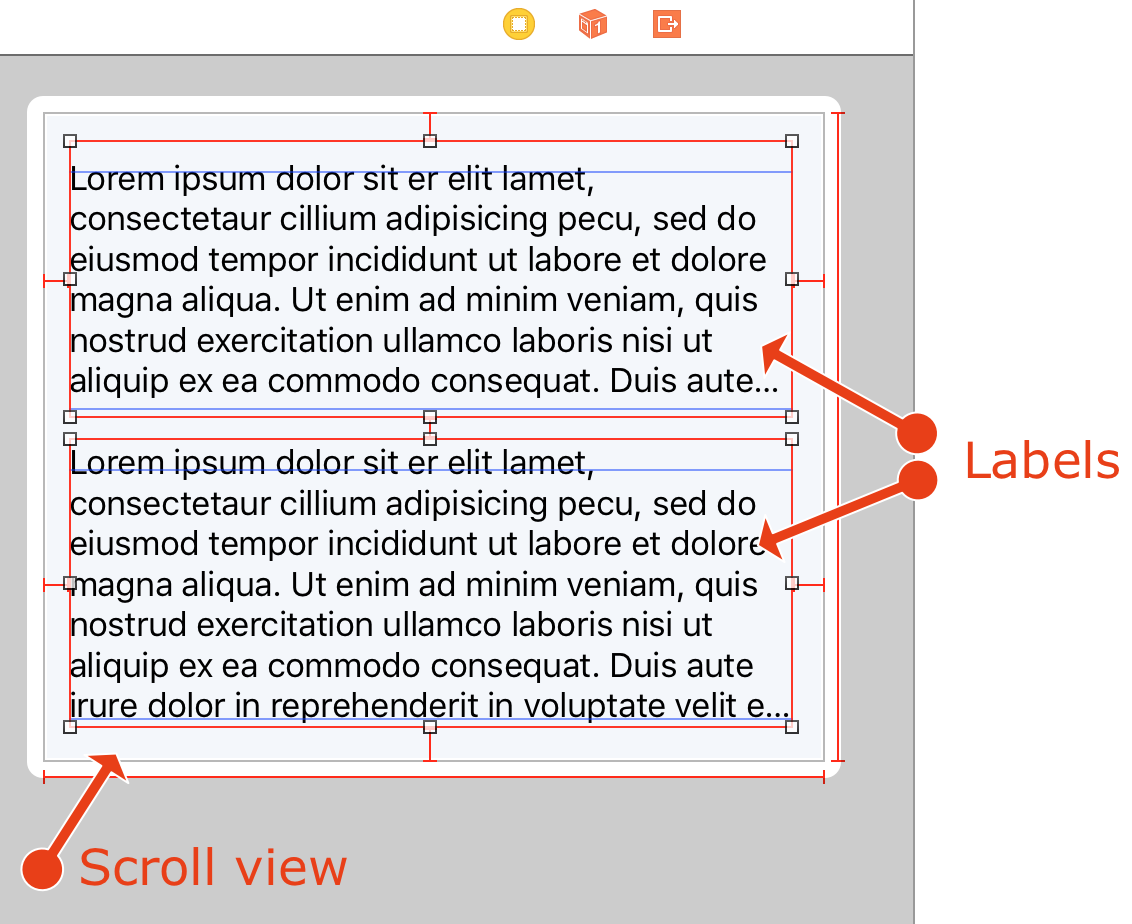
#### Layout the scroll view content
1. From storyboard, create a `scrollView` outlet for the scroll view in your view controller.
1. Finally, in view controller's `viewDidLoad`, call:
```
Scrollable.createContentView(scrollView)
```
## How it works
`Scrollable.createContentView` function creates a **content view** and embeds all scroll view subviews in it.
Then it goes through all scroll view constraints and moves them into the **content view**.
## Troubleshooting
* When creating Auto Layout constraint for content views please use numeric values for the `Constant` field. When I left it empty (`Standard`) it threw an exception:
```
Assertion failure in -[NSLayoutConstraint constant], /SourceCache/Foundation/Foundation-1047.25/Layout.subproj/NSLayoutConstraint.m:601
2014-11-28 11:53:27.816 scrolled-content[2821:60b] *** Terminating app due to uncaught exception 'NSInternalInconsistencyException', reason: '(null)'
```
* Clear the **Adjust Scroll View Insets** checkbox in the *Attribute Inspector* of your view controller to remove the margin at the top of the scroll view.
## Attribution
Image of armadillo is made by [Adrián Rodríguez](http://www.freeimages.com/profile/neferto) and taken from [http://www.freeimages.com/photo/1339784](http://www.freeimages.com/photo/1339784).
## License
Scrollable is released under the [MIT License](LICENSE).