https://github.com/extratone/things-mailspring
Light and dark(?) themes for Mailspring inspired by CulturedCode's Things 3.
https://github.com/extratone/things-mailspring
Last synced: about 2 months ago
JSON representation
Light and dark(?) themes for Mailspring inspired by CulturedCode's Things 3.
- Host: GitHub
- URL: https://github.com/extratone/things-mailspring
- Owner: extratone
- License: mit
- Created: 2025-08-31T08:42:12.000Z (10 months ago)
- Default Branch: master
- Last Pushed: 2025-08-31T08:59:04.000Z (10 months ago)
- Last Synced: 2026-02-27T05:22:40.928Z (4 months ago)
- Language: Less
- Size: 149 KB
- Stars: 1
- Watchers: 0
- Forks: 0
- Open Issues: 0
-
Metadata Files:
- Readme: README.md
- License: LICENSE.md
Awesome Lists containing this project
README
# Mailspring Theme Starter
The Mailspring Theme Starter is a basic starting point for creating a theme for
the [Mailspring](http://www.getmailspring.com/) email client.
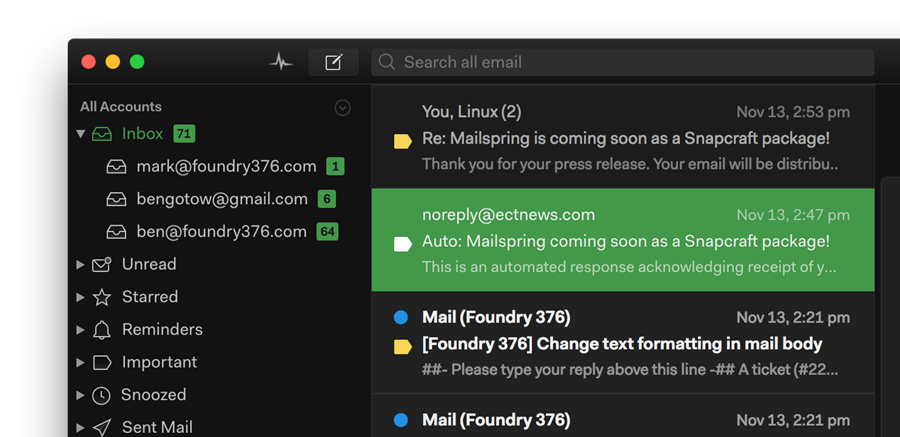
## Getting Started
Creating a new theme in Mailspring is easy! Here's how you can do it.
1. Fork this repo or download the code. Add a name, display name, title, and
description for your theme to `package.json`, and change the directory name
to match.
2. Open Mailspring and install the theme by going to `Mailspring > Install New Theme...`
and selecting the directory.
3. Choose `Developer > Run With Debug Flags` for easier debugging.
4. Now, you can start playing with the theme!
Depending on your OS, the theme is installed in one of the following location:
| OS | Location |
|--------------|--------------------------------------------------------------|
| macOS | ~/Library/Application Support/Mailspring/packages/THEME_NAME |
| Ubuntu native| ~/.config/Mailspring/packages/THEME_NAME |
| Ubuntu Snap | ~/snap/mailspring/common/packages/THEME_NAME |
| Windows | %appdata%\Mailspring\packages\THEME_NAME |
Open the theme in this directory and work on it here.
Most of Mailspring's React components are derived from the core variables defined in `ui-variables.less`,
and any changes you make there will override the defaults for Mailspring.
You can also add more LESS files in `styles` (ideally, separated into logical components
like `thread-list.less`) to make your own specific changes. To reload the theme,
just open the console (`Developer > Toggle Developer Tools`) and type
```
AppEnv.themes.setActiveTheme('ui-light');
AppEnv.themes.setActiveTheme('your-theme-name');
```
5. Once you're happy with your theme, check how it looks in the theme picker
(`Mailspring > Change Theme...`). We use your UI variables to pull the
colors, but if you want to add your own selections to the color palette,
create a `theme-colors.less` file that includes any of the variables that you
want to change, and they'll only affect the theme preview. Here are the
variables, on the left, with the part of the theme preview that they match:
```
@background-secondary: BACKGROUND_COLOR
@text-color: TEXT_COLOR, FIRST_SWATCH_COLOR
@component-active-color: MIDDLE_SWATCH_COLOR
@toolbar-background-color: LAST_SWATCH_COLOR
@panel-background-color: STRIP_COLOR
```
## Structure
```
.
├── styles # All stylesheets
| ├── index.less # Main LESS file to import your stylesheets
│ ├── ui-variables.less # UI variables that override N1's defaults
│ ├── theme-colors.less # Theme colors for theme preview (optional)
├── package.json # Metadata about the theme
├── LICENSE.md # License with usage rights
└── README.md # Info about your theme and how to use it
```