https://github.com/fareedkhan-dev/git-workflow-guide
26 different problems dev teams faces with Git
https://github.com/fareedkhan-dev/git-workflow-guide
developer git github workflow
Last synced: 2 months ago
JSON representation
26 different problems dev teams faces with Git
- Host: GitHub
- URL: https://github.com/fareedkhan-dev/git-workflow-guide
- Owner: FareedKhan-dev
- License: mit
- Created: 2025-08-08T12:03:02.000Z (12 months ago)
- Default Branch: main
- Last Pushed: 2025-08-09T03:15:13.000Z (12 months ago)
- Last Synced: 2025-08-09T05:29:25.755Z (12 months ago)
- Topics: developer, git, github, workflow
- Homepage:
- Size: 31.3 KB
- Stars: 0
- Watchers: 0
- Forks: 0
- Open Issues: 0
-
Metadata Files:
- Readme: README.md
- License: LICENSE
Awesome Lists containing this project
README
# 26 Git Workflow Challenges

*Art illustration by [Anni Roenkae](https://www.pexels.com/photo/abstract-wallpaper-2860804/) (Pexels)*
As a programmer, you know that version control gets complex when a codebase becomes large and is handled by a team of developers.
Your team might be working with [GitHub](https://github.com/), [GitLab](https://about.gitlab.com/), [BitBucket](https://bitbucket.org/product/), or any other Version Control System but …
> There are certain ethics of Git that, if you don’t follow, you might end up making the codebase a total mess.
In this post, I will share how my development team debugs and resolves issues **we have encountered over the past four years of working with Git**.
## Table of Contents
- [1. Working on a Remote Server/VM with My Team, What Should We Do First?](#1-working-on-a-remote-servervm-with-my-team-what-should-we-do-first)
- [2. Our Repo is Huge and `git clone` Takes Forever. What Can I Do?](#2-our-repo-is-huge-and-git-clone-takes-forever-what-can-i-do)
- [3. How Can We Automatically Run Linters or Tests Before Anyone Commits?](#3-how-can-we-automatically-run-linters-or-tests-before-anyone-commits)
- [4. I Accidentally Committed a Password/API Key, How Do I Erase It From History?](#4-i-accidentally-committed-a-passwordapi-key-how-do-i-erase-it-from-history)
- [5. A Bug Was Introduced Weeks Ago, How Can I Find the Exact Commit That Broke Everything?](#5-a-bug-was-introduced-weeks-ago-how-can-i-find-the-exact-commit-that-broke-everything)
- [6. Our Project Depends on Another Repo, Should We Use Submodules or Subtrees?](#6-our-project-depends-on-another-repo-should-we-use-submodules-or-subtrees)
- [7. How Do We Properly Tag Releases and Manage Hotfixes on Old Versions?](#7-how-do-we-properly-tag-releases-and-manage-hotfixes-on-old-versions)
- [8. I Messed Up and Lost My Commits. Is There a Way to Get Them Back?](#8-i-messed-up-and-lost-my-commits-is-there-a-way-to-get-them-back)
- [9. Who Wrote This Line of Code and Why?](#9-who-wrote-this-line-of-code-and-why)
- [10. How Do I Keep My Fork in Sync with the Original ‘Upstream’ Repo?](#10-how-do-i-keep-my-fork-in-sync-with-the-original-upstream-repo)
- [11. How Do I Prove My Commits Really Came From Me? (Signing Commits)](#11-how-do-i-prove-my-commits-really-came-from-me-signing-commits)
- [12. What is a “Detached HEAD” State and How Do I Fix It Without Losing My Work?](#12-what-is-a-detached-head-state-and-how-do-i-fix-it-without-losing-my-work)
- [13. Our Repo is Full of Large Assets, How Do We Handle Them Without Bloating the History?](#13-our-repo-is-full-of-large-assets-how-do-we-handle-them-without-bloating-the-history)
- [14. This Monorepo is Too Big. How Do I Split a Folder into a New Repository?](#14-this-monorepo-is-too-big-how-do-i-split-a-folder-into-a-new-repository)
- [15. I Committed the Wrong Code, How Do I Undo My Error?](#15-i-committed-the-wrong-code-how-do-i-undo-my-error)
- [16. When My Work Collided with a Teammate Changes, Now I Can’t Pull?](#16-when-my-work-collided-with-a-teammate-changes-now-i-cant-pull)
- [17. Why Did Applying My Stash Cause Conflicts?](#17-why-did-applying-my-stash-cause-conflicts)
- [18. I Just Committed but Forgot to Add a Few Files?](#18-i-just-committed-but-forgot-to-add-a-few-files)
- [19. My Branch Name Doesn’t Match the Work Anymore?](#19-my-branch-name-doesnt-match-the-work-anymore)
- [20. You Already Pushed Your Commit, But Now You Need to Update It?](#20-you-already-pushed-your-commit-but-now-you-need-to-update-it)
- [21. My Push Rejected, I Then Pulled… and Now Conflicts Everywhere!](#21-my-push-rejected-i-then-pulled-and-now-conflicts-everywhere)
- [22. Push Rejected Again? This Time Let’s Rebase Instead of Merging](#22-push-rejected-again-this-time-lets-rebase-instead-of-merging)
- [23. My PR Shows Conflicts, How Do I Fix It Before the Team Yells at Me?](#23-my-pr-shows-conflicts-how-do-i-fix-it-before-the-team-yells-at-me)
- [24. I Have Too Many Commits!](#24-i-have-too-many-commits)
- [25. I Committed to One Branch but Need the Same Changes in Another](#25-i-committed-to-one-branch-but-need-the-same-changes-in-another)
- [26. I Merged My Changes… Then Realized They Shouldn’t Be There](#26-i-merged-my-changes-then-realized-they-shouldnt-be-there)
## 1. Working on a Remote Server/VM with My Team, What Should We Do First?
As an AI Engineer, our local laptops or PCs don’t always have the best GPUs to handle AI models. In those cases, it’s enough to just run a simple `git clone ...` command to grab the organization repo.
**But when working on a VM, we developers want to be a bit more secure.** Usually, we avoid logging in with our Git credentials directly on a shared VM, because that environment can be accessible or visible to other dev teams.
> To stay safe, we use the SSH approach to authenticate with Git and avoid exposing our credentials.
The process is pretty straightforward, in your VM terminal, you just need to generate an SSH key using the command:
```bash
# Generating Public keys to link your VM
ssh-keygen -t ed25519 -C "your_email@example.com"
```
Just hit enter for all the prompts, unless you want to specify a custom file name or passphrase. After that, you’ll find your public key in `~/.ssh/id_ed25519.pub`.
Next, you copy that public key using:
```bash
# Printing the generated key
cat ~/.ssh/id_ed25519.pub
```
Now head over to your Git hosting service (like GitHub, GitLab, etc.), go to your profile → SSH keys section, and paste it there as a new key.
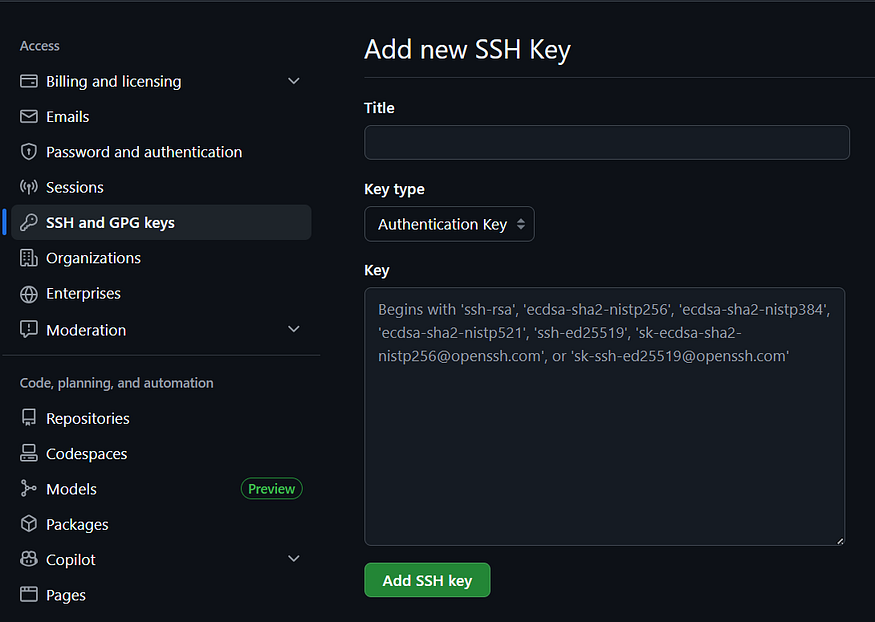
Once that’s done, back in your VM, you can clone your org repo using SSH instead of HTTPS:
```bash
# Cloning your org repo
git clone git@github.com:your-org/your-repo.git
```
> No credentials prompt, no exposure, and much safer in a shared VM environment.
## 2. Our Repo is Huge and `git clone` Takes Forever. What Can I Do?
You’re working on a massive monorepo with years of history. Cloning it takes 20 minutes and eats up 5 GB of disk space.
> This is especially painful for CI/CD pipelines that need to clone the repo for every build.
You don’t always need the entire project history just to run tests or build a feature. For these cases, you can perform **a shallow clone**.
A **shallow clone** downloads only the most recent `n` commits, dramatically reducing clone time and disk usage.
```bash
# Perform a shallow clone, getting only the very latest commit.
git clone --depth 1 https://github.com/massive-org/massive-repo.git
### Terminal Output ###
Cloning into 'massive-repo'...
remote: Enumerating objects: 1500, done.
remote: Counting objects: 100% (1500/1500), done.
remote: Compressing objects: 100% (1200/1200), done.
remote: Total 1500 (delta 300), reused 1000 (delta 200), pack-reused 0
Receiving objects: 100% (1500/1500), 50.23 MiB | 10.50 MiB/s, done.
Resolving deltas: 100% (300/300), done.
# The clone finishes in seconds instead of minutes.
# The trade-off: your local history is gone.
# Commands like `git log` will only show one commit.
```
If you later decide you need more history, you can “deepen” your clone:
```sql
# Fetch the next 50 commits
git fetch --depth 50
# Or fetch the entire history and convert it to a normal clone
git fetch --unshallow
```
> Shallow cloning is an optimization technique for working efficiently with large-scale repositories, especially in automated environments.
## 3. How Can We Automatically Run Linters or Tests Before Anyone Commits?
A teammate pushes code with syntax errors. Another pushes a change that breaks a unit test. These mistakes are simple, but they disrupt the workflow and break the build for everyone else.
> You can prevent this entirely by using Git Hooks. These are scripts that automatically run at certain points in the Git lifecycle.
The most useful one is the `pre-commit` hook, which runs *before* a commit is created. If the script fails, the commit is aborted.
While you can write these scripts by hand in the `.git/hooks` directory, a much easier way is to use a framework like [pre-commit](https://pre-commit.com/).
Here’s the concept:
```yaml
# You create a .pre-commit-config.yaml file in your repo root
repos:
- repo: https://github.com/pre-commit/pre-commit-hooks
rev: v4.3.0
hooks:
- id: check-yaml # Checks YAML file syntax
- id: end-of-file-fixer # Ensures files end in a newline
- id: trailing-whitespace # Trims trailing whitespace
- repo: https://github.com/psf/black
rev: 22.6.0
hooks:
- id: black # Runs the Black Python code formatter
```
When a developer on your team runs `git commit`:
```bash
$ git commit -m "Add new feature"
### Terminal Output ###
Check Yaml...........................................Passed
Fix End of Files.....................................Passed
Trim Trailing Whitespace.............................Passed
black................................................Failed
- hook id: black
- files were modified by this hook
# The commit is aborted because the Black formatter found issues and fixed them.
# The developer just needs to `git add` the fixed files and commit again.
```
> Git hooks act as an automated quality gatekeeper. They enforce code standards and prevent simple mistakes from ever reaching your shared repository.
## 4. I Accidentally Committed a Password/API Key, How Do I Erase It From History?
> This ones normally comes from interns.
You push your code, only to realize you accidentally included a `.env` file, a private key, or a hardcoded password.
Just deleting the file and making a new commit is not enough. The secret is still buried in your Git history, visible to anyone who clones the repo. You need to wipe it from existence, completely. This calls for a tool that rewrites history.
The modern way to do this is using `git filter-repo`.
```bash
# First, remove the sensitive file from your working directory.
# Make sure it's also in your .gitignore so you don't do this again!
rm path/to/your/secret.file
# Run the filter-repo command to remove the file from ALL commits.
# --invert-paths tells it to remove the specified file.
git filter-repo --path path/to/your/secret.file --invert-paths
### Terminal Output ###
Parsed 123 commits
...
Repacked objects: 100% (456/456), done.
New history written in .git/filter-repo/analysis/....
# This operation rewrites history, so you MUST force push.
# Use --force-with-lease for safety, but --force is needed here.
git push origin --force --all
```
> **After doing this, you must treat the leaked secret as compromised.**
Invalidate the API key, change the password, and rotate your credentials immediately. This Git command cleans your history, but it can’t undo the fact that the secret was exposed, even if briefly.
## 5. A Bug Was Introduced Weeks Ago, How Can I Find the Exact Commit That Broke Everything?
> Your app was working fine last Monday, but the following Friday, while you were wrapping up your codebase, a subtle bug surfaced.
You have hundreds of commits between then and now. Manually checking out each one to find the culprit would take all day.
This is where we normally use `git bisect`, Git’s built-in bug detective. It performs an automatic binary search through your commit history, asking you at each step if the bug is present.
```bash
# 1. Start the bisect process
git bisect start
# 2. Tell Git the current commit is broken
git bisect bad
# 3. Tell Git the last known commit where everything worked
# You can use a tag (v1.2.0) or a commit hash
git bisect good v1.2.0
### Terminal Output ###
Bisecting: 67 revisions left to test after this (roughly 6 steps)
[f3a9b8c] feat: Add user profile caching
# Now, test your app. Is the bug here?
# Let's say it is. Tell Git:
git bisect bad
### Terminal Output ###
Bisecting: 33 revisions left to test after this (roughly 5 steps)
[e1d4c5b] refactor: Update auth middleware
# Test again. This time, it works! Tell Git:
git bisect good
# ... and so on. Git will narrow it down until...
### Terminal Output ###
a9b7c6d is the first bad commit
commit a9b7c6d
Author: Your Teammate
Date: Wed Jul 17 11:22:13 2024 -0500
feat: Optimize image loading
# Once you've found the culprit, end the bisect session
git bisect reset
```
> With `git bisect`, you can find a single bad commit in a sea of hundreds in just a few minutes, It saves us around like 2 to 3 hours of tedious guesswork.
## 6. Our Project Depends on Another Repo, Should We Use Submodules or Subtrees?
In an organization’s repo, dependencies can conflict …
> like in Python, where an older module version may not work with a newer dependent module, causing pipeline crashes.
Your project needs to include another repository maybe a shared internal library, a third-party module, or a separate microservice. How do you manage this dependency? You have two main options: `git submodule` and `git subtree`.
A **submodule** is essentially a pointer to a specific commit in another repository. Your main repo doesn’t contain the submodule’s code, just a link to it.
```bash
# Add a submodule to your project
git submodule add https://github.com/your-org/shared-library.git libs/shared-library
# When someone clones your repo, they need an extra step:
git clone https://github.com/your-org/main-project.git
cd main-project
git submodule update --init --recursive
```
* **Best for** keeping projects neatly separated. You can update a library without cluttering your main repo’s history.
* **Downside** is that it adds complexity because everyone must remember to run `git submodule update`.
On the other hand, **subtree** copies the entire history of the other repository directly into your main project’s history, placing its files in a subdirectory.
```bash
# Add a subtree to your project
# The --squash flag keeps your history cleaner
git subtree add --prefix=libs/shared-library https://github.com/your-org/shared-library.git main --squash
```
* **Best for** simplicity. Anyone who clones your repo gets all the code in one go with no extra steps.
* **Downside** is that it can make your main repository history larger and more complex, and pulling updates from the library becomes a more manual process.
> Use submodules when you need strict versioning and separation. Use subtrees when you prioritize ease-of-use for your team and want a self-contained repository.
## 7. How Do We Properly Tag Releases and Manage Hotfixes on Old Versions?
Your team just released `v2.0.0`. A week later, a critical security bug is found in the `v1.5.0` release, which is still used by major clients. The `main` branch has moved on, so you can't just commit a fix there.
This is where a disciplined branching and tagging strategy, like GitFlow, becomes essential. The key is to create a `hotfix` branch from the old release tag.
```bash
# 1. Check out the old version tag into a new hotfix branch
git checkout -b hotfix/v1.5.1 v1.5.0
# 2. Make your code changes to fix the bug
# (Edit files here...)
git add .
git commit -m "Hotfix: Patch critical security vulnerability in legacy API"
# 3. Merge the hotfix back into main (so future versions get the fix)
git checkout main
git merge hotfix/v1.5.1
# 4. Also merge it into your develop branch (if you use one)
git checkout develop
git merge hotfix/v1.5.1
# 5. Tag the hotfix as a new release and push
git tag -a v1.5.1 -m "Version 1.5.1"
git push origin v1.5.1
# 6. Don't forget to push your updated main and develop branches
git push origin main develop
```
This way we make sure that you can patch old versions without disrupting current development, while also guaranteeing the fix is incorporated into all future releases.
## 8. I Messed Up and Lost My Commits. Is There a Way to Get Them Back?
You ran `git reset --hard` to discard some changes, but you went back too far and wiped out the last three hours of work. Or maybe you deleted a branch without merging it first. Your commits are gone. There's a moment of pure panic.
> Before you start re-coding everything from memory, take a breath. Git has a secret safety net, the reflog.
The **reflog** is a private log of every move your `HEAD` pointer has made. Committing, resetting, switching branches, Git remembers it all, even if the commits are no longer part of any branch. It’s your personal undo history for Git itself.
```bash
# Display the history of all your recent actions
git reflog
### Terminal Output ###
a1b2c3d HEAD@{0}: reset: moving to HEAD~3
f4e5d6c HEAD@{1}: commit: Add user dashboard component
g7h8i9j HEAD@{2}: commit: Fix login validation rules
k1l2m3n HEAD@{3}: checkout: moving from main to feature-dashboard
# In this log, my last three commits (f4e5d6c, g7h8i9j, k1l2m3n)
# were wiped out by the reset. But they are still there in the reflog!
# To restore your work, find the commit you want to return to (e.g., f4e5d6c).
# You can create a new branch from it to be safe.
git checkout -b recovered-work f4e5d6c
# Or, if you're confident, reset your current branch back to that state
git reset --hard f4e5d6c
```
> The reflog only stores history for a limited time (90 days by default) and is local to your machine.
## 9. Who Wrote This Line of Code and Why?
You are digging through the codebase and find a strange, uncommented line of code. You have no idea what it does, why it’s there, or if it’s safe to change. To understand it, you need context.
> You need to find out *who* wrote it and *what else* was in that same commit.
This is the job for `git blame`. Despite its aggressive name, it’s not for pointing fingers, it’s for understanding the history of a file, line by line.
```bash
# Run blame on a file to see the author and commit for every line
git blame app/services/payment-processor.js
### Terminal Output ###
^a9b8c7 (Jane orteg 2024-07-15 10:30:15 -0500 1) const processPayment = (amount) => {
f4e5d6c (John Ssuza 2024-08-01 14:05:21 -0500 2) if (amount < 0) {
f4e5d6c (John Ssuza 2024-08-01 14:05:21 -0500 3) // Temp fix for negative values, per TICKET-123
f4e5d6c (John Ssuza 2024-08-01 14:05:21 -0500 4) return { success: false, error: 'Invalid amount' };
^a9b8c7 (Jane oteg 2024-07-15 10:30:15 -0500 5) }
d1e2f3g (You 2024-08-20 09:12:45 -0500 6) // ... more code
...
# The output shows the commit hash, author, date, and line number.
# Line 3 is the one we're curious about. It belongs to commit f4e5d6c.
# Now, use that hash to see the full commit message and changes.
git show f4e5d6c
### Terminal Output ###
commit f4e5d6c1a2b3d4e5f6g7h8i9j0k1l2m3n4o5p6q
Author: John Smith
Date: Thu Aug 1 14:05:21 2024 -0500
Hotfix: Prevent crashes from negative payment amounts
A production incident (TICKET-123) showed that a downstream
service was sending negative values, causing a crash. This
adds a temporary guard until the other service is fixed.
diff --git a/app/services/payment-processor.js b/app/services/payment-processor.js
...
```
With `git blame` and `git show`, you can go from
> What is this weird code?
to
> Ah, it's a temporary hotfix for TICKET-123, I shouldn't remove it yet
in under a minute.
## 10. How Do I Keep My Fork in Sync with the Original ‘Upstream’ Repo?
This is the standard workflow in open source and many large organizations. You fork the main company repository, clone your fork locally, and do your work there.
But while you’re working on your feature branch, other developers are merging their changes into the original repository.
> Your fork might becomes outdated, leading to merge conflicts when you finally open a Pull Request.
To prevent this, you need to configure a second remote, traditionally called `upstream`, that points to the original repository.
```bash
# 1. Check your current remotes (you should only see 'origin')
git remote -v
### Terminal Output ###
origin git@github.com:YourUsername/your-repo.git (fetch)
origin git@github.com:YourUsername/your-repo.git (push)
# 2. Add the original repository as the 'upstream' remote
git remote add upstream https://github.com/Original-Org/your-repo.git
# 3. Verify the new remote was added
git remote -v
### Terminal Output ###
origin git@github.com:YourUsername/your-repo.git (fetch)
origin git@github.com:YourUsername/your-repo.git (push)
upstream https://github.com/Original-Org/your-repo.git (fetch)
upstream https://github.com/Original-Org/your-repo.git (push)
# 4. Now, before starting new work, sync your local 'main' with 'upstream'
git checkout main
git fetch upstream
git rebase upstream/main
git push origin main
```
> By regularly rebasing your `main` branch from `upstream`, you ensure your fork never falls far behind.
When you create new feature branches from your up-to-date `main`, they will be clean and have far fewer conflicts with the original project.
## 11. How Do I Prove My Commits Really Came From Me? (Signing Commits)
You look at a commit history on GitHub and see a green “Verified” badge next to some commits. This badge indicates the commit was cryptographically signed by the author, proving it wasn’t forged by someone else.
> In high-security projects or professional open-source, signing your commits is a sign of good practice.
It ensures commit integrity and authorship. You can do this by generating a GPG key and telling Git to use it.
```bash
# 1. Generate a GPG key (follow the prompts)
gpg --full-generate-key
# 2. Find your GPG key ID
gpg --list-secret-keys --keyid-format=long
### Terminal Output ###
/Users/you/.gnupg/pubring.kbx
-----------------------------
sec ed25519/A1B2C3D4E5F6G7H8 2024-01-01 [SC]
...
uid [ultimate] Your Name
...
# The key ID is A1B2C3D4E5F6G7H8
# 3. Tell Git to use this key to sign all your commits
git config --global user.signingkey A1B2C3D4E5F6G7H8
git config --global commit.gpgsign true
# 4. Export your public key and add it to your GitHub/GitLab account
gpg --armor --export A1B2C3D4E5F6G7H8
# (Copy the output and paste it in your Git provider's SSH/GPG keys section)
# Now, when you commit, it will be automatically signed.
git commit -m "feat: Add secure user authentication"
# If you only want to sign a single commit, use the -S flag
git commit -S -m "This is a particularly important commit"
```
> Now your commits will carry a digital signature that proves they came from you.
It’s a small step that adds a layer of trust and security to your team’s workflow.
## 12. What is a “Detached HEAD” State and How Do I Fix It Without Losing My Work?
You run `git checkout ` just to look at some old code. Suddenly, your terminal warns you that you're in a **"detached HEAD"** state.
> It sounds scary, but it's not an error. It just means your `HEAD` (the current pointer) is pointing directly to a commit instead of a branch.
The danger is that if you start making commits here, they don’t belong to any branch and can get lost once you switch away.
Here’s how to handle it:
**Scenario A:** You were just looking and made no changes. Simply switch back to a branch. You’re done.
```bash
# Go back to your main development branch
git switch main
```
**Scenario B:** You made changes and want to keep them. Don’t panic! Just create a new branch right where you are. This will “attach” your HEAD to a new branch, saving all your work.
```bash
# You've made a couple of commits in a detached HEAD state...
# Create a new branch to save them
git switch -c new-feature-from-old-state
### Terminal Output ###
Switched to a new branch 'new-feature-from-old-state'
# Your work is now safe on a regular branch!
```
Think of a detached HEAD as being in “read-only” mode. If you decide to write something, just give that work a name by creating a branch.
## 13. Our Repo is Full of Large Assets, How Do We Handle Them Without Bloating the History?
Your repository is getting slow. `git clone` takes time, and the `.git` directory is several gigabytes.
> Large binary files like datasets, design assets (`.psd`), or videos that have been committed directly.
Git is designed for text, not large binaries. The solution is Git Large File Storage (LFS). It works by replacing large files in your repository with tiny text pointers. The actual files are stored on a separate server, so your repo stays lean and fast.
```bash
# 1. Install the LFS extension (a one-time setup on your machine)
git lfs install
# 2. Tell LFS which file patterns to track.
# This creates/updates the .gitattributes file.
git lfs track "*.psd"
git lfs track "assets/videos/*.mp4"
# 3. Make sure .gitattributes itself is committed to the repo
git add .gitattributes
# 4. Now, just work as you normally would.
# Add, commit, and push your large files.
git add assets/designs/new-mockup.psd
git commit -m "feat: Add new design mockup"
git push origin main
### Terminal Output ###
Uploading LFS objects: 100% (1/1), 150 MB / 150 MB, 30 MB/s
...
# (The push looks normal, but LFS is handling the big file in the background)
```
> By using Git LFS, you get the versioning power of Git without the performance penalty of storing large files directly in the history.
## 14. This Monorepo is Too Big. How Do I Split a Folder into a New Repository?
Your company’s monorepo has grown unwieldy. The team has decided to extract the `mobile-app` directory into its own, separate repository.
You need to create this new repo while preserving the entire commit history for just the files in that directory.
> You can’t just copy-paste the files. You need to rewrite the history of the entire project to filter out everything *except* that folder.
This is a powerful, and potentially destructive, operation perfect for a tool like `git filter-repo`.
**Warning: Always back up your repository before attempting this.**
```bash
# 1. Start with a fresh, bare clone of your monorepo.
git clone --bare https://github.com/my-org/monorepo.git
cd monorepo.git
# 2. Run git filter-repo to keep only the history of the 'mobile-app' folder.
# This command rewrites history to make it seem like 'mobile-app' was always the root.
git filter-repo --path mobile-app/
### Terminal Output ###
Parsed 10,000 commits
...
Repacked objects: 100% (5000/5000), done.
New history written in .git/filter-repo/analysis/...
# 3. Your 'monorepo.git' directory is now a bare repo containing only the
# history of the mobile-app. You can now push this to a new, empty repo.
git remote set-url origin https://github.com/my-org/new-mobile-app-repo.git
git push --mirror
```
> This is a high-level architectural task that demonstrates a deep understanding of Git’s data model.
By carefully filtering history, you can perform complex repository refactoring, like splitting a monorepo or extracting a shared library, without losing the valuable historical context of your code.
## 15. I Committed the Wrong Code, How Do I Undo My Error?
While pushing multiple commits to the repo, it’s pretty common for developers to accidentally include something we didn’t mean to maybe a broken function, an unfinished component, or debug logs that slipped through.
> You commit… push… and then realize **Wait, that shouldn’t have gone in.**
If it was your most recent commit, you can easily undo it using one of the following commands based on what you want to keep.
```bash
# Remove the last commit but keep the code staged
git reset --soft HEAD~1
### Terminal Output ###
$ git reset --soft HEAD~1
$ git status
On branch dev
Changes to be committed:
(use "git reset HEAD ..." to unstage)
modified: app/component/LoginForm.js
modified: utils/api.js
```
The above is the most common thing a developer do, but there are some other parameters too…
Like:
* `--soft` → Keeps your code staged (ready to recommit)
* `--mixed` → Keeps the code but **unstaged**, so you can review or edit before committing again
* `--hard` → Wipes out both the commit **and** the changes (use only if you're sure)
* `--keep` → Keeps local changes **only if** they don’t conflict with the reset target
* `--merge` → Useful during merge conflicts; resets to commit but keeps unmerged changes
> For day-to-day mistakes, `--soft` and `--mixed` are usually enough.
## 16. When My Work Collided with a Teammate Changes, Now I Can’t Pull?
You’re working on your branch, pushing out features, fixing bugs… and then you try to `git pull` to grab the latest updates from the repo.
But instead of smoothly updating, Git gives you that dreaded merge conflict message.
Because while you were editing `app/component/LoginForm.js`, one of your teammates also made changes to that *same file* in the *same branch* and already pushed their version. Now Git doesn’t know whose version should win, yours or theirs, so it refuses to proceed until you decide.
> The safest approach here (especially if you’re not ready to merge yet) is to **stash your local changes**, pull the latest updates, and then reapply your work on top.
Here’s how developers usually handle it:
```bash
# Save your uncommitted changes into a stash (-u = include untracked files)
git stash save "login-form-update" -u
#############################
Saved working directory and index state WIP on dev: 3a4b8f7 login form tweaks
#############################
# Pull the latest changes from the remote branch
git pull
#############################
Updating 3a4b8f7..b9c2d1e
Fast-forward
app/component/LoginForm.js | 10 +++++-----
1 file changed, 5 insertions(+), 5 deletions(-)
#############################
# See the list of all stashes saved so far
git stash list
#############################
stash@{0}: WIP on dev: 3a4b8f7 login form tweaks
stash@{1}: WIP on feature-login: 9f8a7b3 API integration
#############################
# Apply a specific stash back to your working directory (n = stash number)
git stash apply stash@{0}
#############################
On branch dev
Changes to be committed:
(use "git reset HEAD ..." to unstage)
modified: app/component/LoginForm.js
#############################
```
By stashing first, you avoid a messy manual merge right away, and you ensure your teammate’s updates come in cleanly before layering your work back in.
## 17. Why Did Applying My Stash Cause Conflicts?
Sometimes after applying a stash, you’ll see a scary list of merge conflicts. This usually happens if the same parts of your file have been changed both in **your stashed code** and in the **pulled changes** from the remote branch.
> If there are changes in the same region of code, conflicts are **expected** and you’ll have to resolve them manually.
```bash
# Apply a stash that conflicts with the current code
git stash apply stash@{0}
### Terminal Output ###
Auto-merging app/component/LoginForm.js
CONFLICT (content): Merge conflict in app/component/LoginForm.js
error: could not apply 7c3b9d1... login form tweaks
```
Here’s what it might look like in VS Code (or any editor that supports Git conflict markers):

*Conflicts shown from [sadanandpai](https://github.com/sadanandpai)*
The built-in merge editor of VSCode is the common useful tool for developers, it shows **Current Change** (remote), **Incoming Change** (yours), and allows you to click **Accept Current**, **Accept Incoming**, or **Accept Both**.
## 18. I Just Committed but Forgot to Add a Few Files?
It happens way too often you hit `git commit`, push out your changes, and then realize you completely forgot to add that one important file… or maybe two.
You don’t have to make a brand-new commit just for those. You can **amend** the last commit to include your missed changes (or even update the commit message).
```bash
# Stage the missing files
git add utils/helpers.js app/config.js
# Update the last commit but keep the same commit message
git commit --amend --no-edit
### Terminal Output ###
[dev 9a8b7c6] Fix login bug
Date: Fri Aug 9 12:45:00 2025 +0500
2 files changed, 12 insertions(+)
# Or update both the code and the commit message
git commit --amend -m "Fix login bug and add missing config"
### Terminal Output ###
[dev 4f3c2d1] Fix login bug and add missing config
Date: Fri Aug 9 12:46:10 2025 +0500
2 files changed, 12 insertions(+)
```
`--no-edit` is just there to skip the step where Git asks you to retype the commit message. If you only want to **change the message** without touching the code, just skip `git add` and run:
```bash
git commit --amend -m "My updated commit message"
```
Amend is safe if you haven’t pushed yet but if you **already pushed**, you will need to force push (`git push --force-with-lease`) which can affect others, so be careful in team repos.
## 19. My Branch Name Doesn’t Match the Work Anymore?
It’s pretty common to start a branch with one idea in mind maybe `feature-user-login` but as you work, the scope changes. Suddenly you are also fixing signup bugs, updating session handling, and touching half the auth system.
Now the branch name doesn’t really tell the team what it’s doing anymore. Renaming it avoids confusion in pull requests and keeps your team’s Git history meaningful.
Here’s how to rename it both locally and on the remote:
```bash
# Step 1: Make sure you're on the branch you want to rename
git checkout old-branch-name
### Terminal Output ###
Switched to branch 'old-branch-name'
# Step 2: Rename the branch locally
git branch -m new-branch-name
### Terminal Output ###
# (No output, just renames silently)
# Step 3: Push the renamed branch to remote
git push origin new-branch-name
### Terminal Output ###
Total 0 (delta 0), reused 0 (delta 0), pack-reused 0
remote:
remote: Create a pull request for 'new-branch-name' on GitHub by visiting:
remote: https://github.com/your-org/your-repo/pull/new/new-branch-name
remote:
* [new branch] new-branch-name -> new-branch-name
# Step 4: Delete the old branch from remote
git push origin :old-branch-name
### Terminal Output ###
To github.com:your-org/your-repo.git
- [deleted] old-branch-name
# Step 5: Set the new branch to track the remote branch
git push --set-upstream origin new-branch-name
### Terminal Output ###
Branch 'new-branch-name' set up to track remote branch 'new-branch-name' from 'origin'.
```
> Renaming keeps the Git log cleaner, prevents misleading PR titles, and avoids the “Wait… what’s this branch actually for?” problem in team discussions.
## 20. You Already Pushed Your Commit, But Now You Need to Update It?
Sometimes you push your changes and feel good about it… until you realize you forgot a file, made a small typo, or the commit message wasn’t exactly what you wanted.
If it’s a local commit, life’s easy but if you’ve **already pushed it**, you can still update it.
> You’ll need to **force push** afterward, so you should be careful when working in a team branch.
Here’s how you can update a pushed commit:
```bash
# Stage the missing or updated files
git add utils/helpers.js app/config.js
### Terminal Output ###
# (No output, files are staged silently)
# Update the last commit but keep the existing message
git commit --amend --no-edit
### Terminal Output ###
[dev 7f4c2a1] Fix login bug and add missing config
Date: Fri Aug 9 14:05:00 2025 +0500
2 files changed, 12 insertions(+)
# Push the updated commit, overwriting the remote
git push --force-with-lease
### Terminal Output ###
Total 0 (delta 0), reused 0 (delta 0), pack-reused 0
To github.com:your-org/your-repo.git
+ 3b5a6c1...7f4c2a1 dev -> dev (forced update)
```
> Use `--force-with-lease` instead of plain `--force`
It’s safer because it checks if the remote branch has moved before overwriting it, reducing the risk of wiping out someone else’s work.
> But If someone branched off or committed to the same branch after your push, force pushing could overwrite their work.
Make sure you coordinate with your teammates before doing this.
## 21. My Push Rejected, I Then Pulled… and Now Conflicts Everywhere!
Normally, when working with teams of many developers on a single project, it’s common for multiple people to be pushing to the same branch within minutes (or seconds) of each other.
You finish your commits, feeling ready to push but Git suddenly stops you with:
```bash
! [rejected] dev -> dev (fetch first)
error: failed to push some refs to 'origin/dev'
hint: Updates were rejected because the remote contains work that you do not have locally.
```
This means the **remote branch is ahead of your local branch**, usually because a teammate has already pushed changes you don’t have yet.
You can use `git pull` if there’s no overlap in changes, Git will merge automatically.
> But If both you and a teammate touched the same part of the same file, Git will stop with a **merge conflict.**
Resolve conflicts in your editor (look for the `<<<<<<<`, `=======`, and `>>>>>>>` markers), but **If Things Get Messy**, maybe you pulled too early, or the conflict resolution is too tangled don’t panic:
```bash
git merge --abort
```
This will rewind your repo to the state before the pull so you can retry later.
> When working in a busy branch, it’s normal to see push rejections.
The key is to **pull first**, merge carefully, and only push once your branch is fully up to date with the remote. If conflicts appear, handle them immediately before they grow into bigger headaches.
## 22. Push Rejected Again? This Time Let’s Rebase Instead of Merging
Sometimes when working on a busy branch, you’ll hit that same dreaded **push rejected** message but maybe you don’t want Git to create a merge commit just to pull in your teammate’s changes.
> Instead, you want your commits to be placed **on top of the latest remote code**, as if you had written them after your teammate’s work in the first place.
That’s exactly what **rebase** does. If there are no conflicts, then using `git pull --rebase`, Git will simply replay your commits one-by-one on top of the latest remote changes:
```bash
First, rewinding head to replay your work on top of it...
Applying: Add login validation
Applying: Update API config
```
Then you can push the changes, but if you and a teammate edited the same part of a file, Git will stop mid-rebase:
Just like in a merge, open the file, fix the conflict markers, then:
```bash
# Stage resolved files
git add app/component/LoginForm.js
# Continue rebase
git rebase --continue
```
Once all commits are replayed, push again:
```perl
git push
```
If things feel messy or you made a wrong move:
```css
git rebase --abort
```
This will put your branch back to the exact state it was before starting the rebase.
> Rebase is cleaner because it avoids merge commits and keeps history linear but be careful when rebasing shared branches, as rewriting history can disrupt others.
## 23. My PR Shows Conflicts, How Do I Fix It Before the Team Yells at Me?
You finally finish your feature, tests are passing, and you open a Pull Request (PR) to merge into `main`.

> You’re expecting that sweet green “Able to merge” check mark… but instead, Git slaps you with:
Well, while you were coding away in your branch, your teammates weren’t just sitting idle. They merged changes into `main` that touch the same files—or even the exact same lines you worked on.
> Now your PR is stuck because Git doesn’t know whose changes to trust without your input.
You have to bring your branch up to date with `main` and resolve the conflicts.
You have **two ways** to do this
1. **Merge**
2. **Rebase**
Pick **one** approach. Don’t mix them in the same branch unless you like chaos.
If your branch is `develop` and the source branch is `main`:
```bash
# 1. Switch to main
git checkout main
# 2. Pull the latest changes
git pull
# 3. Switch back to your branch
git checkout develop
# 4. Merge main into your branch
git merge main
```
If conflicts appear:
* Open each file Git flagged
* Look for `<<<<<<<`, `=======`, and `>>>>>>>` markers
* Keep your changes, their changes, or combine both
Once resolved:
```bash
# Stage resolved files
git add
# Continue the merge if still in progress
git merge --continue
# Push your branch
git push
```
If you like a clean commit history with no merge commits (REBASE):
```bash
# 1. Switch to main
git checkout main
# 2. Pull the latest changes
git pull
# 3. Switch back to your branch
git checkout develop
# 4. Rebase your branch onto main
git rebase main
```
If conflicts appear, fix them exactly as in the merge approach, then:
```bash
# Stage resolved files
git add
# Continue the rebase
git rebase --continue
```
You might have to repeat `git rebase --continue` multiple times if each commit has conflicts.
Finally, because rebase rewrites history `git push -f` .
> But Merge or Rebase which is better?
* **Merge** → Best for shared branches, keeps a full record of merges, safer for team workflows.
* **Rebase** → Best for keeping history clean, but only safe when you’re the sole owner of the branch.
## 24. I Have Too Many Commits!
You’ve been working on a feature for a few days, committing as you go:
* *“Fix typo”*
* *“Adjust padding”*
* *“Okay now really fix the typo”*
* *“Forgot to import the thing”*
Now your PR looks like a messy diary instead of clean, intentional commits. The reviewer doesn’t need to see every little fix they just want one neat commit that says what this feature does.
That’s where **squashing** comes in. Squashing means **combining multiple commits into a single one**, so your branch history looks clean and professional.
> The best way is to use Git **interactive rebase** and yes, VS Code makes it much friendlier than staring at a terminal-only interface.
Let’s say you want to squash your **last N (5) commits** into one:
```bash
# Replace with the number of commits you want to squash
git rebase -i HEAD~
# For 5
git rebase -i HEAD~5
```
In the Editor VS Code, Git will open a file listing your last N commits, something like:
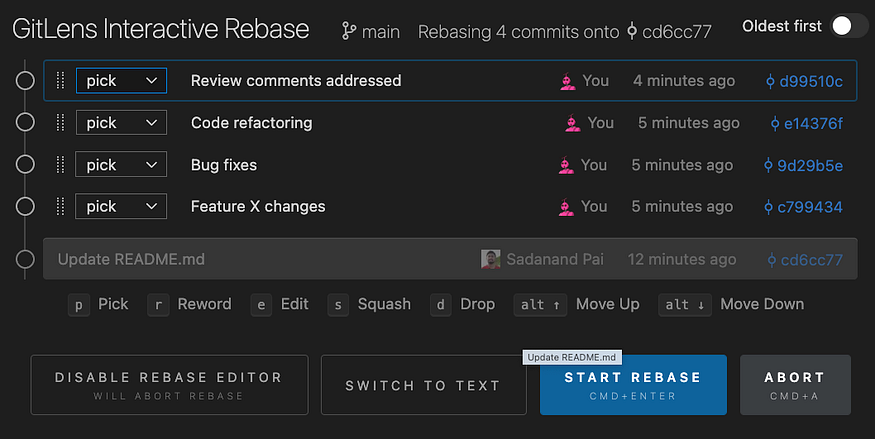
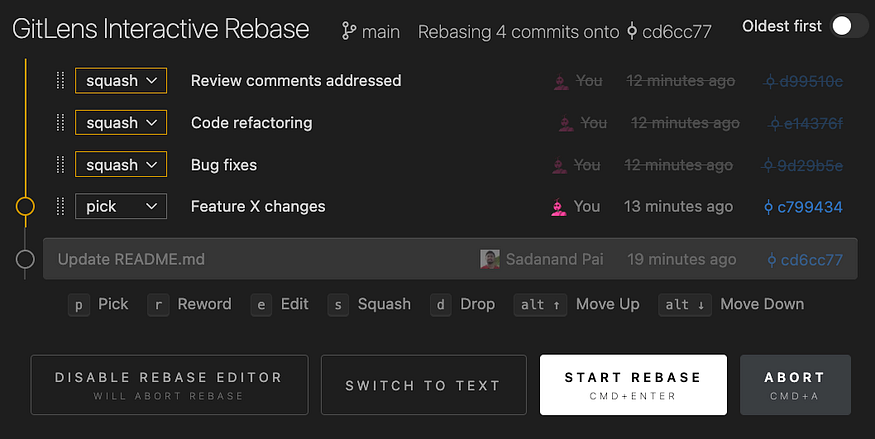
Since squashing rewrites commit history, you’ll need to force push `git push -f`.
> Make sure Squash before opening your PR to keep the history clean.
## 25. I Committed to One Branch but Need the Same Changes in Another
You’ve just finished coding a neat little fix or feature, committed it to your current branch… and then realize you were supposed to make that change in another branch instead.
Maybe it needs to go into `main` for an urgent hotfix, or maybe the work belongs in `develop` rather than your feature branch.
> No need to retype or copy-paste everything Git has your back with **cherry-pick**.
Cherry-picking lets you take a commit from one branch and apply it to another, as if you wrote it there in the first place.
First, find the **commit ID** (hash) of the commit you want to copy. You can see it by running:
```bash
git log
```
Then simply:
```bash
# Switch to the branch where you want the commit applied
git checkout
# Apply the commit by its ID
git cherry-pick
```
The commit will now appear in your destination branch with the same changes and commit message.
## 26. I Merged My Changes… Then Realized They Shouldn’t Be There
You have pushed your changes, your PR got merged into `main`, and you’re feeling good until someone points out a bug, or you realize those changes weren’t supposed to go live yet. Panic mode? Not necessary.
Instead of deleting history or force-pushing (which can break things for everyone), you can **revert** the commit.
> Revert doesn’t erase the commit from history it simply creates a **new commit** that undoes the changes from the one you specify.
First, find the commit ID you want to revert:
```bash
git log
# Create a new commit that reverses the specified commit
git revert
# Push the new commit to remote
git push
```
Now the unwanted changes are rolled back, but the history stays intact everyone can still see that the original commit happened and that it was intentionally reverted.
If you need to revert a merge commit, add the `-m 1` option to tell Git which parent branch to treat as the main line of history:
```bash
git revert -m 1
```
> This is safer for team projects because it keeps the history clean and avoids rewriting anything that’s already been shared.
In case you enjoy this blog, feel free to [follow me on Medium](https://medium.com/@fareedkhandev) I only write there.