https://github.com/firefoxic/optimize
Optimize images, icons and favicons for your frontend project.
https://github.com/firefoxic/optimize
avif convert favicon frontend ico icon image optimize prepare raster svg vector webmanifest webp
Last synced: 6 months ago
JSON representation
Optimize images, icons and favicons for your frontend project.
- Host: GitHub
- URL: https://github.com/firefoxic/optimize
- Owner: firefoxic
- License: mit
- Created: 2024-04-05T14:15:49.000Z (over 2 years ago)
- Default Branch: main
- Last Pushed: 2025-09-25T10:46:10.000Z (10 months ago)
- Last Synced: 2025-10-28T03:59:59.715Z (9 months ago)
- Topics: avif, convert, favicon, frontend, ico, icon, image, optimize, prepare, raster, svg, vector, webmanifest, webp
- Language: JavaScript
- Homepage: https://npmjs.com/package/@firefoxic/optimize
- Size: 838 KB
- Stars: 5
- Watchers: 1
- Forks: 0
- Open Issues: 0
-
Metadata Files:
- Readme: README.md
- Changelog: CHANGELOG.md
- License: LICENSE.md
Awesome Lists containing this project
README
# Optimize
[![License: MIT][license-image]][license-url]
[![Changelog][changelog-image]][changelog-url]
[![NPM version][npm-image]][npm-url]
[![Test Status][test-image]][test-url]
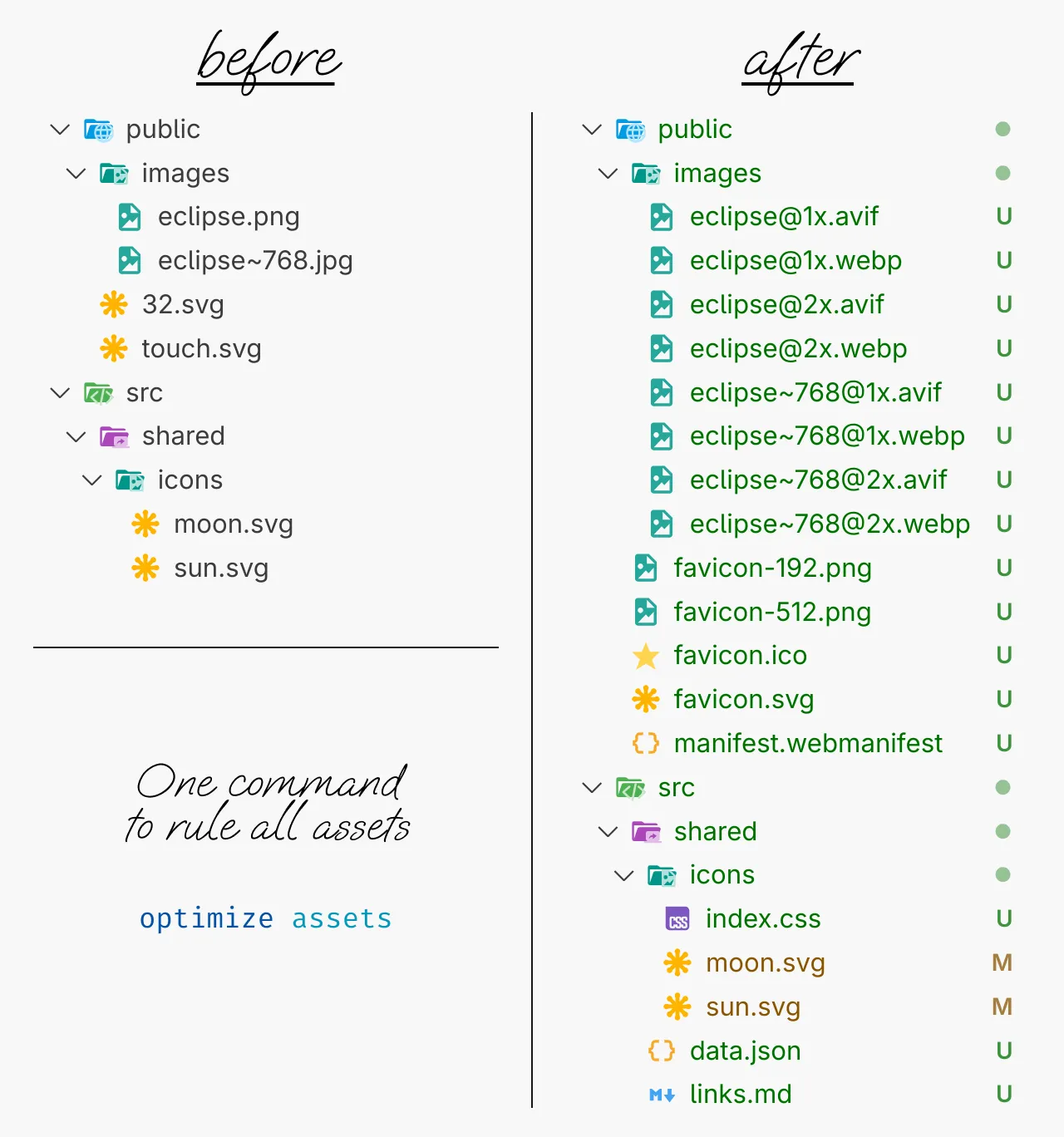
Optimize all frontend graphic assets or all images in specific directory.
## Purpose
In most frontend projects, you have to perform the same and rather boring actions with images between exporting them from Figma or Penpot and deploying the project to the server. Spare yourself from this routine!
Optimize is a command line utility that provides two main scenarios: comprehensive asset optimization for frontend projects (`assets` command) and simple image optimization for general use (`images` command).
## Installation
To install Optimize, you need to have Node.js installed on your machine. Then you can install in your project using _pnpm_ (for _npm_, just remove the first `p`):
```shell
pnpm add @firefoxic/optimize -D
```
or globally
```shell
pnpm add @firefoxic/optimize -g
```
## Usage
Optimize is invoked via the command line:
- with globally installation:
```shell
optimize [options]
```
- with locally installation (in a project):
```shell
pnpm exec optimize [options]
```
- without installation:
```shell
pnpm dlx @firefoxic/optimize [options]
```
### The `assets` command
Comprehensive optimization of all graphic assets for frontend projects. Converts `touch.svg` and/or `32.svg` (optionally `16.svg`) to favicons, optimizes SVG icons and generates CSS, converts images from `public/images/` and adds metadata to `src/shared/data.json`.
Option | Default value | Description
-------------------------------------------|-------------------|---------------------------------------------------------------------------------------------------------------------------
`-p`, `--public-directory` | `./public/` | Path to the directory with static assets
`-s`, `--shared-directory` | `./src/shared/` | Path to the directory with shared files
`-d`, `--origin-density` | `2` | Pixel density in dppx of the raw raster images (`0` works like `1`, but without adding the density suffix to the filename)
`-f`, `--target-formats` | `[avif,webp]` | Output raster image formats (to specify multiple formats, specify an option for each)
`-r`, `--remove-origin` | `true` | Remove the original raster files after successful processing
`-m`, `--add-meta-data` | `true` | Add metadata of the raster images to `data.json` file and generate CSS file for the icons
> [!TIP]
>
> #### Controlling metadata generation
>
> Metadata added to the `data.json` file is useful for generating the `picture` tag and working with images in frontend frameworks. CSS file with custom properties for icons allows you to automatically encode icons into styles. If you don't need these files you can prevent metadata generation by using the `--no-` prefix for the flag: `--no-m` or `--no-add-meta-data`.
> [!TIP]
>
> #### Exporting raster layers from mockups
>
> If you have finally managed to give up old formats (such as JPG and PNG) and use only modern Avif and Webp, it is better to export raster layers from Figma or Penpot only to PNG. JPG adds artifacts on them. Avoid unnecessary quality loss.
> [!TIP]
>
> #### Recommendations for the source favicon files
>
> - The most optimal composition of source files is a couple of files:
> - `32.svg` — the drawing is adjusted to a `32×32` pixel grid, may have transparent areas such as rounded corners of the background;
> - `touch.svg` — the drawing is prepared for large touch icons with solid background without rounding, with margins much larger than `32.svg`.
> - If you don't have a variant specially prepared by the designer for the pixel grid size `16×16`, then don't create a file `16.svg` from variants of other sizes — it will only increase the weight of the final `favicon.ico`.
> - If you don't have a `32×32` variant, but you have a `16×16` variant, there is no need to make a `32.svg` file, `optimize` will make all the variants for you.
> - If you have only one variant and it's not `16×16`, it doesn't matter what you name the file, `32.svg` or `touch.svg` (as long as it's not `16.svg`) — a file with either of these two names will be used by `optimize` to generate the entire set of favicons.
#### Examples
- Optimize all assets for a frontend project with default settings (expects `touch.svg`/`32.svg` in `public/`, icons in `src/shared/icons/`, images in `public/images/`):
```shell
optimize assets
```
- Optimize assets but keep the original images:
```shell
optimize assets --no-r
```
### The `images` command
Optimize vector and raster images in specific directory (current by default).
Option | Default value | Description
-------------------------------------------|-------------------|---------------------------------------------------------------------------------------------------------------------------
`-i`, `--input-directory` | `./` | Path to the directory containing raw files
`-o`, `--output-directory` | the value of `-i` | Path to the directory where processed files will be placed
`-d`, `--origin-density` | `0` | Pixel density in dppx of the raw raster images (`0` works like `1`, but without adding the density suffix to the filename)
`-f`, `--target-format` | `[avif]` | Output raster image format (to specify multiple formats, specify an option for each)
`-r`, `--remove-origin` | `false` | Remove the original raster files after successful processing
#### Examples
- Simple image optimization in the `photos` folder, convert to `avif` and remove originals:
```shell
optimize images -i photos -r
```
- Take all images from the `photos` folder, optimize them to both `webp` and `avif` formats, place results in `optimized` folder, and remove originals:
```shell
optimize images -i photos -o optimized -f webp -f avif -r
```
[license-url]: https://github.com/firefoxic/optimizee/blob/main/LICENSE.md
[license-image]: https://img.shields.io/badge/License-MIT-limegreen.svg
[changelog-url]: https://github.com/firefoxic/optimizee/blob/main/CHANGELOG.md
[changelog-image]: https://img.shields.io/badge/Changelog-md-limegreen
[npm-url]: https://npmjs.org/package/@firefoxic/optimize
[npm-image]: https://img.shields.io/npm/v/%40firefoxic%2Foptimize?logo=npm&color=limegreen
[test-url]: https://github.com/firefoxic/optimize/actions
[test-image]: https://github.com/firefoxic/optimize/actions/workflows/test.yaml/badge.svg?branch=main