https://github.com/foliant-docs/foliantcontrib.dbdoc
Database documentation generator for Foliant
https://github.com/foliant-docs/foliantcontrib.dbdoc
Last synced: 5 months ago
JSON representation
Database documentation generator for Foliant
- Host: GitHub
- URL: https://github.com/foliant-docs/foliantcontrib.dbdoc
- Owner: foliant-docs
- License: mit
- Created: 2020-06-02T08:31:55.000Z (about 6 years ago)
- Default Branch: master
- Last Pushed: 2025-09-29T11:33:21.000Z (9 months ago)
- Last Synced: 2025-09-29T13:25:34.974Z (9 months ago)
- Language: Python
- Size: 375 KB
- Stars: 7
- Watchers: 2
- Forks: 2
- Open Issues: 1
-
Metadata Files:
- Readme: README.md
- Changelog: changelog.md
- License: LICENSE
Awesome Lists containing this project
README
[](https://pypi.org/project/foliantcontrib.dbdoc/) [](https://github.com/foliant-docs/foliantcontrib.dbdoc)
# Database Documentation Generator for Foliant
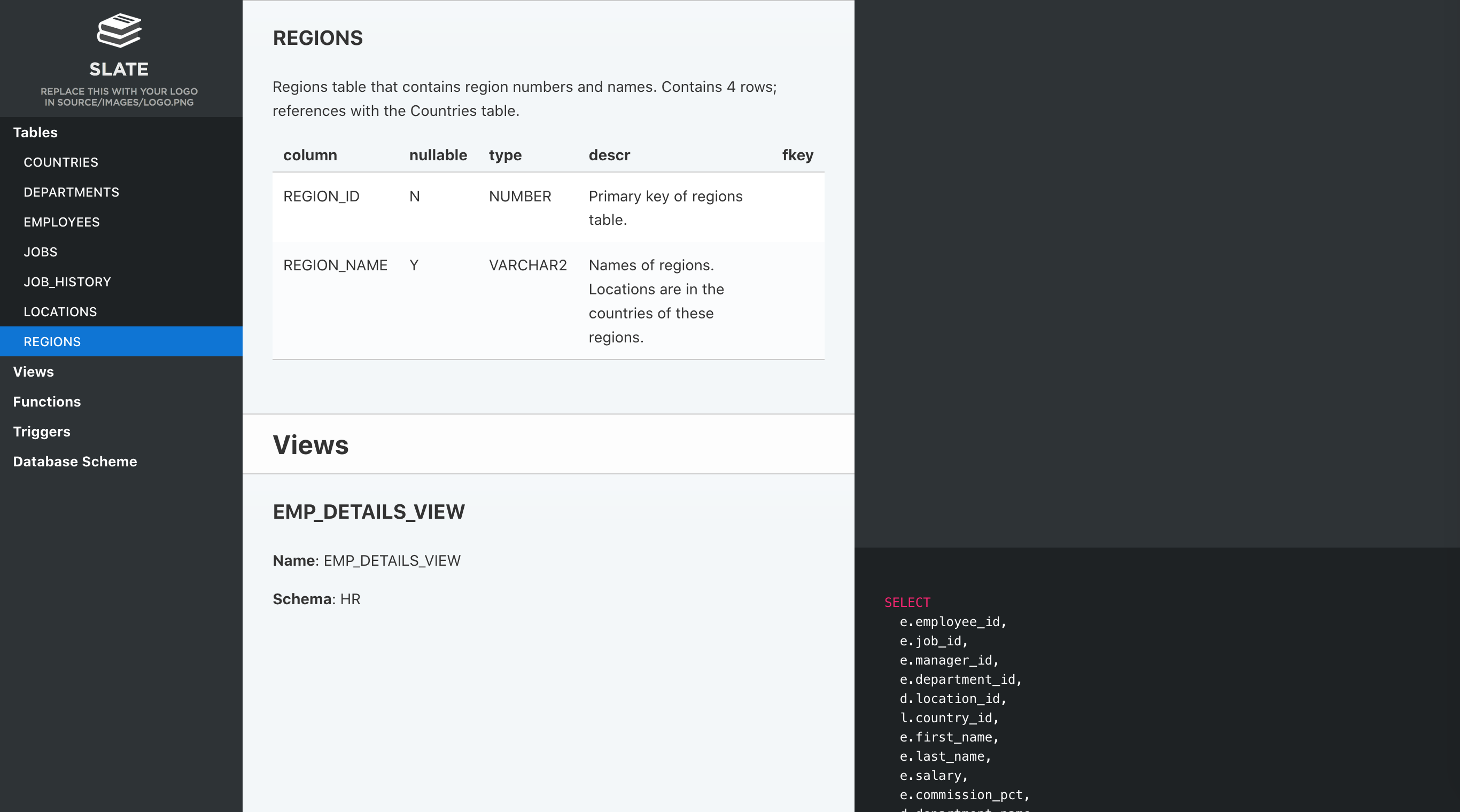
*Static site on the picture was built with [Slate](https://foliant-docs.github.io/docs/backends/slate/) backend together with DBDoc preprocessor*
This preprocessor generates simple documentation based on the structure of the database. It uses [Jinja2](http://jinja.pocoo.org/) templating engine for customizing the layout and [PlantUML](http://plantuml.com/) for drawing the database scheme.
Currently supported databases:
* **PostgreSQL**,
* **Oracle**,
* **Microsoft SQL Server**,
* **MySQL**.
> **Important Notice**: We, here at Foliant, don't work with *all* of the databases mentioned above. That's why we cannot thoroughly test the preprocessor's work with all of them. That's where we need your help: If you encounter *any* errors during build; if you are not getting enough information for your document in the template; if you can't make the filters work; or if you see any other anomaly, please [send us an issue](https://github.com/foliant-docs/foliantcontrib.dbdoc/issues) in GitHub. We will try to fix it as fast as we can. Thanks!
## Installation
### Prerequisites
DBDoc generates documentation by querying database structure. That's why you will need client libraries and their Python connectors installed on your computer before running the preprocessor.
**PostgreSQL**
To install PostgreSQL simply run
```bash
$ pip3 install psycopg2-binary
```
**Oracle**
Oracle libraries are proprietary, so we cannot include them even in our [Docker distribution](https://hub.docker.com/r/foliant/foliant/tags). So if you are planning on using DBDoc to document Oracle databases, first install the [Instant Client](https://www.oracle.com/database/technologies/instant-client.html).
> If you search the web, you can find ways to install Oracle Instant Client inside your Docker image, just saying.
Next install the Python connector for Oracle database
```bash
$ pip3 install cx_Oracle
```
**Microsoft SQL Server**
On Windows you will need to install MS SQL Server.
On Unix you will first need to install [unixODBC](http://www.unixodbc.org/), and then — the ODBC driver. Microsoft has a detailed instructions on how to install the driver [on Linux](https://docs.microsoft.com/en-us/sql/connect/odbc/linux-mac/installing-the-microsoft-odbc-driver-for-sql-server) and [on Mac](https://docs.microsoft.com/en-us/sql/connect/odbc/linux-mac/install-microsoft-odbc-driver-sql-server-macos).
Install the Python connector for Microsoft SQL Server database
```bash
$ pip3 install pyodbc
```
**MySQL**
On Mac you can simply run
```bash
$ brew install mysql
```
On Linux you will have to install server and client packages, for example, with apt-get
```bash
sudo apt-get update
sudo apt-get install -y mysql-server libmysqlclient-dev
```
Finally, install the Python connector for Microsoft SQL Server database
```bash
$ pip3 install mysqlclient
```
### Preprocessor
```bash
$ pip install foliantcontrib.dbdoc
```
## Config
To enable the preprocessor, add `dbdoc` to `preprocessors` section in the project config:
```yaml
preprocessors:
- dbdoc
```
The preprocessor has a number of options:
```yaml
preprocessors:
- dbdoc:
dbms: pgsql
host: localhost
port: 5432
dbname: postgres
user: postgres
password: !env DBDOC_PASS
doc: True
scheme: True
strict: False
trusted_connection: False
filters:
...
doc_template: dbdoc.j2
scheme_template: scheme.j2
components:
- tables
- functions
- triggers
driver: '{ODBC Driver 17 for SQL Server}'
```
`dbms`
: Name of the DBMS. Should be one of: `pgsql`, `oracle`, `sqlserver`, `mysql`. Only needed if you are using `` tag. If you are using explicit tags (``, ``), this parameter is ignored.
`host`
: Database host address. Default: `localhost`
`port`
: Database port. Default: `5432` for pgsql, `1521` for Oracle, `1433` for MS SQL, `3306` for MySQL.
`dbname`
: Database name. Default: `postgres` for pgsql, `orcl` for oracle, `mssql` for MS SQL, `mysql` for MySQL.
`user`
: Database user name. Default: `postgres` for pgsql, `hr` for oracle, `SA` for MS SQL, `root` for MySQL.
`password`
: Database user password. Default: `postgres` for pgsql, `oracle` for oracle, `` for MS SQL, `passwd` for MySQL.
> It is not secure to store plain text passwords in your config files. We recommend to use [environment variables](https://foliant-docs.github.io/docs/config/#env) to supply passwords
`doc`
: If `true` — documentation will be generated. Set to `false` if you only want to draw a scheme of the database. Default: `true`
`scheme`
: If `true` — the platuml code for database scheme will be generated. Default: `true`
`strict`
: If `true` — the build will fail if connection to database cannot be established. If `false` — the preprocessor will skip the tag with warning. Default: `false`
`trusted_connection`
: Specific option for MS SQL Server. If true - will use Windows Authentication (Trusted Connection) instead of username/password. Default: false. Requires proper ODBC driver configuration.
`filters`
: SQL-like operators for filtering the results. More info in the **Filters** section.
`doc_template`
: Path to jinja-template for documentation. Path is relative to the project directory. If not supplied — default template would be used.
`scheme_template`
: Path to jinja-template for scheme. Path is relative to the project directory. If not supplied — default template would be used.
`components`
: List of components to be added to documentation. If not supplied — everything will be added. Use to exclude some parts of documentation. Available components: `'tables'`, `'views'`, `'functions'`, `'triggers'`.
`driver`
: Specific option for MS SQL Server database. Defines the driver connection string. Default: `{ODBC Driver 17 for SQL Server}`.
## Usage
DBDoc currently supports four database engines: Oracle, PostgreSQL, MySQL and Microsoft SQL Server. To generate Oracle database documentation, add an `` tag to a desired place of your chapter.
```html
# Introduction
This document contains the most awesome automatically generated documentation of our marvellous Oracle database.
```
To generate PostgreSQL database documentation, add a `` tag to a desired place of your chapter.
```html
# Introduction
This document contains the most awesome automatically generated documentation of our marvellous Oracle database.
```
To generate MySQL database documentation, add a `` tag to a desired place of your chapter.
```html
# Introduction
This document contains the most awesome automatically generated documentation of our marvellous SQL Server database.
```
To generate SQL Server database documentation, add a `` tag to a desired place of your chapter.
```html
# Introduction
This document contains the most awesome automatically generated documentation of our marvellous SQL Server database.
```
Each time the preprocessor encounters one of the mentioned tags, it inserts the whole generated documentation text instead of it. The connection parameters are taken from the config-file.
You can also specify some parameters (or all of them) in the tag options:
```html
# Introduction
Introduction text for database documentation.
```
Tag parameters have the highest priority.
This way you can have documentation for several different databases in one foliant project (even in one md-file if you like it so). It also allows you to put documentation and scheme for you database separately by switching on/off `doc` and `scheme` params in tags.
## Filters
You can add filters to exclude some tables from the documentation. dbdocs supports several SQL-like filtering operators and a determined list of filtering fields.
You can switch on filters either in foliant.yml file like this:
```yaml
preprocessors:
- dbdoc:
filters:
eq:
schema: public
regex:
table_name: 'main_.+'
```
or in tag options using the same yaml-syntax:
```html
```
List of currently supported operators:
operator | SQL equivalent | description | value
-------- | -------------- | ----------- | -----
`eq` | `=` | equals | literal
`not_eq` | `!=` | does not equal | literal
`in` | `IN` | contains | list
`not_in` | `NOT IN` | does not contain | list
`regex` | `~`, `REGEX_LIKE` | matches regular expression | literal
`not_regex` | `!~`, `NOT REGEX_LIKE` | does not match regular expression | literal
> Note: `regex` and `not_regex` are not supported with Microsoft SQL Server DBMS.
List of currently supported filtering fields:
field | description
----- | -----------
schema | filter by database schema
table_name | filter by database table names
The syntax for using filters in configuration files is following:
```yaml
filters:
:
: value
```
If `value` should be list like for `in` operator, use YAML-lists instead:
```yaml
filters:
in:
schema:
- public
- corp
```
## About Templates
The structure of generated documentation is defined by jinja-templates. You can choose what elements will appear in the documentation, change their positions, add constant text, change layouts and more. Check the [Jinja documentation](http://jinja.pocoo.org/docs/2.10/templates/) for info on all cool things you can do with templates.
If you don't specify path to templates in the config-file and tag-options dbdoc will use default templates.
If you wish to create your own template, the default ones may be a good starting point.
* [Default **Oracle doc** template.](https://github.com/foliant-docs/foliantcontrib.dbdoc/blob/master/foliant/preprocessors/dbdoc/oracle/templates/doc.j2)
* [Default **Oracle scheme** template.](https://github.com/foliant-docs/foliantcontrib.dbdoc/blob/master/foliant/preprocessors/dbdoc/oracle/templates/scheme.j2)
* [Default **PostgreSQL doc** template.](https://github.com/foliant-docs/foliantcontrib.dbdoc/blob/master/foliant/preprocessors/dbdoc/pgsql/templates/doc.j2)
* [Default **PostgreSQL scheme** template.](https://github.com/foliant-docs/foliantcontrib.dbdoc/blob/master/foliant/preprocessors/dbdoc/pgsql/templates/doc.j2)
* [Default **MySQL doc** template.](https://github.com/foliant-docs/foliantcontrib.dbdoc/blob/master/foliant/preprocessors/dbdoc/mysql/templates/doc.j2)
* [Default **MySQL scheme** template.](https://github.com/foliant-docs/foliantcontrib.dbdoc/blob/master/foliant/preprocessors/dbdoc/mysql/templates/doc.j2)
* [Default **SQL Server doc** template.](https://github.com/foliant-docs/foliantcontrib.dbdoc/blob/master/foliant/preprocessors/dbdoc/mssql/templates/doc.j2)
* [Default **SQL Server scheme** template.](https://github.com/foliant-docs/foliantcontrib.dbdoc/blob/master/foliant/preprocessors/dbdoc/mssql/templates/doc.j2)
## Tests
For run tests, use:
```bash
./test_in_docker.sh --python-version "3.9" --db-type "mysql"
```
**Options:**
`--python-version ` – Specifies Python version for test environment. Available_: 3.8, 3.9, 3.10 etc.
`--db-type ` – Chooses database type for testing. Available_: mysql, pgsql.
**Usage Examples**
```bash
# Basic usage with defaults
./test_in_docker.sh
# Specific Python and database
./test_in_docker.sh --python-version "3.10" --db-type "pgsql"
# Only change database type
./test_in_docker.sh --db-type "mysql"
# Only change Python version
./test_in_docker.sh --python-version "3.9"
```
**What It Does:**
1. Starts Docker container with specified Python version.
2. Initializes chosen database type with test data.
3. Runs test suite.
4. Cleans up resources after completion.
5. Returns exit code based on test results.
**Notes**
- Requires Docker installed;
- Test data is automatically loaded from `test_data/` directory;
- Results are displayed in console with color formatting;
- Exit code 0 = success, 1 = test failures.
## Troubleshooting
If you get errors during build, especially errors concerning connection to the database, you have to make sure that you are supplying the right parameters.
There may be a lot of possible causes for errors. For example, MS SQL Server may fail to connect to local database if you specify host as `localhost`, you have to explicitly write `0.0.0.0` or `127.0.0.1`.
So your first action to root the source of your errors should be running a python console and trying to connect to your database manually.
Here are sample snippets on how to connect to different databases.
**PostgreSQL**
[psycopg2](https://pypi.org/project/psycopg2/) library is required.
```python
import psycopg2
con = psycopg2.connect(
"host=localhost "
"port=5432 "
"dbname=MyDatabase "
"user=postgres"
"password=postgres"
)
```
**Oracle**
[cx_Oracle](https://oracle.github.io/python-cx_Oracle/) library is required.
```python
import cx_Oracle
con = cx_Oracle.connect(
"Scott/Tiger@localhost:1521/MyDatabase"
encoding='UTF-8',
nencoding='UTF-8'
)
```
**MySQL**
[mysqlclient](https://pypi.org/project/mysqlclient/) library is required.
```python
from MySQLdb import _mysql
con = _mysql.connect(
host='localhost',
port=3306,
user='root',
passwd='password',
db='MyDatabase'
)
```
**Microsoft SQL Server**
[pyodbc](https://pypi.org/project/pyodbc/) library is required.
```python
import pyodbc
con = pyodbc.connect(
"DRIVER={ODBC Driver 17 for SQL Server};"
"SERVER=0.0.0.0,1433;"
"DATABASE=MyDatabase;"
"UID=Usernam;PWD=Password_0"
)
```
**Microsoft SQL Server Authentication Issues**
When using MS SQL Server, you have two authentication options:
1. SQL Server Authentication (username/password):
```yaml
trusted_connection: false
user: your_username
password: your_password
```
2. Windows Authentication (Trusted Connection):
```yaml
trusted_connection: true
# no user/password needed
```
For Windows Authentication to work:
- Make sure your ODBC driver supports Trusted Connections.
- The account running Foliant must have proper database permissions.
- On Linux/Mac, you may need to configure Kerberos for cross-platform authentication.