https://github.com/frontify/typeform-block-tutorial
This is the repository for the Typeform block tutorial.
https://github.com/frontify/typeform-block-tutorial
Last synced: over 1 year ago
JSON representation
This is the repository for the Typeform block tutorial.
- Host: GitHub
- URL: https://github.com/frontify/typeform-block-tutorial
- Owner: Frontify
- Created: 2023-03-08T07:23:09.000Z (over 3 years ago)
- Default Branch: main
- Last Pushed: 2023-04-06T11:54:09.000Z (about 3 years ago)
- Last Synced: 2023-08-13T05:36:28.878Z (almost 3 years ago)
- Language: TypeScript
- Size: 155 KB
- Stars: 0
- Watchers: 0
- Forks: 0
- Open Issues: 0
-
Metadata Files:
- Readme: readme.md
Awesome Lists containing this project
README
# Building a Typeform Content Block
With Frontify's Brand SDK for Content Blocks, you can create your own Content Blocks for your Guidelines.
In this quick guide, you'll learn how to create a simple Typeform block that uses some of the Brand SDK's features.
## Prerequisites
Before starting, you should check out the general [Content Block documentation](https://developer.frontify.com/d/XFPCrGNrXQQM/content-blocks) to get a rough overview of how Content Blocks work. If you're at it, check out the [Typeform React Embed Library](https://developer.typeform.com/embed/react/) as well 🙂
You need to have Node >=16 installed, and a basic understanding of TypeScript would be good, too.
## Frontify-CLI
One of the main features of the Brand SDK is the `frontify-cli`. You can install it globally if you want:
```sh
$ npm install -g @frontify/frontify-cli
```
Another (and preferred) way to use the tool is, to use `npx @frontify/frontify-cli@latest` instead. Just replace the `frontify-cli` calls with `npx @frontify/frontify-cli`. Going forward, in this tutorial we'll be using the `npx` approach.
## Scaffold a new Content Block
Once the `frontify-cli` tool is installed, we can use it to scaffold our Typeform block:
```sh
$ npx @frontify/frontify-cli@latest block create typeform-block
```
If everything worked out, you should have a new folder looking something like this:
```
.
├── README.md
├── manifest.json
├── package-lock.json
├── package.json
├── src
│ ├── Block.tsx
│ ├── cssModule.d.ts
│ ├── index.ts
│ ├── settings.ts
│ └── style.module.css
└── tsconfig.json
```
To finish the installation, we need to install all the npm packages:
```sh
$ cd typeform-block
$ npm ci
```
## Test our new block
Let's test-run our new Content Block to see if everything is working as expected.
### Local Block Development block
For our block to be displayed in our Guidelines, we need to add a "Local Block Development" block:
Note: If you can't find the "Local Block Development" block, you probably don't have access to the Brand SDK and Marketplace yet. Please reach out to use on [Slack](https://join.slack.com/t/frontify-friends/shared_invite/zt-1lhu6lump-s18oTGI4EhHt8BKWfBAN_A) so we can activate it for you.
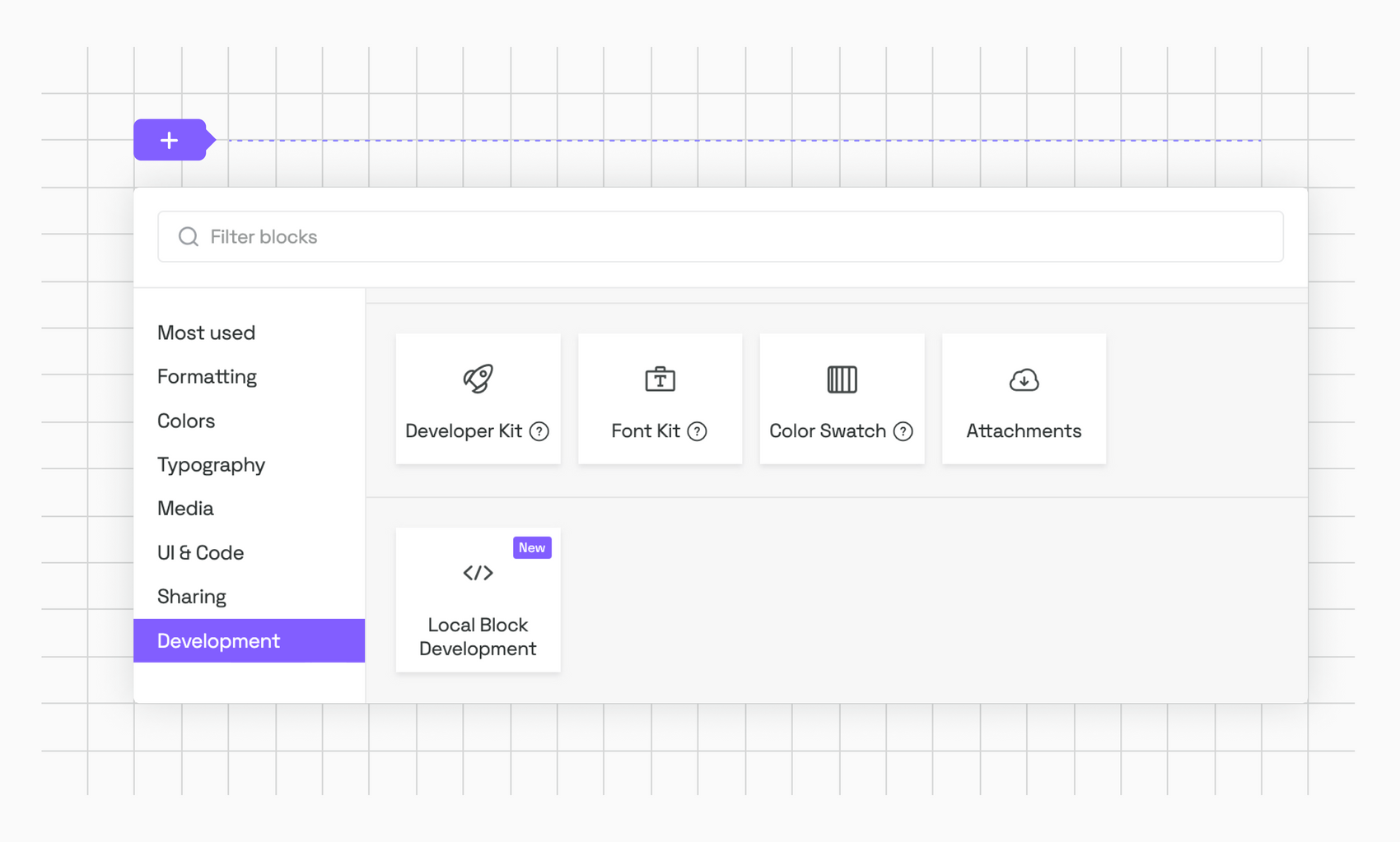
You should now see something like this:
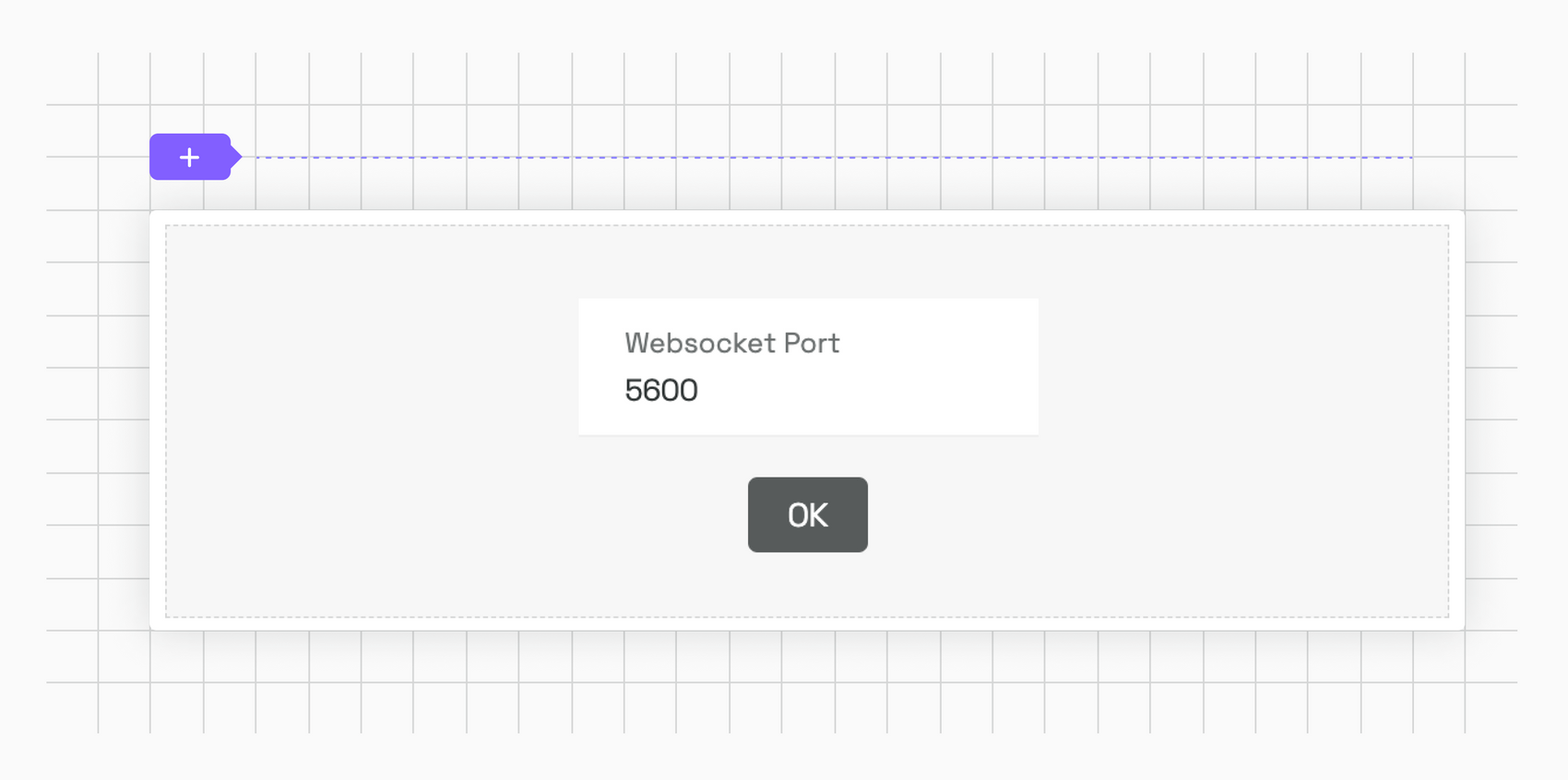
The block itself doesn't need much configuration besides the WebSocket port, which you can leave at 5600.
### Running the watch task
In our project, we can now run the serve task to connect the development environment with our Guidelines:
```sh
$ npm run serve
```
Assuming that this worked, you’ll get a notification that the task is listening on port 5600:
```sh
> typeform-block@1.0.0 serve
> frontify-cli serve --entryPath src/index.ts
[08:33:54] Starting the development server...
➜ Local: http://localhost:5600/
. . .
```
And the Guidelines should now show the contents of our block:
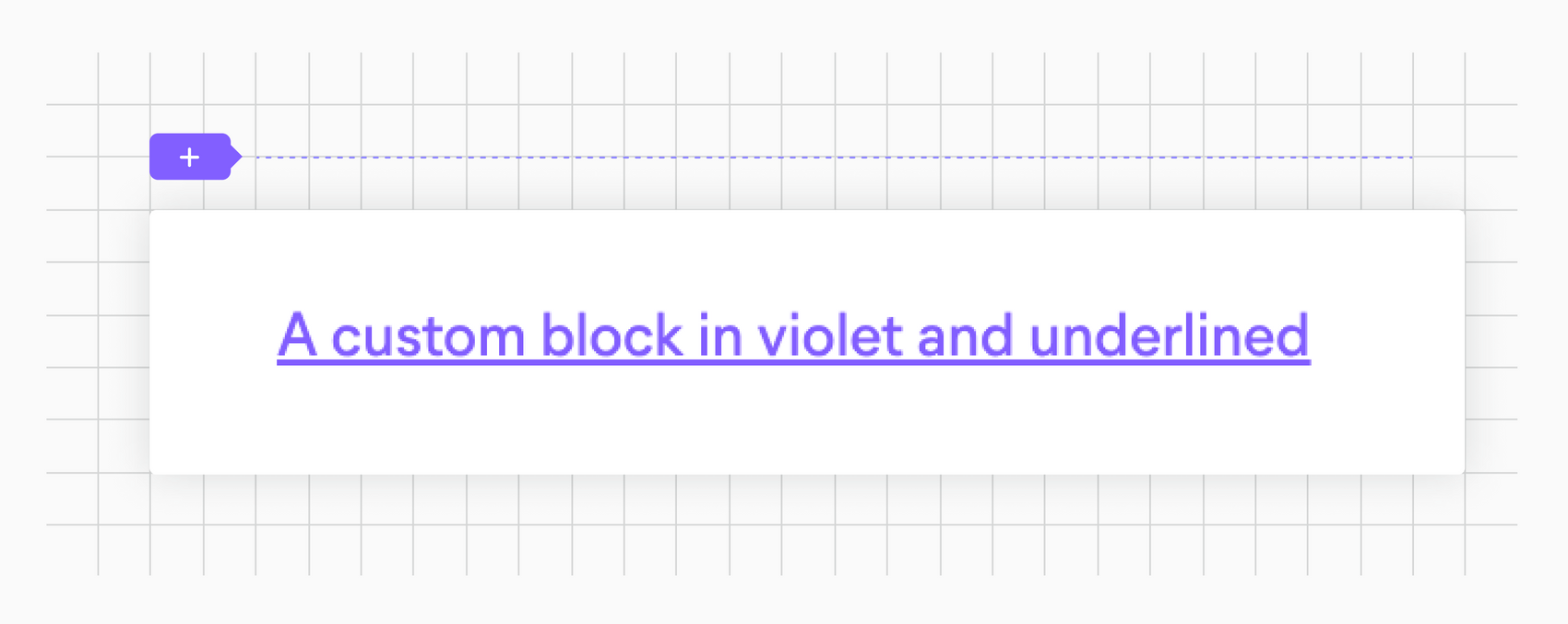
If you don't see the violet message, try refreshing the page.
🎉 Cool, we're now ready to start working on our Typeform block.
## Adding the Typeform Library
Typeform offers multiple ways to embed their forms in our projects. But since the Content Blocks use React, we're going to use the Typeform React Embed Library:
```sh
$ npm install @typeform/embed-react --save
```
## Preparing the `Block.tsx` file
Now that we have everything ready for our Typeform block, we need to set up the part of our block that gets rendered in the Guidelines. For this, we modify the `Block.tsx` file in the `src/` directory:
```tsx
import { FC } from 'react';
import { PopupButton, SliderButton, Widget } from '@typeform/embed-react';
import { useBlockSettings, useEditorState } from '@frontify/app-bridge';
import type { BlockProps } from '@frontify/guideline-blocks-settings';
import styles from './style.module.css';
import type { Settings } from './types';
const Placeholder: FC = () => (
Please enter a Typeform form id in the block settings.
);
export const TypeformBlock: FC = ({ appBridge }) => {
const isEditing = useEditorState(appBridge);
const [blockSettings] = useBlockSettings(appBridge);
if (!blockSettings.formId) {
return ;
}
const renderEmbed = () => {
switch (blockSettings.embedStyle) {
case 'embed':
return (
);
case 'popup':
return (
{blockSettings.buttonText}
);
case 'sidePanel':
return (
{blockSettings.buttonText}
);
default:
return ;
}
};
return
{renderEmbed()};
};
```
Let’s talk about the contents of this file. First, we import all the necessary bindings we need for the presentational part of the block:
```ts
import { FC } from 'react';
import { PopupButton, SliderButton, Widget } from '@typeform/embed-react';
import { useBlockSettings, useEditorState } from '@frontify/app-bridge';
import type { BlockProps } from '@frontify/guideline-blocks-settings';
import type { Settings } from './types';
import styles from './style.module.css';
```
First, we import the `FC` function from React to export a function component. We'll be using the `PopupButton`, `SliderButton`, and`Widget` components from the Typekit library. Besides that, we need to include the `useBlockSettings` hook to access the settings sidebar and the `useEditorState` hook to know if we're in edit state. Further, we need the `BlockProps` and `Settings` types for our function, and lastly, we import some CSS. Let's create that file right now, in the `src/` directory:
```css
.placeholder {
color: #ddd;
}
.container {
overflow: hidden;
}
```
Next, we define some types we’re going to need for the block:
```ts
export enum BlockHeight {
Small = '200px',
Medium = '400px',
Large = '800px',
}
export type Settings = {
embedStyle: string;
formId: string;
isHeightCustom: boolean;
heightCustom: string;
heightSimple: string;
buttonText: string;
header: boolean;
footer: boolean;
transparent: boolean;
};
```
This is not strictly necessary, but since we're using TypeScript, it makes sense to have everything properly typed.
Because we have an initial state, we need to prepare a React element to render in those cases:
```ts
const Placeholder: FC = () => (
Please enter a Typeform form id in the block settings.
);
```
Now we’re getting to the exciting part, the main component:
```ts
export const TypeformBlock: FC = ({ appBridge }) => {
const isEditing = useEditorState(appBridge);
const [blockSettings] = useBlockSettings(appBridge);
. . .
```
Here, we're defining the block itself that we're going to export. We're using the `useEditorState()` and `useBlockSettings` hooks, which we'll be using to handle the edit-state of the block and to pull in the settings for the block itself.
```ts
if (!blockSettings.formId) {
return ;
}
```
In case we haven't set a `formId` in the settings, we want to render the `` component defined before in the file. Keep in mind that we haven't set up any settings yet. So the `formId` will always be undefined.
Finally, we render the actual Typeform components, depending on what has been set up through the settings:
```ts
const renderEmbed = () => {
switch (blockSettings.embedStyle) {
case 'embed':
return (
);
case 'popup':
return (
{blockSettings.buttonText}
);
case 'sidePanel':
return (
{blockSettings.buttonText}
);
default:
return ;
}
};
return
{renderEmbed()};
```
The different components are pretty self-explanatory. We populate the different properties through the `blockSettings` object that we instantiated at the beginning of our component. Here's where we use the `isEditing` variable again to set the `enableSandbox` property on the Typeform components (to disable tracking while we're editing the block).
If the user has not set up the block yet, we default to the `` element.
Now that we set up the presentational part of the block we can run the `npm run serve` command again and should see the before mentioned placeholder.
🎉 Nice, we're done with the presentational part of the block. Now on to the settings!
## The `settings.ts` file
Let's do the same thing we did with the `index.ts` file for the `settings.ts` file:
```ts
import { BlockHeight } from './types';
import {
DropdownSize,
IconEnum,
appendUnit,
defineSettings,
numericalOrPixelRule,
} from '@frontify/guideline-blocks-settings';
export const HEIGHT_DEFAULT_VALUE = BlockHeight.Small;
export const settings = defineSettings({
main: [
{
id: 'embedStyle',
type: 'dropdown',
label: 'Embed Type',
defaultValue: 'embed',
size: DropdownSize.Large,
choices: [
{
value: 'embed',
icon: IconEnum.MarkArea,
label: 'Embed',
},
{
value: 'popup',
icon: IconEnum.TextBoxStack,
label: 'Popup',
},
{
value: 'sidePanel',
icon: IconEnum.SidebarRight,
label: 'Side Panel',
},
],
},
],
content: [
{
id: 'formId',
type: 'input',
label: 'Typeform Form ID',
info: 'You can find from the public URL of your form: https://form.typeform.com/to/',
},
{
id: 'buttonText',
label: 'Button Label',
type: 'input',
placeholder: 'Open Form',
defaultValue: 'Open Form',
show: (bundle) =>
bundle.getBlock('embedStyle')?.value === 'popup' ||
bundle.getBlock('embedStyle')?.value === 'sidePanel',
},
],
layout: [
{
id: 'header',
type: 'switch',
label: 'Header',
info: 'Controls the header that appears when you have a question group, or a long question',
defaultValue: false,
},
{
id: 'footer',
type: 'switch',
label: 'Footer',
info: 'Controls the visiblity of the form progress bar and navigation buttons',
defaultValue: true,
},
{
id: 'position',
type: 'slider',
label: 'Slider position',
defaultValue: 'right',
choices: [
{
value: 'left',
label: 'Left',
},
{
value: 'right',
label: 'Right',
},
],
show: (bundle) => bundle.getBlock('embedStyle')?.value === 'sidePanel',
},
{
id: 'isHeightCustom',
type: 'switch',
label: 'Block Height',
switchLabel: 'Custom',
defaultValue: false,
show: (bundle) => bundle.getBlock('embedStyle')?.value === 'embed',
info: 'Determines the block height.',
on: [
{
id: 'heightCustom',
type: 'input',
placeholder: '100px',
rules: [numericalOrPixelRule],
onChange: (bundle) => appendUnit(bundle, 'heightCustom'),
},
],
off: [
{
id: 'heightSimple',
type: 'slider',
defaultValue: HEIGHT_DEFAULT_VALUE,
choices: [
{
value: BlockHeight.Small,
label: 'S',
},
{
value: BlockHeight.Medium,
label: 'M',
},
{
value: BlockHeight.Large,
label: 'L',
},
],
},
],
},
],
style: [
{
id: 'transparent',
label: 'Transparent Background',
info: 'Enable or disable the background of the form',
type: 'switch',
show: (bundle) => bundle.getBlock('embedStyle')?.value === 'embed',
defaultValue: false,
},
],
});
```
Like with the `Block.tsx` file, we’re importing all the necessary bindings:
```ts
import { BlockHeight } from './types';
import {
DropdownSize,
IconEnum,
appendUnit,
defineSettings,
numericalOrPixelRule,
} from '@frontify/guideline-blocks-settings';
```
We need the types for the `BlockHeight` and a couple of helpers and enums from the `@frontify/guideline-blocks-settings` package.
The settings are split up in several different sections, which mirror the sections we have available in the Guidelines:
```ts
export const settings = defineSettings({
main: [. . .],
content: [. . .],
layout: [. . .],
style: [. . .]
});
```
For more instructions on how to use the different sections and for what use-cases they might fit, check out the in-depth [documentation](https://developer.frontify.com/d/XFPCrGNrXQQM/content-blocks#/details-concepts-1/block-settings-1).
In our case, we use the `main` section for the way we’re going to display the Typeform component:
```ts
main: [
{
id: 'embedStyle',
type: 'dropdown',
label: 'Embed Type',
defaultValue: 'embed',
size: DropdownSize.Large,
choices: [
{
value: 'embed',
icon: IconEnum.MarkArea,
label: 'Embed',
},
{
value: 'popup',
icon: IconEnum.TextBoxStack,
label: 'Popup',
},
{
value: 'sidePanel',
icon: IconEnum.SidebarRight,
label: 'Side Panel',
},
],
},
],
```
For `size` and `icon`, we're using the imported enums, so we don't have to worry if they change in the future.
The `content` section is pretty basic, except for the `show` property on the second item:
```ts
content: [
{
id: 'formId',
type: 'input',
label: 'Typeform Form ID',
info: 'You can find from the public URL of your form: https://form.typeform.com/to/',
},
{
id: 'buttonText',
label: 'Button Label',
type: 'input',
placeholder: 'Open Form',
defaultValue: 'Open Form',
show: (bundle) =>
bundle.getBlock('embedStyle')?.value === 'popup' ||
bundle.getBlock('embedStyle')?.value === 'sidePanel',
},
],
```
The `show` property determines if a setting item will be displayed. In this case, we'll only display the Button Label setting if the user chose the `popup` or the `sidePanel` version of the Typeform integration in the `main` section.
The `layout` section is a little bit more complex because it contains a switch setting:
```ts
layout: [
{
id: 'header',
type: 'switch',
label: 'Header',
info: 'Controls the header that appears when you have a question group, or a long question',
defaultValue: false,
},
{
id: 'footer',
type: 'switch',
label: 'Footer',
info: 'Controls the visiblity of the form progress bar and navigation buttons',
defaultValue: true,
},
{
id: 'position',
type: 'slider',
label: 'Slider position',
defaultValue: 'right',
choices: [
{
value: 'left',
label: 'Left',
},
{
value: 'right',
label: 'Right',
},
],
show: (bundle) => bundle.getBlock('embedStyle')?.value === 'sidePanel',
},
{
id: 'isHeightCustom',
type: 'switch',
label: 'Block Height',
switchLabel: 'Custom',
defaultValue: false,
show: (bundle) => bundle.getBlock('embedStyle')?.value === 'embed',
info: 'Determines the block height.',
on: [
{
id: 'heightCustom',
type: 'input',
placeholder: '100px',
rules: [numericalOrPixelRule],
onChange: (bundle) => appendUnit(bundle, 'heightCustom'),
},
],
off: [
{
id: 'heightSimple',
type: 'slider',
defaultValue: HEIGHT_DEFAULT_VALUE,
choices: [
{
value: BlockHeight.Small,
label: 'S',
},
{
value: BlockHeight.Medium,
label: 'M',
},
{
value: BlockHeight.Large,
label: 'L',
},
],
},
],
},
],
```
If you have a look at `isHeightCustom`, you'll see that we use the `on` and `off` properties. You can think of them as nested settings that will be displayed depending on the state of the `switch` setting. The [documentation](https://developer.frontify.com/d/XFPCrGNrXQQM/content-blocks#/details-concepts-1/block-settings-1) explains that behavior pretty well.
The last setting is the `style` part:
```ts
style: [
{
id: 'transparent',
label: 'Transparent Background',
info: 'Enable or disable the background of the form',
type: 'switch',
show: (bundle) => bundle.getBlock('embedStyle')?.value === 'embed',
defaultValue: false,
},
],
```
It again contains a `show` property to determine if we want to show the setting (in this case only if the `embed` style was chosen).
## The `index.ts` file
There is one important file left that we haven't talked about: the `index.ts` file. You can think of the `index.ts` file as the cooridnatior that brings everything together and let's the `frontify-cli` know how to actually build our Content Block:
```ts
import { defineBlock } from '@frontify/guideline-blocks-settings';
import { TypeformBlock } from './Block';
import { settings } from './settings';
export default defineBlock({
block: TypeformBlock,
settings,
});
```
Besides importing the `defineBlock` function from the `@frontify/guideline-blocks-settings`, we as well need the actual block and settings. We're importing those and pass them to the `defineBlock` function. Now the `frontify-cli` know where to find the relevant files.
And that's basically it. Let's run `npm run serve` again and open the settings for our block. If you use `GKcYunMz` as the Form ID, you should see the Typeform form getting loaded in the Guide Lines:
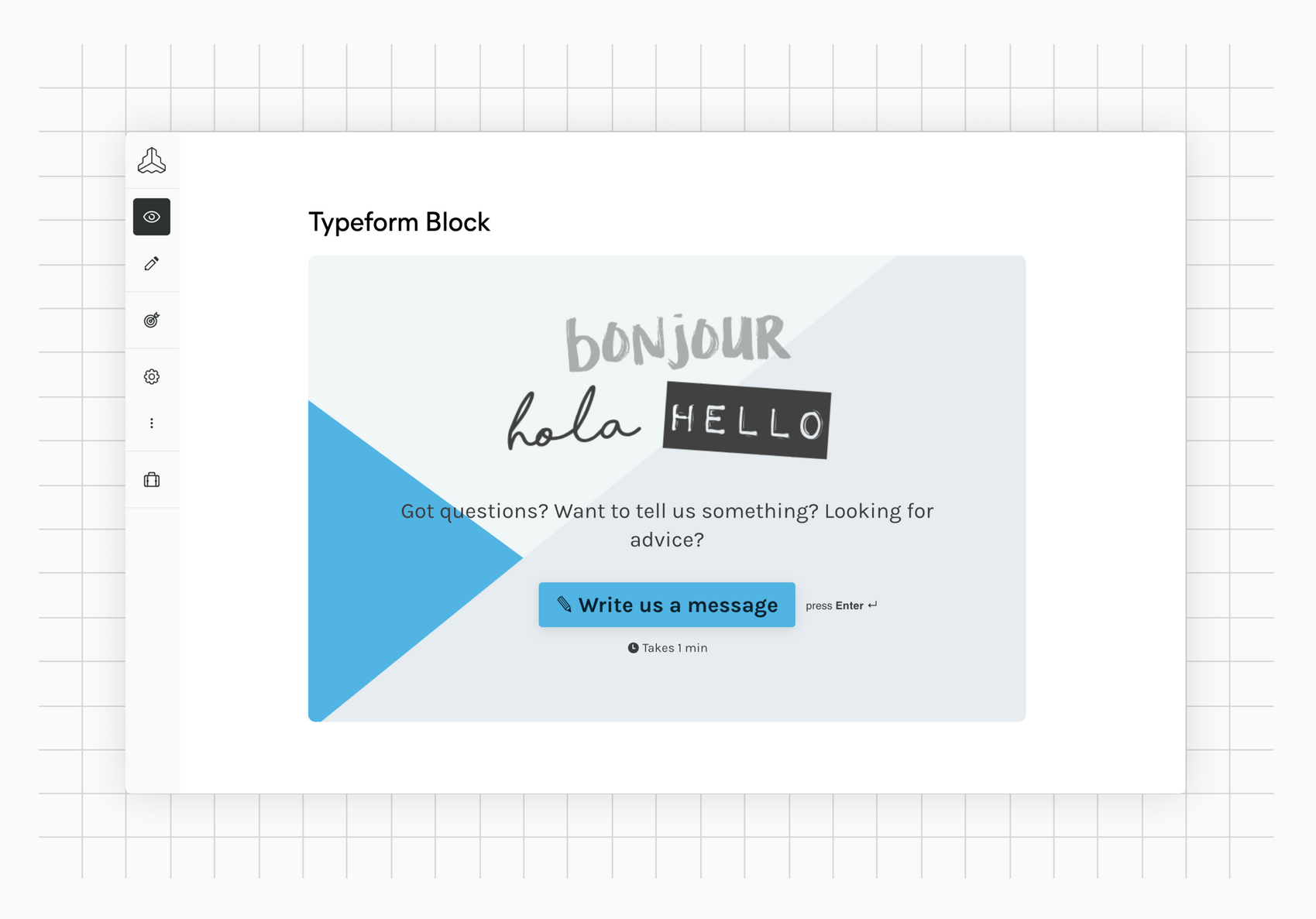
And that's it. Congrats for making it this far 🙂
While we know that this tutorial is not very in-depth, it should give you an idea of how a basic block is built. We're constantly working on extending and improving our documentation. So if you have feedback, please [get back to us](mailto:hello@frontify.com)!