https://github.com/garyns/confluence-config-documentator
Create or update pages in Confluence to document configuration files
https://github.com/garyns/confluence-config-documentator
Last synced: 12 months ago
JSON representation
Create or update pages in Confluence to document configuration files
- Host: GitHub
- URL: https://github.com/garyns/confluence-config-documentator
- Owner: garyns
- License: mit
- Created: 2015-09-22T21:16:41.000Z (almost 11 years ago)
- Default Branch: master
- Last Pushed: 2016-06-22T02:20:43.000Z (about 10 years ago)
- Last Synced: 2025-08-09T03:35:15.637Z (12 months ago)
- Language: JavaScript
- Size: 522 KB
- Stars: 0
- Watchers: 1
- Forks: 0
- Open Issues: 0
-
Metadata Files:
- Readme: README.MD
- Changelog: CHANGELOG.MD
- License: LICENSE
Awesome Lists containing this project
README
# Confluence Config Documentator (confdoc & confwatch)
>A command line utility to document textual configurations files in Atlassian Confluence.
The name is a mouth full, but the concept behind confdoc is simple - to create and update Confluence pages with the content of a configuration text file (or any text file for that matter).
[](https://nodei.co/npm/confluence-config-documentator/)
## Installation
```
npm install -g confluence-config-documentator
```
Now you can type `confdoc` and `confwatch` on the command line.
## GIT Cloning
If you are cloning / forking from GIT, run `npm install` to install dependencies.
```
git clone https://github.com/garyns/confluence-config-documentator
cd confluence-config-documentator
npm install
```
## Confdoc Usage
`confdoc` is an commline tool to upload a file to Confluence.
```
confdoc --server --username --password [--config ] [--spaceKey ] [--parentId ] [--pageId ] [--title ] [--query ] [--labels ] [--macro ] [--quiet] [--noupgrade]
```
```
The following options are supported:
-e, --quiet Suspress non-error output
-v, --verbose Verbose output and full error messages
-n, --noupgrade Suspress new version check
-c, --config Configuration File (defaults to ~/.confdoc)
-s, --server Confluence Server URL
-u, --username Confluence Username
-p, --password Confluence Password
-f, --force Force page update even if no change in content
-k, --spaceKey Confluence Space Key
-o, --parentId Confluence Parent Page Id (when creating new page. Space root used if not specified)
-i, --pageId Confluence Page Id (if not specified, title will be used to find page.)
-t, --title Confluence Page Title (defaults to hostname:filename)
-q, --query Query used to find Confluence Page. Default to title
-m, --macro Macro type that file content is wrapped in (html, panel, code) ("code" by default)
-l, --labels Add page labels. Comma separated. (multiple)
```
A little later we'll go over some examples.
## Confwatch Usage
`confwatch` will monitor files for changes and upload them to Confluence. Internally confwatch uses confdoc.
```
confwatch [--verbose] [--add ] [--remove ] [--list] [--watch]
```
```
The following options are supported:
-v, --verbose Verbose output
-c, --config Configuration File (defaults to ~/.confdoc)
-w, --watch Watch files
-a, --add Add file (multiple)
-r, --remove Remove file (multiple)
-l, --list List watched files
-f, --force Force upload of all files now
```
### Setup
Unlike `confdoc`, `confwatch` **requires** a configuration file. This can be specified via the `--config` parameter otherwise the the default file `~/.confdoc` is used if it exists. Details of the configuration file are discussed later.
### Watching Files
**Before using `confwatch`, make sure you can successfully upload files using `confdoc`.**
Lets say you want to monitor these files for changes:
* /etc/my.cnf
* /etc/httpd/conf/httpd.conf
```
confwatch --add /etc/my.cnf --add /etc/httpd/conf/httpd.conf
```
This just adds them to the list of files that `confwatch` will monitor. To actually monitor the files:
```
confwatch --watch
```
Or prehaps add something similar to this to /etc/rc.local (or equivalent)
```
confwatch --watch > /var/log/confwatch.log &
```
Now whenever one of the watched files changes it will be uploaded to Confluence.
`confwatch` will update the configuration file with the watched files.
## In-file Usage
You can add tags to files to override the above arguments. This helps make uploading files easier. We'll cover tags in more detail in the examples section.
Supported tags are
```
##Title:
##Query:
##SpaceKey:
##Macro:
##PageId:
##ParentId:
##Labels:
```
## The Tag Prefix (##)
The above examples prefix tags with ##. The tag prefix is actually any two identical characters. So you just use whatever the file's comment syntax is twice, with an optional space. For instance:
An SQL File
```
-- Title: My SQL File
-- ParentId: 323423
...
```
Or an INI file:
```
;;Title: My INI File
;;ParentId: 241234
...
```
## Configuration Files
The configuration file is optional for `confdoc` because all parameters can be specified on the command line. For `confwatch` a configuration file is required.
You can specify a configuration file with the `--config` parameter.
If `--config` is not specified and the file `~/.confdoc` exists, it is used (**This feature is only supported in NodeJS 4.1.0+**).
The configuration file must be valid JSON.
The following properties are supported:
```
{
"server": "http://myconfluenceserver.com",
"spaceKey": "mySpaceKey",
"parentId": "12345",
"username": "myusername",
"password": "myPassword",
"timeout": 60,
"watch": []
}
```
*timeout* is used by `confwatch` only. After a watched file is changed, this is the time in seconds before the file is uploaded to Confluence. Any change to the file within this time will reset the timer. This means you can perform an edit-save-test-edit-save-test cycle without incurring multiple uploads to Confluence.
Remember that *parentId* is only relevant when a new Confluence Page is created.
*watch* is an array of absolute files monitored by `confwatch`. `confwatch --add` and `confwatch --remove` update this array.
## Confdoc Examples
The examples assume we are executing the commands on a host called myhost.com.
**Example 1**
The following command will create (or update) a page called myhost.com/etc/httpd/conf/httpd.conf in the root of the Confluence Space with key CONF.
```
confdoc --server http://myconfluenceserver.com --username myusername --password mypassword --spaceKey CONF /etc/httpd/conf/httpd.conf
```
**Example 2**
The next example will update the page with id 12333 in space CONF. This page must exist.
```
confdoc --server http://myconfluenceserver.com --username myusername --password mypassword --spaceKey CONF --pageId 12333 /etc/httpd/conf/httpd.conf
```
**Example 3**
This example will create or update a page in space CONF, under the page with id 12344. The page title will be set to "My Apache Config", and will be labeled with apache and myhost.
```
confdoc --server http://myconfluenceserver.com --username myusername --password mypassword --spaceKey CONF --title "My Apache Config" --parentId 12344 --labels "apache, myhost" /etc/httpd/conf/httpd.conf
```
Here is the same example using comment tags in the head of /etc/httpd/conf/httpd.conf
```
##Title: My Apache Config
##SpaceKey: CONF
##ParentId: 12344
##Labels: apache, myhost
...
...
... rest of apache config file ...
...
...
```
Then:
```
confdoc --server http://myconfluenceserver.com --username myusername --password mypassword /etc/httpd/conf/httpd.conf
```
## Files are wrapped in Confluence Marcos
The content file (that is the file passed into confdoc) is added to a Confluence Page using a {code}, {panel} or {html} macro as defined by the `--macro` parameter. If not specified, a {code} macro is used by default. The title of the macro is the content file plus a time stamp and the md5 hash of the content, Eg "/etc/httpd/conf/httpd.conf (2015-09-23, 6:45:42am) {4ae537c279fee9d1ec8c2d6fd67e09ac}". For html macros, a comment is added to the top the macro with the title in it (because the macro does not support a title).
When updating a page, confdoc looks for a {code}, {html} or {panel} macro with a title matching the file name of the content file. If a matching macro is found, it is updated. Otherwise a new macro is appended to the page. This means you can add your own content to the Confluence Page and it will be preserved.
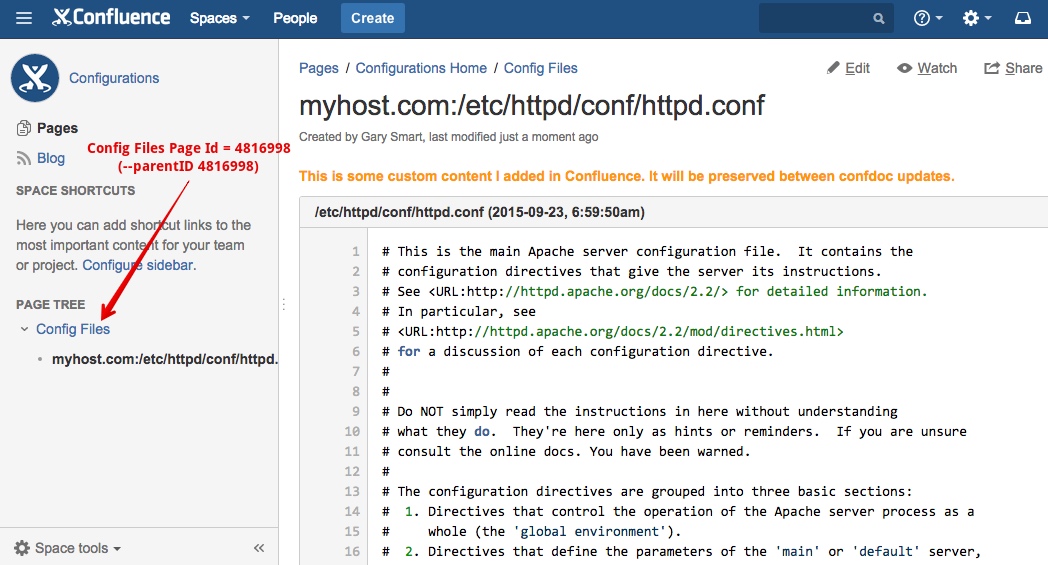
**{html} macro note** To use html macros, you need to enable them in Confluence because they are disabled by default. [See here for instructions on enabling the HTML Macro](https://confluence.atlassian.com/doc/html-macro-38273085.html).
## Free Versioning & Differentials!
Well, it comes with Confluence. When you upload and update your config files in Confluence you can take advantage of Confluence's Page revisions to track changes to your configuration files over time.
## FAQs
**Will confdoc modify my files?**
No. confdoc never modifies the input file.
**How do I use confdoc to add tags (eg ##Title) to my input files?**
You need to edit your files manually and add the tags yourself. confdoc never modifies your files.
**I'm getting an error "Not Found"**
Check your Confluence Server URL. Use the `--verbose` option to get a more detailed error message. It will likely mention a 404 status.
**I'm getting an error. What can I do?**
Use the `--verbose` option. This can help output more verbose error messages.
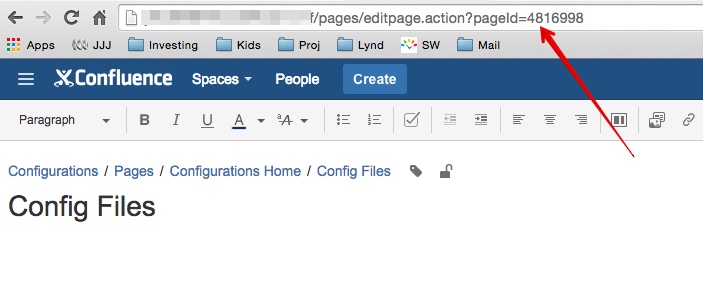
**How do I find a Page's Id for use with --parentId or --pageId?**
Edit the page in Confluence. The Page Id is in the address bar.