https://github.com/gdjdkid/screenrecorder-cli
一个基于ffmpeg的跨平台命令行录屏工具 🎬 | A cross-platform CLI screen recorder powered by ffmpeg 🎬
https://github.com/gdjdkid/screenrecorder-cli
command-line ffmpeg linux macos mp4 nodejs screen-recorder screencast windows
Last synced: about 1 month ago
JSON representation
一个基于ffmpeg的跨平台命令行录屏工具 🎬 | A cross-platform CLI screen recorder powered by ffmpeg 🎬
- Host: GitHub
- URL: https://github.com/gdjdkid/screenrecorder-cli
- Owner: gdjdkid
- License: mit
- Created: 2026-04-07T14:36:34.000Z (3 months ago)
- Default Branch: master
- Last Pushed: 2026-05-16T14:56:10.000Z (about 2 months ago)
- Last Synced: 2026-05-16T16:51:47.404Z (about 2 months ago)
- Topics: command-line, ffmpeg, linux, macos, mp4, nodejs, screen-recorder, screencast, windows
- Language: JavaScript
- Homepage:
- Size: 398 KB
- Stars: 0
- Watchers: 0
- Forks: 0
- Open Issues: 0
-
Metadata Files:
- Readme: README.md
- License: LICENSE
Awesome Lists containing this project
README
# ScreenRecorder-cli 🎬
English | [中文](./README_zh.md) | [日本語](README_jp.md) | [한국어](README_kr.md) | [Deutsch](./README_de.md) | [Français](./README_fr.md) | [Español](./README_es.md)
> A cross-platform CLI screen recorder powered by ffmpeg — record your screen with a single command.
[](https://www.npmjs.com/package/screenrecorder-cli)
[](https://nodejs.org)
[](./LICENSE)
[]()
---
---
## Features
- 🎥 **Screen + Audio Recording** — Captures desktop video with system audio and microphone mixed together
- 📁 **Flexible Output Path** — Set a persistent default output directory or specify one per recording
- 🎛️ **Device Config** — Save your audio device names once, use forever
- 🔍 **ffmpeg Auto-Detection** — Checks for ffmpeg at install time and at runtime; guides you if it's missing
- 🖥️ **Cross-Platform** — Windows (gdigrab), macOS (avfoundation), Linux (x11grab)
- ⚡ **Simple Commands** — Start, stop, configure with one command
---
## Requirements
- Node.js >= 18.0.0
- npm >= 6.0.0
- **ffmpeg** (must be installed separately and available in your PATH)
### Install ffmpeg
| Platform | Command |
|---|---|
| Windows | `winget install ffmpeg` or download from [ffmpeg.org](https://ffmpeg.org/download.html) |
| macOS | `brew install ffmpeg` |
| Linux | `sudo apt install ffmpeg` |
> **Windows audio note:** To record system audio, install [screen-capture-recorder](https://github.com/rdp/screen-capture-recorder-to-video-windows-free) first.
---
## Installation
**Option 1: Install via npm (recommended)**
```bash
npm install -g screenrecorder-cli
```
**Option 2: Clone from GitHub (for developers)**
```bash
git clone https://github.com/gdjdkid/ScreenRecorder-cli.git
cd ScreenRecorder-cli
npm install
npm install -g .
```
**Verify installation:**
```bash
screenrec -v
```
---
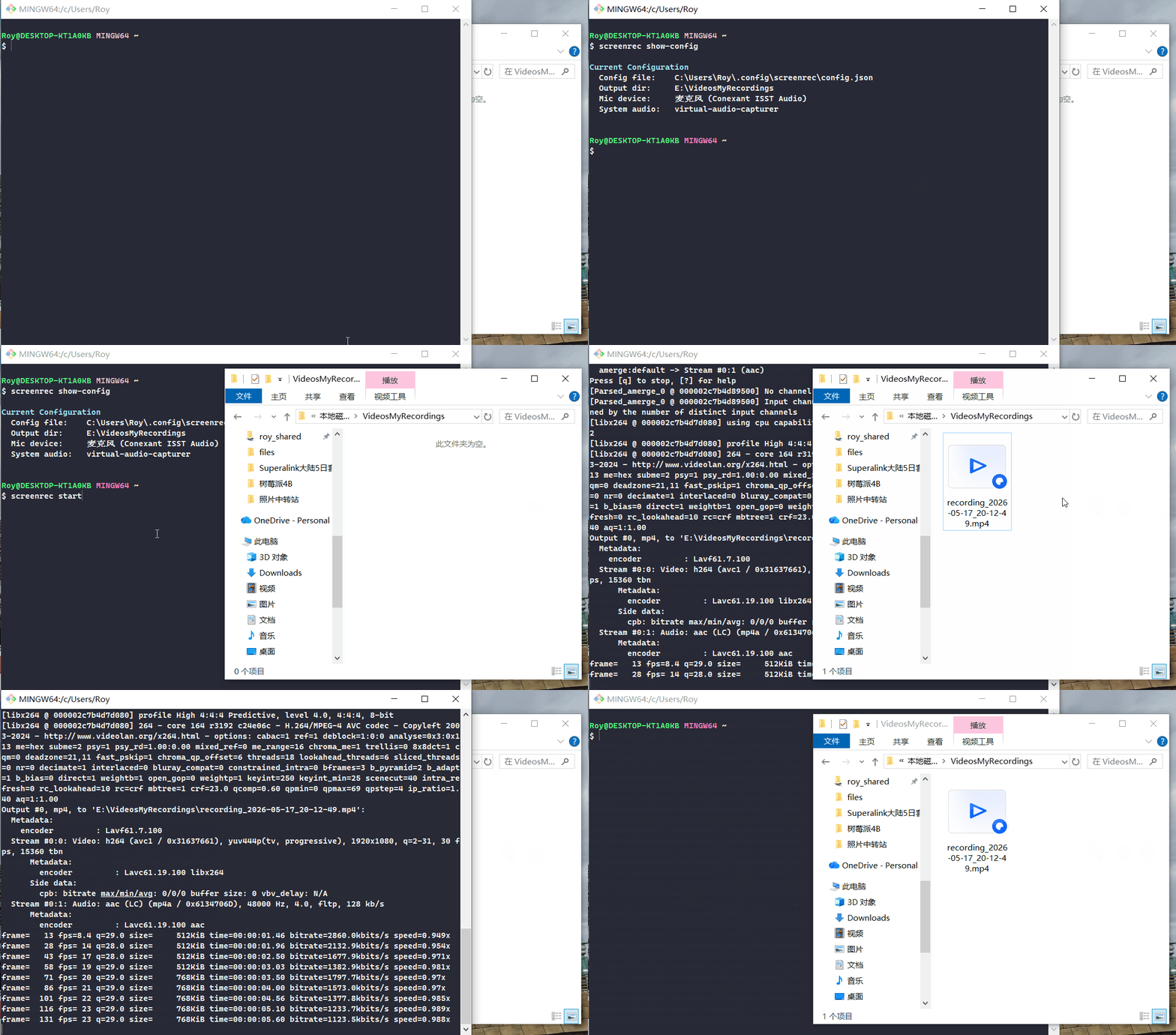
## Quick Start
```bash
# 1. List available audio devices (Windows / macOS)
screenrec devices
# 2. Save your audio device names
screenrec set-device --mic "Microphone (Your Device)" --system "virtual-audio-capturer"
# 3. Start recording
screenrec start
```
Press `Ctrl+C` to stop — the file saves automatically.
---
## Usage
**Start recording (uses saved or default output directory):**
```bash
screenrec start
```
**Start recording to a specific folder:**
```bash
screenrec start -o D:\MyRecordings
```
**Record without audio:**
```bash
screenrec start --no-audio
```
**Override mic for this session only:**
```bash
screenrec start --mic "USB Microphone"
```
**Set a persistent default output directory:**
```bash
screenrec set-output D:\MyRecordings
# or interactive mode:
screenrec set-output
```
**Save audio device names to config:**
```bash
# Interactive mode
screenrec set-device
# Direct mode (recommended)
screenrec set-device --mic "Microphone (Conexant ISST Audio)" --system "virtual-audio-capturer"
```
**Show current configuration:**
```bash
screenrec show-config
```
**List audio devices:**
```bash
screenrec devices
```
**Stop recording:** Press `Ctrl+C` — the file saves automatically.
---
## CLI Reference
```
Usage: screenrec [command] [options]
Commands:
start Start screen recording (default)
set-output Set default output directory
set-device Configure and save audio device names
show-config Show current configuration
devices List available audio input devices
Options for start:
-o, --output Output directory (overrides saved config, this session only)
-r, --framerate Frame rate (default: 30)
--no-audio Disable audio recording
--mic Microphone device name (overrides saved config, this session only)
--system System audio device name (overrides saved config, this session only)
-v, --version Print version number
-h, --help Show help
Options for set-device:
--mic Microphone device name to save
--system System audio device name to save
```
---
## Output Directory Priority
```
-o flag (this session only)
↓ not set
Saved config (screenrec set-output)
↓ not set
Default: ~/Videos/ScreenRecords
```
---
## Platform Support
| Platform | Video Capture | System Audio | Microphone |
|---|---|---|---|
| Windows | ✅ gdigrab | ✅ dshow | ✅ dshow |
| macOS | ✅ avfoundation | ✅ built-in | ✅ built-in |
| Linux | ✅ x11grab | ✅ pulseaudio | ✅ pulseaudio |
---
## Configuration
Config is saved to `~/.config/screenrec/config.json` and persists across sessions.
```json
{
"outputDir": "D:\\MyRecordings",
"micDevice": "Microphone (Conexant ISST Audio)",
"systemDevice": "virtual-audio-capturer"
}
```
---
## Updating
**Option 1: Installed via npm**
```bash
npm install -g screenrecorder-cli@latest
```
**Option 2: Cloned from GitHub**
```bash
cd ScreenRecorder-cli
git pull
npm install -g .
```
**Verify the update:**
```bash
screenrec -v
```
---
## FAQ
**Q: I get "ffmpeg not found" after installing?**
A: ffmpeg must be installed separately. See the Requirements section above.
**Q: No system audio on Windows?**
A: Install [screen-capture-recorder](https://github.com/rdp/screen-capture-recorder-to-video-windows-free) and use `virtual-audio-capturer` as the system audio device.
**Q: How do I find my device names?**
A: Run `screenrec devices` to list all available audio devices, then save them with `screenrec set-device`.
**Q: How do I stop recording?**
A: Press `Ctrl+C`. The output file is saved automatically.
**Q: Where is the output file?**
A: Run `screenrec show-config` to see your current output directory.
---
## License
This project is open source under the [MIT License](./LICENSE).
---
## Contributing
PRs and Issues are welcome!
1. Fork this repository
2. Create your branch: `git checkout -b feat/your-feature`
3. Commit your changes: `git commit -m "feat: describe your change"`
4. Push the branch: `git push origin feat/your-feature`
5. Open a Pull Request
**Commit message conventions:**
- `feat:` — new feature
- `fix:` — bug fix
- `docs:` — documentation update
- `chore:` — maintenance
---
## Buy Me a Coffee ☕
If this tool saves you time, consider supporting development:
| WeChat Pay | Alipay | PayPal |
|------------|--------|--------|
|  |  |  |
---
## Changelog
- **v1.1.0** — Add `set-device` command; fix SIGINT handler; add macOS device listing; refactor codec args; remove hardcoded device names
- **v1.0.0** — Initial release