https://github.com/giosali/hypoinput
A lightweight text expansion application for Windows
https://github.com/giosali/hypoinput
application text-expander text-expansion windows windows-10 windows-11
Last synced: 3 months ago
JSON representation
A lightweight text expansion application for Windows
- Host: GitHub
- URL: https://github.com/giosali/hypoinput
- Owner: giosali
- License: mit
- Created: 2022-07-12T21:36:28.000Z (almost 4 years ago)
- Default Branch: main
- Last Pushed: 2022-07-31T17:40:34.000Z (almost 4 years ago)
- Last Synced: 2025-06-17T23:38:06.803Z (about 1 year ago)
- Topics: application, text-expander, text-expansion, windows, windows-10, windows-11
- Language: C++
- Homepage:
- Size: 345 KB
- Stars: 6
- Watchers: 1
- Forks: 0
- Open Issues: 0
-
Metadata Files:
- Readme: README.md
- Changelog: CHANGELOG.md
- License: LICENSE
Awesome Lists containing this project
README
Hypoinput





Hypoinput is a lightweight text expansion application for Windows
## Table of Contents
- [❓ What Are Text Expansions?](#-what-are-text-expansions)
- [🎛️ Features](#-features)
* [UTF-8](#utf-8)
* [Unique Triggers](#unique-triggers)
* [Cursor Position](#cursor-position)
- [🎁 Installation](#-installation)
- [🔧 Usage](#-usage)
* [GUI Editor](#gui-editor)
+ [Adding a Text Expansion](#adding-a-text-expansion)
+ [Editing or Deleting a Text Expansion](#editing-or-deleting-a-text-expansion)
* [Manually Creating, Editing, or Deleting a Text Expansion](#manually-creating-editing-or-deleting-a-text-expansion)
* [Disabling Hypoinput](#disabling-hypoinput)
## ❓ What Are Text Expansions?
A text expansion is text that is automatically printed after typing some other specific text. The text that is automatically printed is known as the `replacement` while the specific text is known as the `trigger`. These two texts are what form a text expansion.
Text expansions can be fairly simple:
```mermaid
graph LR
a(":hi") --> b("Hello, world!")
```
In this example, when you type `:hi`, that text you typed will be erased and replaced by `Hello, world!`. It's simple, but these quick and short text expansions can save you *a lot* of time.
On the other hand, text expansions can also be complex:
```mermaid
graph LR
a("$bphtml") --> b("#60;!DOCTYPE html>
#60;html lang='en'>
#160;#160;#60;head>
#160;#160;#160;#160;#60;meta charset='UTF-8'>
#160;#160;#160;#160;#60;meta name='viewport' content='width=device-width, initial-scale=1.0'>
#160;#160;#160;#160;#60;meta http-equiv='X-UA-Compatible' content='ie=edge'>
#160;#160;#160;#160;#60;title>My Website#60;/title>
#160;#160;#160;#160;#60;link rel='stylesheet' href='./style.css'>
#160;#160;#160;#160;#60;link rel='icon' href='./favicon.ico' type='image/x-icon'>
#160;#160;#60;/head>
#160;#160;#60;body>
#160;#160;#160;#160;#60;main>
#160;#160;#160;#160;#160;#160;#160;#160;#60;h1>Welcome to My Website#60;/h1>
#160;#160;#160;#160;#60;/main>
#160;#160;#160;#160;#60;script src='index.js'>#60;/script#62;
#160;#160;#60;/body>
#60;/html>")
style b text-align:left
```
As you can see, typing `$bphtml` produces some typical boilerplate HTML. Instead of memorizing a long piece of text or having to always look something up, you can simply keep it stored as a text expansion.
## 🎛️ Features
**Hypoinput** comes with many practical and handy features that you'd expect from a text expansion application.
### UTF-8
**Hypoinput** supports Unicode characters which means there's a wide range of characters that can be printed through text expansions, including but not limited to:
- Emojis (😀😊😉😍)
- Accented letters (à, è, ì, ò, ù, À, È, Ì, Ò, Ù)
- Chinese (漢字)
### Unique Triggers
Your input for getting a text expansion to trigger isn't limited to lowercase characters. With **Hypoinput**, your triggers can consist of both uppercase letters and special characters.
A couple valid triggers:
- `:_hello`
- `$GOODbye`
- `{bracket/trigger}`
If you can type it, you can use it!
### Cursor Position
If you've ever wished you could have a text expander application move or adjust the cursor position for you after triggering a text expansion, then this is the application for you.
**Hypoinput** has some keywords that you can use in your text replacements. A few of these keywords move the cursor position:
| Keyword | Use | Example |
| :----------------------: | :-------------------------------------------------- | :---------------------------------------------------- |
| {{\_\_CURSOR\_\_}} | Moves cursor position to this location | "Hello {{\_\_CURSOR\_\_}}, how are you?" |
| {{\_\_CURSOR_PASTE\_\_}} | Moves cursor position and pastes clipboard contents | "python_program {{\_\_CURSOR_PASTE\_\_}} --foo --bar" |
**Hypoinput** can only process one of these in each text replacement. In other words, if you have multiple `{{__CURSOR__}}`'s or multiple `{{__CURSOR_PASTE__}}`'s, only the first one will be valid and all subsequent ones will be ignored.
## 🎁 Installation
You can download and install **Hypoinput** by heading over to the [Releases](https://github.com/giosali/hypoinput/releases) section and downloading the most recent `.msi` file. Once you've downloaded the installer file, open it and follow the onscreen directions.
## 🔧 Usage
When you run **Hypoinput** for the first time, a `Settings.ini` file and a `TextExpansions.json` file will be created. The `Settings.ini` file contains information related to your general settings and the `TextExpansions.json` file is where your text expansions will be stored.
> ℹ️ If either file is missing, those files will be recreated each time the application starts
There's two ways you can add, edit, or delete a text expansion:
- by using the built-in GUI editor that's powered by PowerShell scripts
- by manually editing the `TextExpansions.json` file
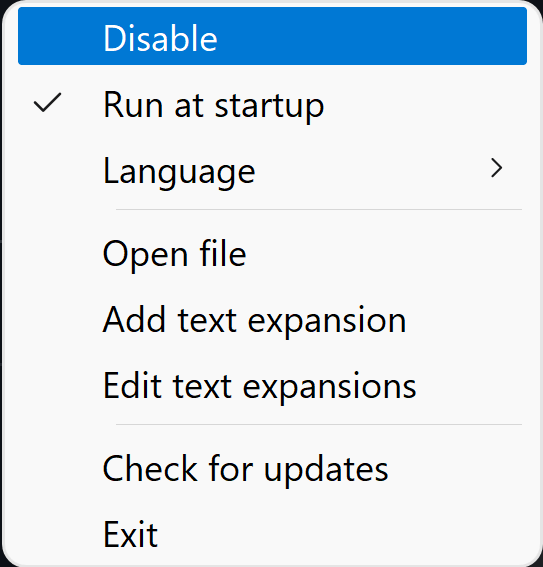
You can find the option to do both of these things by right-clicking on the application's notification icon in the system tray.

### GUI Editor
**Hypoinput** features a way to easily add, edit, or delete a text expansion by using a GUI.
#### Adding a Text Expansion
The easiest way to create a text expansion is by right-clicking on the application icon in the system tray and clicking on `Add text expansion`.
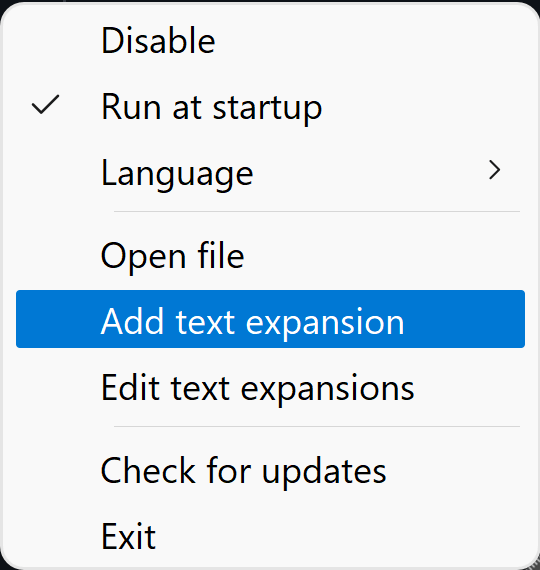
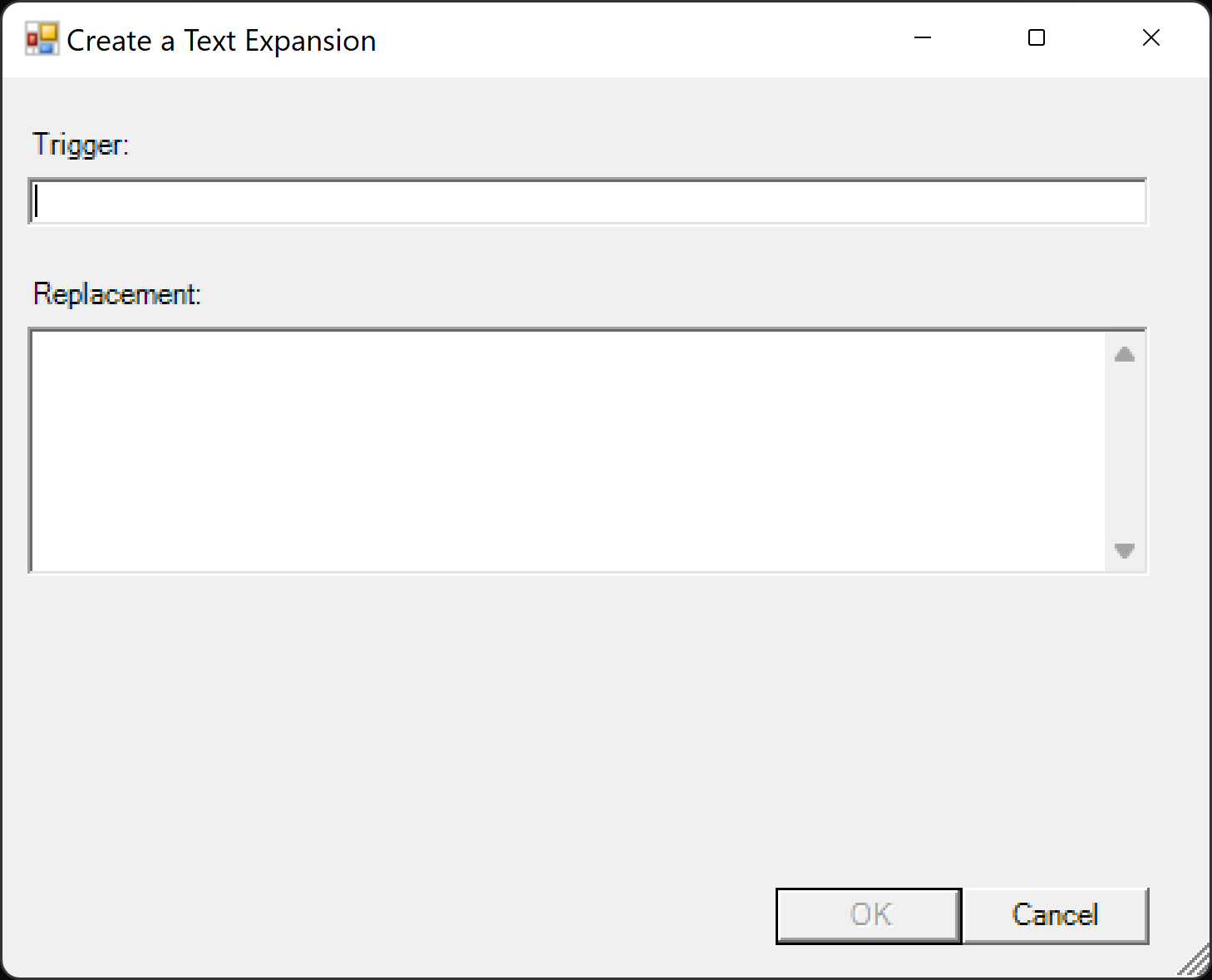
This will run a PowerShell script which will render a GUI for creating a new text expansion.
> ℹ️ Since a PowerShell script is being ran, you might see a terminal window appear alongside the GUI
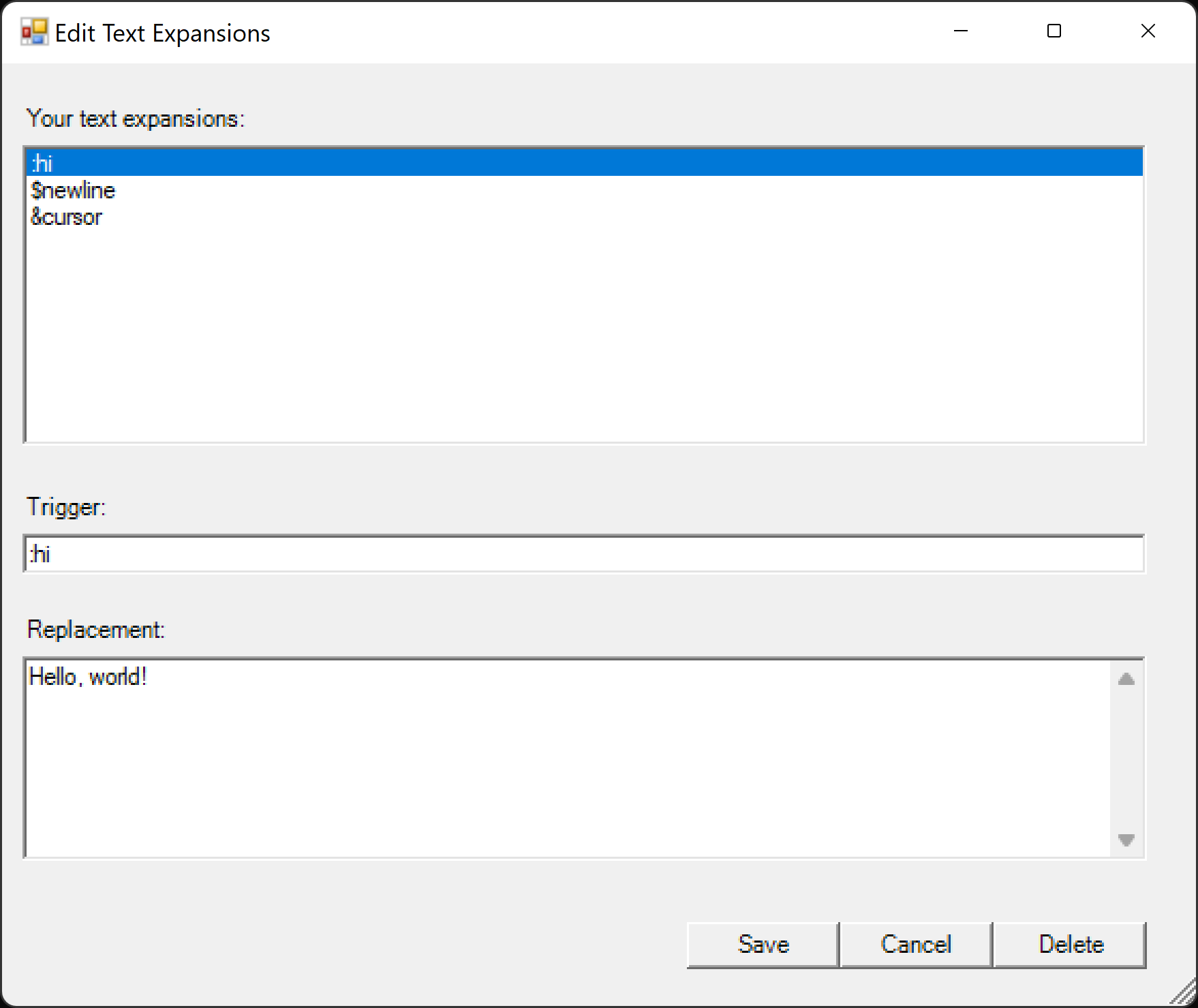
#### Editing or Deleting a Text Expansion
Similar to adding a text expansion, you can edit or delete a text expansion by right-clicking on the application icon in the system tray and clicking on `Edit text expansions`.
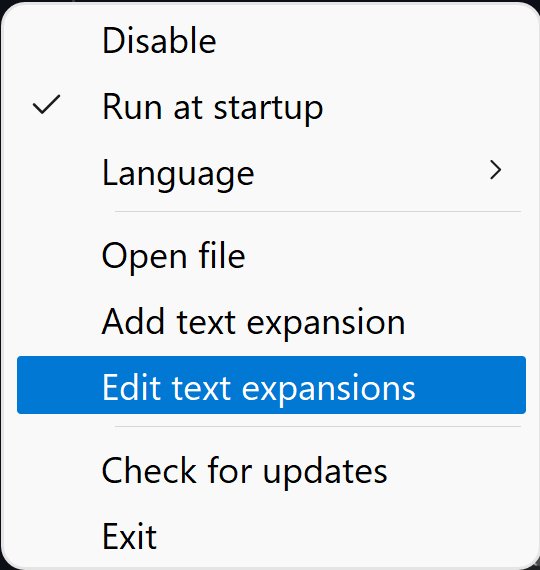
This will run a PowerShell script which will render a GUI for editing or deleting your text expansions.
### Manually Creating, Editing, or Deleting a Text Expansion
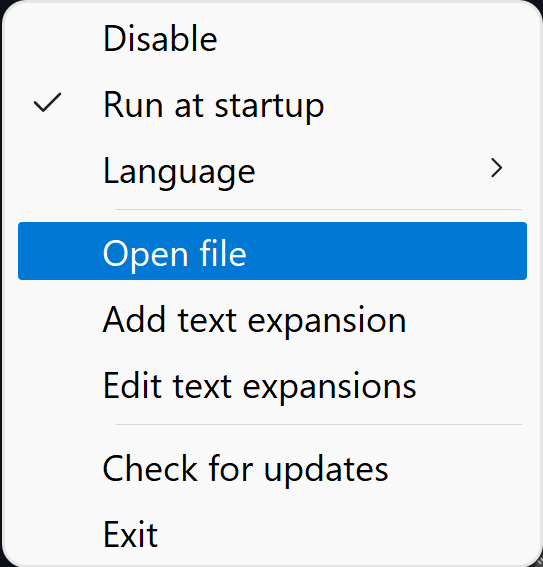
You can quickly access your `TextExpansions.json` file by right-clicking the application icon in the system tray and clicking on `Open file`. This will open the file in your default text editor application.
> ℹ️ The path to this file is `C:\Users\\AppData\Roaming\Hypoinput\TextExpansions.json`
Here's a sample of what your `TextExpansions.json` file might look like:
```json
[
{
"trigger": ":hi",
"replacement": "Hello, world!"
},
{
"trigger": "$newline",
"replacement": "First line\nSecond line\nThird line"
},
{
"trigger": "&cursor",
"replacement": "youtube-dl \"{{__CURSOR__}}\""
}
]
```
A few important takeaways from this:
- You *must* place your text expansions inside a **JSON array** `[]`
- Fields are **case-sensitive**
- `trigger` *must* be spelled "trigger" and not "TRIGGER", "tRiGgEr", etc.
- `replacement` *must* be spelled "replacement" and not "REPLACEMENT", "rEpLaCeMeNt", etc.
- You may have to escape certain characters:
- Quotation marks `"`
- Backslashes `\`
- **Newlines** are indicated by `\n`
- **Tabs** are indicated by `\t`
- Make sure you save the file with `UTF-8` encoding (and not `UTF-8 with BOM` encoding)
### Disabling Hypoinput
You can prevent text expansions from being triggered by right-clicking the application icon in the system tray and clicking on `Disable`. After disabling the application, you can then re-enable it by clicking on `Enable`.