https://github.com/gleapsdk/android-sdk
https://github.com/gleapsdk/android-sdk
Last synced: 8 months ago
JSON representation
- Host: GitHub
- URL: https://github.com/gleapsdk/android-sdk
- Owner: GleapSDK
- License: other
- Created: 2021-09-26T08:51:56.000Z (over 4 years ago)
- Default Branch: master
- Last Pushed: 2025-10-16T09:52:58.000Z (8 months ago)
- Last Synced: 2025-10-17T12:08:14.072Z (8 months ago)
- Language: Java
- Size: 15.7 MB
- Stars: 2
- Watchers: 1
- Forks: 1
- Open Issues: 2
-
Metadata Files:
- Readme: README.md
- License: LICENSE.md
Awesome Lists containing this project
README
# Gleap Android SDK
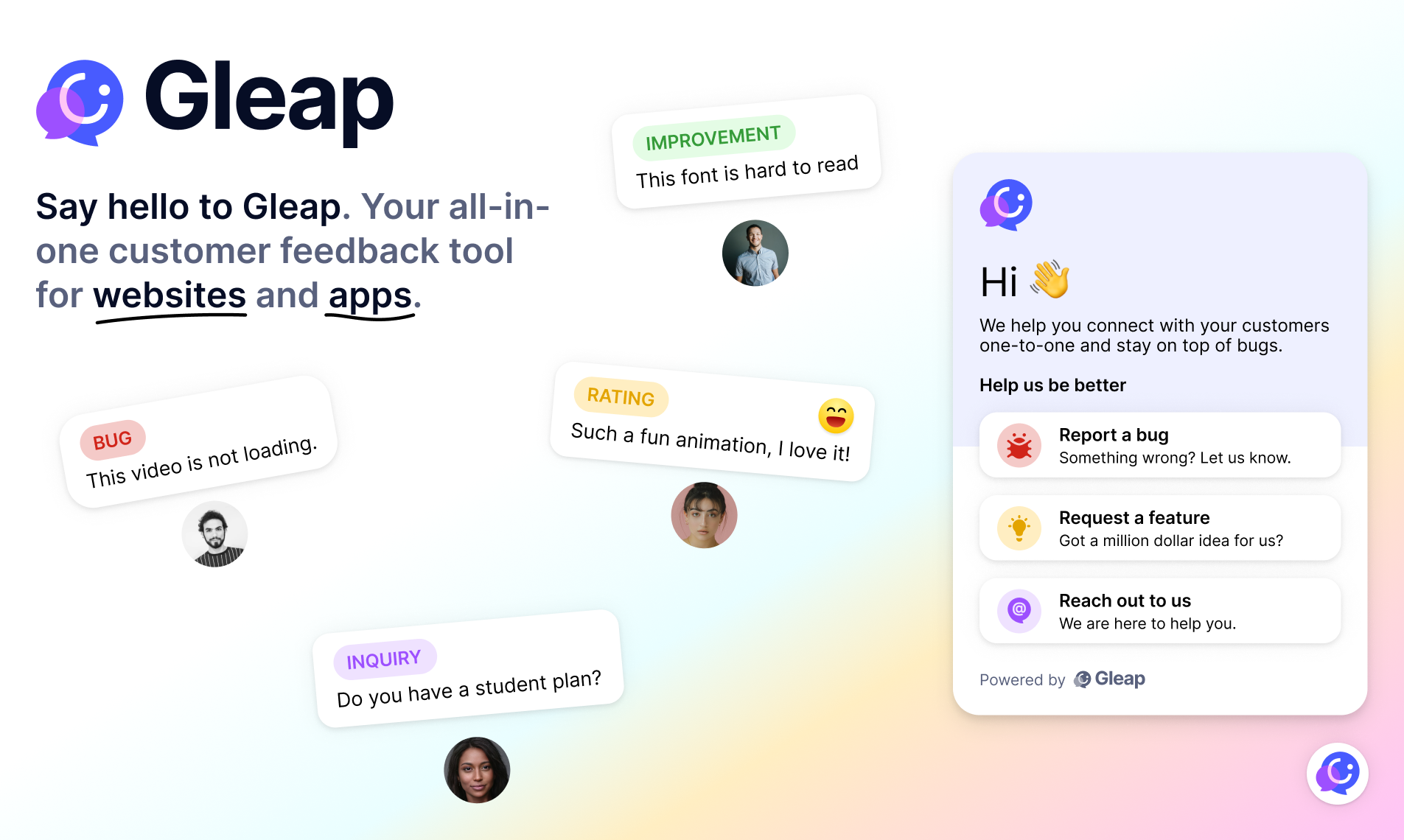
The Gleap SDK for Android is the easiest way to integrate Gleap into your apps!
You have two ways to set up the Gleap SDK for Android. The easiest way ist to use the maven repository to add Gleap SDK to your project. (it's super easy to get started & worth using 😍)
## Docs & Examples
Checkout our [documentation](https://docs.gleap.io/android/) for full reference.
## Installation with Maven
Open your project in your favorite IDE. (e.g. Android Studio). Open the **build.gradle** of your project.
**Scroll down to the dependencies**
```
dependencies {
...
}
```
**Add the Gleap SDK to your dependencies**
```
dependencies {
...
implementation group: 'io.gleap', name: 'android-sdk', version: '7.0.35'
```
Sync the gradle file to start the download of the library.
The Gleap SDK is almost installed successfully.
Let's carry on with the initialization 🎉
Open your MainApplication
**Import the Gleap SDK**
Import the Gleap SDK by adding the following import below your other imports.
```
import io.gleap.Gleap;
```
**Initialize the SDK**
The last step is to initialize the Gleap SDK by adding the following Code to the ```onCreate``` method:
```
Gleap.initialize("YOUR_API_KEY", this);
```
(Your API key can be found in the project settings within Gleap)