https://github.com/gokcehan/picon
Run your code in python interactive console from the command line
https://github.com/gokcehan/picon
python
Last synced: 12 months ago
JSON representation
Run your code in python interactive console from the command line
- Host: GitHub
- URL: https://github.com/gokcehan/picon
- Owner: gokcehan
- License: mit
- Created: 2018-04-07T15:42:09.000Z (about 8 years ago)
- Default Branch: master
- Last Pushed: 2020-08-23T21:49:50.000Z (almost 6 years ago)
- Last Synced: 2025-02-27T20:24:38.209Z (over 1 year ago)
- Topics: python
- Language: Python
- Homepage:
- Size: 5.86 KB
- Stars: 81
- Watchers: 5
- Forks: 2
- Open Issues: 1
-
Metadata Files:
- Readme: README.md
- License: LICENSE
Awesome Lists containing this project
README
# Picon
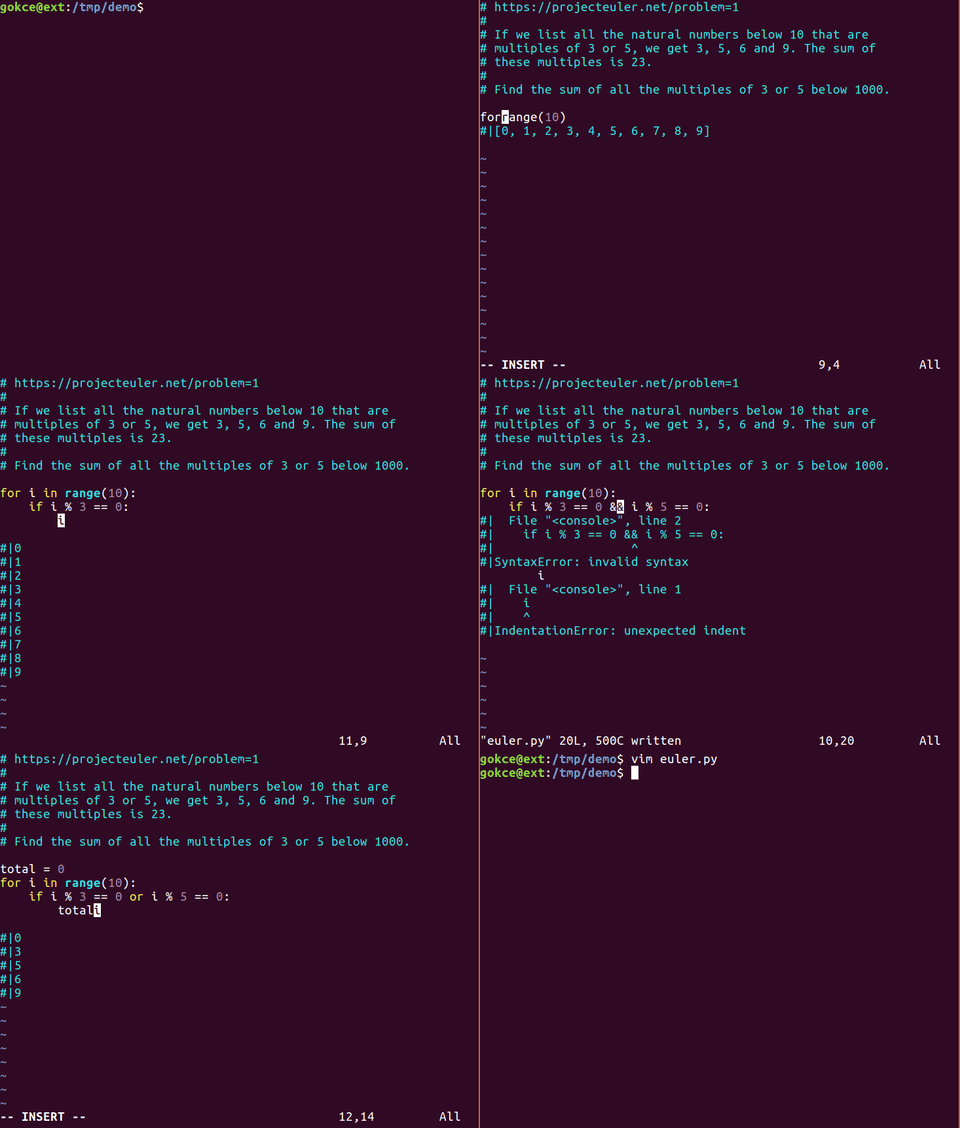
`picon` runs your code in python interactive console from the command line.
Besides other purposes, it can be easily integrated to your editor to create a live worksheet environment.
This is useful to evaluate your code on the fly and show you the result right below the code within your editor:
## Installation
You can install `picon` as a python package using `pip`:
pip install picon
Or you can download it from github and put it somewhere in `$PATH`:
curl https://raw.githubusercontent.com/gokcehan/picon/master/picon/picon.py -o picon
chmod +x picon
mkdir -p ~/.local/bin
mv picon ~/.local/bin
## Usage
`picon` is implemented as a thin wrapper around [code](https://docs.python.org/3/library/code.html) module to be used as a command line application.
There are three running modes available in `picon`.
Following example code is used for demonstration:
$ cat demo.py
'hello world'
x = 42
x
print(x)
y
total = 0
for i in range(1000):
if i % 3 == 0 or i % 5 == 0:
total += i
total
Default mode evaluates the code and only shows the output.
This is similar to running your code with `python` but it uses interactive console semantics (see syntax section below):
$ picon demo.py
'hello world'
42
42
Traceback (most recent call last):
File "", line 1, in
NameError: name 'y' is not defined
233168
Live mode shows the code and the output as in a live session.
This can be used to prepare programming notes or documentation:
$ picon demo.py -l
>>> 'hello world'
'hello world'
>>>
>>> x = 42
>>> x
42
>>> print(x)
42
>>>
>>> y
Traceback (most recent call last):
File "", line 1, in
NameError: name 'y' is not defined
>>>
>>> total = 0
>>> for i in range(1000):
... if i % 3 == 0 or i % 5 == 0:
... total += i
...
>>> total
233168
Append mode appends the output as comments below the code.
A pipe character (`|`) is added to differentiate these comments from regular ones and strip them in consequent executions.
This mode is designed to be integrated to editors to create a live worksheet environment:
$ picon demo.py -a
'hello world'
#|'hello world'
x = 42
x
#|42
print(x)
#|42
y
#|Traceback (most recent call last):
#| File "", line 1, in
#|NameError: name 'y' is not defined
total = 0
for i in range(1000):
if i % 3 == 0 or i % 5 == 0:
total += i
total
#|233168
## Syntax
Syntax of python interactive console differs from regular python in two main aspects.
First, return values are automatically shown without a `print` statement:
$ cat return.py
x = 42
x
print(x)
$ python return.py
42
$ picon return.py
42
42
Second, blocks are separated with blank newlines in addition to indentation:
$ cat block.py
if True:
print('one')
print('two')
$ python block.py
one
two
$ picon block.py
one
File "", line 1
print('two')
^
IndentationError: unexpected indent
Having blank trailing spaces equal to the indentation works in interactive console but not in `picon`.
## Vim Integration
Simply running `:%!picon -a` evaluates the buffer content and puts the output as comments below the code.
In order to keep the cursor position fixed and join undo operations to a single step you can use a command similar to the following:
command! Picon exe 'normal m`' | silent! undojoin | exe '%!picon -a' | exe 'normal ``'
You may want to assign this command to either `BufWritePre` event to run on save and/or `CursorHold` event to run on idle as follows (see also `:h updatetime`):
autocmd Filetype python autocmd BufWritePre Picon
autocmd Filetype python autocmd CursorHold Picon