https://github.com/hanzili/comet-mcp
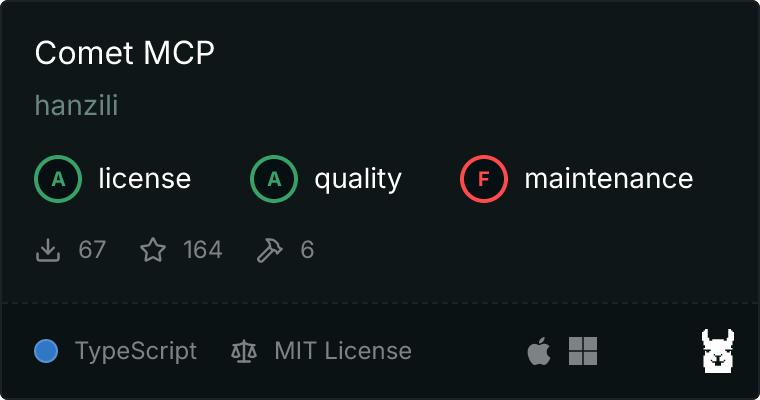
MCP Server connecting to Perplexity Comet browser
https://github.com/hanzili/comet-mcp
agentic-ai agentic-browser automation mcp-server
Last synced: 6 months ago
JSON representation
MCP Server connecting to Perplexity Comet browser
- Host: GitHub
- URL: https://github.com/hanzili/comet-mcp
- Owner: hanzili
- License: mit
- Created: 2026-01-03T05:05:45.000Z (7 months ago)
- Default Branch: main
- Last Pushed: 2026-01-13T05:34:37.000Z (6 months ago)
- Last Synced: 2026-01-13T08:40:19.967Z (6 months ago)
- Topics: agentic-ai, agentic-browser, automation, mcp-server
- Language: TypeScript
- Homepage:
- Size: 39.9 MB
- Stars: 96
- Watchers: 0
- Forks: 6
- Open Issues: 0
-
Metadata Files:
- Readme: README.md
- Contributing: CONTRIBUTING.md
- License: LICENSE
Awesome Lists containing this project
- awesome-mcp-security - comet-mcp - githubcom-hanzili-comet-mcp) | (カテゴリ / 🛠️ <a name="developer-tools"></a>開発ツール)
- awesome-mcp-servers - **hanzili/comet-mcp 🍎** - Connect to Perplexity Comet browser for agentic web browsing, deep research, and real-time task monitoring. `web` `http` `git` `github` `monitoring` (📦 Other)
README
# comet-mcp
[](https://www.npmjs.com/package/comet-mcp)
**Give Claude Code a browser that thinks.**
An MCP server that connects Claude Code to [Perplexity Comet](https://www.perplexity.ai/comet) - enabling agentic web browsing, deep research, and real-time task monitoring.

## Why?
Existing web tools for Claude Code fall into two categories, both with limitations:
### 1. Search APIs (Tavily, Perplexity API, WebFetch)
Return static text. No interaction, no login, no dynamic content. Great for quick lookups, but can't navigate complex sites or fill forms.
### 2. Browser Automation (browser-use, Puppeteer MCP, Playwright MCP)
Can interact with pages, but use a **one-agent-do-all** approach: the same reasoning model that's writing your code is also deciding where to click, what to type, and how to navigate. This overwhelms the context window and fragments focus.
### 3. Comet MCP: Multi-Agent Delegation
**Comet MCP takes a different approach.** Instead of Claude controlling a browser directly, it delegates to [Perplexity Comet](https://www.perplexity.ai/comet) - an AI purpose-built for web research and browsing.
- **Claude** stays focused on your coding task
- **Comet** handles the browsing: navigation, login walls, dynamic content, deep research
- **Result**: Claude's coding intelligence + Perplexity's web intelligence, working together
## Quick Start
### 1. Configure Claude Code
Add to `~/.claude.json` or `.mcp.json`:
```json
{
"mcpServers": {
"comet-bridge": {
"command": "npx",
"args": ["-y", "comet-mcp"]
}
}
}
```
### 2. Install Comet Browser
Download and install [Perplexity Comet](https://www.perplexity.ai/comet).
That's it! The MCP server automatically launches Comet with remote debugging when needed.
### 3. Use in Claude Code
```
You: "Use Comet to research the top AI frameworks in 2025"
Claude: [delegates to Comet, monitors progress, returns results]
You: "Log into my GitHub and check my notifications"
Claude: [Comet handles the login flow and navigation]
```
## Tools
| Tool | Description |
|------|-------------|
| `comet_connect` | Connect to Comet (auto-starts if needed) |
| `comet_ask` | Send a task and wait for response |
| `comet_poll` | Check progress on long-running tasks |
| `comet_stop` | Stop current task |
| `comet_screenshot` | Capture current page |
| `comet_mode` | Switch modes: search, research, labs, learn |
## How It Works
```
Claude Code → MCP Server → CDP → Comet Browser → Perplexity AI
(reasoning) (bridge) (web browsing)
```
Claude sends high-level goals ("research X", "log into Y"). Comet figures out the clicks, scrolls, and searches. Results flow back to Claude.
## Requirements
- Node.js 18+
- [Perplexity Comet Browser](https://www.perplexity.ai/comet)
- Claude Code (or any MCP client)
- **Supported platforms**: macOS, Windows, WSL2
## Windows & WSL Support
### Native Windows
Works out of the box. Comet MCP auto-detects Windows and launches Comet from its default install location.
### WSL2 (Windows Subsystem for Linux)
WSL2 requires **mirrored networking** to connect to Comet running on Windows:
1. **Enable mirrored networking** (one-time setup):
```
# Create/edit %USERPROFILE%\.wslconfig (Windows side)
[wsl2]
networkingMode=mirrored
```
2. **Restart WSL**:
```bash
wsl --shutdown
# Then reopen your WSL terminal
```
3. **That's it!** Comet MCP auto-detects WSL and uses PowerShell to communicate with Windows.
If mirrored networking isn't available, you'll see a helpful error message with setup instructions.
### Custom Comet Path
If Comet is installed in a non-standard location:
```json
{
"mcpServers": {
"comet-bridge": {
"command": "npx",
"args": ["-y", "comet-mcp"],
"env": {
"COMET_PATH": "/path/to/your/Comet"
}
}
}
}
```
## Troubleshooting
**"Cannot connect to Comet"**
- **macOS**: Ensure Comet is installed at `/Applications/Comet.app`
- **Windows**: Comet should be in `%LOCALAPPDATA%\Perplexity\Comet\Application\`
- Check if port 9222 is available
**"WSL cannot connect to Windows localhost"**
- Enable mirrored networking (see WSL section above)
- Or run Claude Code from Windows PowerShell instead of WSL
**"Tools not showing in Claude"**
- Restart Claude Code after config changes
## License
MIT
---
[Report Issues](https://github.com/hanzili/comet-mcp/issues) · [Contribute](https://github.com/hanzili/comet-mcp)