https://github.com/harbaum/touchui
Touchscreen UI written in PyQt
https://github.com/harbaum/touchui
Last synced: over 1 year ago
JSON representation
Touchscreen UI written in PyQt
- Host: GitHub
- URL: https://github.com/harbaum/touchui
- Owner: harbaum
- Created: 2016-06-14T19:06:51.000Z (about 10 years ago)
- Default Branch: master
- Last Pushed: 2023-10-03T14:56:46.000Z (almost 3 years ago)
- Last Synced: 2025-03-27T03:51:22.319Z (over 1 year ago)
- Language: Python
- Size: 509 KB
- Stars: 32
- Watchers: 13
- Forks: 11
- Open Issues: 2
-
Metadata Files:
- Readme: README.md
- Support: support/README.md
Awesome Lists containing this project
README
#  TouchUI
The TouchUI was initially started as part of the [ftcommunity-TXT
project](https://github.com/ftCommunity/ftcommunity-TXT). It has now
become a stand-alone GUI project aiming to create a simple yet useful
user interface for small touch screen enabled devices like the
Raspberry Pi using a display module add-on.
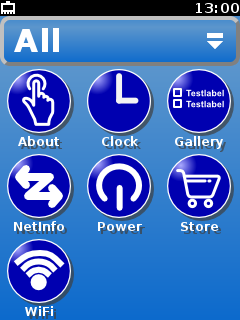 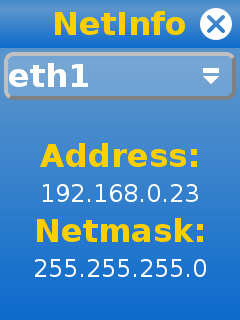 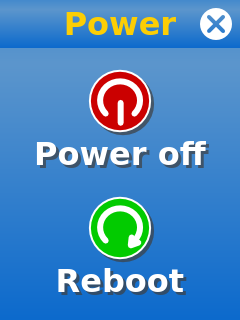 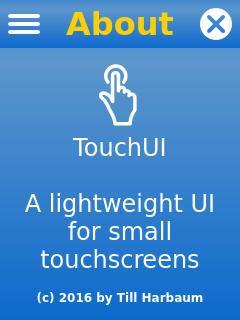 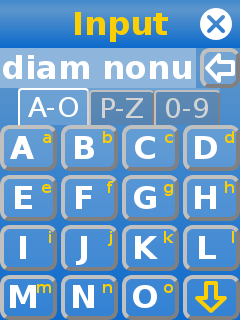
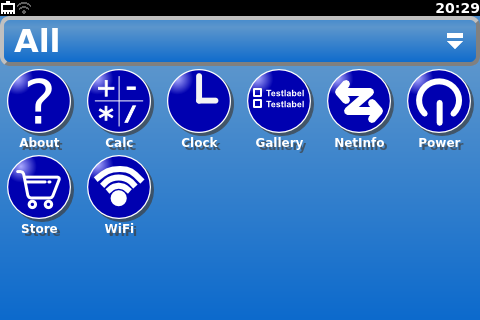
TouchUI is based on Python, Qt and PyQt. It runs on any device
supporting these incl. the Raspberry Pi and the Fischertechnik TXT.
It's designed for resultions from 240x320 to 480x320 / 320x480
and is meant to be used with a touchscreen.
## Raspberry Pi installation
Installing the TouchUI on a raspberry pi is quite simple. The following
instructions assume that you have a raspberry pi running raspbian with
a small 3.2 or 3.5 inch LCD.
### Display orientation
The TouchUI is meant to be used with at least 320 pixel
vertically. Thus a 320x240 display needs to be configured for portrait
mode. The exact steps for this differ from display to display. E.g. a
Waveshare 3.2 inch LCD with 320x240 pixels can be rotated by adding
the rotate option like `dtoverlay=waveshare35a,rotate=0` to the file
`/boot/config.txt`.
Furthermore the touchscreen also needs to be rotated. This is done in the
file `/etc/X11/xorg.conf.d/99-calibration.conf` by removing the `SwapAxes` option
and by exachanging the Calibration values of both axes:
```
Section "InputClass"
Identifier "calibration"
MatchProduct "ADS7846 Touchscreen"
Option "Calibration" "300 3932 294 3801"
EndSection
```
Afterwards the display and touchscreen should work as usual but in upright
orientation.
### Hide mouse cursor and disable screen blanking
The TouchUI is meant to be used with the finger. This no mouse cursor
is needed. Also scren blanking is usually not wanted in this case. This
can be accomplished by changing the file `/etc/X11/xinit/xserverrc`
like this.
```
#!/bin/sh
exec /usr/bin/X -s 0 dpms -nocursor -nolisten tcp "$@"
```
### Disable existing GUI
Raspbian comes with the lightdm window manager installed by default.
You can simply uninstall it via the command `apt-get remove lightdm`.
### Boot TouchUI
First place the entire [touchui directory](https://github.com/harbaum/TouchUI/tree/master/touchui) in the `/root` directoy.
Then install the [init
script](https://github.com/harbaum/TouchUI/blob/master/support/touchui-init)
under `/etc/init.d/touchui-init` and the [touch ui start script](https://github.com/harbaum/TouchUI/blob/master/support/touchui) under `/root/touchui/touchui`.
Acivate the init script by executing the following command:
```
update-rc.d touchui-init defaults
```
Make sure python3, Qt and PyQt are installed on your Pi e.g. with the following command:
```
apt-get install python3
apt-get install python3-pyqt4
```
After a reboot the TouchUI should show up.
## PC Demo
The TouchUI can run an a PC inside a window. The launcher
([`touchui/launcher.py`](https://github.com/harbaum/TouchUI/blob/master/touchui/launcher.py))
can just be started. If apps are being used the enironment variable
`PYTHONPATH` needs to be set to the directory where
[`TouchStyle.py`](https://github.com/harbaum/TouchUI/blob/master/touchui/TouchStyle.py)
is located.
When run on a desktop PC the TouchUI runs inside a window. The
size of this window can be changed. E.g. the command
```
SCREEN=480x320 ./launcher.py
```
will run the launcher inside a window of 320x480 pixels size: