https://github.com/hasan-py/ai-assistant-chrome-extension
This Chrome extension allows you to easily select any text from any webpage and instantly use GPT, Gemini, Grok, Local LLMs with Ollama to perform a variety of tasks with just a few clicks
https://github.com/hasan-py/ai-assistant-chrome-extension
Last synced: 8 months ago
JSON representation
This Chrome extension allows you to easily select any text from any webpage and instantly use GPT, Gemini, Grok, Local LLMs with Ollama to perform a variety of tasks with just a few clicks
- Host: GitHub
- URL: https://github.com/hasan-py/ai-assistant-chrome-extension
- Owner: hasan-py
- Created: 2025-01-12T10:59:03.000Z (11 months ago)
- Default Branch: main
- Last Pushed: 2025-02-10T16:01:32.000Z (10 months ago)
- Last Synced: 2025-02-10T16:45:00.874Z (10 months ago)
- Language: JavaScript
- Homepage:
- Size: 115 KB
- Stars: 21
- Watchers: 1
- Forks: 6
- Open Issues: 1
-
Metadata Files:
- Readme: README.md
Awesome Lists containing this project
README
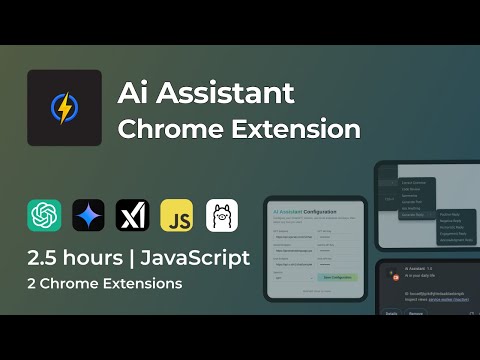
## Watch the full tutorial video from YouTube:
[](https://youtu.be/troznI6r17I?si=jvxJS16LaGASb9FW)
## How to install this chrome extension locally
Follow these steps to install the Chrome extension on your browser:
### Step 1: Download the Extension Files
- Download the extension files as a folder or a .zip file.
- If it's a `.zip` file, extract it to get the folder containing the extension files.
### Step 2: Open the Chrome Extensions Page
- Open Google Chrome.
- Type the following URL in the address bar and press Enter:
```
chrome://extensions/
```
### Step 3: Enable Developer Mode
- At the top-right corner of the Extensions page, toggle the Developer mode switch to turn it on.
### Step 4: Load the Extension
- Click the "Load unpacked" button.
- In the file browser, navigate to the folder where you have saved the extension files.
- Select the folder and click "Open" or "Select Folder".
### Step 5: Verify Installation

- Once loaded, the extension will appear in the list of installed extensions on the Extensions page.
- If there are any errors, Chrome will show a warning. Make sure your files (especially manifest.json) are configured correctly.
## How to use this chrome extension?
Follow these steps to use the Chrome extension on your browser:
### Step 1: Please collect your api key from: GPT or Gemini or Grok
- Goto the tools website's dashboard and generate api key
- Note your api key and api endpoint
### Step 2: Open the extension popup from extension icon from the extension list
- Add the api endpoint
- Add api key
- Fillup other input field with any text to pass validations
- Select which tool you want to use

### Step 3: Copy any text from any website
- Right click from the mouse
- Choose the desire menu and clicked

### Step 4: After the loading complete you will result like this
- Click copy button to copy ta raw text

### Troubleshoot?
- Please reach out to me on
X: https://x.com/hasan_py or
Linkedin: https://www.linkedin.com/in/hasan-py
-----
Build with ❤️ by Hasan