https://github.com/hellocoop/hello-nextjs-sample
Hellō Next.js Sample
https://github.com/hellocoop/hello-nextjs-sample
Last synced: 11 months ago
JSON representation
Hellō Next.js Sample
- Host: GitHub
- URL: https://github.com/hellocoop/hello-nextjs-sample
- Owner: hellocoop
- Created: 2023-09-22T18:36:47.000Z (almost 3 years ago)
- Default Branch: main
- Last Pushed: 2024-08-12T23:40:33.000Z (almost 2 years ago)
- Last Synced: 2024-08-13T21:20:49.171Z (almost 2 years ago)
- Language: JavaScript
- Homepage: https://hello-nextjs-sample.vercel.app
- Size: 198 KB
- Stars: 7
- Watchers: 1
- Forks: 16
- Open Issues: 2
-
Metadata Files:
- Readme: README.md
Awesome Lists containing this project
README
# Hellō Next.js Sample
This is a sample application for the Hellō Next.js SDK [@hellocoop/nextjs](https://www.npmjs.com/package/@hellocoop/nextjs)
You can have this app running fully configured on localhost in a minute, and then deploy to Vercel fully configured a minute later.
1. [Fork and clone this repository to your GitHub account](#1-fork-and-clone-this-repository-to-your-github-account)
2. [ Install, configure, and run!](#2-install-configure-and-run)
3. [Check in updates & deploy to Vercel](#3-check-in-updates--deploy-to-vercel)
See a deployed version at [https://hello-nextjs-sample.vercel.app](https://hello-nextjs-sample.vercel.app)
> If you want to add Hellō to your own Next.js app, we have a [Quickstart](https://www.hello.dev/docs/quickstarts/nextjs/) for that!
Here is a video that forks, clones, installs, configures, runs locally and then deploys to Vercel:
[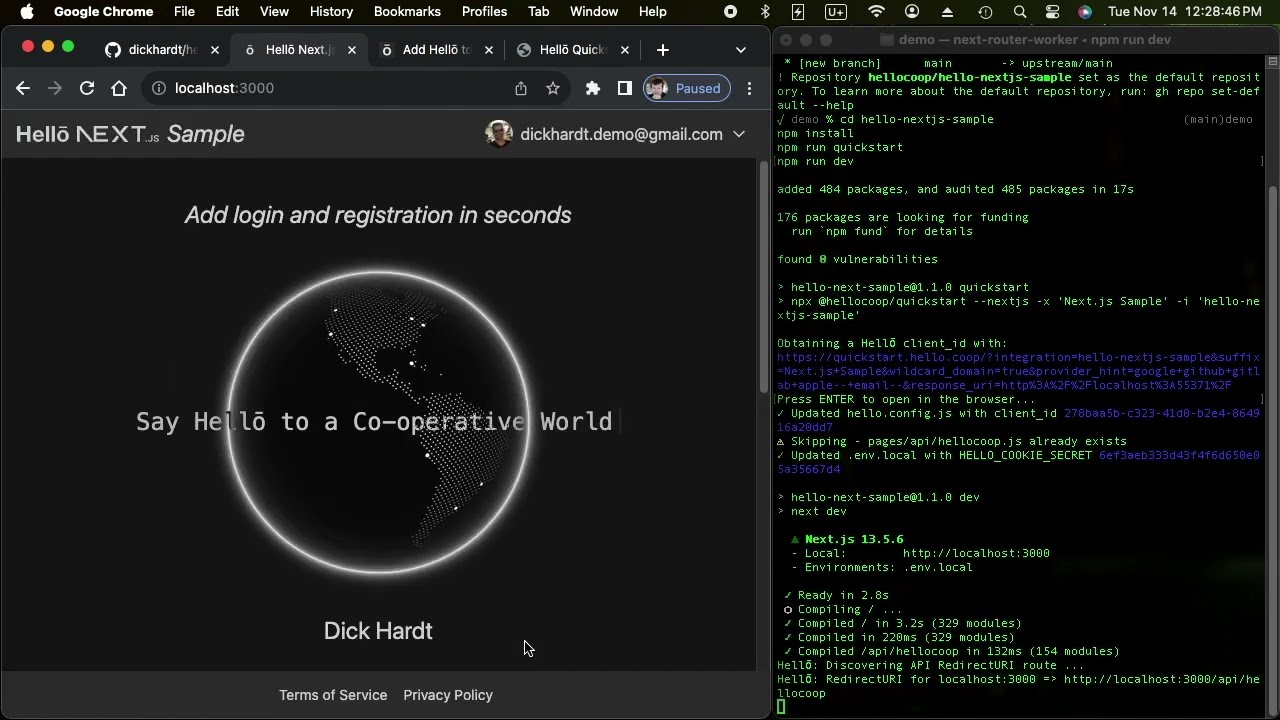](https://www.youtube.com/watch?v=-5Dc9CVxeU4)
https://youtu.be/-5Dc9CVxeU4
To run locally, you will need:
- [nodejs 18+](https://nodejs.org/en/download)
- [git](https://github.com/git-guides/install-git)
- A [GitHub](https://github.com) account
## 1\. Fork and clone this repository to your GitHub account
[How to clone a repository](https://docs.github.com/en/repositories/creating-and-managing-repositories/cloning-a-repository)
You should now have a `hello-nextjs-sample` directory on your machine with the contents of this repo.
## 2\. Install, configure, and run!
Run these commands to start running locally:
```sh
cd hello-nextjs-sample
npm install
npm run quickstart
```
You should see a prompt to hit ENTER to open the browser. Once the browser is open, follow the steps to update your local environment with the necessary configuration.
Once completed, you will now have the necessary configuration and environment variables. Continue by running the following:
```
npm run dev
```
Open (assuming port 3000 was free)
Click the `[ ō Continue with Hellō ]` button to login. You will be sent to the Hellō Wallet. As you have not added a logo or urls, you will see placeholders.
## 3\. Check in updates & deploy to Vercel
You will need:
- A [Vercel](https://vercel.com) account *linked to your GitHub account* so it can access the repo you just created
- Vercel CLI that is logged into your Vercel account
The following commands will install the Vercel CLI and login
```sh
npm install -g vercel
vercel login
```
The following commands will:
- check in the Quickstart updates to your repo
- link this project to your Vercel account
- set HELLO_COOKIE_SECRET values in Vercel
- deploy this sample to Vercel
- load the deployed site
```sh
git commit -a -m"quickstart"
git push origin
vercel link --yes
npm run config:vercel
```
For Windows systems, run:
```
For /f %i in ('vercel --yes') do set "DEPLOYMENT=%i"
npx open-cli %DEPLOYMENT%
```
otherwise, run:
```
DEPLOYMENT=$(vercel --yes)
npx open-cli $DEPLOYMENT
```
> We have had a report that `vercel link --yes` may fail. We have not been able to replicate. If it fails, please run `vercel link --yes --debug`. You can likely work around it with `vercel link` and accept all defaults.
No other configuration needed at Vercel!
To delete the Vercel deployment:
```sh
vercel remove hello-nextjs-sample --yes
```
# How Configuration Works
The Hellō Quickstart Web App;
- created your application at Hellō, returned your `client_id`, and added it to the `hello.config.ts` file
- generated a random `HELLO_COOKIE_SECRET` and wrote it to `env.local`
You are able to use your app on your own machine immediately as `http://localhost:*` Redirect URIs are enabled for your development team by default.
The `npm run config:vercel` generates new `HELLO_COOKIE_SECRET` values and sets them in the Vercel `production`, `preview`, and `development` environments.
After deploying the app to Vercel, you are able to access your app when deployed as we have enabled `https://*` Redirect URIs for members of your development team. The first time you login to your deployed app, the [@hellocoop/nextjs](https://www.npmjs.com/package/@hellocoop/nextjs) package auto configures the `redirect_uri`, and on return you will be prompted to add the Redirect URI to your app at the [Hello Developer Console](https://console.hello.coop/). For `preview` deployments you only want your team to access, add to your Development Redirect URIs, for production or deployments you want others to access, add to your Production Redirect URIs.
## Learn More
- [Hellō Next.js SDK](https://www.npmjs.com/package/@hellocoop/nextjs)
- [Hellō Quickstart](https://www.npmjs.com/package/@hellocoop/quickstart)
- [Hellō Documentation](https://www.hello.dev/documentation)