https://github.com/helloukey/mytodo
React Todo-List App with Firebase Authentication and Firestore.
https://github.com/helloukey/mytodo
firebase firebase-auth firebase-firestore react reactjs todo-app todoapp todolist
Last synced: 2 months ago
JSON representation
React Todo-List App with Firebase Authentication and Firestore.
- Host: GitHub
- URL: https://github.com/helloukey/mytodo
- Owner: helloukey
- License: mit
- Created: 2022-04-03T07:33:22.000Z (about 4 years ago)
- Default Branch: main
- Last Pushed: 2024-04-12T16:47:43.000Z (about 2 years ago)
- Last Synced: 2026-04-30T12:35:00.064Z (2 months ago)
- Topics: firebase, firebase-auth, firebase-firestore, react, reactjs, todo-app, todoapp, todolist
- Language: JavaScript
- Homepage: https://helloukey.github.io/myTodo/
- Size: 13.9 MB
- Stars: 1
- Watchers: 1
- Forks: 0
- Open Issues: 0
-
Metadata Files:
- Readme: README.md
- License: LICENSE
Awesome Lists containing this project
README

# myTodo
React Todo-List App with Firebase v9 Authentication and Firestore.
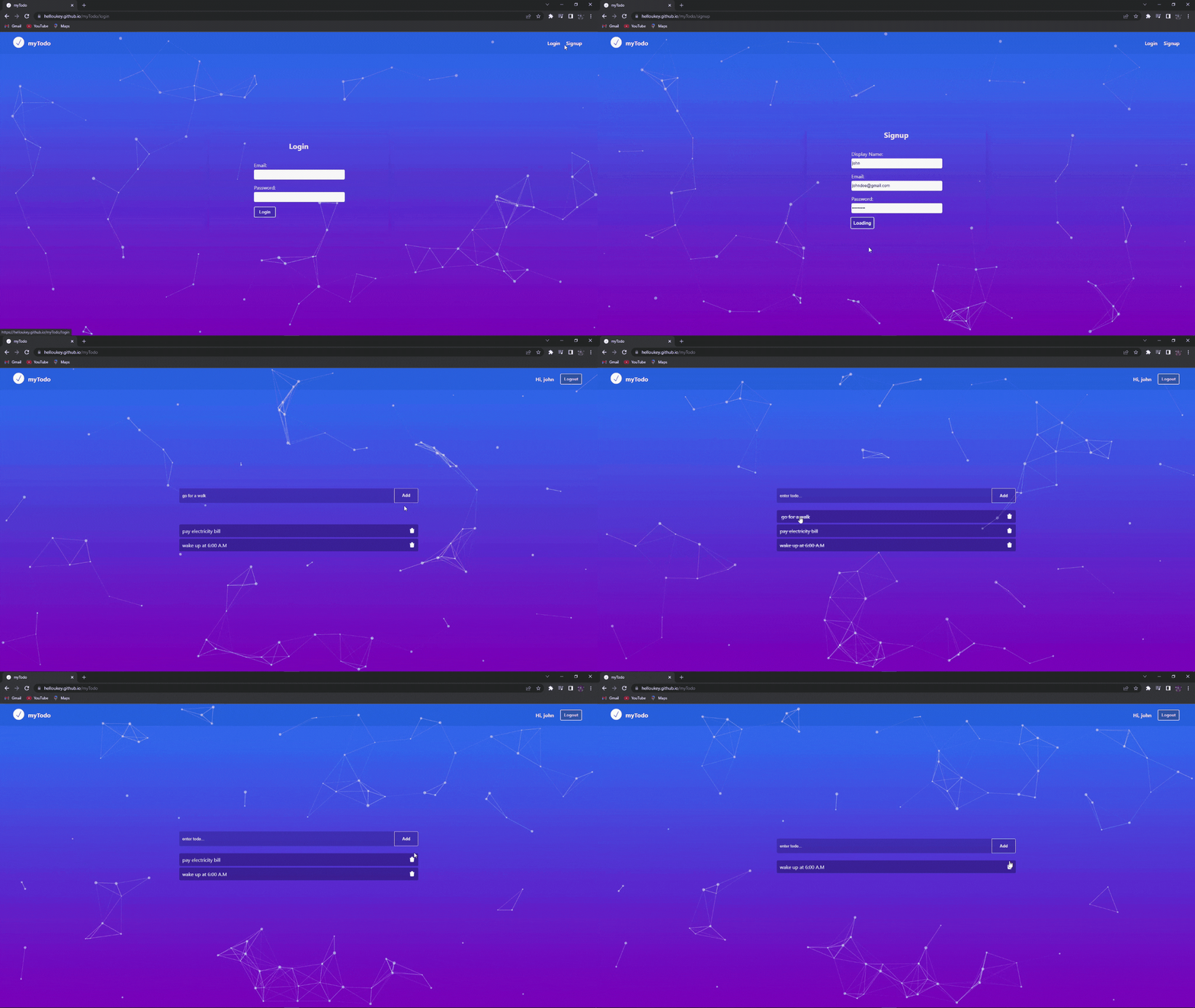
## Preview
## Features
- Signup, Login, and Logout
- User Display Name
- Add, Delete, and Mark as Complete
- Firebase Authentication
- Firebase Firestore
- [tsParticles Background](https://particles.js.org/)
- [Framer Motion - animations](https://www.framer.com/motion/)
## Installation
First, download or clone this repo, and then run the command given below to install all the required dependencies.
```bash
npm install
```
## Firebase Configuration
### Create a Firebase project
1. In the [Firebase console](https://console.firebase.google.com/), click **Add project**.
- To add Firebase resources to an existing Google Cloud project, enter its project name or select it from the dropdown menu.
- To create a new project, enter the desired project name. You can also optionally edit the project ID displayed below the project name.
2. If prompted, review and accept the [Firebase terms](https://firebase.google.com/terms).
3. Click **Continue**.
4. (_Optional_) Set up Google Analytics for your project.
5. Click **Create project** (or **Add Firebase**, if you're using an existing Google Cloud project).
### Register your app
1. In the center of the [Firebase console's project overview page](https://console.firebase.google.com/), click the **Web** icon (**>**) to launch the setup workflow.
If you've already added an app to your Firebase project, click **Add app** to display the platform options.
2. Enter your app's nickname.
This nickname is an internal, convenience identifier and is only visible to you in the Firebase console.
3. Click **Register app**.
4. Copy the **firebaseConfig** object from **Add Firebase SDK** on-screen instructions.
Example:
```
const firebaseConfig = {
//...
};
```
5. Replace the **firebaseConfig** object with the one given inside `src/firebase/config.js`.
### Firebase Authentication & Firestore
You also need to enable authentication and firestore services. You can directly do this from your firebase [Project Overview](https://console.firebase.google.com/) tab.
Or, follow this official documentations:
- Authentication - [Guide](https://firebase.google.com/docs/auth/web/start).
- Firestore - [Guide](https://firebase.google.com/docs/firestore/quickstart).
### Firebase Project ID
1. Goto [Project settings](https://console.firebase.google.com/project/_/settings/general/) and copy the **Project ID** from the top section.
2. Replace the **Project ID** with the one given inside `/.firebaserc` file.
Example:
```
{
"projects": {
"default": "mytodo-b0609"
}
}
```
above **mytodo-b0609** is the Project ID.
## Authors
- [@helloukey](https://www.github.com/helloukey)
## License
[MIT](LICENSE)