https://github.com/hosein2398/2do-cli
📝 Commnad line todo app
https://github.com/hosein2398/2do-cli
cli command-line todo todo-list
Last synced: 4 months ago
JSON representation
📝 Commnad line todo app
- Host: GitHub
- URL: https://github.com/hosein2398/2do-cli
- Owner: hosein2398
- License: mit
- Created: 2017-09-08T10:00:27.000Z (almost 9 years ago)
- Default Branch: master
- Last Pushed: 2022-12-08T06:53:04.000Z (over 3 years ago)
- Last Synced: 2025-12-05T10:42:50.415Z (7 months ago)
- Topics: cli, command-line, todo, todo-list
- Language: JavaScript
- Homepage:
- Size: 219 KB
- Stars: 8
- Watchers: 1
- Forks: 3
- Open Issues: 9
-
Metadata Files:
- Readme: README.md
- License: LICENSE
Awesome Lists containing this project
README
# 2do-cli [](https://travis-ci.org/hosein2398/2do-cli) 
Commnad line todo app.

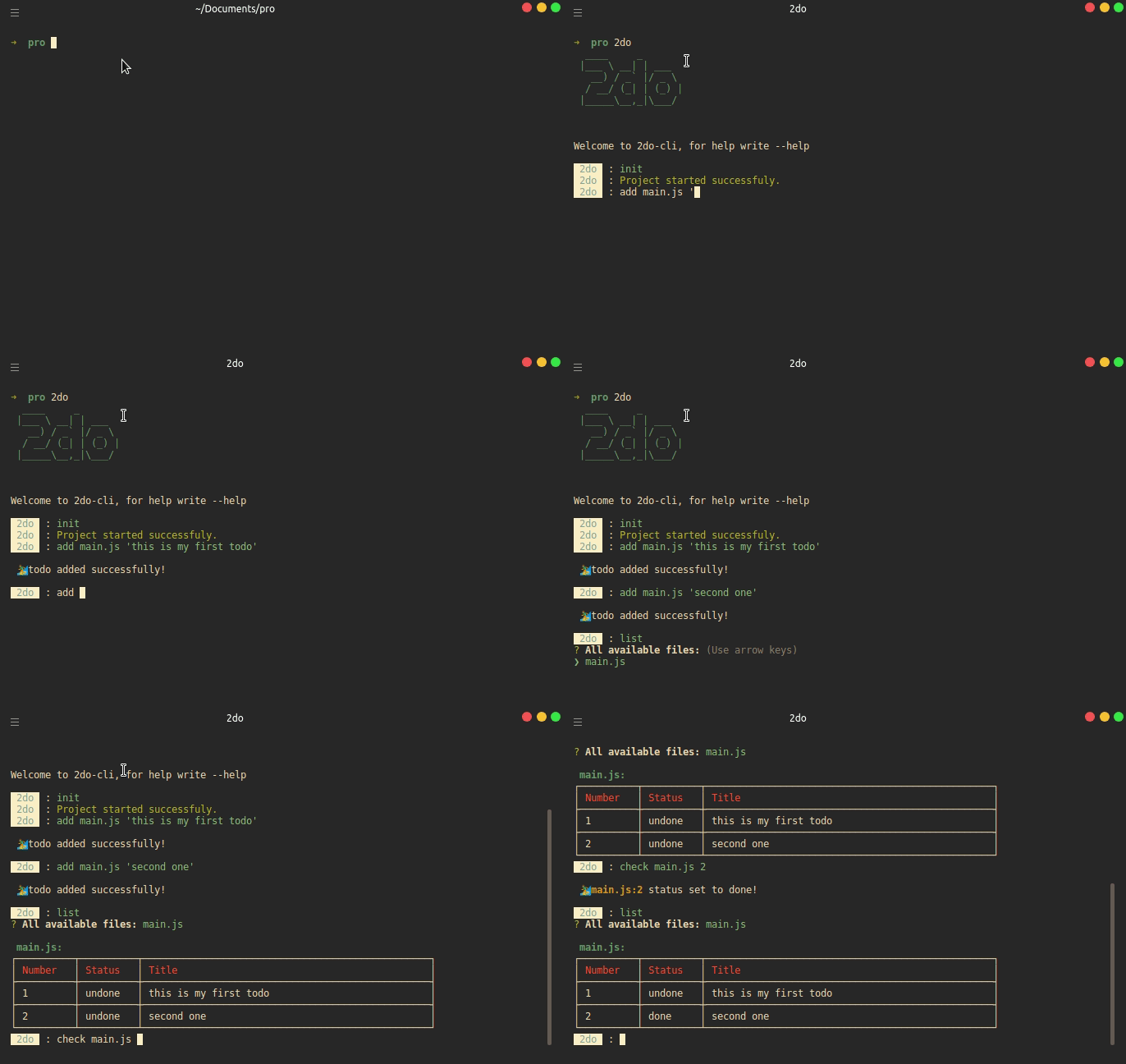
## Demo
## Installation
```
npm i -g 2do-cli
```
Or if using Yarn:
```
yarn global add 2do-cli
```
## Usage
- [Initializing](#initializing)
- [Adding a file](#adding-a-file)
- [Show todo](#show-todo)
- [Check todo](#check-todo)
- [Listing](#listing)
- [Removing](#removing)
---
### Initializing
Open up any repository that you want to use 2do-cli indside.
Then type:
```
2do
```
2do-cli will start, after that write :
```
init
```
And 2do-cli will generate a 2do.json file in you repo.
---
### Adding a file
To work with 2do-cli you have add a file and then todos related to that.
Lets say you have a file named `main.js` and you want to add some todos for this file, to do so (after inializing 2do-cli in your repo) you have to type:
```
add main.js 'Here is my first todo for main.js'
```
After a while you might know that you want to add another todo for same file, so just use same command like:
```
add main.js 'Here is my second todo for main.js '
```
---
### Show todo
Now if you want to see all todos of `main.js` you simply write:
```
show main.js
```
and all todos of that file will appear.
---
### Check todo
So what if you want to know you have completed a todo or not. There is default `status` field for every todo,
and it's value is set to `undone` by default. If you want to change it so that you know your todo is done:
```
check main.js 4
```
This will set status of fourth todo of main.js to `done`.
---
### Listing
You can list all of files which have todos in current directory and select any one that you want, by typing :
```
list
```
---
### Removing
You can remove a file, which removes all of it's todos too, or you can only remove a todo of a file, to do prior one you just write:
```
delete main.js
```
And if you want to remove only second todo of this file you go like:
```
delete main.js 2
```
Above command will remove second todo of main.js .
---
### Version
To get current version just type :
```
version
```