https://github.com/hugozanini/open-metadata-cursor-extension
AI-powered data discovery extension for Cursor & VS Code with natural language search and interactive lineage visualization
https://github.com/hugozanini/open-metadata-cursor-extension
ai cursor cursor-extension data-discovery data-lineage gemini open-metadata vscode-extension
Last synced: 2 months ago
JSON representation
AI-powered data discovery extension for Cursor & VS Code with natural language search and interactive lineage visualization
- Host: GitHub
- URL: https://github.com/hugozanini/open-metadata-cursor-extension
- Owner: hugozanini
- License: mit
- Created: 2025-08-02T18:26:43.000Z (12 months ago)
- Default Branch: main
- Last Pushed: 2025-08-09T20:16:04.000Z (12 months ago)
- Last Synced: 2025-08-09T22:08:17.755Z (12 months ago)
- Topics: ai, cursor, cursor-extension, data-discovery, data-lineage, gemini, open-metadata, vscode-extension
- Language: TypeScript
- Homepage:
- Size: 33.9 MB
- Stars: 0
- Watchers: 0
- Forks: 0
- Open Issues: 0
-
Metadata Files:
- Readme: README.md
- License: LICENSE
Awesome Lists containing this project
README
# OpenMetadata AI Explorer
A VS Code/Cursor extension that brings intelligent data discovery directly into your IDE. Search your OpenMetadata catalog using natural language, get Gemini-powered insights, and visualize data relationships without switching contexts.
> **📖 Read the full development article**: [Building a Gemini-powered data catalog extension for Cursor](PLACEHOLDER_ARTICLE_LINK) - Learn how this extension was built and the technical decisions behind it.
## Demo
Watch the extension in action:
[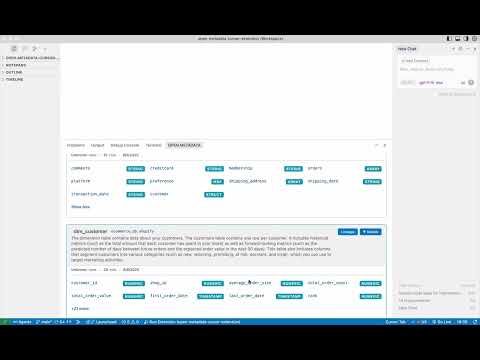](https://youtu.be/kua_mE0_ZKk)
## What It Does
- **Natural Language Search**: Ask questions like "show me customer tables" or search by keywords
- **Gemini AI Insights**: Get intelligent analysis of your datasets and data quality
- **Interactive Data Lineage**: Visualize upstream and downstream table relationships
- **Column Details**: Explore table schemas with expandable column information
- **IDE Integration**: Works seamlessly next to the Cursor terminal panel
## Requirements
1. **OpenMetadata Server**: Running locally at http://localhost:8585
- Use the [OpenMetadata Docker setup](https://docs.open-metadata.org/latest/quick-start/local-docker-deployment)
- Load sample data for testing
2. **Gemini API Key**: Optional but recommended for AI features
- Get a free key from [Google AI Studio](https://aistudio.google.com/)
- Keys start with `AIza...`
## Installation & Setup
### Option 1: Install Pre-built Extension (Recommended)
**1. Download the Extension**
Download the latest release: [openmetadata-ai-explorer-1.1.0.vsix](https://github.com/hugozanini/open-metadata-cursor-extension/releases/download/1.1/openmetadata-ai-explorer-1.1.0.vsix)
**2. Install in Cursor**
- Open Command Palette (`Ctrl+Shift+P` or `Cmd+Shift+P`)
- Type: `Extensions: Install from VSIX...`
- Select the downloaded `.vsix` file
- Reload when prompted
**3. Configure Extension Settings**
Open Cursor settings (`Ctrl+,` or `Cmd+,`) and add:
```json
{
"openmetadataExplorer.openmetadataUrl": "http://localhost:8585",
"openmetadataExplorer.geminiApiKey": "YOUR_GEMINI_API_KEY",
"openmetadataExplorer.openmetadataAuthToken": "YOUR_BOT_TOKEN"
}
```
**4. Get OpenMetadata Bot Token**
1. Open http://localhost:8585 and login (admin/admin)
2. Go to **Settings** → **Bots**
3. Click **Add Bot** with these details:
- Name: `cursor-extension-bot`
- Description: `Bot for Cursor extension`
4. Click **Generate Token** and copy the JWT token (starts with `eyJ`)
5. Assign **Data Consumer** role to the bot
**5. Start Using**
- Look for **OpenMetadata AI** panel at the bottom
- Verify connection status shows green checkmarks
- Try searching for "customer" or "orders"
### Option 2: Development Mode (Build from Source)
**1. Clone and Install**
```bash
git clone https://github.com/hugozanini/open-metadata-cursor-extension.git
cd open-metadata-cursor-extension
npm install
```
**2. Configure Settings**
Follow steps 3-4 from Option 1 above to configure the extension settings.
**3. Run in Debug Mode**
1. Press `F5` to launch the extension in a new Cursor window
2. Look for **OpenMetadata AI** panel at the bottom
3. Verify connection and start searching
## How to Use
### Search Your Data
- **Keyword Search**: Type table names like "customer" or "orders"
- **Natural Language**: Ask questions like "show me customer data"
- **Browse Results**: Click on tables to see column details
### View Data Lineage
1. Search for any table
2. Click **View Lineage** on the table card
3. Use the interactive graph:
- Click **+** buttons to expand upstream/downstream relationships
- Click **-** buttons to collapse connections
- Drag nodes to reposition them
- Zoom with mouse wheel
### Example Searches
- `customer` - Find customer-related tables
- `orders` - Discover transaction data
- `sales` - Locate revenue tables
- `product` - Find catalog information
## Development
### Build Commands
```bash
# Development build with watch
npm run watch
# Production build
npm run compile
# Package for distribution
npm run package
```
### Project Structure
- `src/extension.ts` - Main extension entry point
- `src/services/` - OpenMetadata API and Gemini integration
- `src/webview/` - React components for the UI
- `src/webview/components/Lineage/` - Data lineage visualization
## Configuration Options
| Setting | Description | Default |
|---------|-------------|---------|
| `openmetadataExplorer.openmetadataUrl` | OpenMetadata server URL | `http://localhost:8585` |
| `openmetadataExplorer.geminiApiKey` | Gemini API key for AI features | (empty) |
| `openmetadataExplorer.openmetadataAuthToken` | OpenMetadata bot JWT token | (empty) |
## Current Status
**Version 1.1** - Production Ready
- Natural language search with Gemini AI
- Interactive data lineage visualization
- Professional UI optimized for developers
- Enterprise-ready VSIX distribution
**Planned Features**
- Column-level lineage relationships
- Data quality monitoring integration
- Advanced search filters and exports
## Contributing
**Open a Pull Request!**
## License
MIT License