https://github.com/imranzero/multiterm.nvim
Multiple floating terminal manager for Neovim
https://github.com/imranzero/multiterm.nvim
neovim neovim-plugin terminal vim
Last synced: 11 months ago
JSON representation
Multiple floating terminal manager for Neovim
- Host: GitHub
- URL: https://github.com/imranzero/multiterm.nvim
- Owner: imranZERO
- License: mit
- Created: 2025-07-21T13:38:56.000Z (11 months ago)
- Default Branch: master
- Last Pushed: 2025-07-29T20:47:31.000Z (11 months ago)
- Last Synced: 2025-07-29T23:06:33.028Z (11 months ago)
- Topics: neovim, neovim-plugin, terminal, vim
- Language: Lua
- Homepage:
- Size: 33.2 KB
- Stars: 10
- Watchers: 0
- Forks: 1
- Open Issues: 0
-
Metadata Files:
- Readme: README.md
- License: LICENSE
Awesome Lists containing this project
README
# Multiterm.nvim
Toggle and Switch Between Multiple Floating Terminals in Neovim.
## Introduction
Some plugins have already provided the functionality to create a floating terminal window in Neovim or Vim. But they only support one running instance, or they just cannot allow you to put the terminal session into background. And some of them are too complicated to use.
You might often need to open several terminal sessions in Vim. Let's suppose you need to create 2 terminal sessions, one for running tests and the other one for compiling. It is painful to switch between them as you have to switch between Vim modes and use tab or window switching commands.
With **Multiterm**, all these pains disappear. You could use one single command `:Multiterm` and mapping `(Multiterm)` with **count** to **create**, **hide** and **display** the floating terminal window you want.
## Screenshot
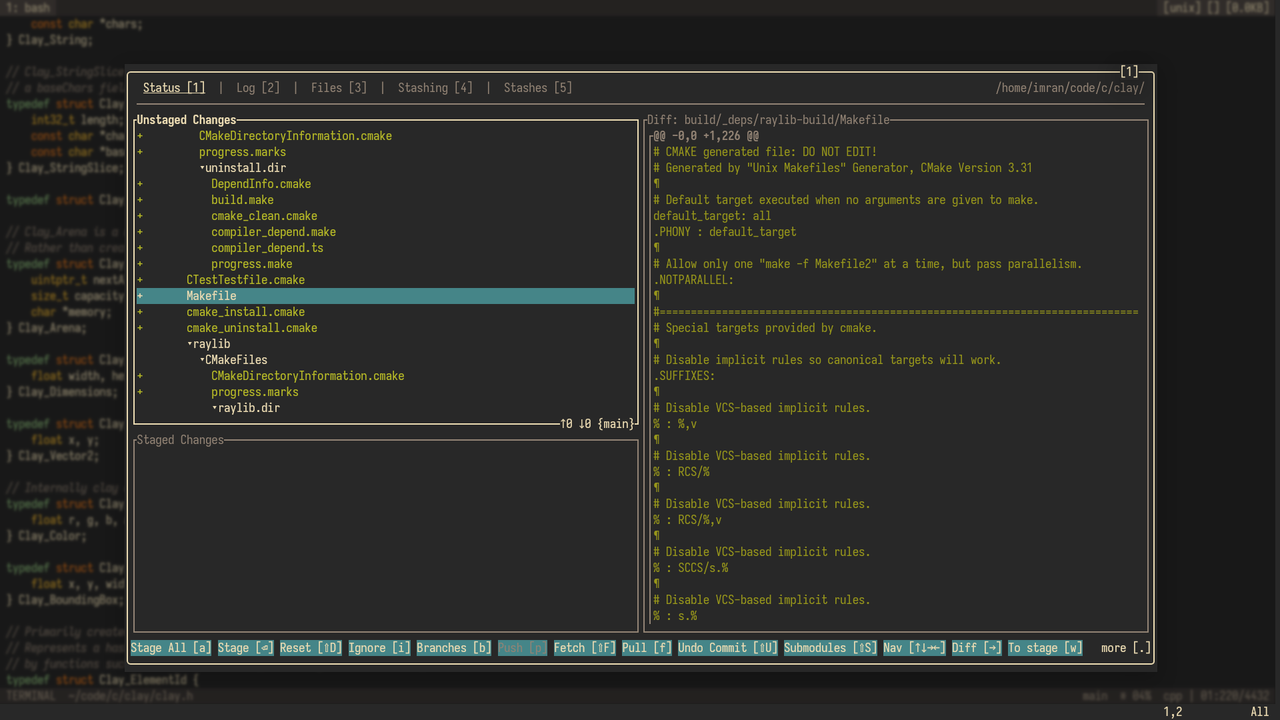
Here's the `gitui` app running on Multiterm inside [Neovide](https://neovide.dev/):
[](https://postimg.cc/PppMxbQh)
## Prerequisites
**Multiterm.nvim** supports neovim versions `0.10.0` or later. Older versions also might work, no guarantees.
## Installation
If you use `lazy.nvim` as your plugin manager:
```lua
{
"imranzero/multiterm.nvim",
event = "VeryLazy",
opts = {
-- Recommended keymaps:
keymaps = {
toggle = "",
list = "",
},
-- Add configuration options here if needed
},
}
```
For other plugin managers, you can use the `require()` syntax to add keymaps and other configuration options:
```lua
require("multiterm").setup({
-- Recommended keymaps:
vim.keymap.set({ "n", "v", "i", "t" }, "", "(Multiterm)"),
vim.keymap.set("n", "", "(MultitermList)"),
-- Add configuration options here if needed
})
```
## Usage
If you do not have any floating terminal instance, running `:Multiterm [cmd]` will create a floating terminal with tag `1`. It is not suggested to run a non-interactive `cmd` as the terminal session will end and get destroyed as soon as `cmd` finishes if run `:Multiterm` without `!`.
If your cursor is in a floating terminal window, run `:Multiterm` will close that window and put the terminal session into background. Otherwise the **most recently used** floating terminal instance will be activated.
If you run `:3Multiterm` and do not have a floating terminal with tag `3` created, a new floating terminal window with tag `3` will be created and become the current active floating window.
If your tag `3` floating terminal is in the background, run `:3Multiterm` will put the session into foreground. You could then run `:Multiterm` to close the window and put it into background again.
## Commands & Mappings
A single primary command is provided:
```vim
:[count]Multiterm[!] [cmd]
```
* `[count]` could be a number between 1 and 9 and is the tag of the floating window that you want to activate. If it is not specified, the current active floating terminal session will be closed, or the tag `1` session will be activated in the condition that there is no active session.
* `[!]` forces the terminal window not to close when the terminal job exits with a **zero** exit code. If not passed, the window will stay open only if the job exits with a **non-zero** code, allowing you to read the error. In that case, pressing `` will close the buffer manually.
* `[cmd]` is the optional command to run. if not specified, the current `shell` option value will be used.
Additional commands:
```vim
:MultitermKill [id]
```
* Kills the terminal session and removes the buffer with the given tag `[id]`.
```vim
:MultitermKillCurrent
```
* Kills and removes the currently active terminal session and buffer.
```vim
:MultitermList
```
* Opens a popup list of active terminal instances. Use `` to open a selected terminal, and press `d` to delete it directly from the list.
Mappings are provided to smooth the operation of toggling floating terminals and are the **SUGGESTED** way to use instead of the command. Using these mappings are just like running `:Multiterm` without any additional argument.
```lua
-- Map to toggle the selected terminal window
vim.keymap.set({ "n", "v", "i", "t" }, "", "(Multiterm)"),
-- Map to open the pop-up list of the active terminal windows
vim.keymap.set("n", "", "(MultitermList)"),
```
These keymaps can also be set with `opts` table if you use `lazy.nvim` as your plugin manager:
```lua
opts = {
keymaps = {
toggle = "",
list = "",
},
},
```
Now you could press `` to toggle the tag `1` floating terminal instance or close the current active floating terminal window that your cursor is in. And press `3` to activate the tag `3` instance, etc.
The `(MultitermList)` keymap provides a way to see all opened multiterm windows conveniently. It opens a popup window with a list of all the active multiterm windows where you can select and open the one you need. When selecting an entry in this list, you can press `d` to kill and remove it.
**NOTE** in terminal mode it is impossible to press a number as the tag, but you can still use `` to close the current terminal window which your cursor is in without specifying its tag.
When a terminal buffer is open, a **tabline** will be shown in the top-right of the floating window, indicating the currently active terminal. You can switch between terminals with:
* `` through `` – Directly switch to a terminal with the matching tag
* `` / `` – Cycle through terminals (left/right)
* `` / `` – Also supported for cycling between instances
## Configuration
```lua
-- Default options, do not put this in your configuration file
require("multiterm").setup({
height = 0.8,
width = 0.8,
border = 'rounded',
term_hl = 'Normal',
border_hl = 'FloatBorder',
show_term_tag = true,
show_backdrop = true,
backdrop_bg = 'Black',
backdrop_transparency = 60,
fullscreen = false,
show_tab = true,
tabline_hl_active = "PmenuSel",
tabline_hl_inactive = "Pmenu",
term_keys = {
next = { "", "" },
prev = { "", "" },
use_ctrl = true,
},
)}
```
Refer to the doc file for a more detailed explanation.
## Thanks
This plugin is based on `chengzeyi/multiterm.vim`.