https://github.com/ingojaeckel/go-raspberry-pi-timelapse
Documentation and source code to build a ~$70 timelapse camera based on a Raspberry Pi Zero W.
https://github.com/ingojaeckel/go-raspberry-pi-timelapse
arm golang raspberry-pi raspberry-pi-zero raspberry-pi-zero-w timelapse
Last synced: 8 months ago
JSON representation
Documentation and source code to build a ~$70 timelapse camera based on a Raspberry Pi Zero W.
- Host: GitHub
- URL: https://github.com/ingojaeckel/go-raspberry-pi-timelapse
- Owner: ingojaeckel
- Created: 2017-07-15T21:36:16.000Z (almost 9 years ago)
- Default Branch: master
- Last Pushed: 2023-03-15T09:26:45.000Z (over 3 years ago)
- Last Synced: 2024-09-29T00:44:58.378Z (almost 2 years ago)
- Topics: arm, golang, raspberry-pi, raspberry-pi-zero, raspberry-pi-zero-w, timelapse
- Language: Go
- Homepage:
- Size: 39.6 MB
- Stars: 9
- Watchers: 3
- Forks: 0
- Open Issues: 10
-
Metadata Files:
- Readme: README.md
Awesome Lists containing this project
README
[](https://github.com/ingojaeckel/go-raspberry-pi-timelapse/actions?query=workflow%3AGo)
# Go Raspberry Pi Timelapse
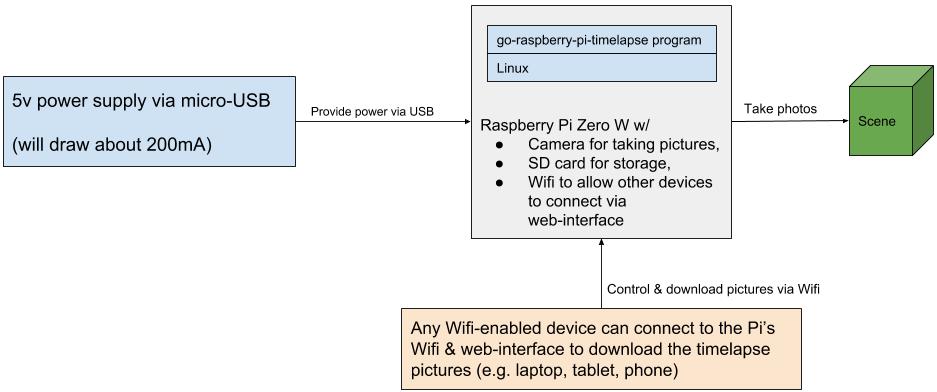
This repository contains documentation and source code to help running a [Raspberry Pi Zero](https://www.raspberrypi.org/products/raspberry-pi-zero-w/) based timelapse camera.
## How does it work?
## Parts List
This project was created for a timelapse system consisting of the following core components: a Pi Zero W with a camera board, a case, and an SD card. The following sections describe the components in more detail.
### Core parts for regular deployment (about $65)
* [Raspberry Pi Zero W](https://www.adafruit.com/product/3400) ($10)
* [Raspberry Pi Camera Board v2](https://www.adafruit.com/product/3099) ($30)
* [Raspberry Pi Zero Camera Cable](https://www.adafruit.com/product/3157) ($6)
* [C4Labs Zebra Zero Case](https://www.adafruit.com/product/3003) ($7)
* [microSDHC Card](https://www.adafruit.com/product/2767) ($12)
### Additional parts to include a battery backed clock (about $8)
* [Break-away 0.1" 2x20-pin Strip Dual Male Header](https://www.adafruit.com/product/2822) ($1)
* [CR1220 12mm Diameter - 3V Lithium Coin Cell Battery](https://www.adafruit.com/product/380) ($1)
* [Adafruit PiRTC - PCF8523 Real Time Clock for Raspberry Pi](https://www.adafruit.com/product/3386) ($6)
### Additional Parts for Development (about $6)
* [USB OTG Host Cable - MicroB OTG male to A female](https://www.adafruit.com/product/1099) ($3)
* [Mini HDMI Plug to Standard HDMI Jack Adapter](https://www.adafruit.com/product/2819) ($3)
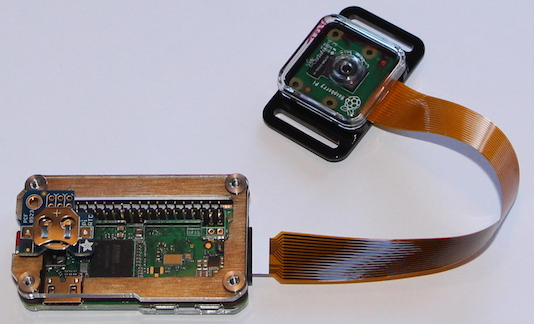
## Build overview
### Build steps
#### Step 1: Initial Build
1. Optional: If you want to use the battery backed clocked start by soldering the 2x20-pin strip on Pi Zero W board ([instructions](https://learn.adafruit.com/adding-a-real-time-clock-to-raspberry-pi/wiring-the-rtc)). After the soldering, attach the RTC to the 2x20-pin strip. Don't forget to insert the CR1220 battery into the RTC.
2. Connect the Pi Zero W and the Pi Camera Board v2 via the Pi Zero Camera cable.
3. Insert the Pi Zero W into the C4Labs Zerbra Zero Case.
#### Step 2: Install disk image and access web interface
1. From another computer, download and decompress the [most recent go-raspberry-pi-timelapse `.img` file](https://github.com/ingojaeckel/go-raspberry-pi-timelapse/releases/download/0.1.0/go-raspberry-pi-timelapse-0.1.0.img.bz2).
2. Install the `.img` file to an empty SD card using the [Raspberry Pi Imager](https://www.raspberrypi.org/software/).
3. Insert the SD card card into the Pi Zero W.
4. Turn on the Pi Zero W plugging in a micro USB cable into the PWR IN connector (bottom right corner).
5. The Pi Zero W will act as a Wifi access point. Connect to the Pi's Wifi named `timelapse-raspberry-pi`, passphrase: `InsertTheRealPassword`.
6. Open the Pi's web interface in a browser: `http://192.168.50.1:8080/`. This interface will allow you to align the camera, download photos, shutdown the Pi, etc.
# Misc resources
## PiTFT
* https://learn.adafruit.com/adafruit-pitft-28-inch-resistive-touchscreen-display-raspberry-pi/easy-install-2 - Follow steps and `PiTFT as HDMI Mirror (Best for Raspberry Pi OS with Desktop)`
* https://learn.adafruit.com/running-opengl-based-games-and-emulators-on-adafruit-pitft-displays/tuning-performance
* https://willhaley.com/blog/power-off-raspberry-pi-adafruit-tft-screen-shutdown/
* Streaming raspivid output via network. (1) on the receiving device: `vlc -vvv udp://@:1234 :demux=h264`. (2) on the Pi: `raspivid -t 60000 -o udp://192.168.0.123:1234`.