https://github.com/iot-thingscloud/thingscloud-api-python-tools
ThingsCloud API 工具集,基于平台的开放 API 体系,实现了多种扩展工具,可用于数据导入导出、自动化、数据处理、数据分析等。
https://github.com/iot-thingscloud/thingscloud-api-python-tools
api iot iot-application iot-platform python thingscloud
Last synced: 4 months ago
JSON representation
ThingsCloud API 工具集,基于平台的开放 API 体系,实现了多种扩展工具,可用于数据导入导出、自动化、数据处理、数据分析等。
- Host: GitHub
- URL: https://github.com/iot-thingscloud/thingscloud-api-python-tools
- Owner: IoT-ThingsCloud
- License: mit
- Created: 2024-11-27T03:36:23.000Z (over 1 year ago)
- Default Branch: main
- Last Pushed: 2025-09-10T04:02:13.000Z (10 months ago)
- Last Synced: 2025-09-10T08:07:43.773Z (10 months ago)
- Topics: api, iot, iot-application, iot-platform, python, thingscloud
- Language: Python
- Homepage: https://www.thingscloud.xyz/
- Size: 49.8 KB
- Stars: 5
- Watchers: 0
- Forks: 0
- Open Issues: 0
-
Metadata Files:
- Readme: README.md
- License: LICENSE
Awesome Lists containing this project
README
# thingscloud-api-python-tools
[ThingsCloud API](https://www.thingscloud.xyz/docs/guide/api/project-api.html) 工具集,基于平台的开放 API 体系,实现了多种扩展工具,可用于数据导入导出、自动化、数据处理、数据分析等。
👋🏻 已实现的工具包括:
- ✨ 批量创建设备
- ✨ 批量导出设备信息,以及生成设备二维码
- ✨ 批量导出设备属性历史数据
- ✨ 批量导出设备证书
🔨 计划实现的工具包括:
- ✨ 批量创建用户
- ✨ 实时接收设备最新数据
- ✨ 实时接收设备在线状态变化
- ✨ 实时接收设备告警消息
- ✨ 批量移除设备
- ✨ 批量导出设备属性聚合统计数据
工具集持续更新中,欢迎使用,欢迎贡献代码。
同时,该工具集也提供了快速开发的框架,您可以自行扩展和定制开发需要的功能。
## 环境准备
该工具集使用 Python 语言编写,运行在您的电脑上,需要安装 Python 3.8 或以上版本。
Python 环境安装方法,网上教程非常丰富,请自行学习。
## 下载工具代码库
### 推荐方法
点击以下链接,下载代码压缩包,解压缩。
[https://github.com/IoT-ThingsCloud/thingscloud-api-python-tools/archive/refs/heads/main.zip](https://github.com/IoT-ThingsCloud/thingscloud-api-python-tools/archive/refs/heads/main.zip)
### 高级方法
或使用 `git` 命令下载代码库。
```bash
git clone https://github.com/IoT-ThingsCloud/thingscloud-api-python-tools.git
```
## 安装依赖库
下载代码库后,进入 `thingscloud-api-python-tools` 代码目录的根目录,执行以下命令,安装依赖库:
```bash
pip install -r requirements.txt
```
## 修改配置
进入 config 目录,将 `project_api.template.ini` 复制到 `project_api.ini`,填写 API 参数,如下:
```ini
[API]
base_url=
app_id=
access_key=
secret_key=
```
以上信息可以在 ThingsCloud 平台控制台中获取,方法如下:
| 参数名 | 获取方法 |
| --- | --- |
| base_url | 进入项目 > 连接信息,查看 应用端 API 接入点。 |
| app_id | 创建项目应用 > API,查看应用 AppID。 |
| access_key | 创建项目应用 > API,查看应用 AccessKey。 |
| secret_key | 创建项目应用 > API,查看应用 SecretKey。 |
## 运行工具
进入代码的根目录,执行以下命令。
### 查看帮助
```bash
python main.py --help
```
获得使用帮助信息如下:
```bash
Usage: main.py [OPTIONS] COMMAND [ARGS]...
Options:
--log 开启日志
--help Show this message and exit.
Commands:
create_devices
export_devices
export_devices_attributes_history
...
```
以上列出的每个命令(Command),对应一个工具名称,可以查询工具的帮助信息,例如:
```bash
python main.py create_devices --help
```
获得帮助信息如下:
```bash
Usage: main.py create_devices [OPTIONS]
Options:
--path TEXT 指定导入的 CSV 文件路径 [default:
import/create_devices_template.csv]
--type_id TEXT 为创建的设备指定设备类型 ID [required]
--help Show this message and exit.
```
### 批量创建设备
该工具使用 CSV 文件中的设备信息,批量创建设备。
#### 示例 1
默认导入 `import/create_devices_template.csv` 文件中的设备信息,执行命名:
```bash
python main.py create_devices --type_id=
```
请将 `` 替换为创建设备所关联的设备类型 ID。批量创建设备必须指定所属设备类型。
您可以修改该文件内容,格式如下:
```
name,device_key
设备名称1,100001
设备名称2,100002
设备名称3,100003
```
如果不需要为设备指定唯一标识(DeviceKey), 可以将 `device_key` 列留空,例如:
```
name,device_key
设备名称1,
设备名称2,
设备名称3,
```
请注意,csv 文件务必使用 UTF-8 编码格式,否则设备名称包含中文会导致程序运行报错。
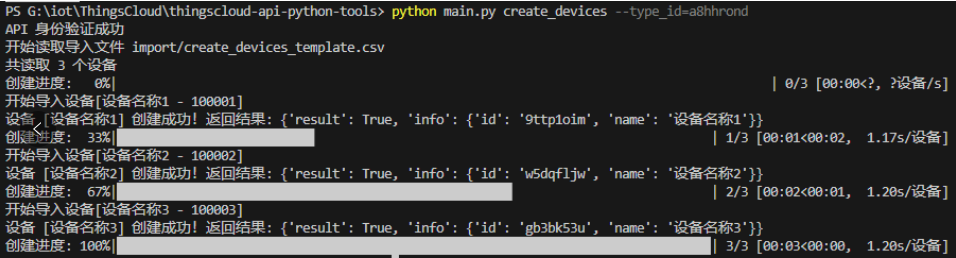
工具运行后,会显示导入进度,如下图:
#### 示例 2
自定义导入 CSV 文件的路径,执行命名:
```bash
python main.py create_devices --type_id= --file_path=
```
将 `` 替换为您电脑上的 CSV 文件路径,例如 `C:\Users\Join\Desktop\devices.csv`。
### 批量导出设备信息
该工具用于批量导出设备信息到本地 CSV 文件,也同时批量生成设备二维码。
#### 示例 1
导出项目中的所有设备,执行命令:
```bash
python main.py export_devices
```
导出的 CSV 文件将保存在 `export` 目录下,以当前时间命令,例如: `export/2024-10-01-10-08-31.csv`。
#### 示例 2
导出项目中的所有设备,同时生成设备二维码,执行命令:
```bash
python main.py export_devices --qrcode
```
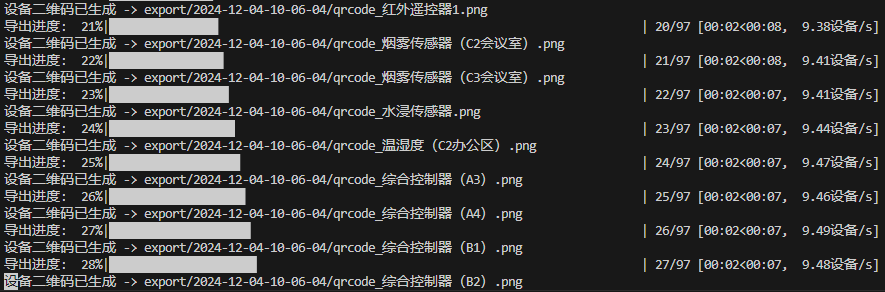
工具运行时显示导出进度,如下:
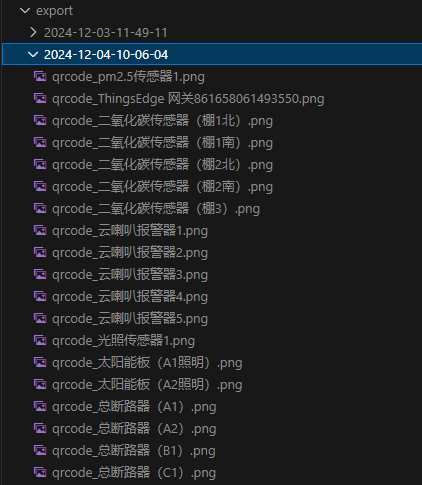
生成二维码图片文件,如下:
#### 示例 3
导出项目中指定设备类型下的所有设备,执行命令:
```bash
python main.py export_devices --type_id=
```
将 `` 替换为您要导出的设备类型 ID。
#### 示例 4
导出项目中指定设备组下的所有设备,执行命令:
```bash
python main.py export_devices --group_id=
```
将 `` 替换为您要导出的设备组 ID。支持多个组,以逗号分隔。例如:`--group_id=,,`。
#### 示例 5
导出项目中指定设备组下的所有设备,并包含子组下的所有设备,执行命令:
```bash
python main.py export_devices --group_id= --include_sub_groups
```
### 批量导出设备属性历史数据
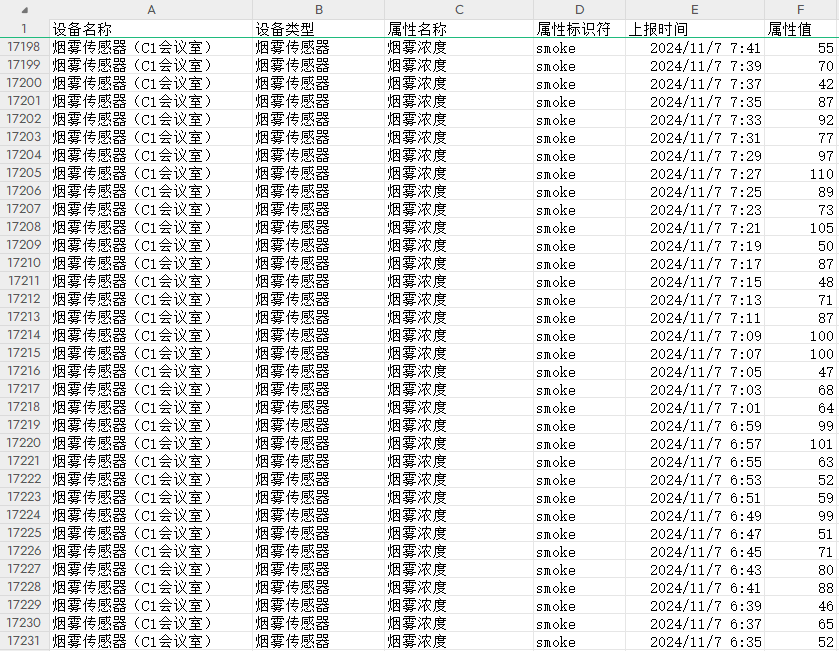
该工具用于批量导出多个设备的属性历史数据到一个 CSV 文件,生成规范结构化数据(也称为 Tidy Data)。
#### 示例 1
导出项目中所有设备的属性历史数据,执行命令:
```bash
python main.py export_devices_attributes_history
```
该命令默认导出最近 30 天的属性历史数据。
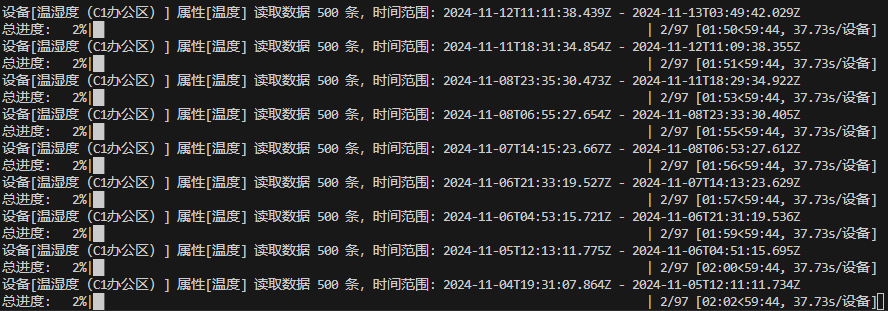
工具运行时显示导出进度,如下:
导出的 CSV 文件在 Excel 中打开如下:
#### 示例 2
指定导出时间范围,执行命令:
```bash
python main.py export_devices_attributes_history --start_time=<开始时间> --end_time=<结束时间>
```
将 `<开始时间>` 和 `<结束时间>` 替换为实际时间,时间格式为:`YYYYMMDDHHmmss`。
例如,导出 2024 年 12 月 1 日 00:00:00 到 12 月 2 日 20:00:00 的属性历史数据:
```bash
python main.py export_devices_attributes_history --start_time=20241201000000 --end_time=20241202200000
```
#### 示例 3
指定导出的设备,执行命令:
```bash
python main.py export_devices_attributes_history --device_id=
```
将 `` 替换为您要导出的设备 ID。
#### 示例 4
指定设备类型下的所有设备,执行命令:
```bash
python main.py export_devices_attributes_history --type_id=
```
将 `` 替换为您要导出的设备类型 ID。
#### 示例 5
指定设备组下的所有设备,执行命令:
```bash
python main.py export_devices_attributes_history --group_id=
```
将 `` 替换为您要导出的设备组 ID。支持多个组,以逗号分隔。例如:`--group_id=,,`。
#### 示例 6
指定设备组下的所有设备,并包含子组下的所有设备,执行命令:
```bash
python main.py export_devices_attributes_history --group_id= --include_sub_groups
```
### 批量导出设备证书
该工具用于批量导出设备证书到本地 CSV 文件。
出于安全考虑,导出的证书信息中仅包含每台设备的 AccessToken,其它信息可以在 ThingsCloud 控制台中查看。
设备证书用于硬件设备接入 ThingsCloud 平台时进行身份认证,关于设备证书的使用方法,请浏览 [ThingsCloud 文档 - 设备证书](https://www.thingscloud.xyz/docs/guide/connect-device/device-certificate.html)。
#### 示例 1
导出项目中所有设备的证书,执行命令:
```bash
python main.py export_devices_certificates
```
#### 示例 2
指定设备类型下的所有设备证书,执行命令:
```bash
python main.py export_devices_certificates --type_id=
```
将 `` 替换为您要导出的设备类型 ID。
#### 示例 3
指定设备组下的所有设备证书,执行命令:
```bash
python main.py export_devices_certificates --group_id=
```
将 `` 替换为您要导出的设备组 ID。支持多个组,以逗号分隔。例如:`--group_id=,,`。
#### 示例 4
指定设备组下的所有设备证书,并包含子组下的所有设备,执行命令:
```bash
python main.py export_devices_certificates --group_id= --include_sub_groups
```