https://github.com/ivanceras/rust-vim-setup
Setting up vim to be used in rust development
https://github.com/ivanceras/rust-vim-setup
Last synced: 5 months ago
JSON representation
Setting up vim to be used in rust development
- Host: GitHub
- URL: https://github.com/ivanceras/rust-vim-setup
- Owner: ivanceras
- License: mit
- Created: 2015-06-15T15:06:48.000Z (about 11 years ago)
- Default Branch: master
- Last Pushed: 2020-07-02T23:52:25.000Z (about 6 years ago)
- Last Synced: 2025-09-21T12:43:03.436Z (10 months ago)
- Size: 3.23 MB
- Stars: 193
- Watchers: 11
- Forks: 16
- Open Issues: 2
-
Metadata Files:
- Readme: README.md
- License: LICENSE
Awesome Lists containing this project
README
# Use VIM as your RUST IDE
### Install vim first, if its not already
```sh
sudo apt-get install vim
```
If `vi` worked in your command line, it is most likely the light version of `vi` which is installed by default in Ubuntu, and it lacks most functionality of the real `vi`.
You also need to install
* `curl`
* `git`
* `CMake`
* Python Headers
* Development Tools
I assume most of you have already installed it, if not then install it via
```sh
sudo apt-get install curl
sudo apt-get install git
sudo apt-get install build-essential cmake
sudo apt-get install python-dev python3-dev
```
### Install pathogen plugin
[Pathogen](https://github.com/tpope/vim-pathogen) is a vim plugin which allows you to easily install other plugins, by just adding files into the `~/.vim/bundle` (There are other alternatives, but pathogen is most commonly used)
```sh
mkdir -p ~/.vim/autoload ~/.vim/bundle
curl -LSso ~/.vim/autoload/pathogen.vim https://tpo.pe/pathogen.vim
```
* Add this to `~/.vimrc`
```sh
execute pathogen#infect()
syntax on
filetype plugin indent on
```
### Install syntax highlighting for rust
```sh
cd ~/.vim/bundle
git clone https://github.com/rust-lang/rust.vim.git
```
### Install YouCompleteMe
[YouCompleteMe](https://github.com/Valloric/YouCompleteMe) - a code-completion engine for Vim with support for C-family languages and [Rust](http://blog.jwilm.io/youcompleteme-rust)
```sh
cd ~/.vim/bundle
git clone https://github.com/Valloric/YouCompleteMe
cd ~/.vim/bundle/YouCompleteMe
git submodule update --init --recursive
./install.py --rust-completer
```
* Download source code of the rust version you are using, for example [master branch](https://github.com/rust-lang/rust/)
* Extract the zip file and put in your Development folder ie. `~/Developer`
* Checkout and build racer
```sh
mkdir -p ~/Developer/
cd ~/Developer/
git clone --depth 1 --branch master https://github.com/rust-lang/rust rust-master
```
Add this to your `.vimrc`
```sh
let g:ycm_rust_src_path="/home//Developer/rust-master/src/"
```
### Install Vim number toggle
[vim-numbertoggle](https://github.com/jeffkreeftmeijer/vim-numbertoggle) adds line numbers to the code you are editing.
Line numbers can either show absolute position or position relative to your cursor location.
This will boost your productivity later, when you orchestrate vim commands such as moving 10 lines below the current cursor position: `10j`.
```sh
cd ~/.vim/bundle
git clone git://github.com/jeffkreeftmeijer/vim-numbertoggle.git
```
### Install `NERDtree` for displaying files in a tab
[NERDTree](https://github.com/scrooloose/nerdtree) is a file manager, that most text editors have, such as `sublime`, `atom`, or `eclipse` where it lists the files in the directory you are editing from.
```sh
cd ~/.vim/bundle
git clone https://github.com/scrooloose/nerdtree.git
```
* Add this to `~/.vimrc`
```
autocmd VimEnter * NERDTree
autocmd BufEnter * NERDTreeMirror
"CTRL-t to toggle tree view with CTRL-t
nmap :NERDTreeToggle
"Set F2 to put the cursor to the nerdtree
nmap :NERDTreeFind
```
## Controls
```sh
CTRL-t - Open/Close the files tab
CTRL-n - Toggle relative / absolute numbering
CTRL-ww - Switch between the files tab and the main window
F2 - Focus cursor to files tab
- Open the focused files/directory, duh!
h,j,k,l - Navigate the cursor left, down, up, right respectively
i - Insert mode, you can start typing in your code.
- Back to default mode, where you can issue commands in vi
:w - Write/save the file, you are editing
:wqa - Save the file, then quit the editor closing vi including the files tab
```
## Some advance commands
```sh
:bp - Open previous file/buffer
:bn - Open next file/buffer
:b - Open the file you are looking for without typing the exact filename
:vsp - Vertically split the window
:vsp - Open the file in vertical split
:sp - Horizontal split
:sp - Open the file in horizontal split
```
* You don't really have to quit the editor using `wq` whenever you want to build the project.
A convenient way is to open a new tab in a terminal via `--t`
and issue your command (`cargo build --release`) from there. That way, you don't lose the state of your editor,
i.e. you can undo `u` or redo `-r` your code changes when needed
## Compile without opening another tab
Alternatively, you can compile your project without opening another terminal instance by issuing the command directly from `vim` using `:! `
```sh
:! cargo run --release
```
## Try to `vi`ew some files
```sh
vi main.rs
```
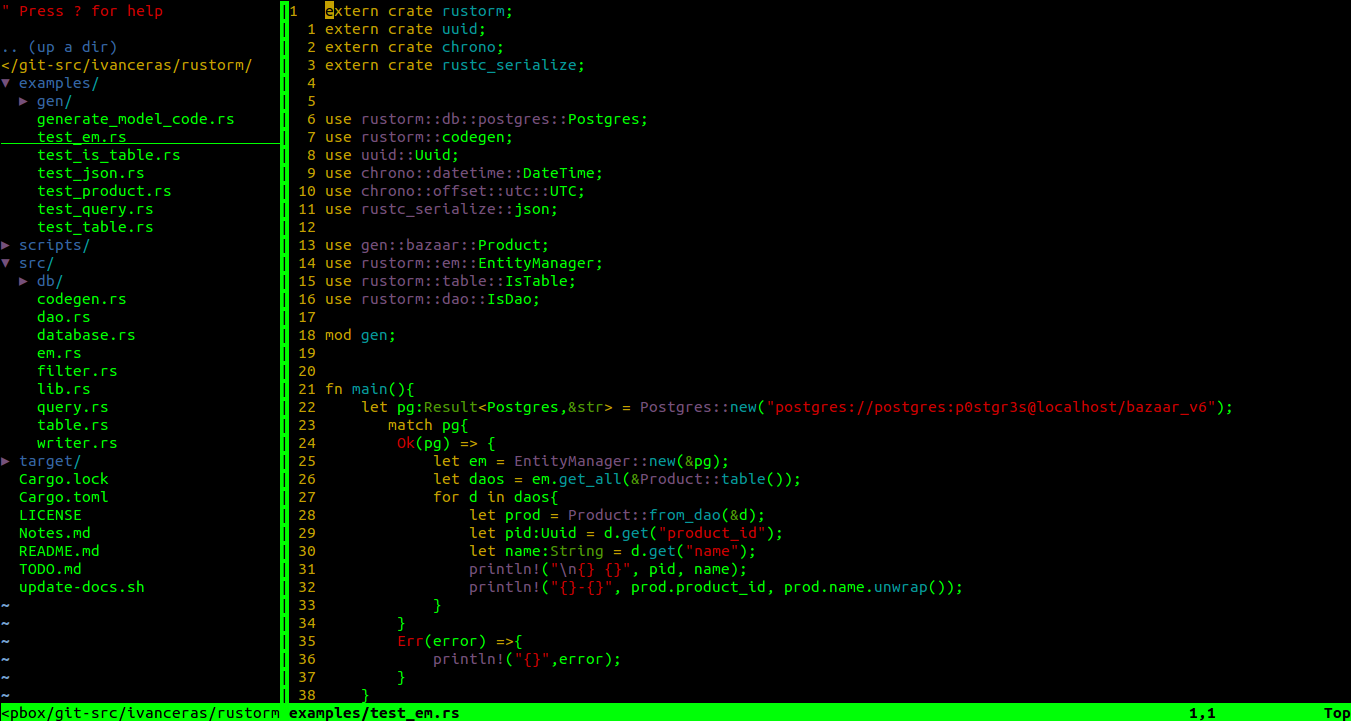
* It should look something like this
## Enable mouse support
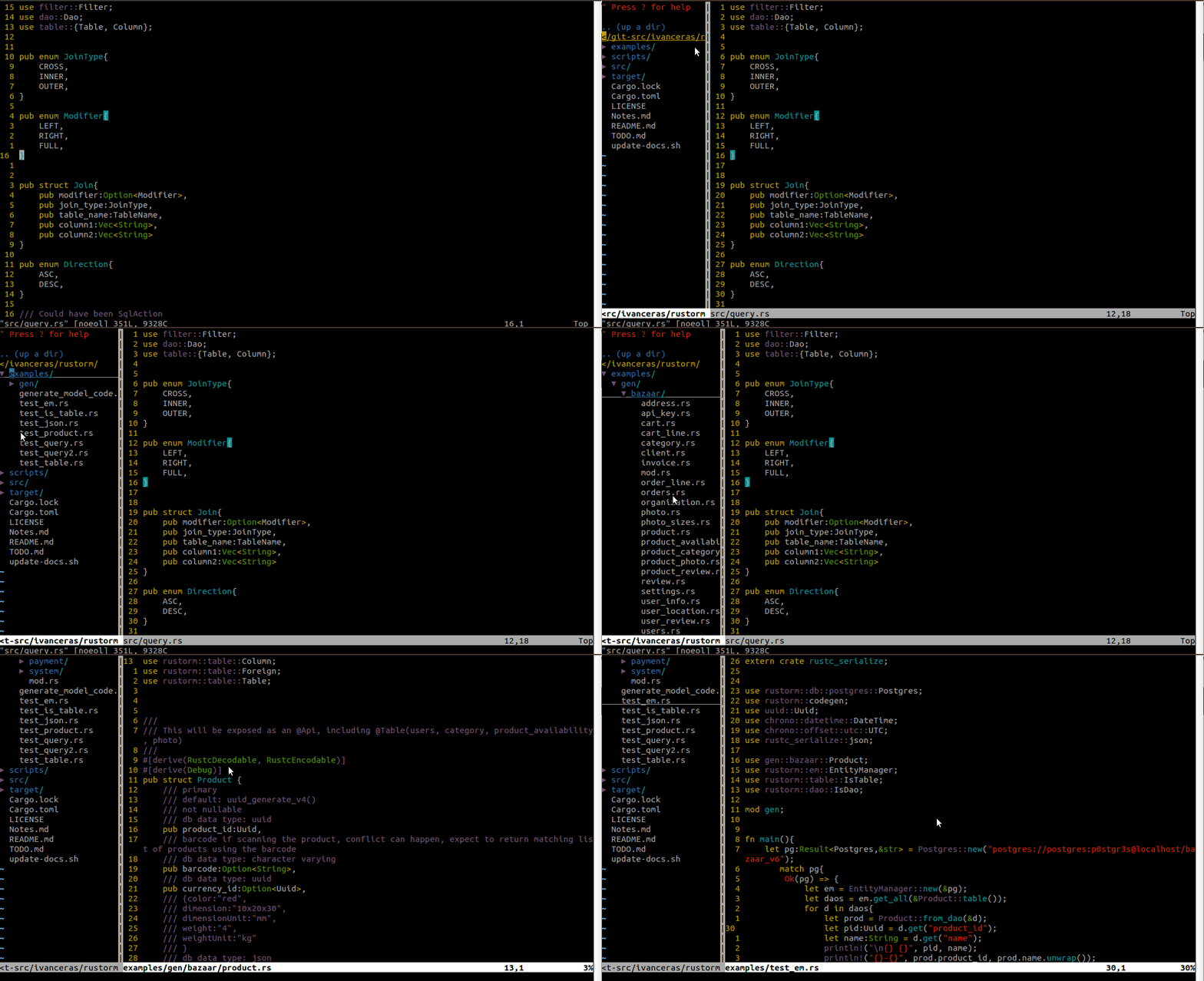
If you want to use the mouse to point and click files and move the cursor around, add this to your `~/.vimrc`
```
"enable mouse support
set mouse=a
```
Additionally, you can use arrow keys to move the cursor around.
However, if you are really serious about using `vi` and want to maximize your `vi` skills, you should minimize the use of the arrow keys or the mouse.
## A helpful vim cheatsheet at
* http://vim.rtorr.com/
* [My Comprehensive List](https://github.com/ivanceras/rust-vim-setup/blob/master/VIM_Notes.md)
## Automatically reload files when changed
Sometimes some of your files might get edited outside of your current `vi` session, such as other editors/code generators, dropbox sync, git pulls.
* Add this to your `~/.vimrc` to refresh them automatically
```
" check file change every 4 seconds ('CursorHold') and reload the buffer upon detecting change
set autoread
au CursorHold * checktime
```
## Enable the global Clipboard in vim
In Linux distros, you have to install `vim-gtk` to gain clipboard functionality.
[More information here.](http://stackoverflow.com/questions/3961859/how-to-copy-to-clipboard-using-vim)
```sh
sudo apt-get install vim-gtk
```
Then you can
Copy to `+` register, which is the global/OS clipboard
`"+y`
Paste from `+` register
`"+p`
Pasting is equivalent to `--v` in insert mode.
It is equivalent to pasting (`-v`) in terminal.
## One step install for those who have never used vim before or people who want to do it automatically
* This will replace your existing `~/.vimrc` and `.vim`, if you have one
* Don't hold me responsible for breaking your vim configuration, your laundry machine or anything else that would make you angry.
```sh
sudo apt-get install curl
curl -sSf https://raw.githubusercontent.com/ivanceras/rustupefy/master/setup.sh | sh
```
## Update
* Update it via (same as setup)
```sh
curl -sSf https://raw.githubusercontent.com/ivanceras/rustupefy/master/setup.sh | sh
```
## Uninstall
```sh
curl -sSf https://raw.githubusercontent.com/ivanceras/rustupefy/master/uninstall.sh | sh
```