https://github.com/ivanceras/rustupefy
Automagically transform vim into a stunningly beautiful and fast IDE for rust
https://github.com/ivanceras/rustupefy
Last synced: 20 days ago
JSON representation
Automagically transform vim into a stunningly beautiful and fast IDE for rust
- Host: GitHub
- URL: https://github.com/ivanceras/rustupefy
- Owner: ivanceras
- License: mit
- Created: 2015-12-07T08:55:27.000Z (over 10 years ago)
- Default Branch: master
- Last Pushed: 2020-09-02T08:42:11.000Z (almost 6 years ago)
- Last Synced: 2024-05-23T01:32:14.033Z (about 2 years ago)
- Language: Shell
- Size: 2.82 MB
- Stars: 13
- Watchers: 4
- Forks: 3
- Open Issues: 1
-
Metadata Files:
- Readme: README.md
- License: LICENSE
Awesome Lists containing this project
README
## Rustupefy!

[](https://travis-ci.org/ivanceras/rustupefy)
[](./LICENSE)
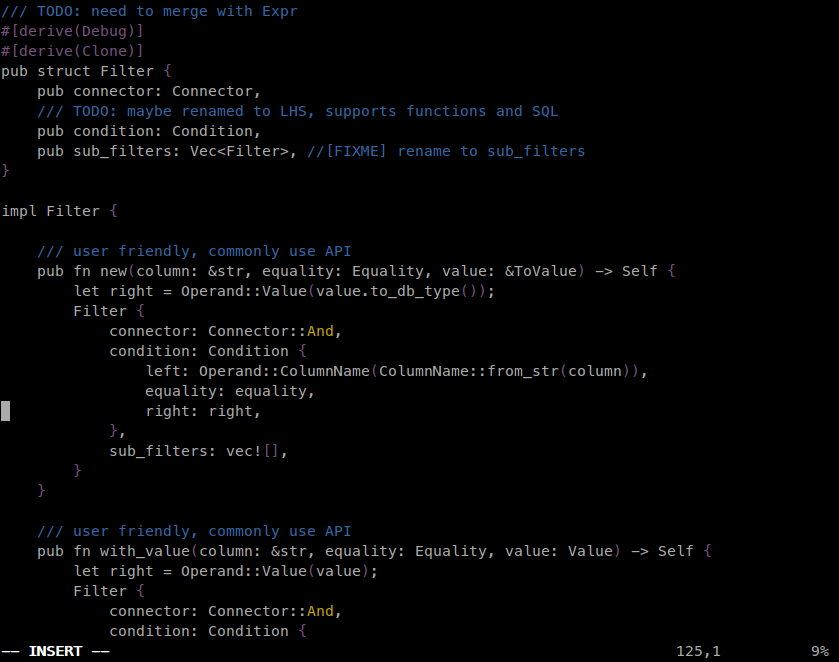
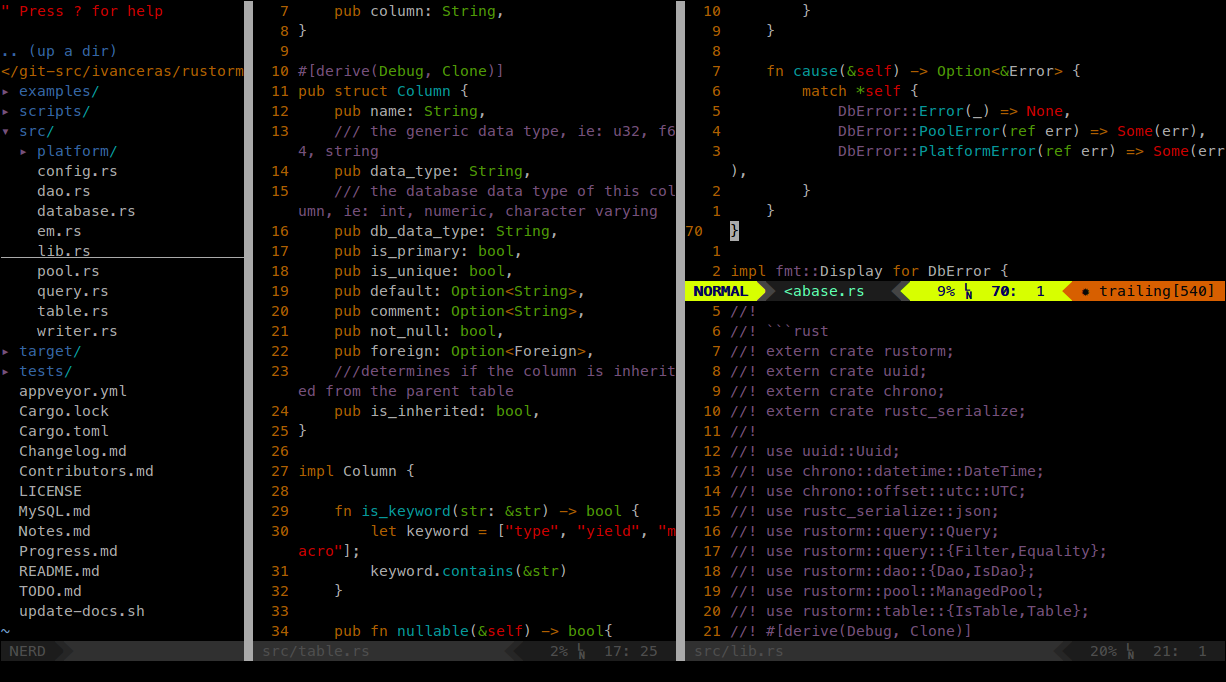
A series of scripts to automagically transform vim into a stunningly beautiful and fast IDE for rust
**From this**
**To this**
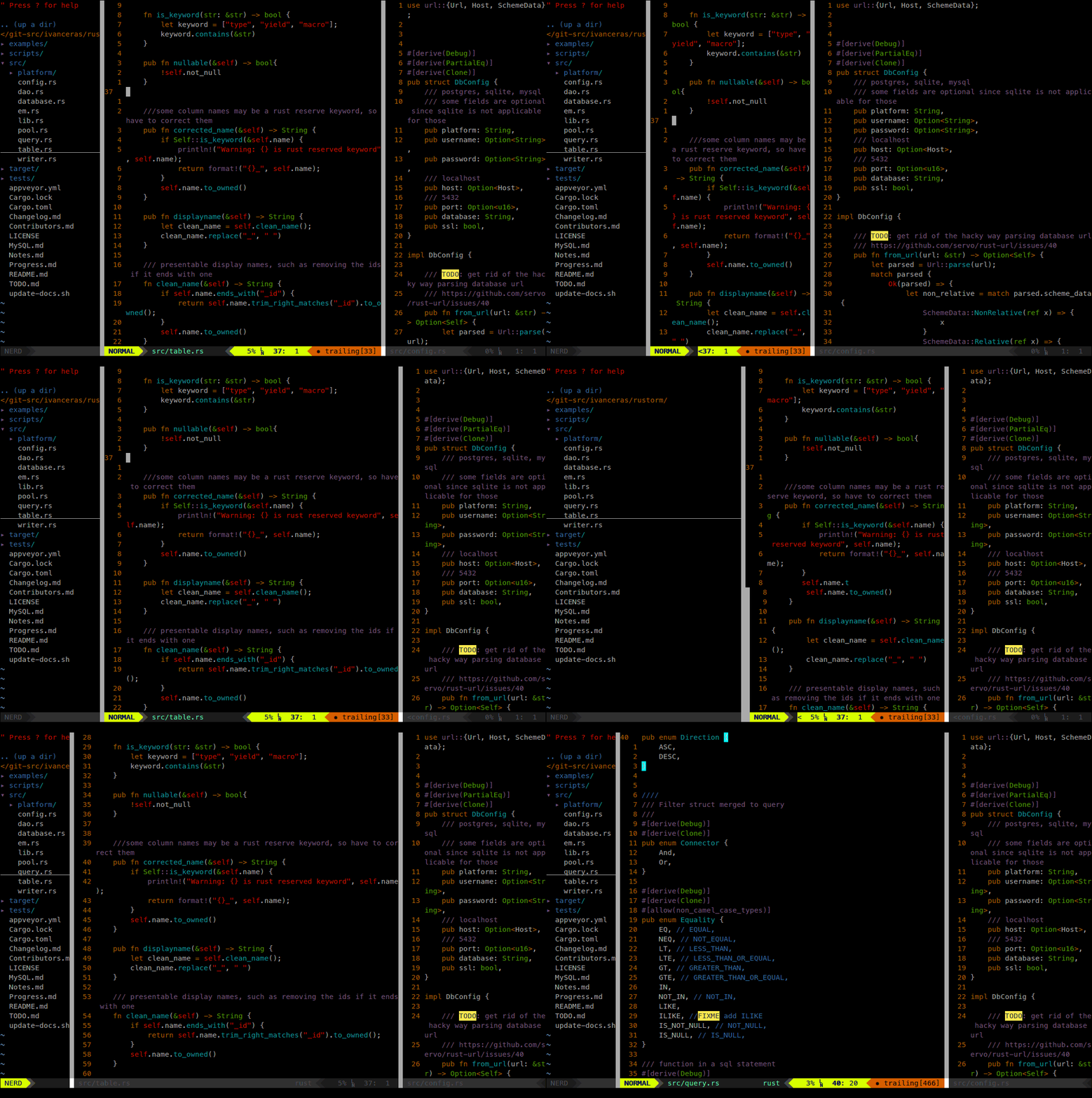
**And crazy responsive like this**
This script is aiming to jumpstart non-vim users to be able to use minimally configured vim for Rust development.
**If you have been using vi before, this script might not be for you**
## Ubuntu
### Installing
```sh
sudo apt-get install curl
curl -sSf https://raw.githubusercontent.com/ivanceras/rustupefy/master/ubuntu/setup.sh | sh
```
### To update, run the same script as above
```sh
curl -sSf https://raw.githubusercontent.com/ivanceras/rustupefy/master/ubuntu/setup.sh | sh
```
### You don't like it?
```sh
curl -sSf https://raw.githubusercontent.com/ivanceras/rustupefy/master/ubuntu/uninstall.sh | sh
```
## Arch Linux
### Installing
```sh
sudo pacman -S curl
curl -sSf https://raw.githubusercontent.com/ivanceras/rustupefy/master/arch/setup.sh | sh
```
### To update, run the same script as above
```sh
curl -sSf https://raw.githubusercontent.com/ivanceras/rustupefy/master/arch/setup.sh | sh
```
### You don't like it?
```sh
curl -sSf https://raw.githubusercontent.com/ivanceras/rustupefy/master/arch/uninstall.sh | sh
```
The script will undo as much as it can, but not guaranteed as it was before.
## Void Linux
### Installing
```sh
sudo xbps-install curl
curl -sSf https://raw.githubusercontent.com/ivanceras/rustupefy/master/void/setup.sh | sh
```
### To update, run the same script as above
```sh
curl -sSf https://raw.githubusercontent.com/ivanceras/rustupefy/master/void/setup.sh | sh
```
### You don't like it?
```sh
curl -sSf https://raw.githubusercontent.com/ivanceras/rustupefy/master/void/uninstall.sh | sh
```
The script will undo as much as it can, but not guaranteed as it was before.
## What are the plugins installed
- [nerdtree](https://github.com/scrooloose/nerdtree)
- [rust.vim](https://github.com/rust-lang/rust.vim)
- [vim-airline](https://github.com/bling/vim-airline)
- [vim-numbertoggle](https://github.com/jeffkreeftmeijer/vim-numbertoggle)
- [vim-racer](https://github.com/racer-rust/vim-racer)
## I wanna learn it step-by-step.
**[Here is how is it done manually](https://github.com/ivanceras/rust-vim-setup)**
# Basic Controls
CTRL-t open or close nerdtree
CTRL-n toggle relative / absolute numbering
CTRL-w w switch focus on nerdtree and open windows
h,j,k,l navigate the cursor left, down, up, right respectively
i insert mode, you can start typing in your code
go back to normal/default mode, where you can issue vi commands
:w write/save the file, you are editing
:wqa save the file, then quit the editor closing vi including the files tab
set focus on the nerd tree
## Rust specific commands
CTRL-x CTRL-o activate auto rust autocompletion (example: type in `String::` then press CTRL-x CTRL-o then select from the drop down list the appropriate functions)
gd go to function/struct/variable declaration of the focused item ( this is equivalent to eclipse' open declaration )
gD go to declaration split open in window tab
:bp to go back to the previous edited file (very useful when following a declaration)
:b when you have open a lot of files, this comes in handy in showing back the previously open files
## Where to go from here
[A more comprehensive List of VIM commands](https://github.com/ivanceras/rust-vim-setup/blob/master/VIM_Notes.md)