https://github.com/j0hn-b/opencv_webcam
Access your shared webcam live streaming inside a container
https://github.com/j0hn-b/opencv_webcam
developer-tools docker-container flask live-streaming opencv opencv-python python video-streaming
Last synced: about 2 months ago
JSON representation
Access your shared webcam live streaming inside a container
- Host: GitHub
- URL: https://github.com/j0hn-b/opencv_webcam
- Owner: J0hn-B
- License: mit
- Created: 2024-03-13T15:54:07.000Z (over 2 years ago)
- Default Branch: main
- Last Pushed: 2024-03-13T19:42:57.000Z (over 2 years ago)
- Last Synced: 2025-06-22T02:44:45.814Z (12 months ago)
- Topics: developer-tools, docker-container, flask, live-streaming, opencv, opencv-python, python, video-streaming
- Language: Python
- Homepage:
- Size: 5.86 KB
- Stars: 1
- Watchers: 1
- Forks: 0
- Open Issues: 0
-
Metadata Files:
- Readme: README.md
- License: LICENSE
Awesome Lists containing this project
README
# OpenCV live streaming in Docker
- Share your laptop webcam on the local network
- Access your laptop webcam feed and a shared directory inside a Docker container
- Run the vision application inside the container and display the live camera feed, modify the vision application and see the changes.
## Start Here
```bash
git clone https://github.com/J0hn-B/opencv_webcam.git && cd opencv_webcam
```
## Share your laptop webcam on local network
> To change the default settings, edit the [camera](camera_server/camera.py) `camera_feed` & `local_port` variables
If your want to share the camera of a `Windows machine` and you have `Task` installed:
`Taskfile.yml`
```bash
task share_camera
```
else:
```bash
pip3 install -r camera_server/requirements.txt
python3 camera_server/camera.py
```
Starting the server, `the IP address and port number will be displayed in the terminal`
---
## Access your laptop webcam feed inside a container
> ! Important: The container uses `-v /tmp/.X11-unix:/tmp/.X11-unix` to display the camera feed.
>
> For `-v /tmp/.X11-unix:/tmp/.X11-unix` to work effectively, you should use a Unix-based host such as Linux, WSL or MacOS to run the container.
>
> For Windows, you need to install an X server like VcXsrv
Update the `camera_feed` IP address in [app](vision/app/main.py) file **with the IP address and port number displayed in the previous step**
```python
camera_feed = "" # example: http://192.168.0.10:5000
```
Continue with:
```bash
task run_vision
```
else:
```bash
# Build the image
docker build -t vision:latest vision
```
```bash
# Run the container
docker run -it -e DISPLAY=$DISPLAY -v $(pwd)/vision/app/:/vision -v /tmp/.X11-unix:/tmp/.X11-unix --network="host" vision:latest /bin/bash
```
---
## Run the vision application
**From inside the container:**
```bash
# root@docker-desktop:/vision#
pip install -r requirements.txt
```
```bash
# root@docker-desktop:/vision#
python main.py
```
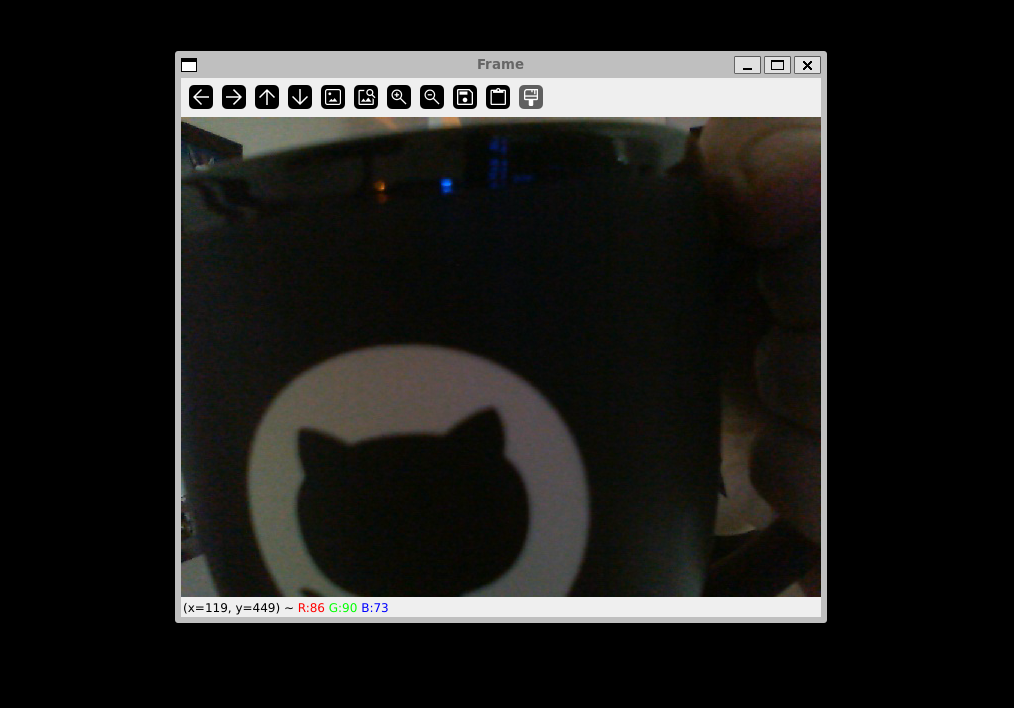
A new window will open displaying the live camera feed
## Stop the app and exit the container
```bash
# root@docker-desktop:/vision#
CTRL+C
exit
```