https://github.com/jdtsmith/autoftp
https://github.com/jdtsmith/autoftp
Last synced: over 1 year ago
JSON representation
- Host: GitHub
- URL: https://github.com/jdtsmith/autoftp
- Owner: jdtsmith
- License: mit
- Created: 2021-03-12T15:21:21.000Z (over 5 years ago)
- Default Branch: master
- Last Pushed: 2021-08-27T13:40:12.000Z (almost 5 years ago)
- Last Synced: 2025-01-22T06:24:22.160Z (over 1 year ago)
- Language: Python
- Size: 225 KB
- Stars: 2
- Watchers: 3
- Forks: 0
- Open Issues: 0
-
Metadata Files:
- Readme: README.md
- License: LICENSE
Awesome Lists containing this project
README
# autoftp — Fast remote development over FTP [](https://GitHub.com/jdtsmith/autoftp/tags/)
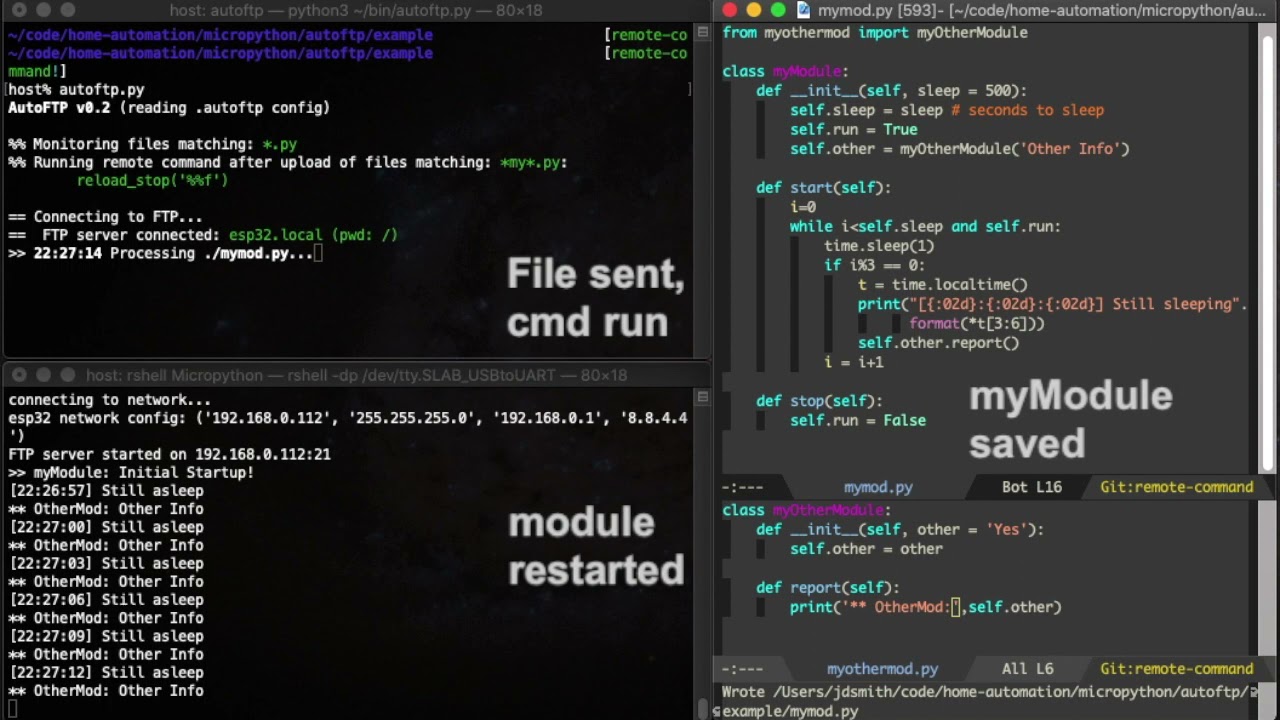
autoftp: Auto-send matching files over the network using FTP.
autoftp watches for changes in files with matching names in the current directory and all subdirectories, quickly sending them by FTP to a remote server. While this works with any files and remote FTP server, it is ideal for network-connected microcontroller development with interpreted frameworks like [MicroPython](http://micropython.org), where it is the fastest way to develop. Matching files can optionally be pre-processed with a script and, with server support, remote commands can be run, allowing you to auto-restart running modules, for example.
Click the image to see `autoftp` in action.
## Quick Start
```
% pip install colorama watchdog
% autoftp.py hostname
```
For devices running micropython: install the [`uftpd.py`](https://github.com/robert-hh/FTP-Server-for-ESP8266-ESP32-and-PYBD) micro-FTP server on your micro-controller, and set it up to run on boot (see [below](#micropython-application) for tips).
Install the [`autoftp`](https://raw.githubusercontent.com/jdtsmith/autoftp/master/autoftp.py) file and run it like you normally run your Python3 scripts.
To use, just run in your project directory: `autoftp.py host`. `autoftp` will start monitoring for changes in any `.py` files (by default) in the local directory and all subdirectories, sending the files via an actively maintained FTP session to `host` whenever they are created or modified, and creating any sub-directories on the remote host as needed. See more [examples](#Examples) below.
## Usage
```
Usage: autoftp host -d|--debug -n|--dry-run -p|--include=pats -x|--exclude=pats
-s|--process=pat,script -k|--up-delete=pats
host: FTP host to connect to
-d|--debug: Enable debugging output
-n|--dry-run: Uploads and local deletes are logged, but do not occur
-p|--include='pat,pat,...': include patterns of files to match for upload
(default: '*.py')
-x|--exclude='pat,pat,...': patterns to ignore (e.g. '*lib/*,secret*.py')
-s|--process='pat,script' : instead of uploading, run `script' on each file
matching `pat' (can pass multiple times)
-k|--up-delete='pat,pat,..': delete files match any of the patterns, after
they have been successfully uploaded
-r|--remote-command='command': command to execute on the remote (ftp) server
after each uploaded file. %%f will be replaced by
the file basename of the uploaded file
-m|--remote-match='pat,pat': only execute --remote-command on uploaded
files which match one of these patterns
```
`Ctrl-C` to quit.
## Micropython Application
Micro-controller development can be tedious. With C-based firmware frameworks, a typical cycle is like:
1. Make a tiny change, perhaps to a single constant in some file
1. Recompile, sometimes many dozens of files [1-30s]
1. Relink the firmware [1-10s]
1. Upload the full multi-MB firmware over Serial [>10s]
1. Wait for the microcontroller to reboot and re-run firmware
1. Test your changes
1. Realize your change wasn't correct; back to step 1...
An edit/compile/build/upload "development loop" cycle well over one minute is not atypical. When using such methods, I often _forget what it was I was testing_ before an iteration completes. Painful!
[MicroPython](http://micropython.org) greatly simplifies this workflow. It includes an interactive REPL on the microcontroller for testing and development. Its _paste mode_ (`Ctrl-E`) makes it trivial to test small chunks of code. But for typical projects, you'll often be editing and uploading relatively large Python files (>5Kb). In this case, the development loop is faster than with compiled toolchain, but can _still_ be a somewhat slow process:
1. Make a tiny change, perhaps to a single constant in some file
1. Using a tool like [rshell](https://github.com/dhylands/rshell): `C-x` to exit the REPL, `cp file.py /board` to upload file over serial port [up to ~15-20s for a large 25K file, at typical baud rates]
1. Wait for microcontroller to reboot (which the rshell `cp` causes), and then reinitialize (perhaps by hand) [1-5s, e.g. for Wifi startup]
1. Test your changes
1. Goto step 1...
This can _still_ constitute a 10-30s "development loop" time, maybe more if you have to set some things up by hand on reboot. `autoftp` enables a _much faster_ workflow for network-connected microcontrollers:
1. Make a tiny change, perhaps to a single constant, save your file
1. File changes are noticed automatically and the file is immediately uploaded to the micro-controller [0.5s for small file, <1s for files up to 25K]
1. Reload code and test (perhaps automatically! see below)
1. Goto step 1...
## Usage Details
Only files are watched and uploaded. All files _must_ match one of the `-p|--include` wildcard patterns (`*.py` by default), and _must not_ match any of the `-x|--exclude` exclude pattern(s). The latter is a good way to omit entire directories, etc. Be aware that files in the current directory are referred to with a leading path, and that patterns match against the entire path name (directory included). By default, files are placed on the remote host in directories relative to the remote FTP server's working directory (typically the root directory of the microcontroller).
### Pre-process files with scripts
If you need to pre-process one file type to produce another, you can use, e.g., `-s '*.ext, process'` to run the script `process` on files matching `*.ext`. `process` is called with the path to the matched file as its only argument, and, although it may do anything with it, it presumably creates or updates _other_ files. If these script-created files are matched by a `-p` flag, they are then picked up for auto-transfer.
In addition, if an _uploaded file_ matches any of the `-k|--up-delete` patterns provided (if any), the local version of that file will be _deleted_ after successful upload (**caution: `-k` deletes files locally!!**). This is quite useful for "temporary" files like compiled versions which should be transfered in lieu of their source files, but which don't need to be kept locally, cluttering the directory.
Note that, since they operate only on _successfully uploaded_ files, `-k|--up-delete` patterns _must_ match files which are _also_ matched by at least one of the `-p|--include` patterns (and _none_ of the `-x|--exclude` patterns) to have an effect.
### Dry Runs
Especially if using `-k|--up-delete`, consider first checking that your patterns are working as expected by using `--dry-run|-n`. It logs (in blue) what actions `autoftp` _would_ have taken, omitting uploads, local deletes, and any remote commands.
N.B. If the files being created or modified by a `-s|--process` script are _also_ being uploaded to the host, you must take care to prevent endless loops from commencing (e.g. by placing the script output files in a directory excluded using `-x`). Script processing occurs before upload.
### Remote Commands
If your FTP server supports the `SITE` FTP command for sending custom commands to the server, you can specify a command to send after files are uploaded with `-r|--remote-command`. If configured in the `.autoftp` config file (see below), the remote command can even be multi-line. Note that newline characters are not permitted in FTP commands, so they are translated to null characters ('\0'). Your FTP server's `SITE` handlers would need to be able to translate these. Recent versions of the [`uftpd.py`](https://github.com/robert-hh/FTP-Server-for-ESP8266-ESP32-and-PYBD) MicroPython FTP server include `SITE` support for `exec`'ing remote python statements.
If `-m|--remote-match` patterns are specified, the `remote-command` will _only_ be run after uploading files which match these patterns.
N.B.: The `SITE` command *must not block*, or the FTP server will likely stop functioning. In the context of `exec`'d MicroPython statements, they must return immediately (typically after setting a flag in the main module/object/etc. to signal a stop and reload). See below for examples.
### `.autoftp` Config File
Rather than specifying all arguments and options on the command line, some or all arguments and options can be specified in a local config file named `.autoftp`. This file, if it exists, is automatically read and applied for the local directory. The format is simple:
```
host: hostname
long-option-name
long-option-with-value-name: value
```
with one option per line (omitting the leading dashes). **Do not include string quote marks around values.** Options passed via the command line override & extend file-based options.
### Examples
1. Upload all `.py` files in the current or any subdirectory:
```
% autoftp.py host.local
```
1. Auto-compile `.py` files into `.mpy` files and upload, deleting them locally afterwards:
```
% autoftp.py host.local -p '*.mpy' -s '*.py, mpy-cross' -k '*.mpy'
```
1. A full configuration using the following `.autoftp` config file specifying all options (run simply as `autoftp.py`):
```
host: esp32.local
include: *.mpy, *.inc
exclude: test/*
process: *.py, mpy-cross
up-delete: *.mpy
remote-match: *main.mpy, lib/*.mpy
remote-command:
print("Reloading Main:")
reload('%%f','main')
```
This will configure `autoftp` to upload `.mpy` and `.inc` files to `esp32.local`, omitting anything in the `test/` directory. It pre-processes `.py` files into `.mpy` files using `mpy-cross`, deleting these generated `.mpy` files after they are uploaded. And for the file `main.mpy`, as well as all `.mpy` files under `lib/`, after upload, `autoftp` will send a remote command which _reloads_ the relevant modules together with the `main` module itself (see below for ideas on how to implement this).
1. A complete example `remote-command` based auto-reloading of multiple modules can be found in [example/](https://github.com/jdtsmith/autoftp/tree/master/example).
## Questions
1. **Where does `autoftp` put the files?** FTP servers have a _current working directory_ (mentioned at `autoftp` startup). For a typical installation this will be `/`, the root of your micro-controller's flash. Files in the directory where `autoftp` is run from go into the current working directory; files in subdirectories go into matching subdirectories (which are created if necessary).
1. **Won't this wear out the flash?** Unlikely. Flash is usually written using _wear-leveling_ to spread the writes around, and each cell can support ~100,000 writes without error. If you edit and re-upload a 5K file (about 150 lines of Python) every 10 seconds 10hrs/day, this works out to 1.3 million writes per year, or just over 1600 full re-writes of a typical (ESP32) 4MB of flash. At this rate, it would take **62 years** to surpass the 100,000 write limit: a pretty good safety margin. Another perspective: it takes a fixed number of code/upload/check cycles to bring a project into stability; `autoftp` just accelerates that process.
1. **Does autoftp delete files remotely?** For safety, file deletions events in the directory path are _not_ mirrored on the FTP server. With the `--updelete=|-k` option, any matching files _which have been successfully uploaded_ are deleted _locally_. These are typically temporary files produced by the `-s` script option.
1. **Why not just use an FTP client?** In fact tools like `ncftpput` can automatically find changed files (based on size and modification time) and upload them. But this adds 1-3s minimum extra overhead as it re-negotiates the FTP connection and checks for changed files each time. So you either have to remember which file you were working on, or have it check the remote timestamp of all files (another ~5s or more). `autoftp` takes all that friction entirely away and reduces transfer time below ~1s. And of course they don't have the ability to run remote commands. Traditional recursive ftp clients like `ncftpput` are still quite useful for pre-seeding a file heirarchy from scratch. And you can easily delete remote files using an interactive FTP session (which is quite a bit faster than using `rshell`).
1. **What if the FTP server gets reset?** This can happen for example after a hard or soft-reset. If it loses the connection, `autoftp` attempts to reconnect to the FTP server, and proceeds with the transfer. But rather than soft reset'ing to try out your new script, see below for some other ideas.
## Tips
### Installing uftpd
[`uftpd.py`](https://github.com/robert-hh/FTP-Server-for-ESP8266-ESP32-and-PYBD) is a small MicroPytyon FTP server which runs in the background waiting for socket connections. Recent versions include support of the `SITE` FTP command, which enables the `--remote-command` option. To install, just drop the `uftpd.py` file on your microcontroller (perhaps in the `lib/` subdirectory), and `import` it in your `boot.py`.
### Avoiding soft reset
A simple way of "starting from scratch" is to soft-reset your MicroPython board with `Ctrl-D`. This has the nice property of re-starting MicroPython with a clean slate without a full hardware boot. But it also closes open sockets, including FTP. While `autoftp` will re-connect if it finds the FTP link broken, this takes several seconds. Sometimes this may be required, but a quicker way is to _re-run_ your file after uploading it, for example using a simple "run" script (as defined in your `main.py`, for example), like:
```python
import sys
def unload(mod):
if not isinstance(mod, (list, tuple)): mod = (mod,)
for m in mod:
mod_name = m if type(m) is str else m.__name__
if mod_name in sys.modules:
del sys.modules[mod_name]
return mod_name
def run(mods):
name = unload(mods)
__import__(name) #only updates sys.modules!
```
Now, assuming you have a module named `myMainModule` which imports and runs your code, you can just let `autoftp` automatically transfer for you, stop your module, and then:
```
>>> run('myMainModule')
```
Often, however, your main module imports other modules, so will _also_ need to be re-run in the event those change. This can be accomplished by passing a list or tuple of files to `run`:
```
>>> run(('otherModule','myMainModule'))
```
### Auto re-running your project using `remote-command`
If your FTP server supports `exec`ing code, you can automatically re-run the main program or module using `--remote-command`. Find a complete simple example of how to do this is in the [`example/`](https://github.com/jdtsmith/autoftp/tree/master/example) directory. Also see this directory for a suggested way to start wifi and the ftp server in a MicroPython context.